If a scanned PDF turns into blank slides, jumbled text, or a set of uneditable pictures, changing the slide theme will not solve the underlying problem. First find out whether the file contains usable text and whether that text comes out in the right order.
This guide covers the extraction problems that happen before slide design: scans, OCR mistakes, columns, tables, and missing symbols. For the broader choice between preserving PDF pages and rewriting them into a presentation, see our PDF-to-PowerPoint methods guide.
Find out what kind of PDF you have
Open a page with ordinary body text. Try selecting one sentence, then copy it into a plain text editor. Look at the pasted words, not just whether the selection highlight appeared.
- Nothing can be selected: the page may be an image-only scan. It needs text recognition if you want to reuse its words.
- Text copies correctly: concentrate on structure and slide selection rather than running OCR again.
- Text copies as wrong characters or in a strange order: a text layer exists, but it is not yet reliable enough to build your outline from.
Check a few different pages. A report can contain selectable text alongside scanned appendices. A file's .pdf extension does not tell you which kind of content is on each page.
If copying is restricted, ask the document owner for an authorized source copy. A permission problem and an image-only scan need different solutions.
Run OCR when the page only contains an image
Optical character recognition, or OCR, identifies letters in a page image. It gives you text to search and copy; it does not turn a photographed table into a trustworthy spreadsheet or create a finished slide deck.
Using Adobe Acrobat
In Acrobat, open the scan and choose All tools > Scan & OCR. Select the current file, set the page range and recognition language, then run text recognition. Keep the original scan so you can compare the extracted wording with it. Adobe's OCR instructions describe this searchable-text workflow.
Review names, decimal points, dates, and symbols before moving on. Acrobat also provides tools for correcting recognized text. A sentence can look fluent even when one character has changed the meaning.
Using Google Drive and Google Docs
For a small file you can upload to Drive, right-click it on a computer and choose Open with > Google Docs. Google recommends files of 2 MB or less, upright pages, and sharp text. Its guidance says tables, columns, lists, and notes may not retain their structure.
Treat the resulting document as extracted text to edit. It is not a Google Slides conversion and does not prove that the original layout has been preserved.
Fix the reading order before shortening the text
Two-column pages can produce a particularly confusing result: half a sentence from the left column followed by half a sentence from the right. Headers, captions, and footnotes may also interrupt the main argument.
Read the extracted text as a continuous paragraph. If the sequence is wrong, put each section in a clean document with a heading, followed by its own paragraphs and source note. Removing an unrelated running header is useful; deleting a footnote that qualifies a result is not.
Acrobat's Reflow view can help reveal order problems. For tagged PDFs, its Reading Order tool can show numbered content regions and help correct their sequence. Those PDF repairs do not guarantee that every presentation converter uses the tags in the same way, so inspect the extracted outline too.
If the editable Word or publishing file is available, repair the structure there and make a new PDF. Repeatedly cleaning the same damaged extraction is usually less useful than fixing the source.
Match the symptom to the repair
| What you see | What to try next |
|---|---|
| Blank outline or page-sized pictures | Test whether the page has usable text. Run OCR on image-only pages when you need the words. |
| Sentences jump between columns | Extract one section at a time and restore its paragraph order before summarizing. |
| Wrong figures or symbols | Compare with the visible source. Check decimal marks, minus signs, percentages, and units individually. |
| Table values are detached from headings | Return to the original spreadsheet if available; otherwise rebuild a small table against the PDF. |
| Charts look correct but cannot be edited | Use the original chart data to rebuild them when updates are required. A picture may be sufficient when you only need to show the source. |
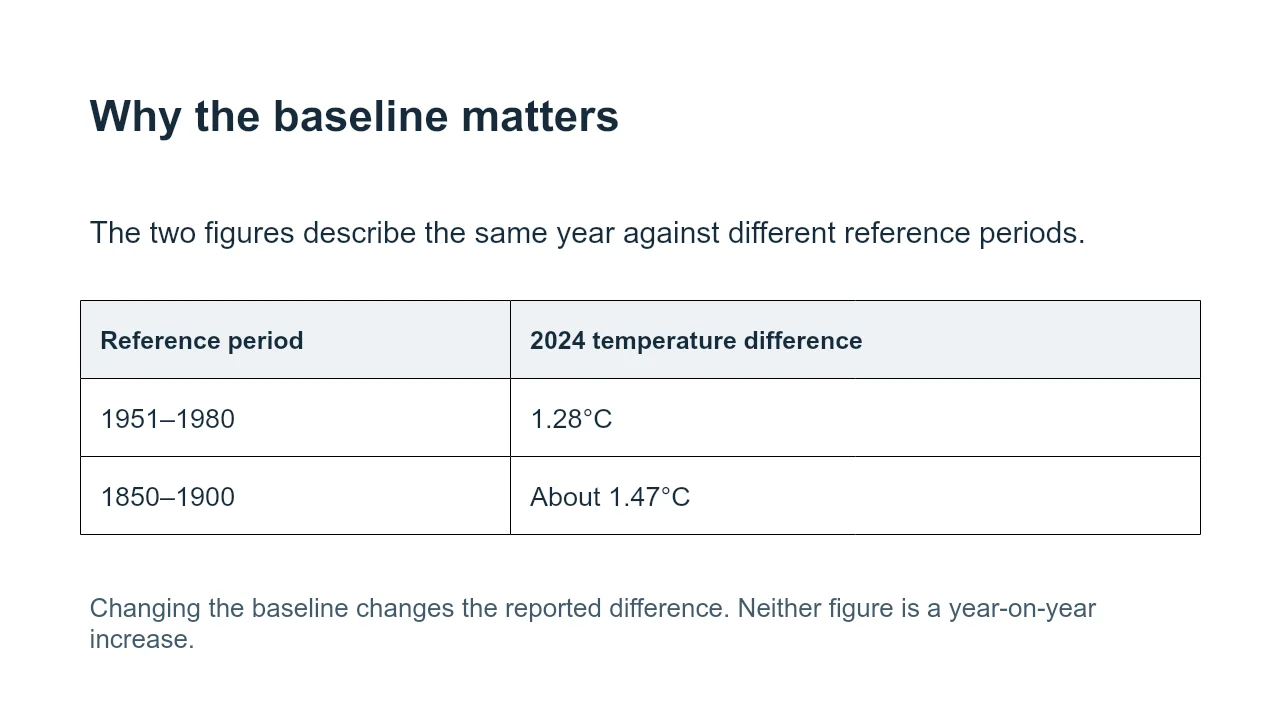
For example, misreading 1.28 as 128 would change a claim dramatically. That is an illustration of the kind of error to look for, not a reported OCR result from the sample below. Do not ask a writing assistant to guess which number was intended.
Try a clean source before troubleshooting a difficult scan
Download our text-based PDF brief and its Word source. The brief is based on NASA's January 10, 2025 temperature announcement. It is not a scanned document or a benchmark of an OCR product.
Use it as a simple comparison: copy a paragraph from the PDF and compare it with the Word version. The units, comparison periods, and source information should stay with the relevant statements. This makes a useful starting exercise before working on a damaged or multi-column source.
Once your text is reliable, choose what the audience needs to hear. The editable five-slide reference deck shows one editorial treatment of that brief. It is a separate example, not a claim that a converter produced those slides automatically. For the next step, compare free PDF-to-PowerPoint routes by whether you need to preserve the pages or restructure their content, then check the relevant editing and export limits.
You can then use a PDF-to-presentation workflow or build slides from the cleaned text. If all you need is to display an unchanged page, insert a PDF page as an image instead; OCR would add work without making that image more useful.