A mind map can provide the structure for a presentation: a central question, main branches, and supporting ideas. Presenti supports XMind input and can help turn that material into an editable slide draft. The useful work is deciding which branches deserve slides, what evidence each needs, and how the audience should move through the argument.

Can AI Turn a Mind Map into Slides?
Yes, AI can indeed convert mind maps into PowerPoint presentations. A structured mind-map file gives the tool a topic, branches, and supporting points to organize into a slide outline. A picture of a mind map is different from an editable file and may require Optical Character Recognition (OCR) to extract text first. Review the outline before choosing a layout: one branch may need several slides, while supporting notes may belong in speaker notes.
Start with a clear hierarchy and concise branch labels. After generation, compare the outline with the original map and restore any relationships or qualifications that the draft has lost.
How to Create a Presentation from a Mind Map
Use the following sequence to move from a mind map to a slide deck:
- Identify the structure: Find the central topic, main branches, supporting points, and connections the audience needs to understand.
- Prepare the content: Check the branch labels and supporting notes. Keep relevant sources and images available so you can restore anything the import does not retain.
- Plan the slides: Decide which branches belong together and which need separate slides. Give each slide a clear takeaway.
- Refine the design: Choose readable type, consistent colors, and visuals that explain the content. Use animation only when it clarifies a sequence.
- Review the output: Compare the draft with the map before exporting. Check the file in the application you will use to present.
Presenti: A Mind Map to Presentation Generator
Presenti supports importing an XMind file as source material for a presentation. You can also begin with a written topic or outline. Choose the route that preserves your ideas most clearly, then review the slide sequence before applying a template.
Key benefits of using Presenti AI:
- Source choices: Use an XMind file when you have a structured map, or start from a topic or text outline. Improving an existing PPTX uses Presenti’s separate slide-beautification workflow.
- Template selection: Choose a design appropriate to the audience and content. Lessons may need clear explanation and practice slides; a business deck may need comparisons, evidence, and a decision page.

- Editing the draft: Revise text and layouts, then check colors, charts, and images against the purpose of each slide. Apply your approved brand choices where relevant.
The map provides a planning structure; the presentation needs a reading order. Use the draft to check whether each slide makes one useful point and whether the transitions preserve the connections between branches.
Tips for Creating a Presentation from a Mind Map in Presenti AI
Use these steps to prepare the source, review the outline, and refine the slides.
How to Convert an Existing Mind Map into Slides
1. Prepare and upload the source. Check that your XMind file has one clear central topic, meaningful main branches, and enough supporting detail to explain each point. Use the supported file-input workflow in your account. The screenshots provide visual context; labels and available controls may differ in the current interface.
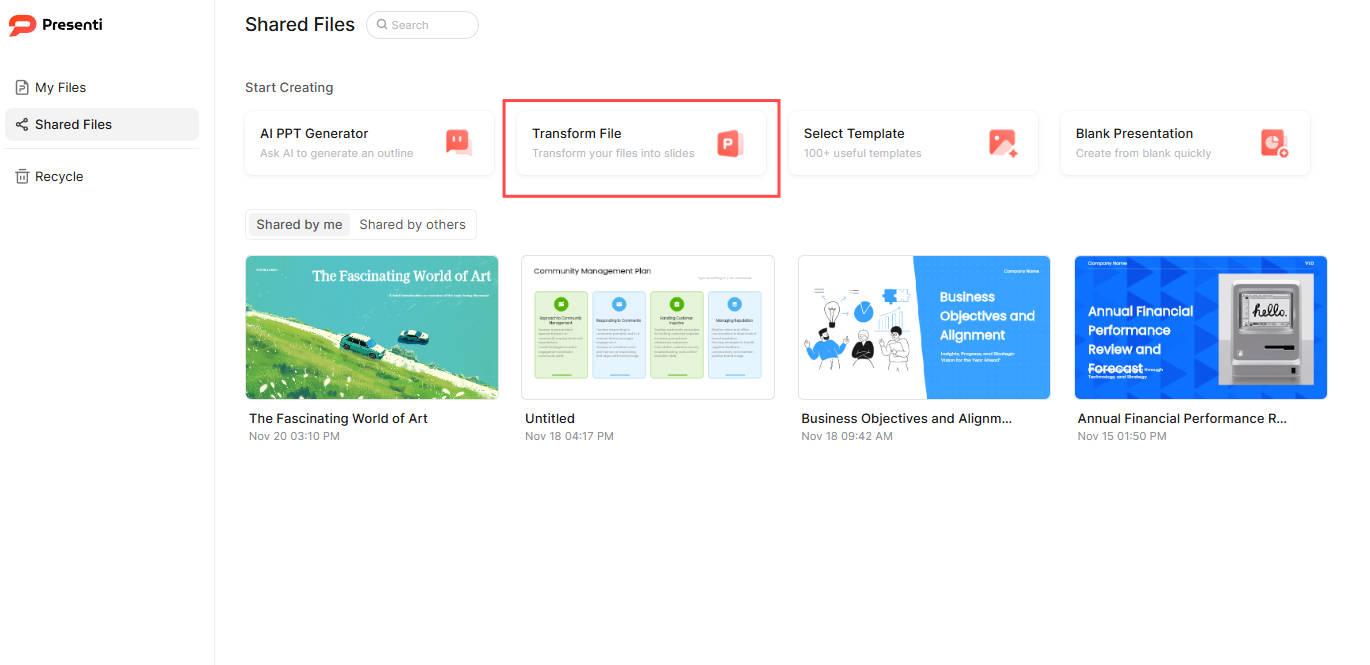
2. Decide how closely the draft should follow the map. Make the intended treatment clear in your brief:
- Preserve the branch order when the existing map already provides a clear argument. Check that the outline retains its key distinctions.
- Reorganize branches when the map reflects brainstorming order rather than the sequence an audience needs.
- Condense lengthy branches to their main claim and essential evidence. Keep useful detail in notes or an appendix.
If a branch is sparse, add an example, a source, or a question to investigate. Verify new factual content before including it in the presentation.
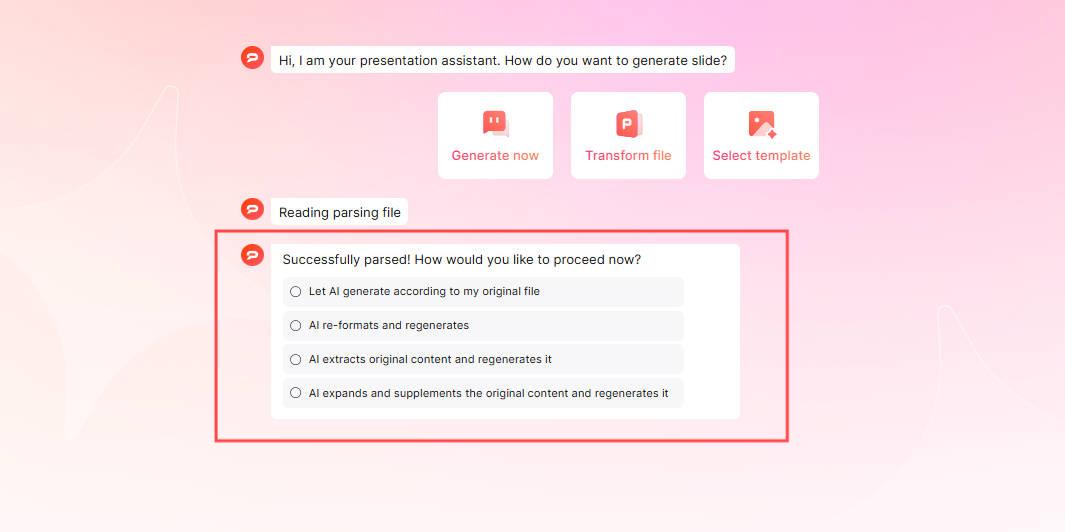
3. Review the outline. Check the order, merge duplicate branches, and split a dense branch across several slides when necessary. Keep the original map beside the outline so you can trace each important point.
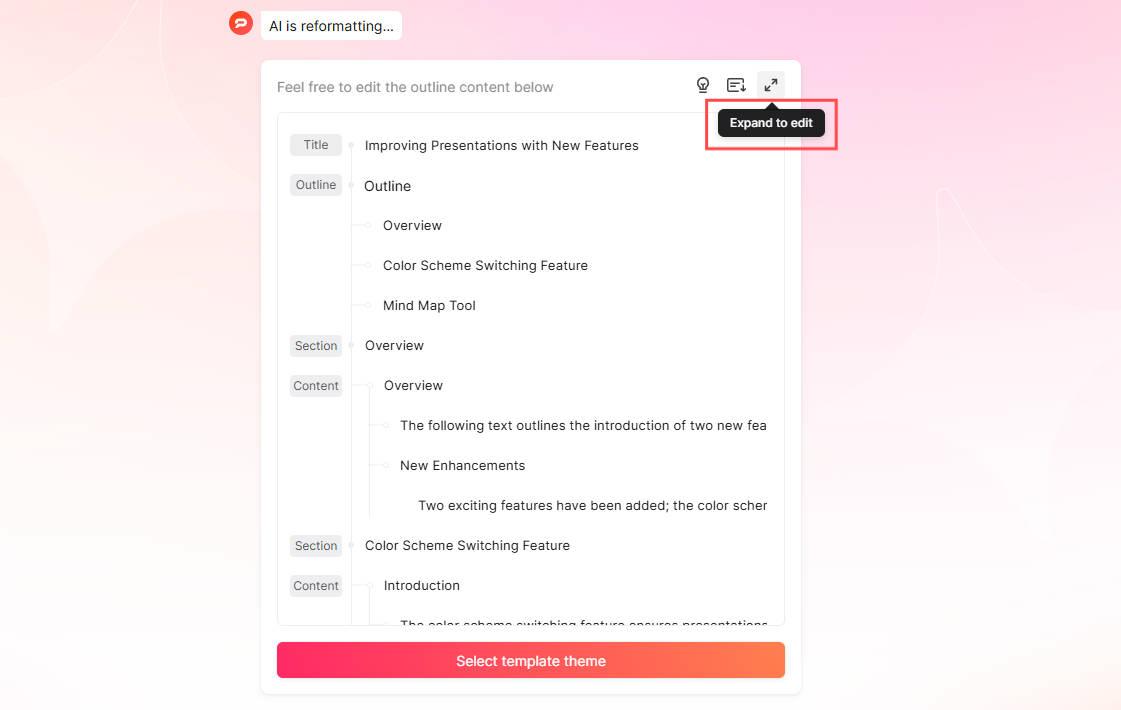
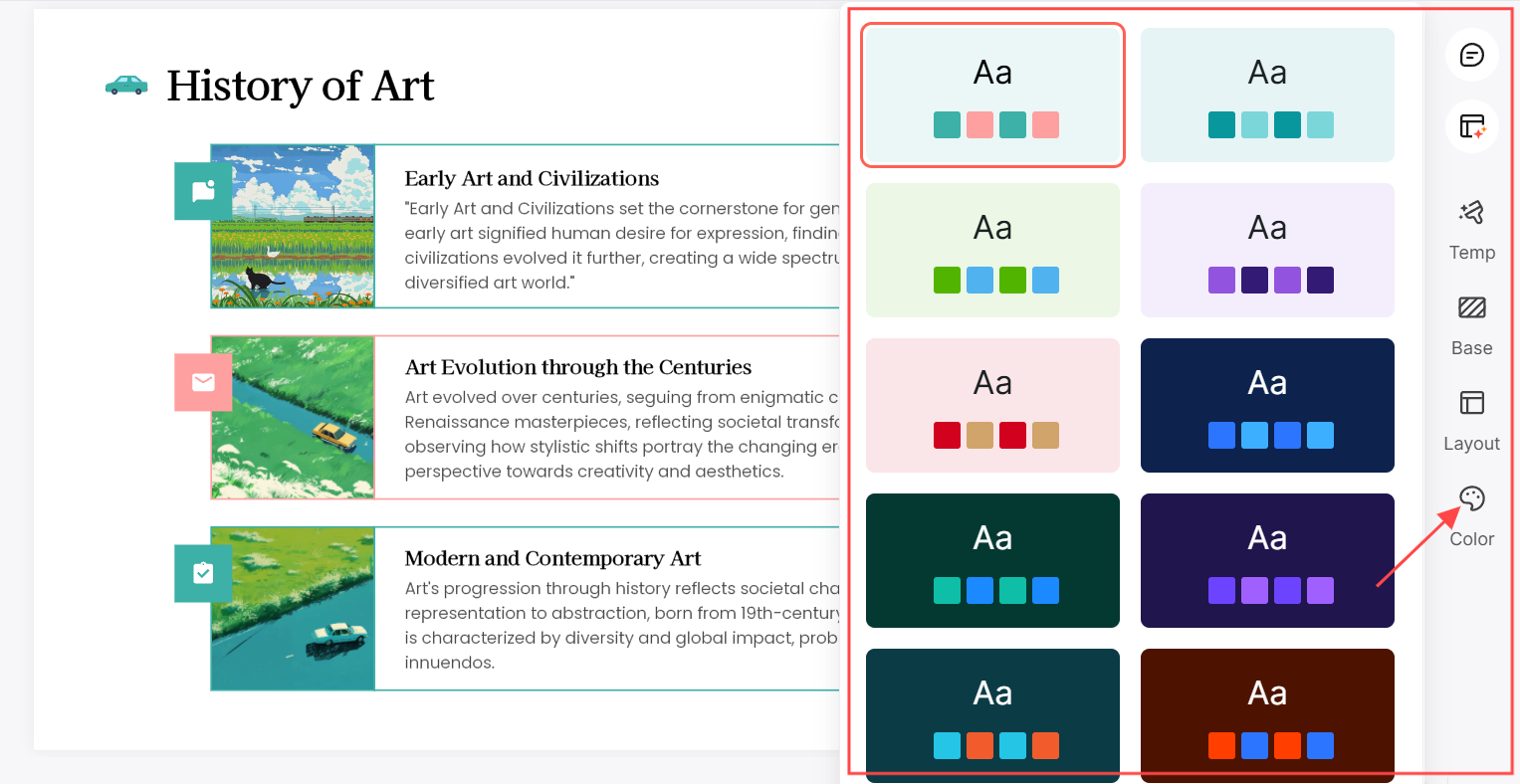
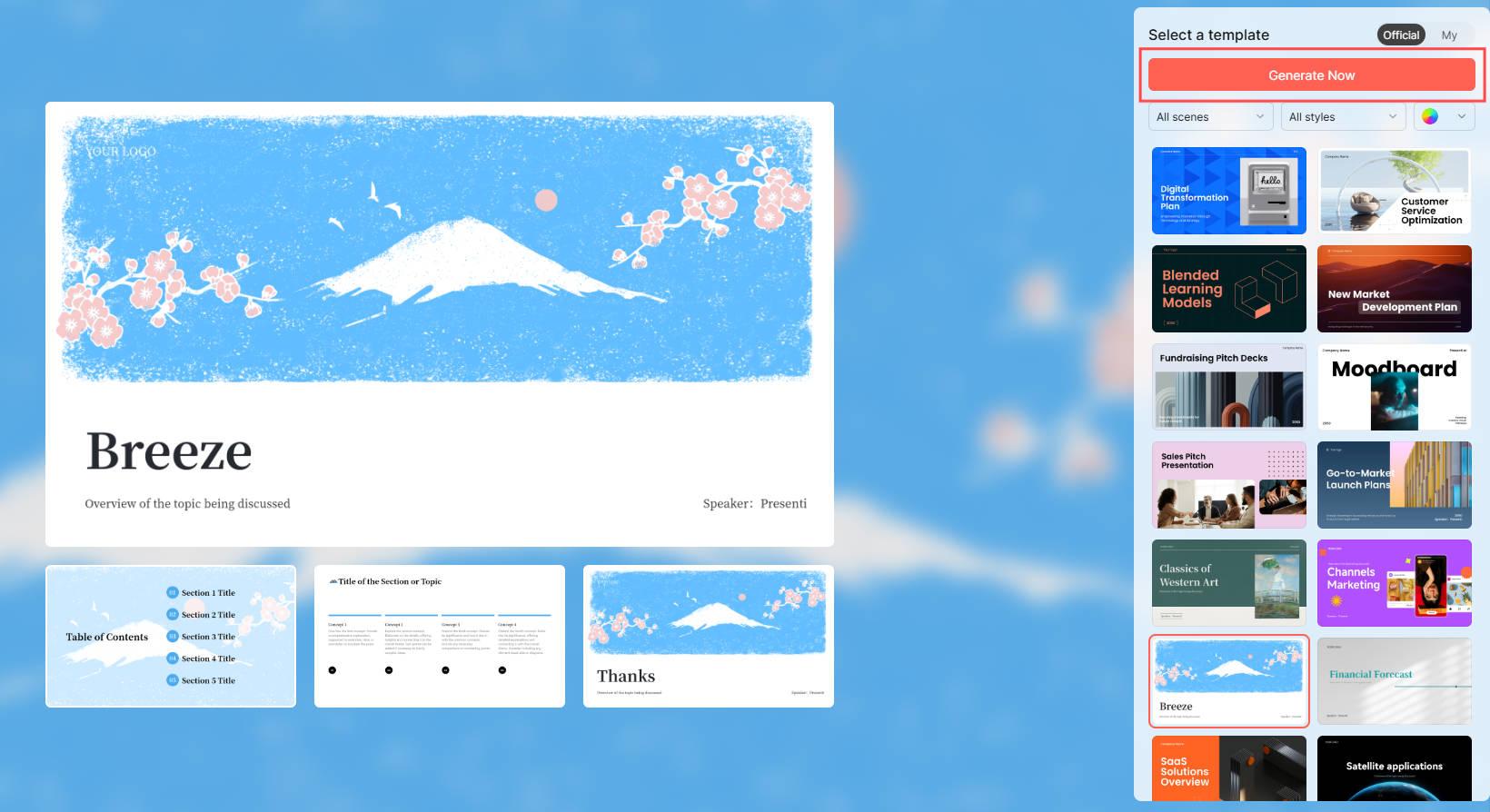
4. Select a suitable template. Choose layouts that fit your content: a sequence for a process, a comparison for alternatives, or a diagram for relationships. Check text density and contrast before applying the style throughout.
5. Generate and review the slides. Compare the draft with the approved outline. On an eligible paid plan, export the editable PPTX, reopen it, and inspect text fit, images, and diagrams.
Keep the map as a reference for later revisions. It can help you see which supporting points have moved to the appendix or been removed from the main narrative.
How to Plan a Mind Map Before Generating Slides
If you are starting without a mind map, first draft a central topic and a few main branches in an outline or mind-mapping tool. Use the planning prompts below to develop the content before importing an XMind file or supplying the outline as text.
1. Define the central question. State what the audience should understand or decide. Give each main branch a distinct role in answering that question.
2. Choose a useful level of detail. Use short branch labels, place explanations beneath them, and group related points. Avoid adding levels merely to make the map look more elaborate.
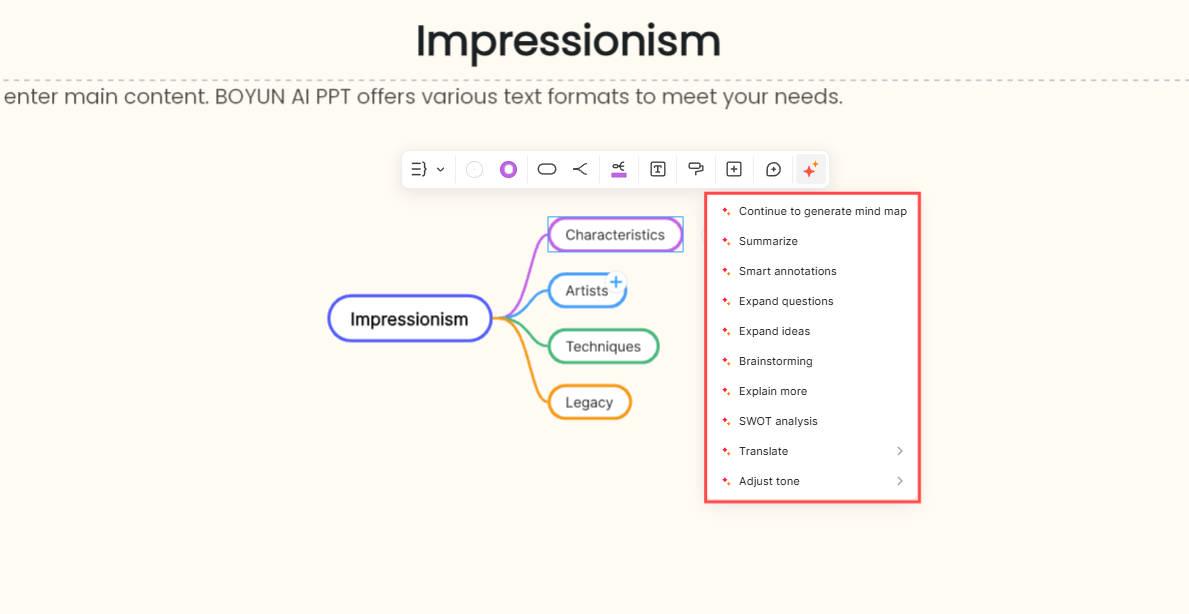
3. Develop the branches. These are planning tasks you can perform yourself or request as drafting help; they are not a list of required product menu commands.
- Develop a branch: Add missing steps or supporting points without repeating what another branch already covers.
- Add notes: Record definitions, sources, and qualifications beneath the relevant branch.
- Ask questions: Identify what the audience may challenge or need explained.
- Consider alternatives: Compare another approach or example when it changes the decision.
- Brainstorm: Collect possible ideas first, then select those that support the central question.
- Explain a point: Add a concrete example or brief explanation where a label alone is unclear.
- Use SWOT when relevant: Separate internal strengths and weaknesses from external opportunities and threats. Use this structure only when it fits the topic.
- Prepare another language: Review terminology and sentence structure for the intended audience, and allow for changes in text length.
Adjust the tone: Write branch labels and examples in language that fits the audience. Keep necessary technical terms and explain them when needed.
4. Refine for the audience. Remove branches that do not support the central question, add missing context, and decide which details belong in an appendix.
Once the hierarchy is clear, supply the topic and supporting material to Presenti and review the proposed slide outline. A useful deck may use a different sequence from the original map.
How to Review the Map and Generated Slides
Review text, hierarchy, layout, colors, and visual elements in the generated deck. If you need a diagram of the map itself, decide whether to use an image or rebuild the essential relationships as editable slide elements. In either case, keep labels readable and check that the connections remain accurate.
Mind Map to Presentation FAQ
Q1: Is the mind map-to-PPT conversion with AI on Presenti AI free?
Presenti offers limited free AI credits and supports XMind input. Editable PPTX and PDF exports are paid-plan features. Choose a plan based on the input format and final file you need.
Q2: Does importing a mind map preserve it as a diagram?
XMind input provides source content for a presentation draft. That does not guarantee that the original map’s appearance, connectors, or node editability will carry into every slide. Review the result and choose a suitable visual representation for the relationships you need to show.
Conclusion
Presenti AI can help turn a structured mind map into a presentation draft. Prepare the hierarchy, review the outline, and choose visuals that explain the relationships. Keep the source map available while checking the final deck.