A presentation background should support your content without competing with it. These ten styles offer different ways to set the tone, add visual interest, and keep the main message easy to read.
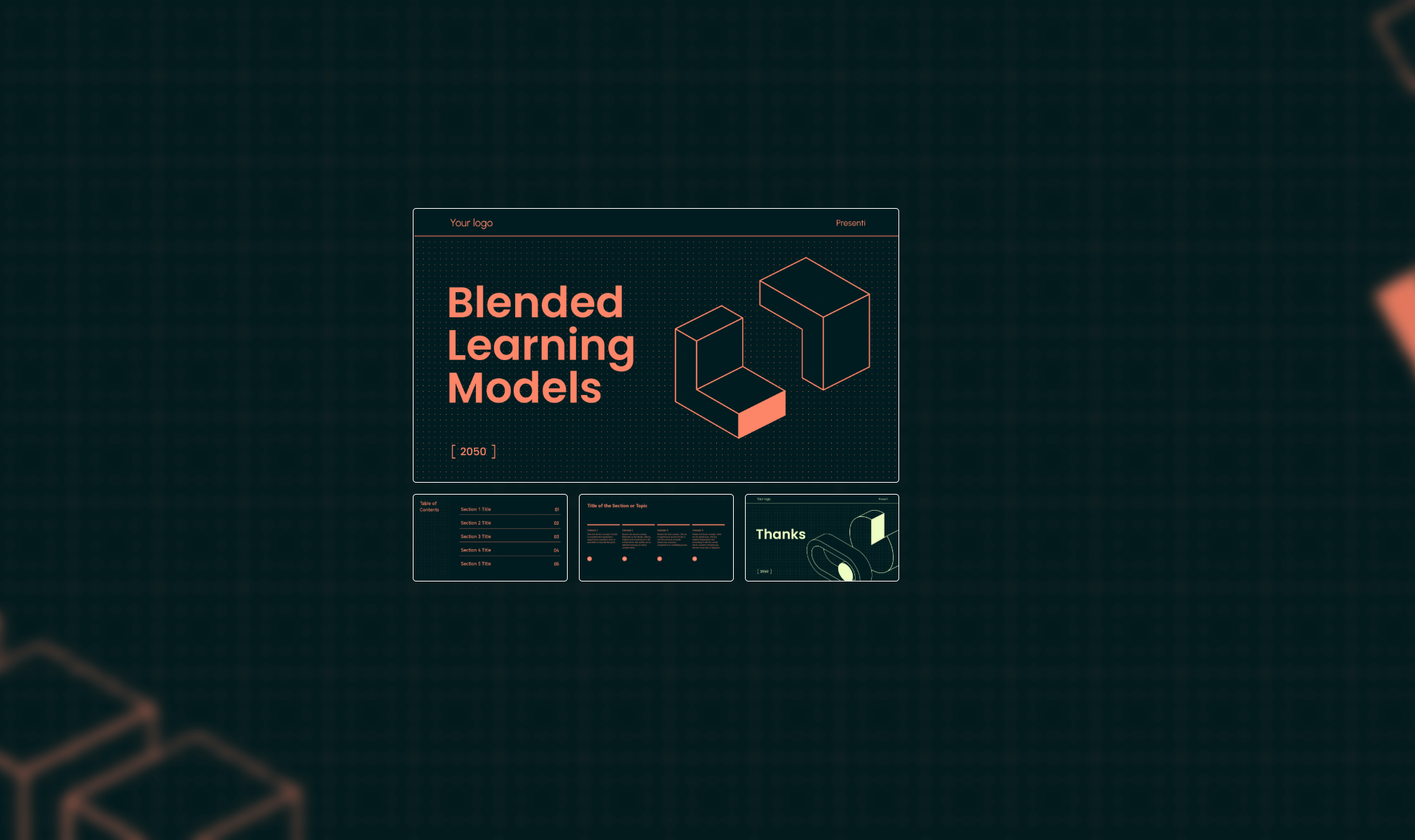
The Role of Presentation Project Backgrounds
Choose a background that provides enough contrast for the text and leaves space around charts and images. A quiet design often works best for dense information; a more expressive background can suit a title or section divider.
Top 10 Engaging Presentation Project Backgrounds
Minimalist Designs
- Embrace simplicity with minimalist designs that allow your content to shine. These backgrounds reduce distractions and keep the audience focused on your key messages.
Nature-Inspired Backgrounds
- Incorporate elements of nature with backgrounds that evoke tranquility and beauty. These are perfect for presentations related to sustainability or wellness, creating a calming effect.

Textured Backgrounds
- Adding texture can bring depth to your slides without overwhelming your audience. Subtle textures enhance the overall aesthetic while maintaining focus on your message.
Bold Gradients
- Gradients can add color without a detailed image. Keep the area behind text simple and check contrast at both ends of the gradient.
Geometric Patterns
- Utilize bold geometric shapes to achieve a contemporary and vibrant aesthetic. These backgrounds draw attention and can make technical content feel more accessible and engaging.
Creative Illustrations
- Utilize artistic backgrounds that tell a story or reflect the theme of your presentation. This approach adds a personal touch and can make complex ideas more relatable for your audience.
Subtle Patterns
- Choose backgrounds with subtle patterns to enhance visual interest while keeping the focus on your content. Use a low-contrast pattern so that it does not interfere with text or charts.
Cultural Themes
- Use culturally relevant imagery when it supports the subject. Check that symbols and motifs are appropriate to the context and avoid relying on stereotypes.
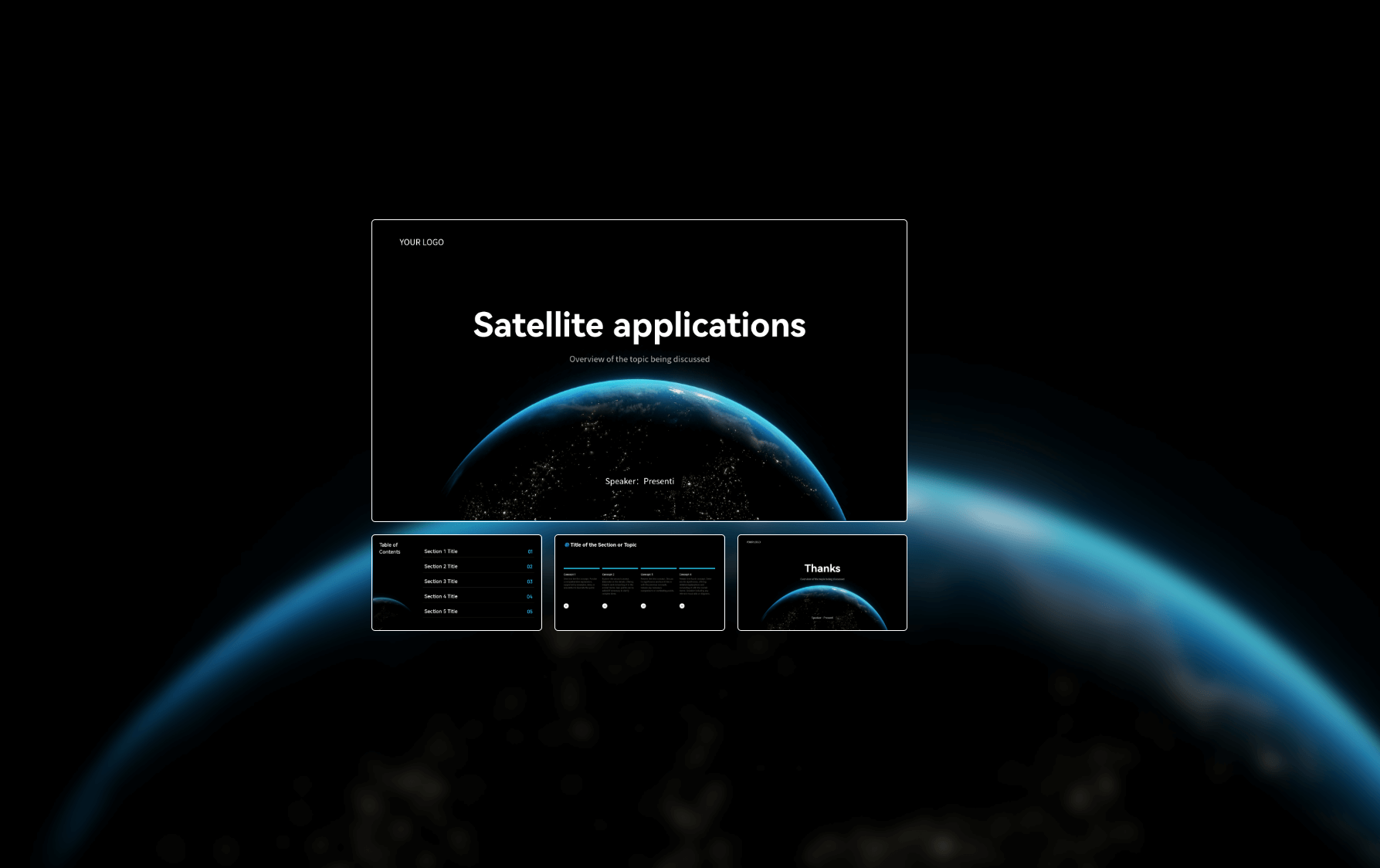
Professional Mockups
- Incorporate realistic mockups to provide context for your ideas. A mockup can show how a product, screen, or design would look in use.
Full-Bleed Photography
- Use one relevant photo across the slide for a title or section opener. Place text in an uncluttered area or on a solid overlay, and check that it remains readable at presentation size.
How to Customize a Presentation Background in Presenti AI
Once you have chosen a style, use a template in Presenti AI as a starting point and check how it works with your actual content.
How to Add Presentation Project Backgrounds
Choose a background for a presentation project that suits your content, then work through these steps:
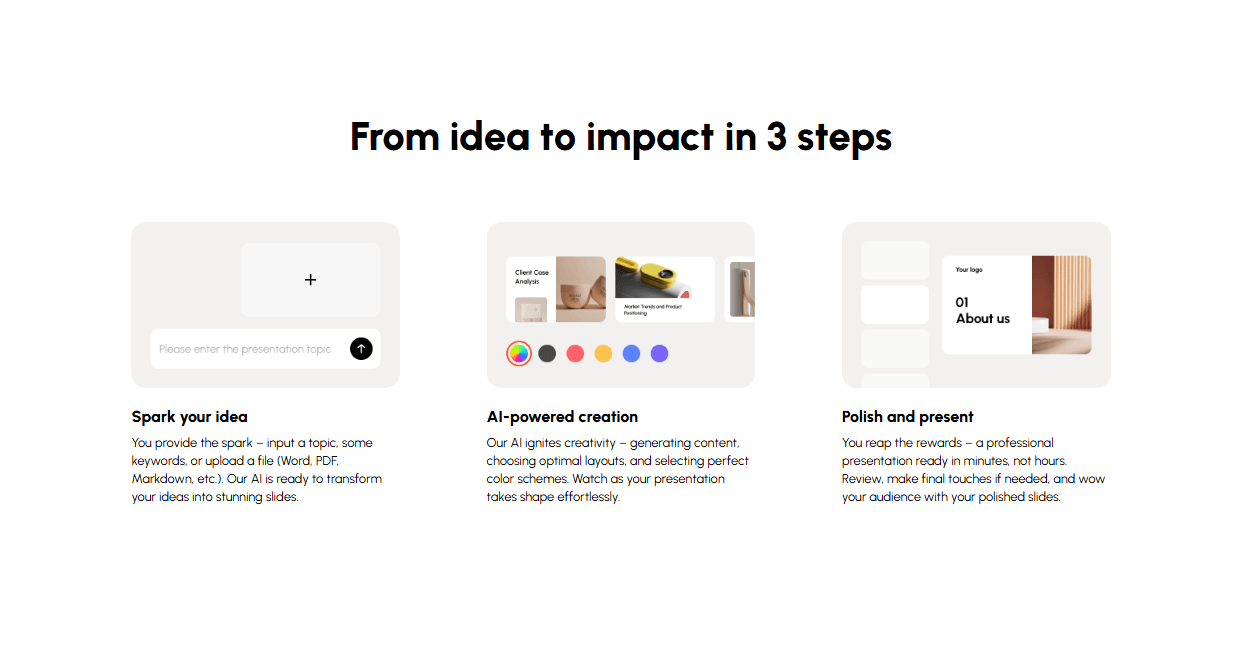
- Select a Template: Start with a template that suits your presentation style.
- Add Your Content: Replace the sample text and images, or start from a supported source file.
- Adjust and Preview: Check text contrast, simplify busy areas, and preview the slides at the size your audience will see.

Using Templates as a Starting Point
A template gives you a consistent starting point for backgrounds, colors, and layouts. Adapt it to your content rather than filling every slide with the same decorative treatment.
Final Thoughts
Choose the background that makes your message easiest to follow. You can explore templates in Presenti.ai, then test the design with a text-heavy slide and a visual slide before applying it to the full deck.