
Text to Presentation AI Generator





 Education Session Financial Analysis Client Proposal

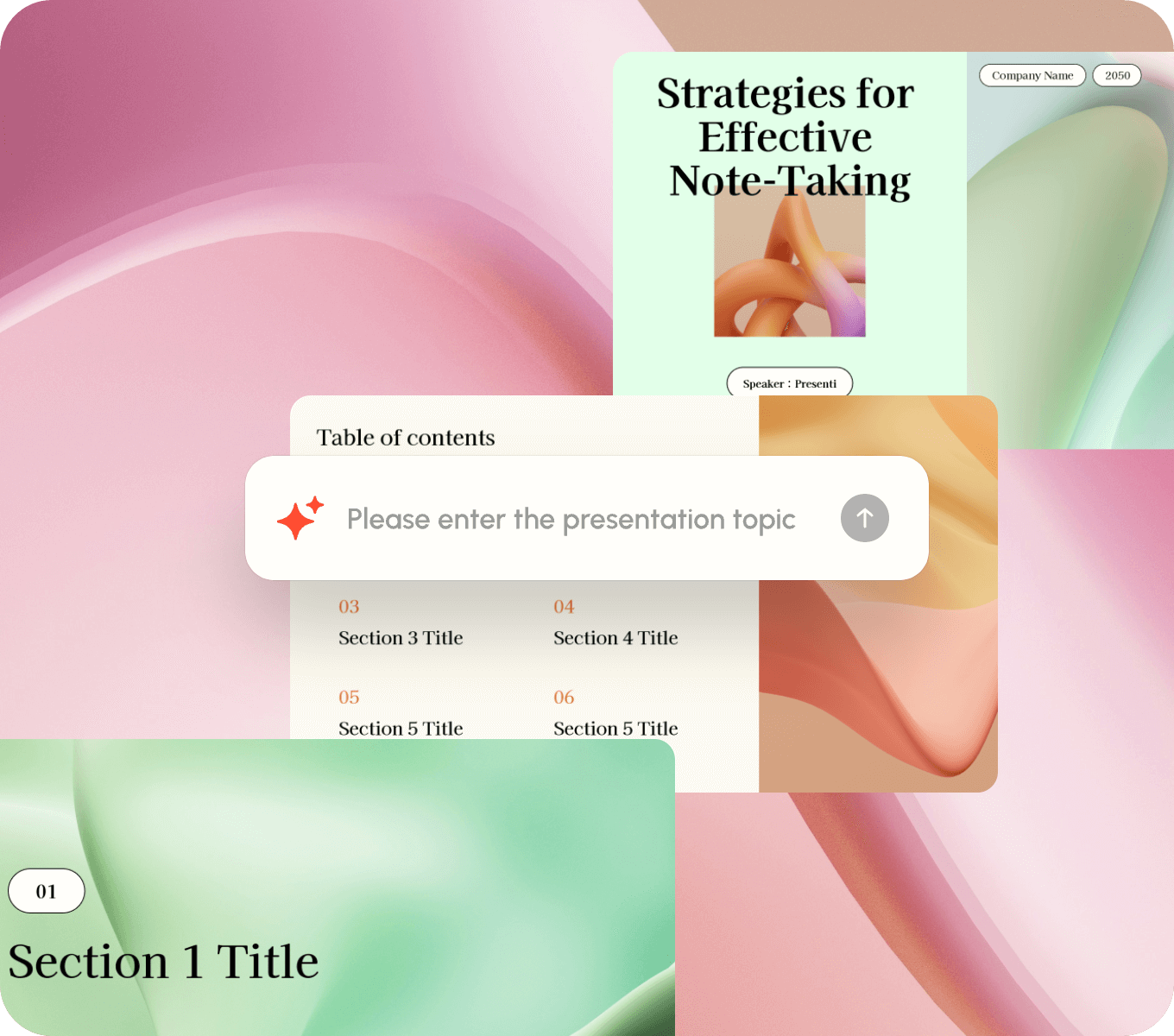
Generate Presentations from Text
Turn notes, outlines, or long-form text into an editable slide draft. This AI presentation maker from text helps you organize your content before you review and refine the slides.
Get started free
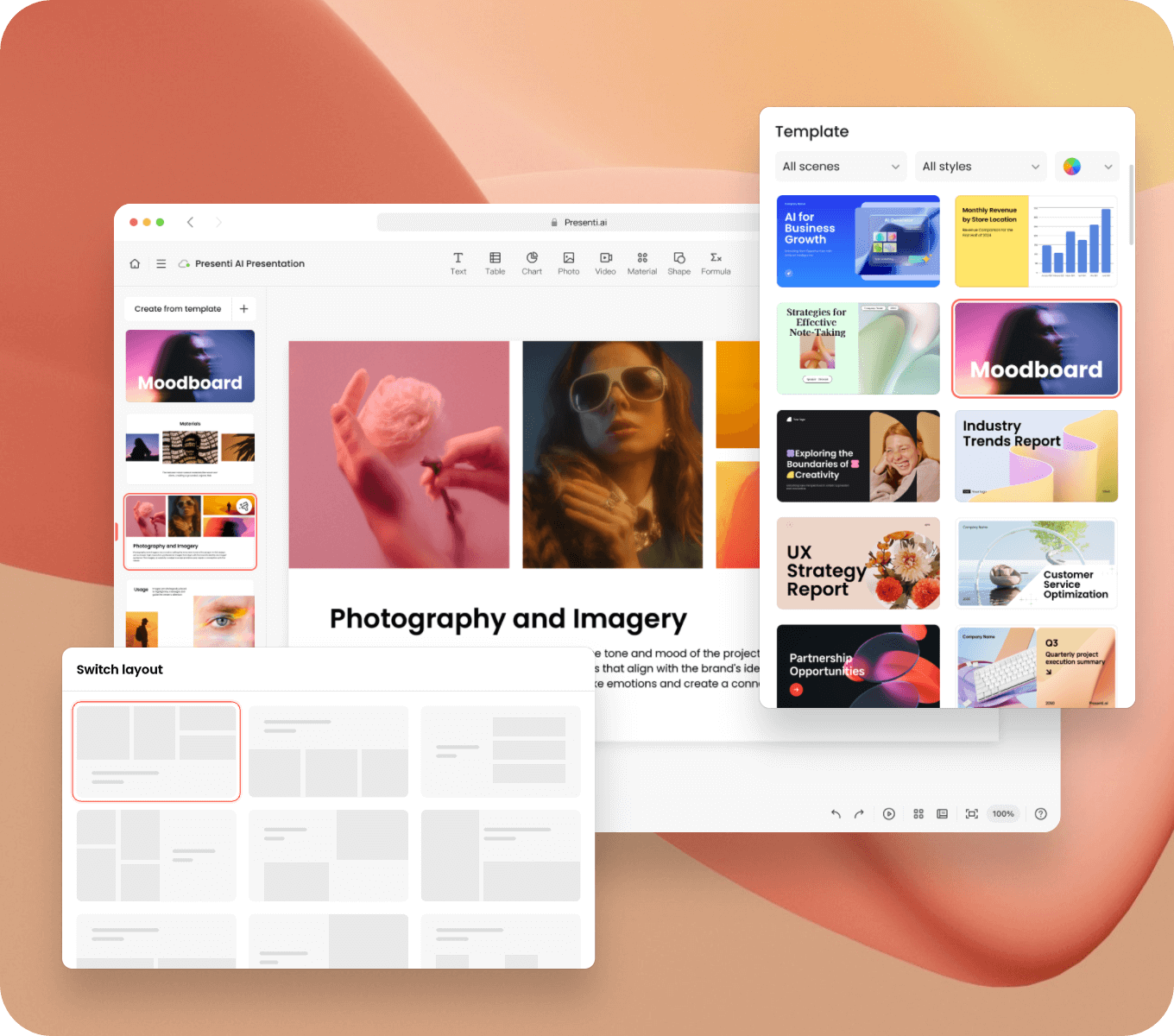
Style Your Text-to-Slides Draft
Choose templates, layouts, assets, and backgrounds to give your text-to-slides draft a consistent style. Adapt the design to your audience and message.
Get started free
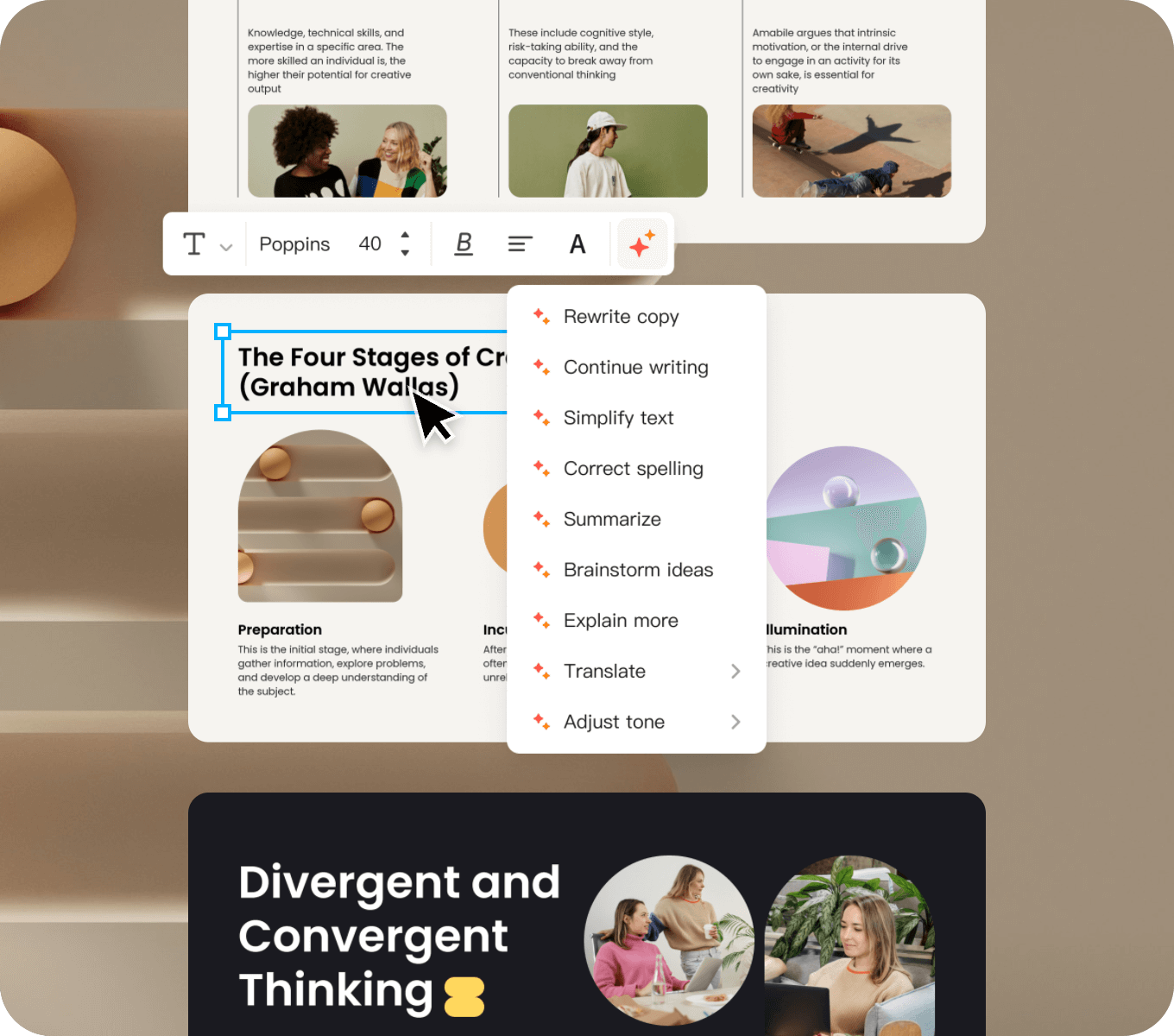
Refine Your Generated Slides
Edit your presentation online, rewrite slide text with AI assistance, and adjust the layout. Check facts and wording before you share or export.
Get started free
How to turn text into presentations with AI
Enter a topic or paste your notes, outline, or source text. Review the structure, choose a style, and refine the generated slides.
Create Slides from Text in Five Steps
-
01Open the text-to-presentation workspace
-
02Enter a topic or paste notes, an outline, or text
-
03Select your preferred template and style
-
04Review and refine the generated text-to-slides draft
-
05Download or share your finished presentation
Why choose Presenti for your presentation?
Refine your text-to-slides draft with editing, design, and export tools. Explore Presenti’s AI presentation maker for more ways to start a presentation.
-
Online slide editor
Create and edit presentations online
-
Cloud storage
Securely store and access your files anywhere
AI Content Generation
Generate content with AI assistance
-
Live Presentations
Present directly from the browser
-
Curated Templates
Explore templates for different presentation needs
-
Multi-format Export
Move from text to PPT or PDF after reviewing your slides.
-
Data Visualization
Create polished charts and graphs easily
-
Image Library
Access a vast library of stock images
-
Design Optimization
Maintain consistent design across slides
Explore Presentation Examples
Explore styles for reports, proposals, and other presentation topics.
Use these examples to plan the structure and design of your own text-to-slides draft.

UX Strategy Report

Exploring the Boundaries of Creativity

Industry Trends Report
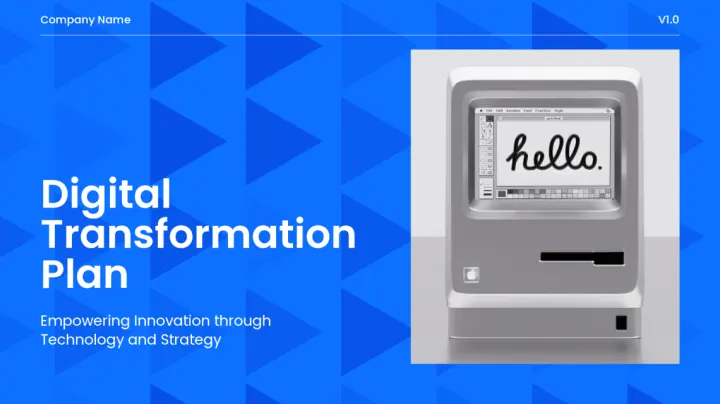
Digital Transformation plan

Cloud Innovations

Sales Pitch Presentation
Text-to-Presentation FAQs
Use these answers to choose the right input and review the generated draft.
What is the difference between entering a topic and pasting text?
Topic starts from a short prompt; Paste Text gives the workflow source material to organize. Use a topic for an idea and paste text when wording, notes, or an outline already exists.
Can I turn notes or an outline into slides?
Yes, the page is designed for text input such as notes, outlines, and longer source text. Keep the audience, purpose, and important details together so the generated draft has a clear structure to review.
How much text can I paste at once?
The current paste field displays a 15,000-word placeholder. Treat that as interface guidance and check the current workspace or plan for any account-specific limits before preparing a long input.
Can I edit the generated presentation?
The page presents the result as an editable draft and provides online editing, rewrite, and layout controls. Review the generated slides in the editor and confirm the elements you need to change before delivery.
Can I download a PowerPoint or PDF file?
The page currently presents PPT and PDF export after slide review. Check the current workspace and plan for availability, then open the exported file and verify fonts, spacing, numbers, and images.