

For the modern educator, the "Sunday Night Blues" are often defined by a daunting task: lesson planning. On average, teachers spend 2 to 3 hours crafting a single PowerPoint presentation, sourcing images, and formatting bullet points. This administrative burden eats into time that could be spent on student mentorship or personal well-being.
However, the landscape of education technology is shifting. This article serves as your definitive guide on how to leverage Artificial Intelligence to reduce your slide creation time to under 10 minutes without sacrificing quality. We will explore the top AI slides Generators for teachers, a step-by-step blueprint for success, and real-world case studies from teachers who have reclaimed their weekends.
Why Teachers Are Turning to AI for Presentation Creation
The Time Crunch Reality
- The Statistic: Research shows teachers spend an average of 11 hours per week on administrative tasks, with lesson materials taking up a significant portion.
- The Traditional 5 Step Drain: Traditionally, creating a deck involves: 1) Researching content, 2) Outlining the narrative, 3) Designing layouts, 4) Sourcing copyright-free images, and 5) Manual formatting.
- The AI Solution: AI automates these steps by generating outlines, sourcing relevant visuals, and applying professional design principles in seconds, allowing teachers to act as "editors" rather than "designers."
Beyond Time-Saving: Engagement Benefits
- Visual Impact: Studies indicate that well-visualized content can improve student memory retention by up to 40%.
- Interactive Elements: AI tools now suggest and embed interactive quizzes, animations, and video placements that keep Gen Z and Gen Alpha students focused.
- Personalization: AI makes it easy to differentiate instruction, allowing you to quickly generate different versions of the same lesson for varying reading levels or IEP requirements.
Best Free AI Slide Generators for Teachers (2026 Edition)
1. Presenti AI (The Top Choice for Versatility)
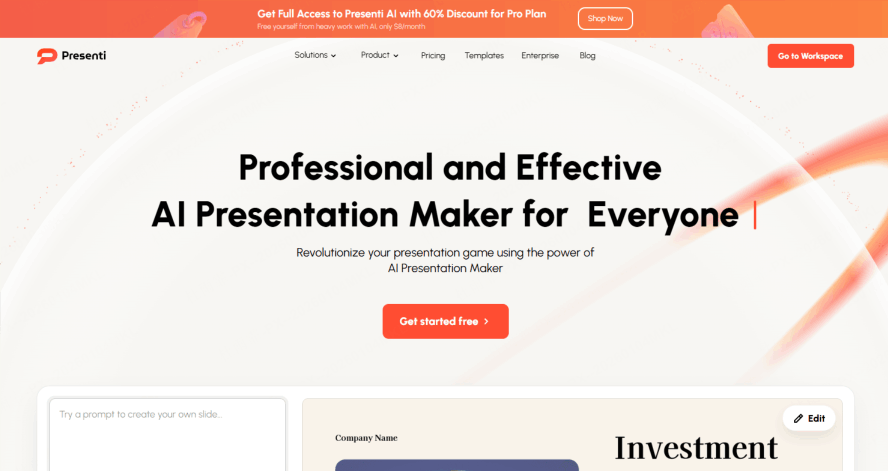
Presenti AI has rapidly emerged as the premier "Swiss Army Knife" for educational presentations, specifically designed to bridge the gap between complex lesson plans and high-impact visual storytelling. Unlike many generic AI slides Generators, Presenti functions as a dedicated teaching assistant that understands the structural flow of a lesson—from learning objectives to final assessments. It is particularly valued by educators who need to transform various sources of information, such as dense textbook chapters or web-based articles, into digestible, classroom-ready slides without the manual "copy-paste" grind.
- 2,000 Free AI Credits: Offers a generous starting point for educators to create multiple high-quality decks for free.
- Diverse Template Library: Features hundreds of templates covering various educational styles, from minimalist science decks to vibrant primary school themes.
- Four Ways to Generate:
- ✨Topic to PPT: Type "Photosynthesis" and get a full lesson.
- ✨File to PPT: Upload a PDF or Word document to summarize a textbook chapter.
- ✨Text to PPT: Paste your raw lesson notes.
- ✨Link/Outline to PPT: Convert a web article or a structured outline into slides.
- AI Beautification: One-click polishing to ensure fonts, colors, and alignments are perfect.
2. Gamma.app
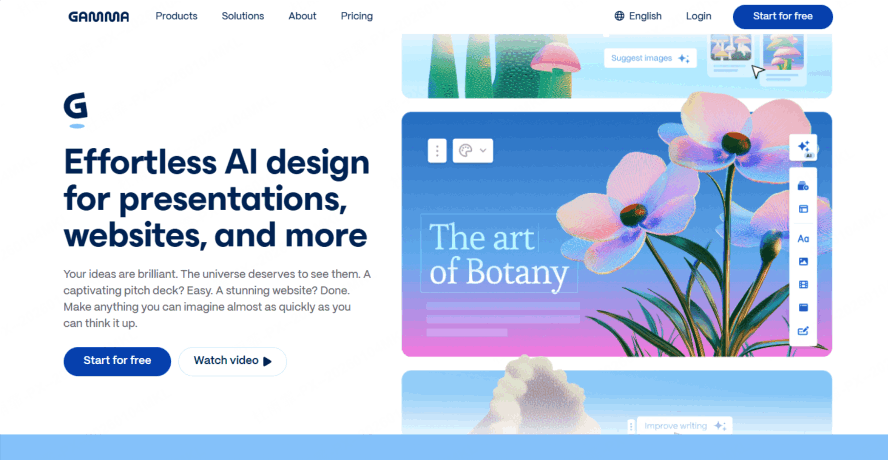
Gamma.app is widely recognized for breaking away from the traditional 4:3 or 16:9 slide constraints, offering a "fluid" canvas that feels more like a modern, interactive webpage than a static stack of slides. For educators, this means you can create content that flows naturally; students can scroll through lessons on their own devices or follow along as you present "cards" that automatically resize to fit your text and media perfectly.
- Pros: Aesthetic "cards" rather than traditional slides; excellent for visual storytelling and mobile viewing.
- Cons: Formatting can be restrictive if you need to export back to standard PowerPoint or Google Slides.
3. Canva Magic
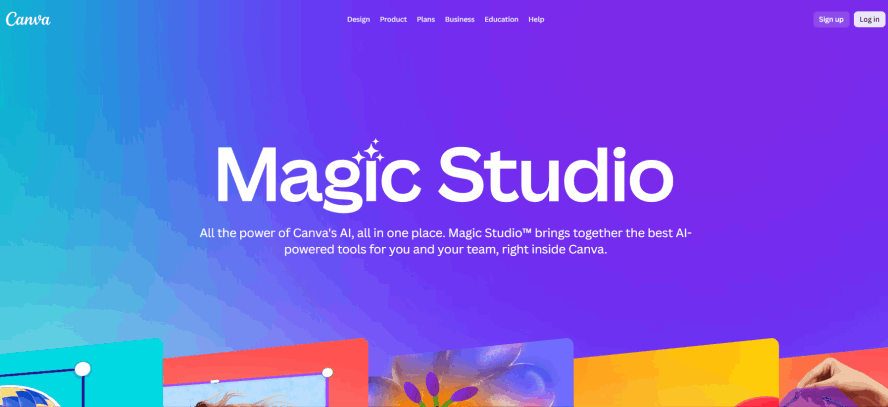
Design Canva Magic Design brings the power of generative AI to one of the world’s most popular graphic design platforms. By simply typing a lesson theme into the "Magic Media" bar, teachers can generate a full set of polished slides complete with high-quality imagery and consistent typography.
- Pros: Access to millions of stock photos, high-quality illustrations, and classroom-specific graphics.
- Cons: The AI-generated content often requires more manual "tweaking" and drag-and-drop editing than dedicated AI-first slide tools.
4. Curipod
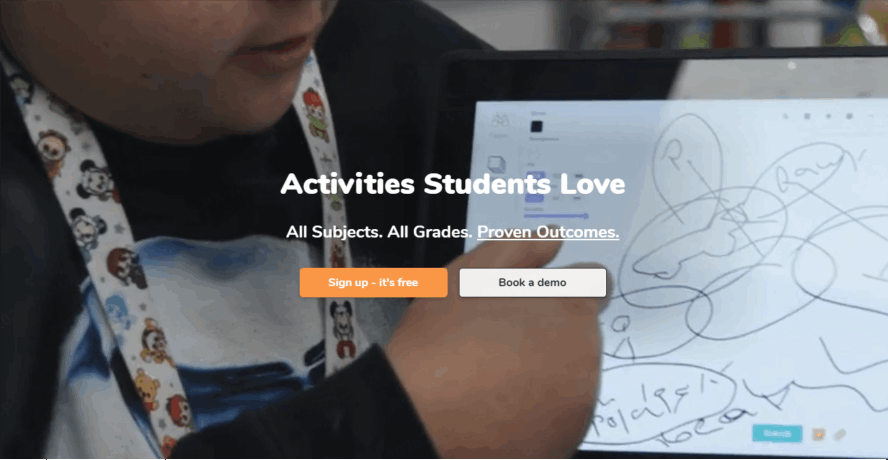
Curipod stands out as a "participation-first" platform designed specifically with pedagogical needs in mind. Unlike general business AI tools, Curipod’s AI focuses on creating interactive lesson modules where students can participate in real-time via their own devices.
- Pros: Automatically includes interactive polls, word clouds, and gamified drawing activities for students.
- Cons: Less focus on the sophisticated "visual design" of the slides and more on the functional interaction.
5. Slidesgo AI Generator
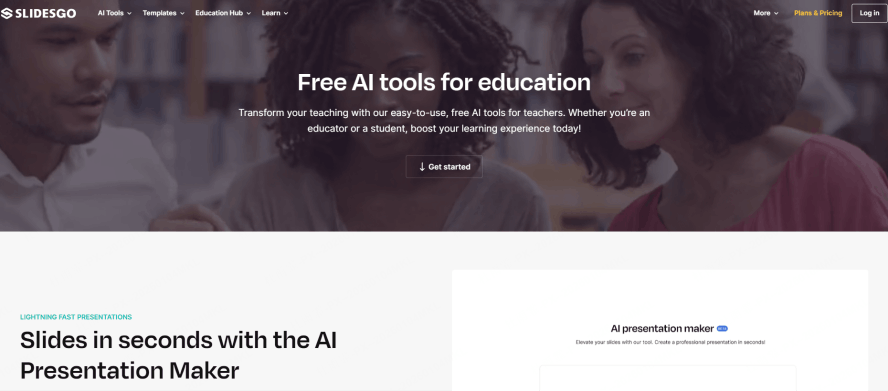
Slidesgo AI Generator leverages the massive template library of its parent site to provide teachers with highly visual, themed presentations in seconds. This tool is perfect for teachers who want a traditional slide structure but want the AI to handle the "aesthetic heavy lifting."
- Pros: Select from a variety of "tones" (Creative, Playful, Professional) and high-quality, education-specific themes.
- Cons: Limited customization options in the free version compared to the credit-based flexibility of Presenti AI.
10-Minute Classroom Presentation Blueprint
Step 1: Prepare Your Content (2 minutes)
Focus on the logic. Define 3-5 learning objectives and your target grade level.
Prompt Template: "Create a 15-slide presentation for 9th grade Biology about photosynthesis. Include: definition, process steps, real-world examples, and a quiz. Use green color scheme with plant imagery."
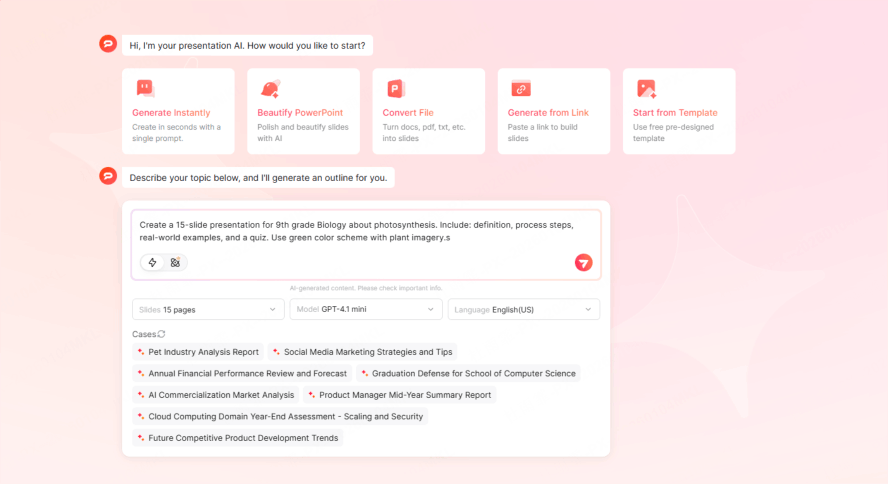
Step 2: Generate Base Slides with AI (3 minutes)
Input your prompt into Presenti AI. Choose an education-specific template like "Chalkboard," "Modern Lab," or "Historical Manuscript." Click generate and watch the AI populate the narrative.
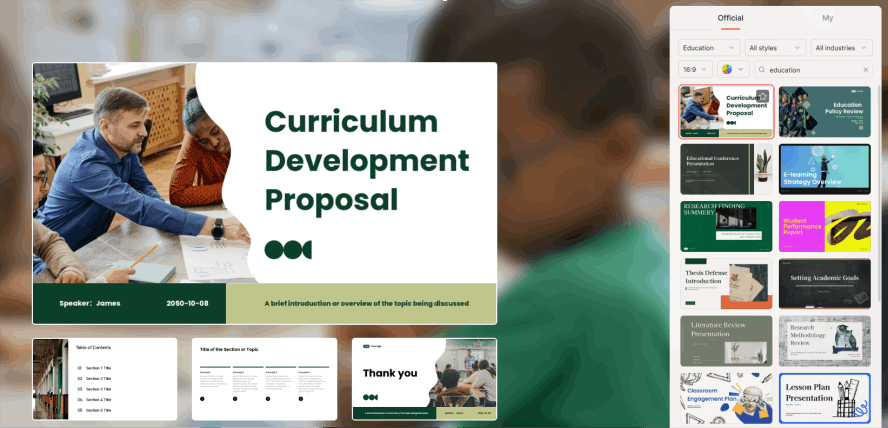
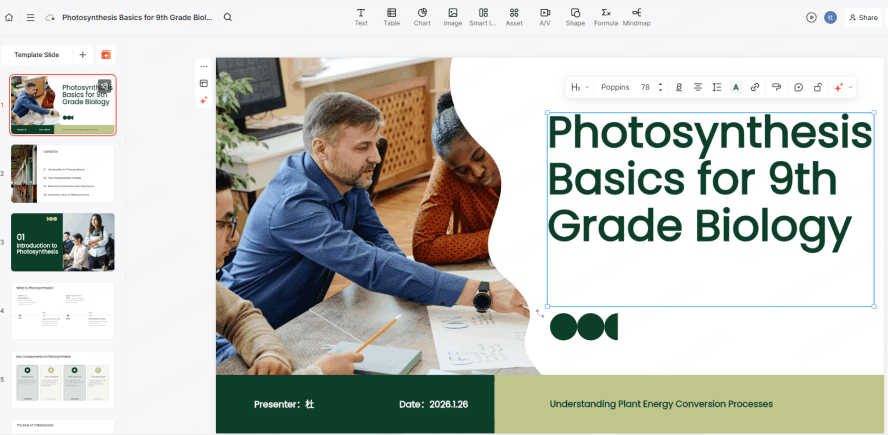
Step 3: Customize for Your Classroom (3 minutes)
Personalization builds rapport.
Add your school’s logo.
Visibility Check: Ensure body text is at least 24pt for those sitting in the back of the room.
Localize examples (e.g., mentioning a local park when discussing ecosystems).
Step 4: Add Interactive Elements (2 minutes)
Keep them awake! Embed a 60-second YouTube clip or a hyperlink to a Kahoot! game. Use AI animations to highlight key terms as you speak.
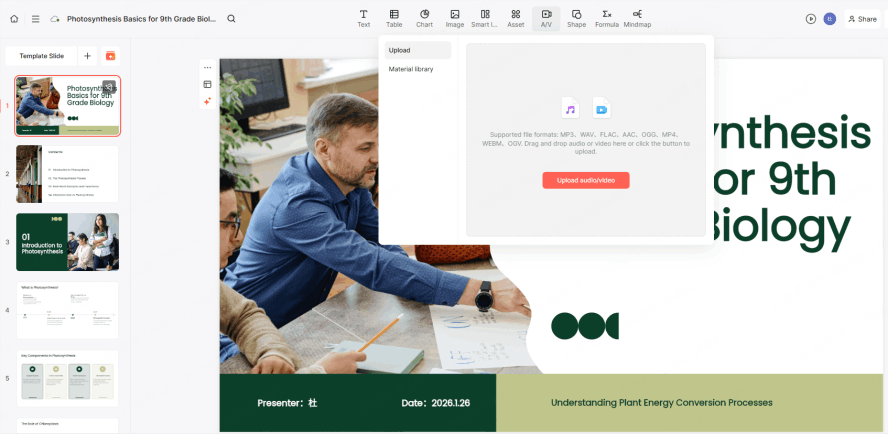
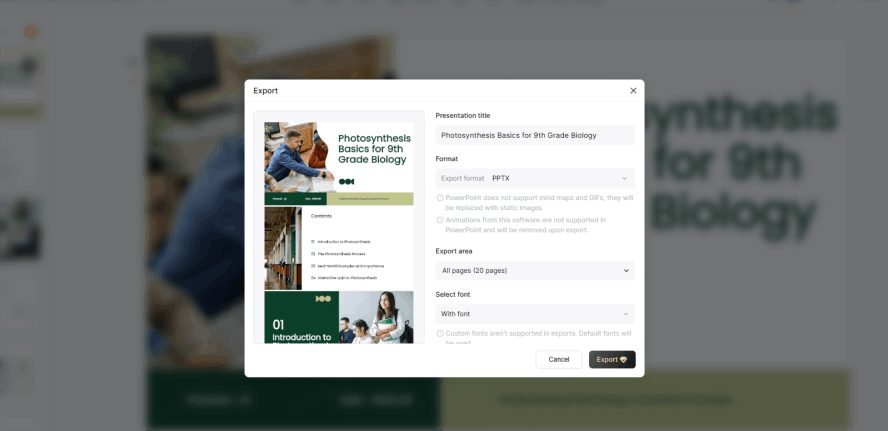
Step 5: Export & Share (1 minute)
Export to Google Slides or download a PDF backup. If your school has a "no-internet" contingency, keep the PDF on a USB drive.
Common Mistakes Teachers Make (And How to Avoid Them)
Mistake 1: Overloading Slides with Text
- The Error: Paragraphs copied from a textbook.
- The Fix: The 6x6 Rule (No more than 6 lines of text, 6 words per line). Use AI to summarize long text into bullet points.
Mistake 2: Ignoring Age Appropriateness
- The Error: Using a sleek "Corporate Boardroom" template for 2nd graders.
- The Fix: Explicitly state the grade level in your AI prompt (e.g., "Use playful, colorful, and large-font style for K-5").
Mistake 3: Not Testing on Classroom Equipment
Always do a "walk-through." A font that looks great on a 13-inch MacBook might be unreadable on a dusty classroom projector.
Getting Started Today: Your Action Plan
Change doesn’t happen overnight, but it can happen in 30 days. We’ve designed this 30 Day AI Implementation Challenge to help you integrate these tools into your workflow without adding to your stress. By the end of the month, you’ll have a library of assets that will save you hours of work for the rest of the school year.
30 Day Challenge for Teachers
Week 1: The "First Spark" — Create Your First AI-Generated Presentation
Your goal for the first week is simply to break the ice with the technology. Don't pick your most complex lesson; choose a straightforward topic you’re teaching mid-week.
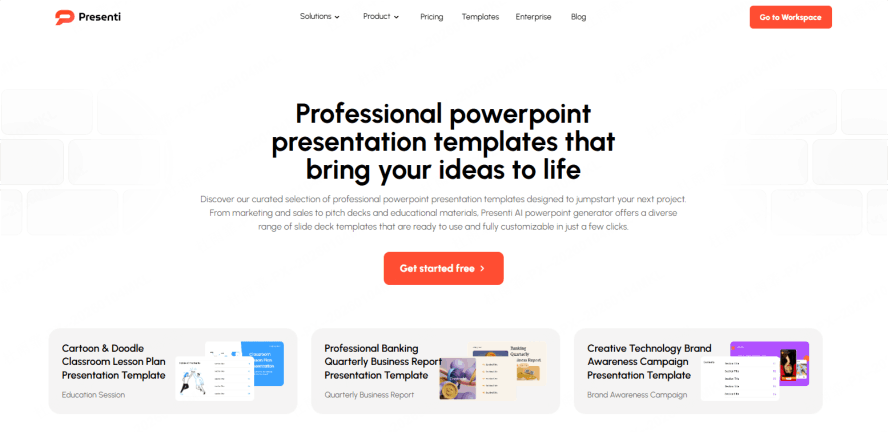
- The Task: Use Presenti AI to generate a 10-slide deck using the "Topic to PPT" feature.
- The Focus: Observe how the AI structures the narrative. Don't worry about perfect design yet—just focus on how the AI interprets your prompt and how much time it saves you on the initial draft.
- Pro Tip: Spend the time you saved by having a longer coffee break or leaving school 15 minutes earlier!
Week 2: The "Signature Look" — Build Your Master Template
Now that you've seen what the AI can do, it’s time to make it look like yours. Consistency is key to professional-looking classroom materials.
- The Task: Define your "Brand Kit." Choose a set of 2-3 fonts that are easy to read from the back of the room and a color palette that matches your school’s colors or your specific subject (e.g., blue for Science, parchment tones for History).
- The Focus: Create a "Master Slide" library that includes a standard Title slide, a "Learning Objectives" slide, and a "Summary" slide.
- The Benefit: From now on, every AI-generated deck you create will automatically adopt this professional, cohesive look.
Week 3: The "Engagement Shift" — Experiment with Interactive Elements
This week, we move from static content to active learning. Students' attention spans are short; this is where you use AI to win them back.
- The Task: Take a deck you generated and add at least two interactive elements. Use the AI to generate five multiple-choice quiz questions based on your slides, and embed a short YouTube video or a QR code leading to a digital poll.
- The Focus: Watch your students' reactions. Do they perk up when the quiz appears? Does the video help clarify a difficult concept?
- The Goal: Move the needle from "lecturing at" students to "learning with" students.
Week 4: The "Community Ripple" — Share & Collaborate
The final stage of the challenge is about scaling your impact. Teaching is a team sport, and AI is most powerful when shared.
- The Task: Share one of your successful AI-generated templates or decks with a colleague in your department. Show them how you used a prompt to generate the core content in seconds.
- The Focus: Gather feedback. Ask your colleague if the flow makes sense to them. Often, seeing your work through someone else’s eyes helps you refine your AI prompts for even better results in the future.
- The Reward: You’ve not only saved your own time but helped a peer reclaim theirs. You are now officially a leader in the "AI-Enabled Classroom."
FAQ: Teachers' Most Asked Questions
Q: Is student data safe?
Yes, as long as you use tools like Presenti AI that adhere to FERPA/GDPR and don't require student logins to view slides.
Q: How do I cite AI content?
Follow APA/MLA guidelines for AI, typically citing the tool name and the date generated.
Conclusion
Mastering the art of classroom presentations no longer requires sacrificing your personal time or your weekends. The shift from manual slide design to AI-assisted creation represents a fundamental change in how educators work—moving from the role of a "graphic designer" back to what truly matters: being an inspirational mentor.
By adopting the 10 minute blueprint and using these AI presentation makers, you aren't just making slides faster; you are ensuring that your lessons are visually stimulating, pedagogically sound, and accessible to every student in the room. Whether you use Presenti AI to convert a complex PDF into a simplified lesson or to generate a vibrant deck from a single topic, the result is the same—professional-grade materials with minimal effort.



