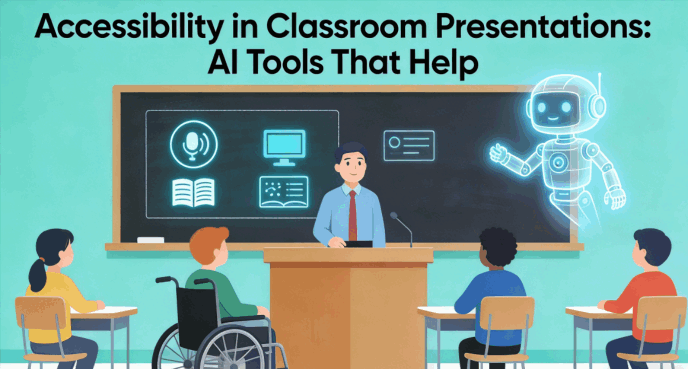
Traditional classroom PPTs are often "visual islands" that isolate students with color blindness, hearing loss, or neurodivergence like dyslexia. However, true educational equity requires more than just flashy visuals—it demands accessibility. By using a specialized classroom presentation maker, educators can transform static slides into an inclusive classroom slides ai experience where every student can see, hear, and engage. AI is no longer just for aesthetics; it is the ultimate tool to ensure that learning is a right, not a privilege, for all.
What Defines an "Accessible" Presentation Standard?
When educators ask, "What makes a presentation accessible?" they are looking for more than just legible fonts. An accessible presentation maker must adhere to Universal Design for Learning (UDL) principles, ensuring that information is perceivable and operable for everyone.
High-Contrast Design and Color Safety
For students with low vision or color blindness, a poorly chosen color palette can render a slide unreadable. Accessible AI tools now automatically suggest color combinations that meet WCAG (Web Content Accessibility Guidelines) standards. This ensures that text pops against the background, reducing cognitive load and eye strain.
Automatic Alternative Text (Alt Text)
Images are powerful teaching tools, but they are invisible to students using screen readers unless they have Alt Text. A high-quality classroom presentation maker uses computer vision to automatically generate descriptive text for images, diagrams, and charts, ensuring that visually impaired students don't miss out on crucial context.
Real-Time Captioning and Transcription
Inclusion means catering to the 1 in 8 people who have some degree of hearing loss. Integrating real-time captions into live presentations allows students to follow along in silence or noisy environments. Furthermore, AI-driven transcription can turn a spoken lecture into a searchable text document, a vital resource for special needs presentation tools.
Logical Reading Order Optimization
A common pitfall in slide design is a chaotic reading order. When a screen reader scans a slide, it must follow a logical sequence (Title -> Body Text -> Image Caption). Advanced AI slide builders now automatically "tag" elements in the background, ensuring that the assistive technology reads the content in the order the teacher intended.
Leading accessible presentation makers
Presenti
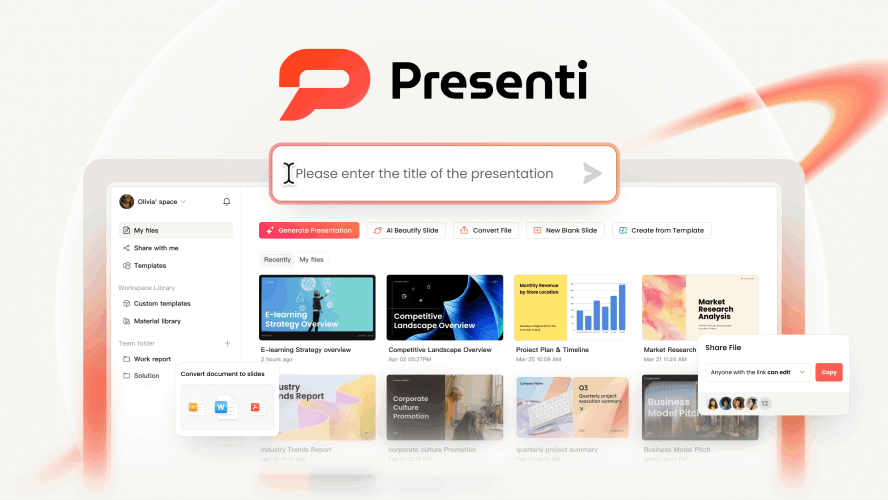
If you’re a Special Education (SPED) teacher or just someone who values deep inclusion, Presenti is a game-changer. While other tools focus on "pretty," Presenti focuses on "predictable."
Why it sticks: Students with ADHD or cognitive processing needs crave structure. Presenti automatically organizes your messy notes into a logical flow (Hook → Objectives → Content → Recap). It builds a mental map for the student before the first slide even ends.
The "Invisible" Win: It automatically tags reading orders. This sounds techy, but it’s huge: it means a blind student using a screen reader hears the slide in the order it was meant to be read, rather than the AI just guessing.
The Time-Saver: You can generate a "simplified" version of your main lecture with one click. It’s instant differentiation without the Sunday-night burnout.
Quick Start:
- Upload: Log in and drop in your "messy" PDF or Word notes.
- Define: Select the "Educational Hierarchy" mode.
- Refine: Use the One-Click Differentiation button to instantly create a "Simplified Version" for students with IEPs.
Canva Magic
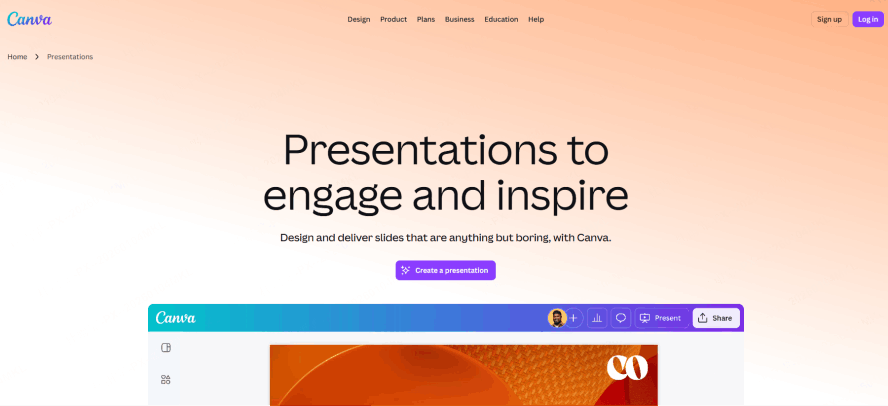
We all know Canva makes things look gorgeous, and for students who need high visual engagement to stay focused, it’s a powerhouse.
The "Design Health Check": Canva’s AI will actually tap you on the shoulder and say, "Hey, that contrast is too low—nobody can read that." It’s like having a tiny accessibility consultant sitting next to you.
The Catch: It’s "semi-automatic." You still have to remember to run the accessibility checker and manually add Alt-Text for images.
Best for: The K-12 teacher who wants their slides to pop, but has a few extra minutes to fine-tune the inclusive details.
Quick Start:
- Generate: Use "Magic Design" to turn a prompt into a slide deck.
- Check: Click on File > View Settings > Check Accessibility.
- Fix: Follow the AI’s suggestions to fix low-contrast text or missing Alt-Text for images.
Plus AI
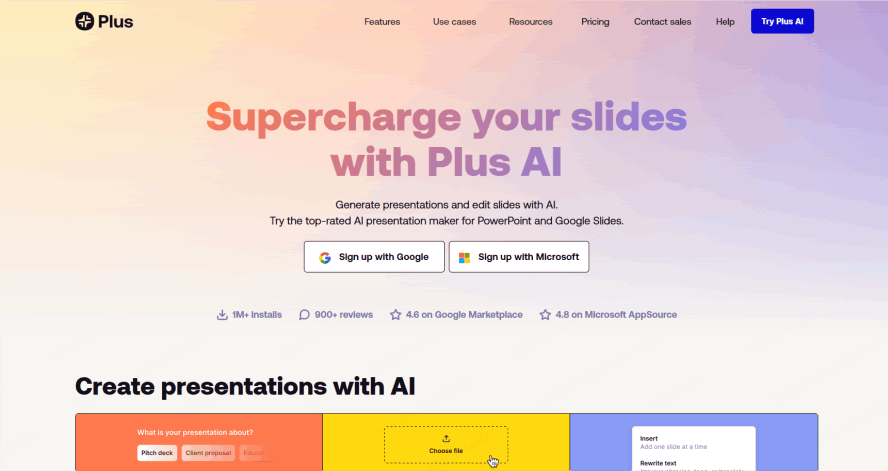
If you’re married to Google Slides and don't want to learn a new interface, Plus AI is your best friend for content heavy lifting.
From Chaos to Outline: Its real strength is taking a dense, 30-page PDF and turning it into 10 clear, manageable slides. By stripping away the fluff, it naturally reduces "cognitive load"—which is a fancy way of saying it keeps students from feeling overwhelmed.
Keep in Mind: It’s a content writer first. You’ll still need to do the heavy lifting regarding screen-reader compatibility and color-contrast settings within Google Slides.
Best for: University professors or secondary teachers who need to turn complex research into digestible classroom bites quickly.
Quick Start:
- Launch: Open the Plus AI add-on inside Google Slides.
- Convert: Paste your text or link and select "Rewrite/Summarize".
- Scaffold: Use the "Remix" tool to turn a complex paragraph into a simple, scaffolded bullet-point list.
Gamma
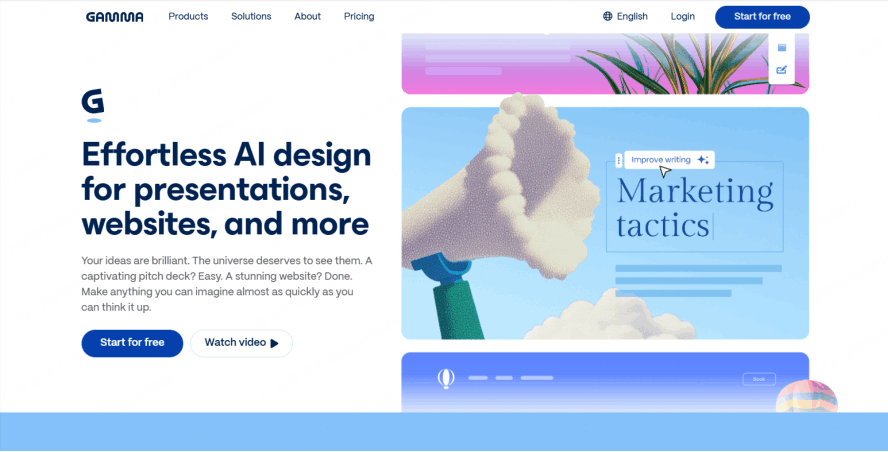
Gamma doesn’t really make "slides"—it makes interactive journeys. It feels more like a website than a PowerPoint.
The Mobile-First Advantage
Many students access materials on their phones or tablets. Gamma’s "cards" resize perfectly. No more pinching and zooming to read tiny text—it just flows.
The Focus Factor: For students who find the "flip-flip-flip" of traditional slides jarring, Gamma’s vertical scroll feels much more natural and modern.
Best for: Flipped classrooms or asynchronous learning where students are moving through the material at their own pace.
Quick Start:
- Create: Type your topic into the AI generator.
- Format: Choose a High-Contrast theme from the sidebar.
- Share: Send the link to students—they can scroll through the "cards" vertically, which is much easier for many neurodivergent learners to follow.
Which One should You Pick
| If you need... | Go with... | Why? |
|---|---|---|
| Total Accessibility | Presenti | It’s the only one that prioritizes screen-reader order automatically. |
| High Engagement | Canva | Best icons and a built-in "design health check." |
| Google Integration | Plus AI | Best for cleaning up long, overwhelming documents. |
| Mobile-Friendly | Gamma | Perfect for "flipped classrooms" where students use phones. |
Conclusion
"Accessibility is not a feature; it’s a right." As educators, our goal is to ignite a spark in every student, but that spark can only catch if the student can reach the flame. By adopting a specialized classroom presentation maker, we move away from a "one-size-fits-all" approach and toward a "one-size-fits-each" philosophy.
Whether you are utilizing special needs presentation tools for a small group or deploying inclusive classroom slides ai for a lecture hall of hundreds, the goal remains the same: removing the barriers between the learner and the knowledge. Let us embrace these AI-driven tools not just to work faster, but to teach better and include more.