
Creating presentations with a custom PPT template has become one of the most effective ways for professionals, educators, and students to enhance efficiency and visual impact. Compared with generic templates, custom PPT templates allow you to maintain consistent branding, save significant design time, and present a unique style that stands out from the crowd.
This guide explains why custom PPT templates matter, how to create them, the tools you can use, and tips to elevate your presentation design, with a special focus on modern AI powered PPT creation tools such as Presenti AI. Whether you’re a beginner or an experienced presenter, you’ll learn how to build your own template quickly and use it repeatedly across different projects.
1. Why Use a Custom PPT Template?
A custom template is the perfect combination of efficiency, personality, and professional branding. Unlike standard templates that come with fixed layouts and limited design freedom, custom templates give you full control over visuals, structure, and brand identity.
Key Benefits of Custom PPT Templates
High level of customization
Fonts, color schemes, logo placement, background images, layout structure, everything can be tailored to your brand or personal preference. This is crucial for companies that require strict brand consistency.
Consistent visual style
A custom template keeps your entire slide deck visually cohesive. Whether it’s a pitch, a report, or an academic presentation, your structure and design language remain unified.
Strong reusability
Once created, your template can be applied to multiple presentations, reducing formatting work and ensuring every new slide deck looks polished and professional.
Clear content structure
Custom templates allow you to predefine section pages, chapter dividers, content layouts, and icon styles, making your workflow faster and more organized.
2. Common Ways to Create Custom PPT Templates
There are several practical methods to build custom templates, each suitable for different user needs and skill levels.
(1) Using Built in PowerPoint Slide Master
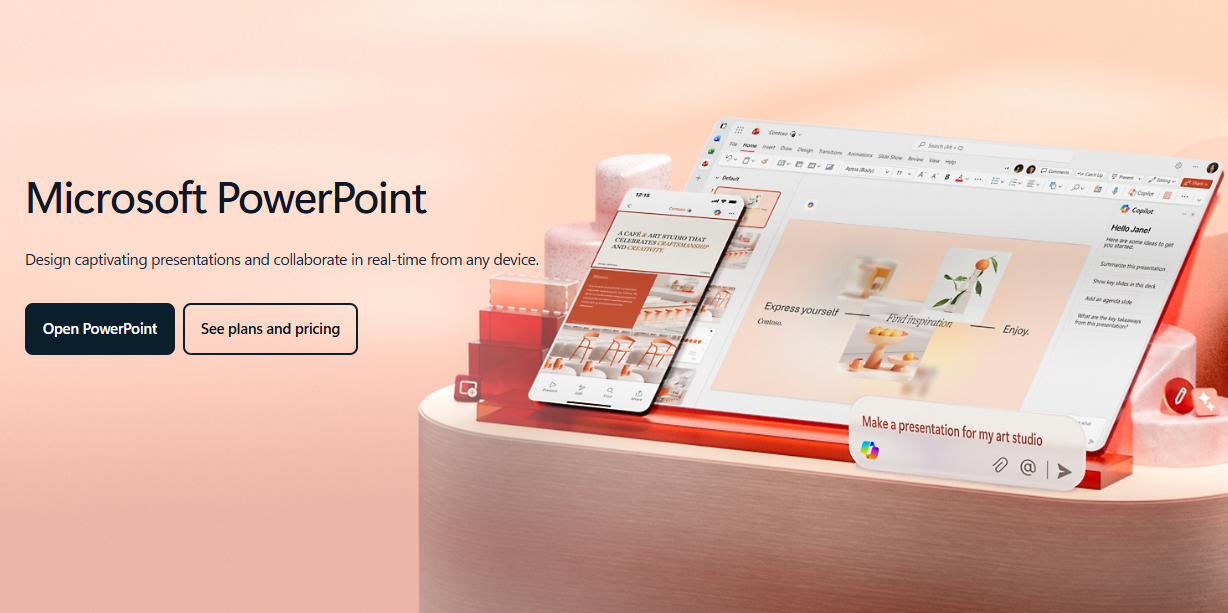
Microsoft PowerPoint provides the Slide Master feature, which allows you to define global formatting rules:
- Consistent fonts and font sizes
- Background images
- Color themes
- Standard layouts for title pages, content pages, and section dividers
This method is ideal for users familiar with PowerPoint but can be time consuming if you need complex visuals.
(2) Using Online Tools and AI Powered Generators
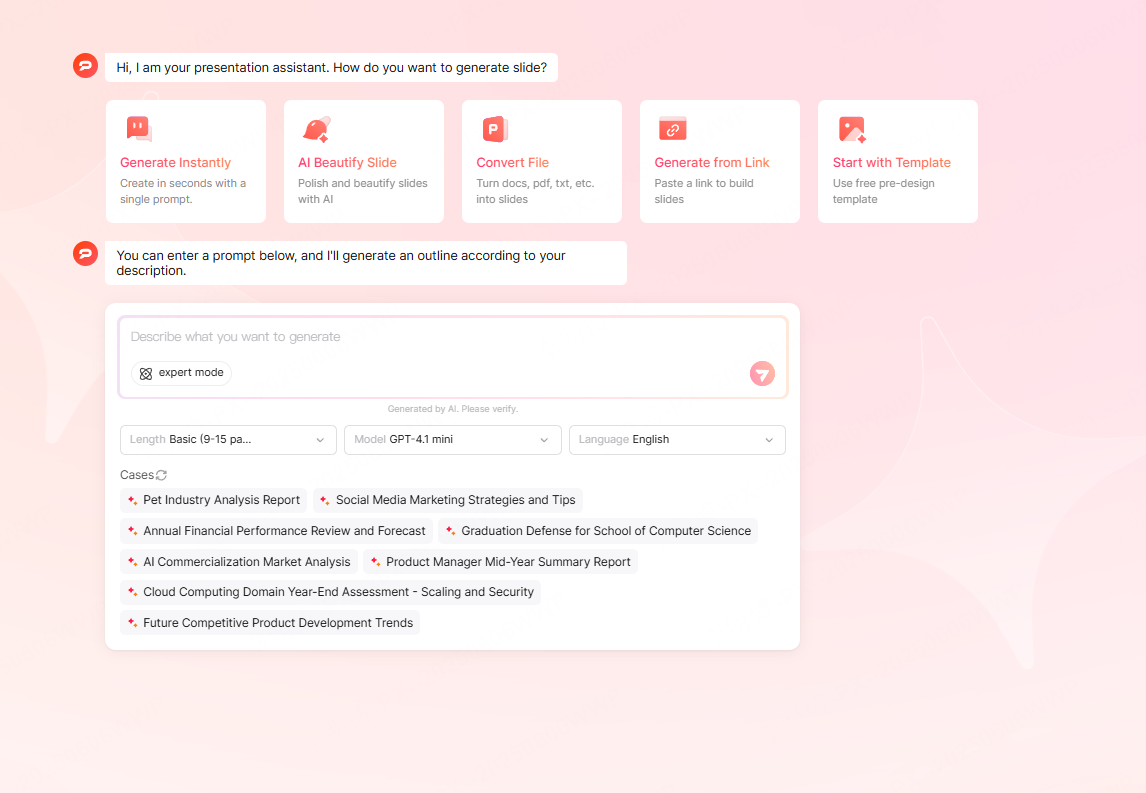
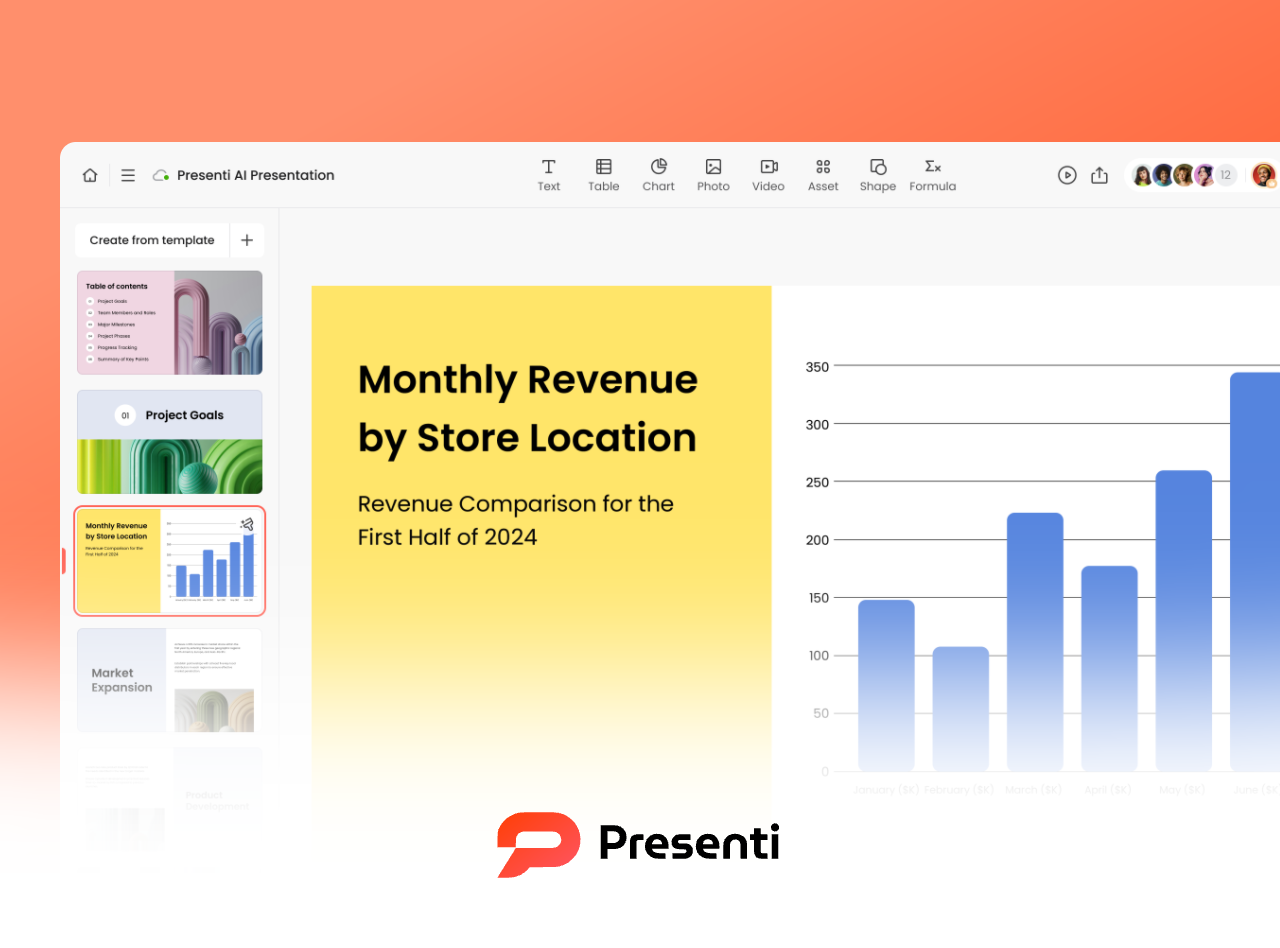
Modern online PPT tools such as Presenti AI can significantly reduce design workload. These platforms provide an intuitive editing experience and offer AI assisted template generation.
AI features include:
- Automated structure generation: Insert a topic, and AI generates chapters, titles, bullet points, and logical sections.
- Smart layout recommendations: The system analyzes content length and automatically chooses the optimal layout.
- AI driven visual selection: The tool matches icons, images, and illustrations based on keywords.
- Automatic typography optimization: Titles, subheadings, spacing, and alignment are adjusted automatically to maintain balance and readability.
This approach is perfect for users who want fast, visually consistent presentations without deep design skills.
(3) Downloading and Editing Existing Templates
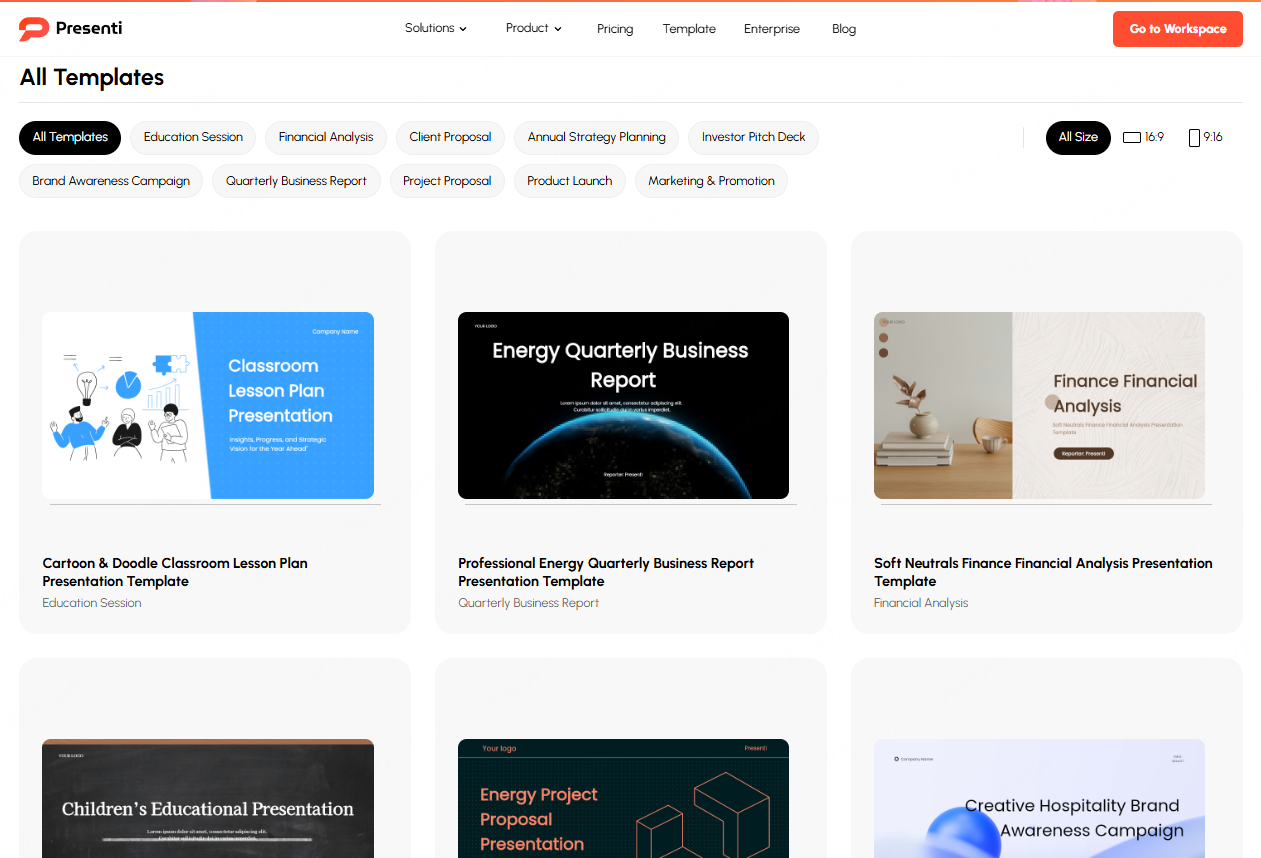
You can also download ready made templates from third party sites. This is easy but comes with limitations:
- Quality varies widely
- Copyright concerns
- High risk of using templates also used by others
- Hard to achieve consistent branding
If you need originality and polish, building or generating your own template is a better long term solution.
3. Step by Step Guide: How to Create a Custom Template in Presenti AI
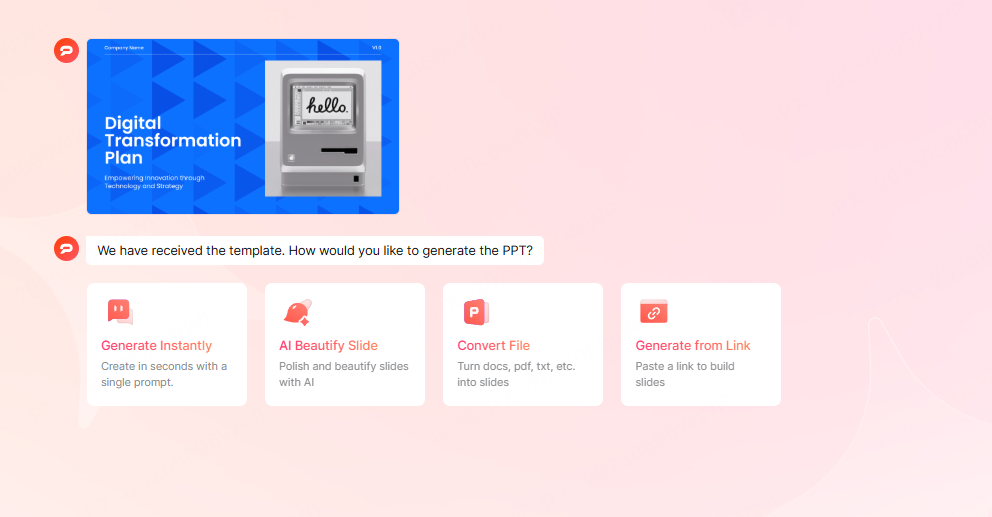
Presenti AI offers a user friendly workflow for building customized presentation templates. Below is a step by step example using the “Create New Custom Template” feature.
Step 1: Name Your Template
Navigate to the Custom Templates panel and click “Create New.”
Give your template a meaningful name so you can easily reuse it in future projects.
Step 2: Generate Sample Layouts
Click Random Example to automatically create basic framework layouts:
- Cover Page
- Table of Contents
- Chapter Divider
- Content Pages
- Closing Page
Available in 16:9 or 9:16 aspect ratios.
Step 3: Choose a Color Theme
Select a preset color combination or adjust your own:
- Dark/Light modes
- Industry themes (e.g., “Black & Gold” for finance, “Green Field” for education)
- Custom brand colors
This step helps lock down your presentation’s overall mood and identity.
Step 4: Select Global Fonts
Choose or upload fonts for:
- Titles (strong, impactful typefaces)
- Body text (clean, readable fonts)
Companies can upload brand fonts to keep corporate identity consistent.
Step 5: Add Visual Elements
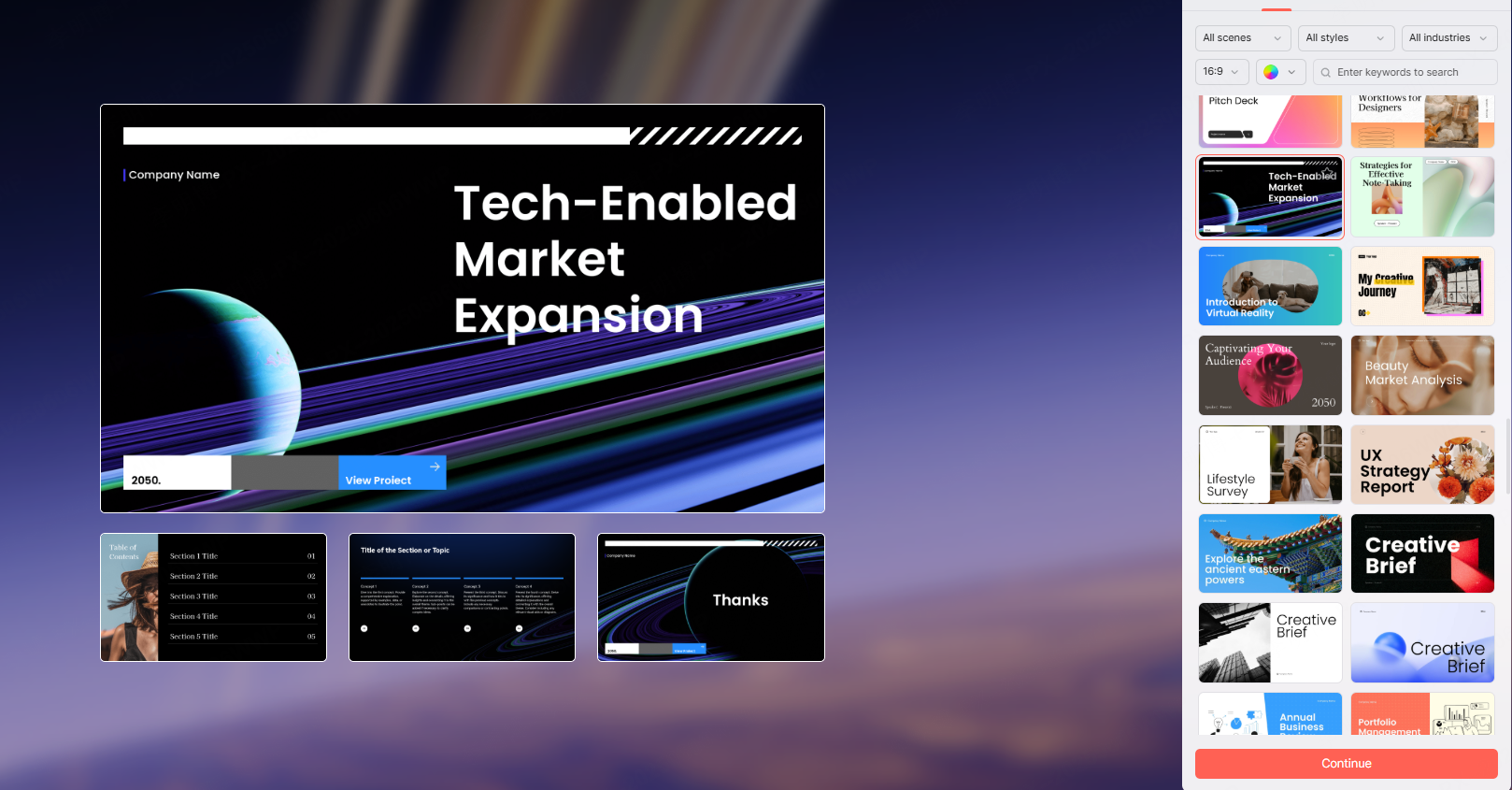
Insert images, shapes, backgrounds, and decorative elements from:
- The platform’s built in library
- Category collections (tech, business, education, medical, marketing, holidays, etc.)
- User uploaded images and custom material packs
Keyword search helps find matching visual assets instantly.
Step 6: Set Logo Placement
Upload your organization or personal logo and define:
- Size
- Position
- Pages where it should appear (e.g., only cover and ending slides)
Step 7: Publish Your Template
Once complete, click Publish Template.
Your design will now be stored under My Templates → Custom, ready to use whenever you create new PPTs.
4. Tips for Building a Distinctive Presentation Style
1. Keep Branding Consistent
Use the same logo, primary colors, and typography across all slides to build recognition.
2. Follow the 60% 30% 10% Color Rule
- 60% primary color
- 30% secondary color
- 10% highlight/accent
This ensures harmony without overwhelming the viewer.
3. Apply Font Hierarchy
Use impactful fonts for headers and clean, simple fonts for body text. Maintain consistent size ratios.
4. Use AI for Visual Unity
If you lack images or illustrations, let AI generate visuals in consistent styles to avoid mismatched artwork.
5. Advantages of Using Custom Templates for PPT Creation
Custom templates provide significant benefits for:
- Corporate presentations
- Project reports
- Academic defenses
- Lessons and workshops
- Marketing pitches
- Product launches
✔ Faster workflow
Preset styles eliminate repetitive formatting work.
✔ Professional branding
Company colors, fonts, and logos make every presentation look unified and premium.
✔ Personalized creativity
No need to use overused templates found online, your design is unique to your brand.
✔ Content focused work
With design solved by the template, you can dedicate more attention to logic and storytelling.
Conclusion
Compared with fixed, generic templates, custom templates help you build a more recognizable brand identity, enhance professionalism, and boost design efficiency. If you're searching for a powerful, user friendly custom PPT template generator, Presenti AI is an excellent choice. It allows you to generate personalized, visually cohesive presentations with just one click, combining speed, aesthetics, and advanced AI intelligence.









