A useful bar chart lets an audience compare categories without first decoding a table. Begin with a clear unit and one question: which category has the largest count? Then choose readable labels, a zero baseline, and a title that says what the comparison shows.
This tutorial uses the Presenti AI chart editor and a small authored support-ticket dataset. It explains what to enter, how to read the result, and how to place it on a presentation slide. These are Presenti controls, rather than the menus in Microsoft PowerPoint.
Choose the Comparison Before the Chart
Bar lengths work well for comparing categories, such as support issues, survey responses, or sales by region. A sequence of monthly counts can also use bars; if the main question concerns a continuous trend, consider whether a line chart makes the pattern easier to follow.
For the example below, each of 110 tickets from one illustrative week has one primary category. That rule matters: if a ticket could appear in several categories, adding the bars would no longer give a distinct-ticket total.
| Category | Ticket count |
|---|---|
| Account access | 42 |
| Billing questions | 28 |
| File upload failures | 19 |
| Export formatting issues | 13 |
| Other requests | 8 |
| Total | 110 |
Enter the five category rows into the chart. Keep the total as context below the chart; do not add it as a sixth bar competing with its own components.
Open a Slide in Presenti AI
Open an existing presentation or create a draft, then select the slide where the comparison belongs. Leave space for a short takeaway above the chart and a source note below it. The data can be entered manually; this example does not depend on a spreadsheet connection.
Step 1: Choose a Bar-Chart Style
Open Charts and select the Bar chart category. Choose an available style suited to the labels. Horizontal bars are useful for long category names because the labels can remain horizontal. If you use columns, allow enough width for the labels or shorten them without changing their meaning.
The saved editor screenshot below shows a vertical-bar preview with sample weekdays. It illustrates the data controls; it is not the output of our support-ticket example.
Step 2: Replace the Sample Data
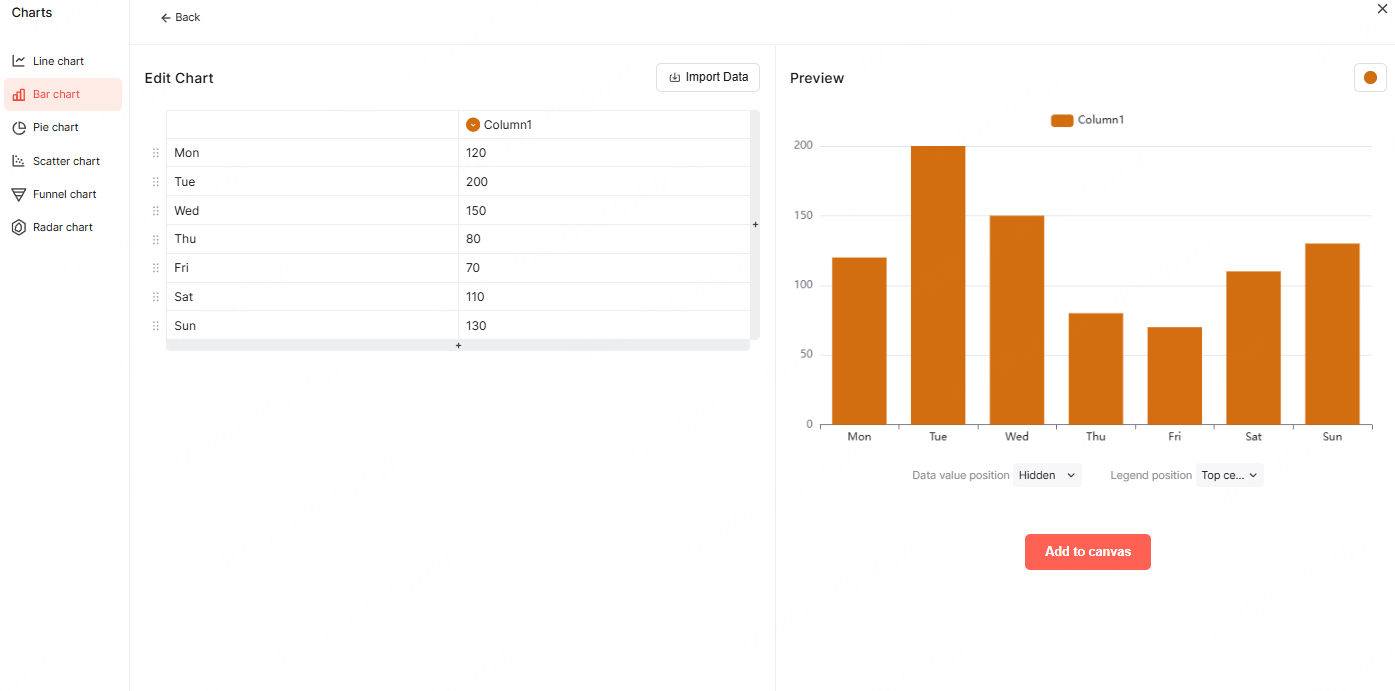
In the Edit Chart grid, replace the sample categories with the five issue names and replace the numeric cells with 42, 28, 19, 13, and 8. Rename the sample series “Column1” to “Ticket count.” Use the available row controls to leave one row per category, then compare each previewed bar with its source value.
The screen includes an Import Data control, but the screenshot does not establish its accepted file types. Manual entry is sufficient for this dataset. For another source, use only formats offered in the current import dialog.
Read the numbers as counts, not percentages. Account access is the largest category at 42 tickets. It represents 42 ÷ 110 × 100 = 38.2% of this example's tickets, rounded to one decimal place. The next category has 28 tickets, so the difference is 14 tickets.
Step 3: Set Labels, Color, and Scale
Use the visible Data value position control to show values where they remain legible. The editor also shows a legend-position control and a color swatch. For one series, a clear title and value-axis label may make a separate legend unnecessary; remove or reposition it if the available controls allow.
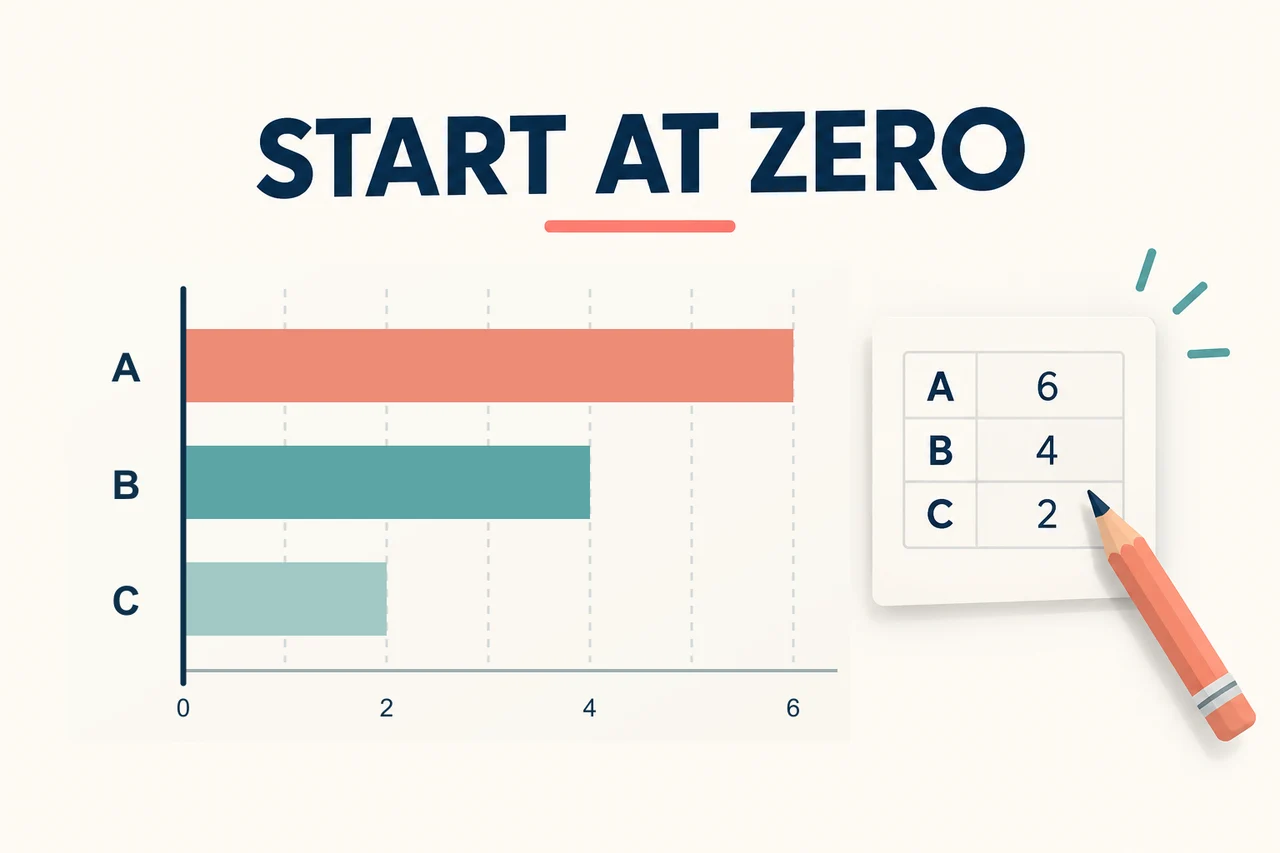
- Start the value axis at zero when comparing bar lengths. A cropped baseline exaggerates differences.
- Label the unit “Ticket count.” Do not put a percent sign after a count.
- Keep categories in descending order for this ranking task. Use a meaningful chronological order for dates instead.
- Use one neutral bar color, with a single accent only if it identifies a point you discuss. Keep all numeric labels readable without relying on color.
Review the preview before choosing Add to canvas. The category names and values should match the table, including the smallest category.
Give Long Labels Enough Room
For a horizontal layout, place the five category names to the left and align all bars at the same zero position. “Export formatting issues” should fit without becoming much smaller than the other labels. For a column layout, shorten it to “Export formatting” and retain the full category wording in the source note or accompanying table.
Resize and position the chart deliberately. A template's suggested spacing is a starting point; inspect labels at the size the audience will actually see. Avoid squeezing the chart between unrelated illustrations.
Step 4: Write the Slide's Takeaway
A title such as “Support issues” names the topic but leaves the interpretation to the audience. For this example, use:
Account access was the largest support category: 42 of 110 tickets
Below the chart, add: “Illustrative dataset · one week · one primary category per ticket.” In the discussion, ask which account-access tickets should be examined next. The chart identifies a place to investigate; it does not show whether unclear instructions, an outage, or another cause produced those tickets.
Do not change the title to “Account access caused most customer problems.” The largest category is 38.2%, not a majority, and ticket volume alone says nothing about the number of affected customers, severity, or root cause.
Copy the Data and Slide Brief
Download the data and chart-slide brief or copy it here.
Authored example — one week of support tickets, one primary category per ticket.
Category,Ticket count
Account access,42
Billing questions,28
File upload failures,19
Export formatting issues,13
Other requests,8
Total,110

Enter only the five category rows; keep Total as context, not a sixth bar.

Chart: horizontal bars when available; categories in descending order; value axis starts at 0; label the axis Ticket count.
Slide title: Account access was the largest support category: 42 of 110 tickets.
Source line: Illustrative dataset; one week; each ticket assigned one primary category.
Interpretation: 42/110 = 38.2% of tickets, rounded to one decimal place. The counts do not identify the cause or severity of an issue.
Discussion question: Which account-access tickets should we inspect before deciding what to change?
The comma-separated rows are a portable source resource. They are not a promise that a particular editor imports CSV. You can copy the values into the chart's data grid or use the same source table in another presentation tool.
Build the Explanation Around the Chart

Presenti can help draft the surrounding presentation and supply a starting layout. Keep ownership of the data definition, category order, and conclusion. If you export the deck, inspect the chart in the receiving application; consult current plan details for PPTX/PDF export access.
Investigate the Largest Category
For a real support review, follow the chart with a concrete question: “Within account access, which requests concern password resets, permissions, or service failures?” Inspect those tickets before choosing an intervention. If you compare another week, keep the category definitions and counting rule unchanged, or explain the difference beside the chart.