
Turning a written document into a polished, visually appealing PowerPoint presentation is a common need in workplaces, classrooms, and professional settings. Yet many beginners feel overwhelmed by the traditional, manual process, formatting slides, extracting key points, choosing layouts, adding visuals, and arranging everything into a coherent flow.
Fortunately, with the rapid rise of AI presentation tools, creating a PPT from a document has become drastically faster, often taking less than three minutes. This guide breaks down the traditional conversion methods, shows how AI streamlines the workflow with one click PPT generation, and provides expert tips to help you achieve professional results every time.
1. Why Generate a PPT Directly from a Document?
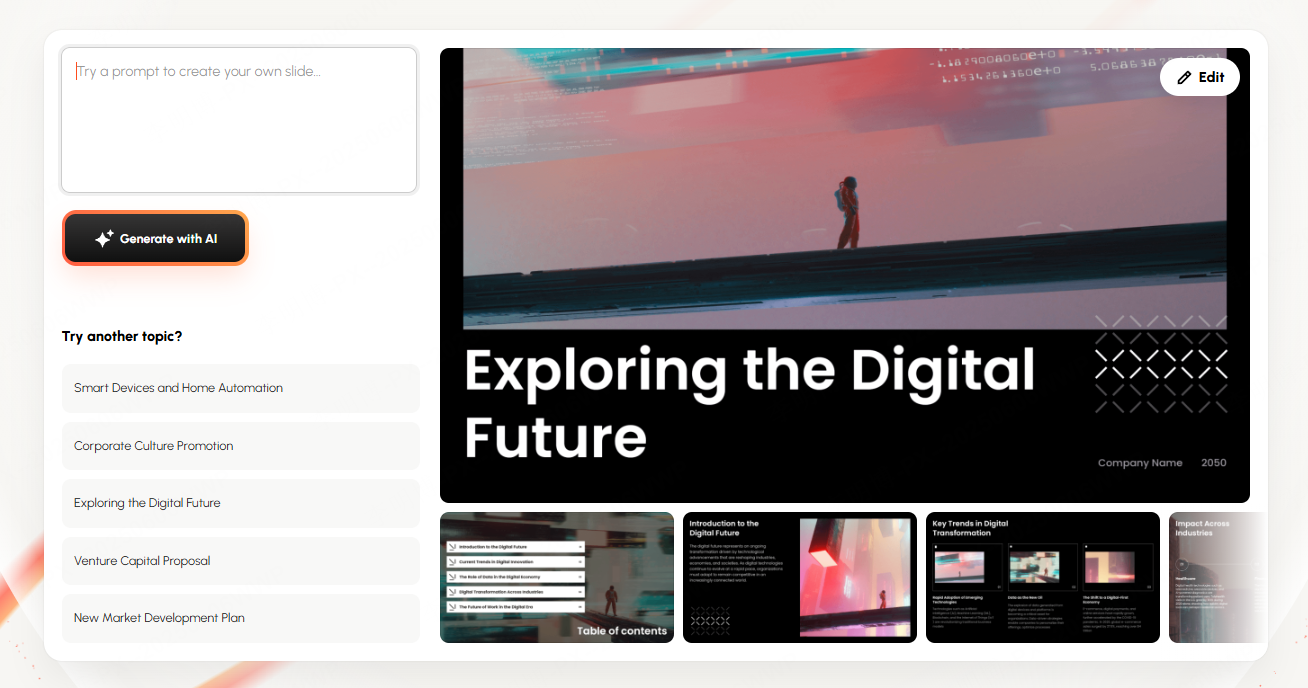
Converting a document into a PPT presentation can significantly boost efficiency, especially for users who struggle with design or are pressed for time. Instead of manually copying text, reformatting structure, or adjusting layout styles, modern tools can automatically extract the content structure, summarize key ideas, and generate well designed slides in seconds.
Key advantages include:
- Saves hours of manual slide creation
AI tools automatically analyze your document and translate it into a structured slide deck. - Ensures clear and consistent visual formatting
Templates, themes, typography, and layout rules are applied automatically. - Enhances presentation quality
Many platforms include smart design features, auto generated images, icons, diagrams, speaker notes, and layout optimization.
Whether you’re preparing business updates, academic reports, startup pitch decks, or training materials, document to PPT conversion has become one of the most time saving productivity hacks.
2. Traditional Method: Importing a Word Outline into PowerPoint
Before AI tools appeared, the most common way to convert a document into a PPT was through Word’s Outline View and PPT's Outline Import feature. While it still works, the workflow is rigid and prone to errors.
Step 1: Assign Heading Levels in Word
Switch to Outline View and mark Title 1, Title 2, etc. PPT uses these levels to build slide titles and bullet points.
Step 2: Save as an RTF Outline File
The document must be saved in RTF format for PowerPoint to recognize heading hierarchy.
Step 3: Import the Outline into PowerPoint
In PowerPoint, go to:
Insert → New Slide → Slides from Outline → Select the RTF file
Limitations of This Method
- Time consuming and requires switching between apps
- Very easy to misconfigure heading levels
- Formatting often breaks during import
- No layout design, templates, images, or visual enhancements
- Only the text structure is imported, everything else must be manually edited
For users needing fast results or visually polished slides, this method is far from ideal.
3. AI Tools: One Click PPT Generation from Documents
AI technology has transformed how presentations are made. Platforms like Presenti AI can instantly convert Word, PDF, or text documents into structured, beautifully designed slides.
How AI Document to PPT Works
Step 1: Upload Your Document
Upload a Word, PDF, or TXT file directly into the AI presentation generator.
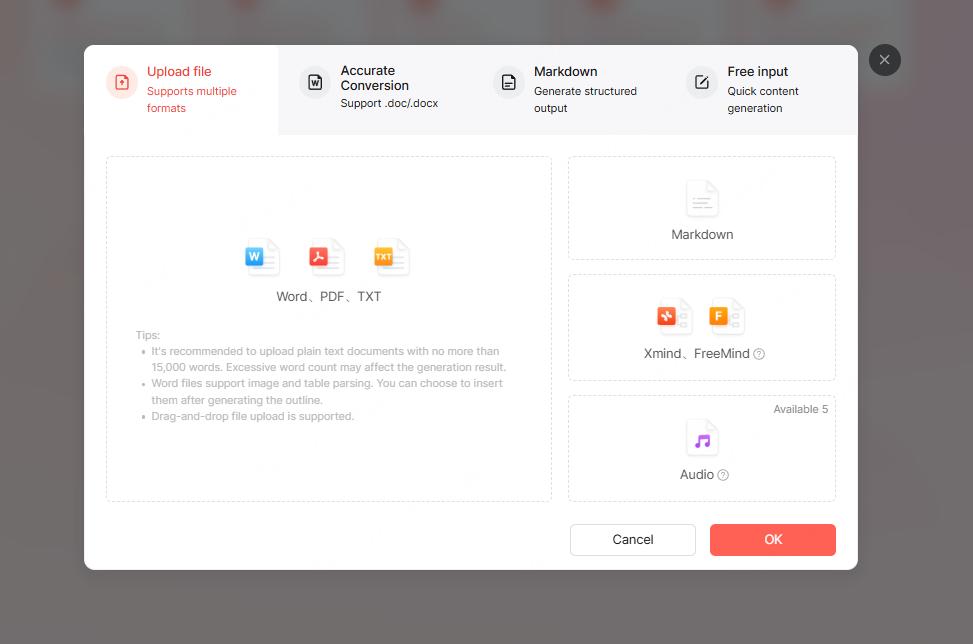
Step 2: Smart Content Analysis
The AI automatically extracts sections, identifies key points, summarizes long paragraphs, and generates a slide outline.
Users can choose between “concise” or “detailed” generation modes, and select templates from business, tech, education, and creative categories.
Step 3: Generate the Full PPT
Within seconds, the system produces a complete slide deck complete with structure, text, layout, and visual elements.
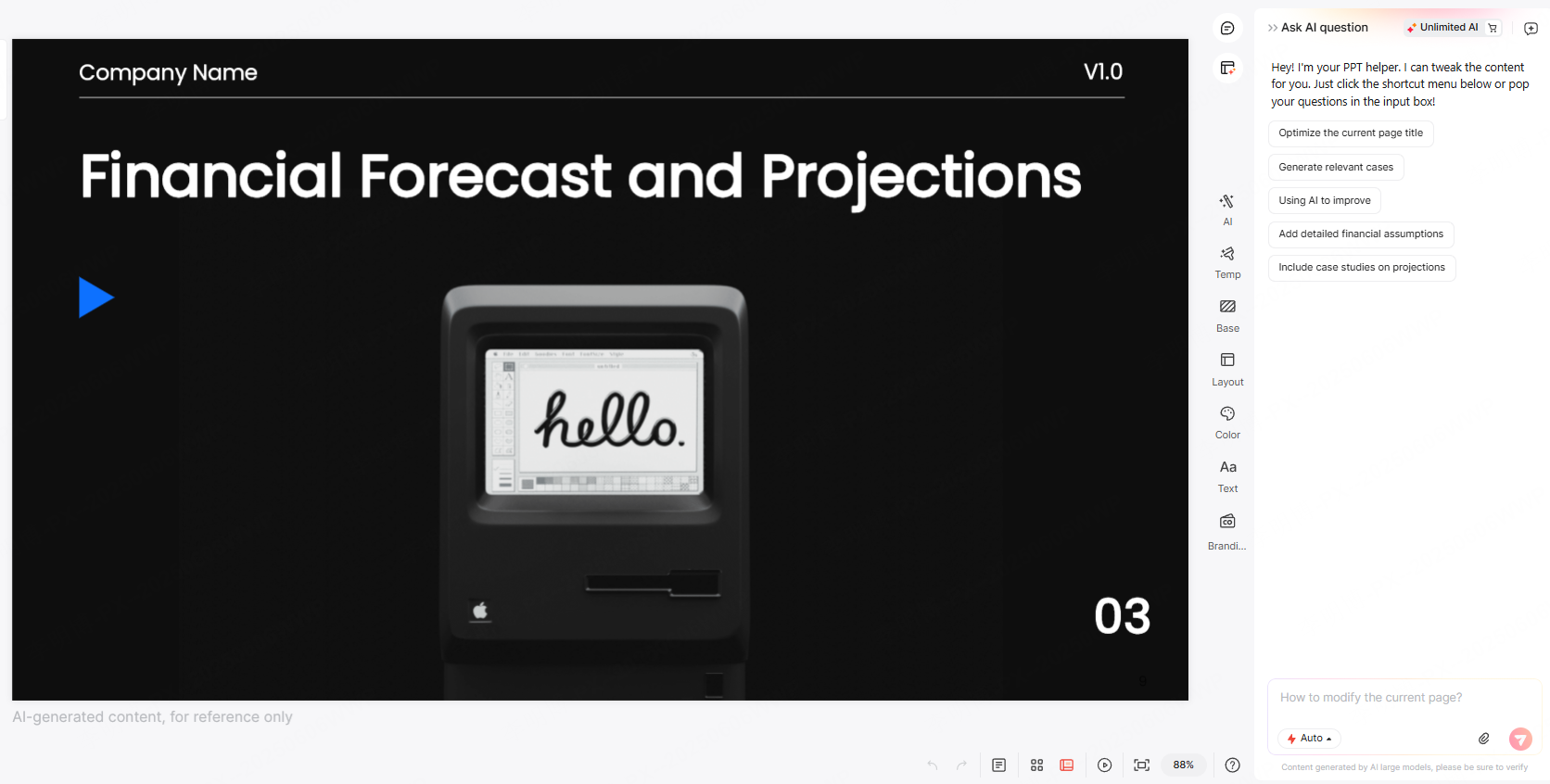
Step 4: Preview and Refine
Use built in AI editing tools to rewrite text, relayout content, adjust images, or regenerate individual slides.
Because Presenti AI uses advanced language models such as ChatGPT 5 for layout optimization and content generation, the resulting PPT often looks like a designer created it.
4. Pro Tips: How to Get the Best Results from Document to PPT Conversion
To maximize the quality of your automatically generated slides, apply the following recommendations.
Tip 1: Preclean Your Document
A well structured input document produces a superior output. Ensure:
- Headings are clearly marked
- Redundant text is reduced
- Key data and conclusions are highlighted
- Important terms are consistent
Tip 2: Always Review AI Generated Content
Although AI tools are powerful, they can occasionally misinterpret context. After generation:
- Verify facts, numbers, and terminology
- Ensure the logical flow matches your original intent
- Check for missing or duplicated content
Tip 3: Optimize Visuals Manually Where Needed
AI can insert images and charts, but manual review is essential:
- Replace irrelevant images
- Adjust chart types for clarity
- Refine colors and typography
- Add animations only where necessary
Tip 4: Add Your Personal Touch
A PPT is not merely a document, it is a storytelling tool. Personal examples, case studies, and visuals that reflect your brand can make the presentation truly compelling.
Conclusion
Document to PPT conversion is no longer a tedious, manual task. Thanks to AI tools like Presenti AI, you can turn long reports, research papers, and proposals into professional presentations in three simple steps: Upload → Analyze → Generate. The process saves hours of work and allows you to focus on creativity and communication instead of formatting.
If you frequently create presentations, mastering AI powered document to PPT workflows is one of the most valuable productivity upgrades you can make.









