
Converting a PDF into a PowerPoint presentation is a common task for professionals across engineering, education, product management, and software development. PDFs are great for preserving layout and content integrity, but they are not ideal when you need to edit slides, restructure information, or deliver a live presentation.
This guide walks you through a practical, three step workflow to convert a PDF into an editable, presentation ready PowerPoint file. The process is designed for modern teams who value speed, clarity, and flexibility. No design background required. We will also explore how AI powered presentation tools streamline this process and help you go beyond basic file conversion.
Why Convert PDF Files to PowerPoint?
PDFs are often used to distribute finalized reports, technical documentation, or research papers. However, when those materials need to be presented, PDFs quickly become limiting.
Here are common reasons teams convert PDFs to PowerPoint:
- Turning technical reports into stakeholder presentations
- Repurposing training manuals for classroom or workshop use
- Transforming product specs into pitch decks
- Updating legacy documentation for new audiences
PowerPoint remains the standard presentation format in North America and Europe because it is editable, collaborative, and compatible with most meeting platforms.
Step 1: Choose the Right PDF to PPT Conversion Tool
Not all PDF to PowerPoint converters are created equal. Traditional tools often focus only on layout conversion, which leads to cluttered slides and poor readability.
For modern workflows, AI powered presentation tools provide a better solution.
Why Use an AI Based Tool?
AI presentation tools do more than copy content. They analyze structure, extract key points, and reorganize information into slide friendly layouts.
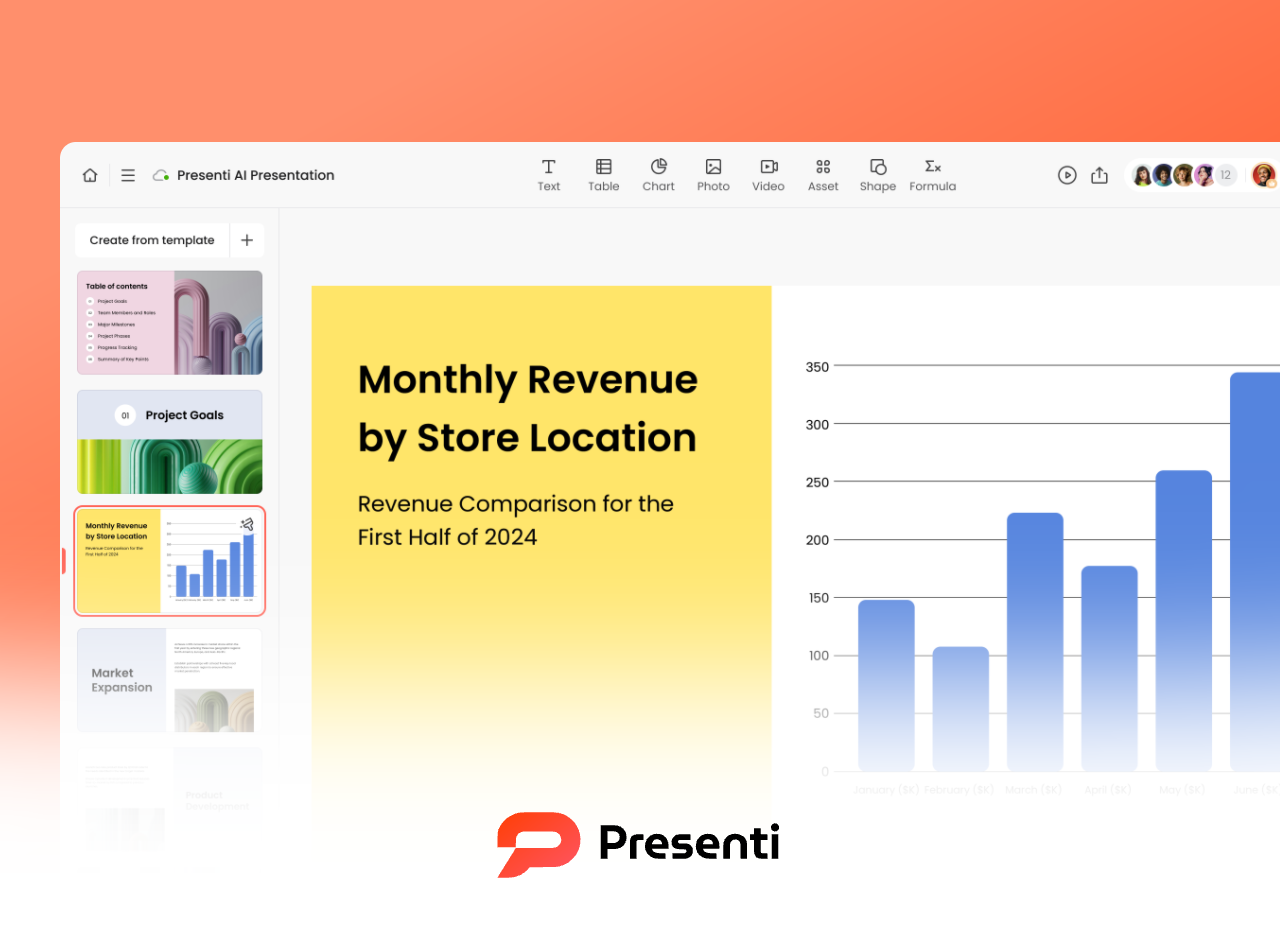
Presenti AI is an online AI presentation generator designed for this exact use case. It allows you to convert PDFs into clean, editable PowerPoint files while preserving content intent rather than rigid formatting.
Key advantages include:
- Intelligent content restructuring
- Multiple generation strategies for different presentation goals
- Editable outlines before slide generation
- Professionally designed templates suitable for business and education
To get started, open your browser, visit the Presenti AI website, and create an account. Once logged in, you will be directed to the main workspace.
Step 2: Upload and Convert Your PDF File
Once inside the workspace, the conversion process is straightforward and flexible.
2.1 Import the PDF File
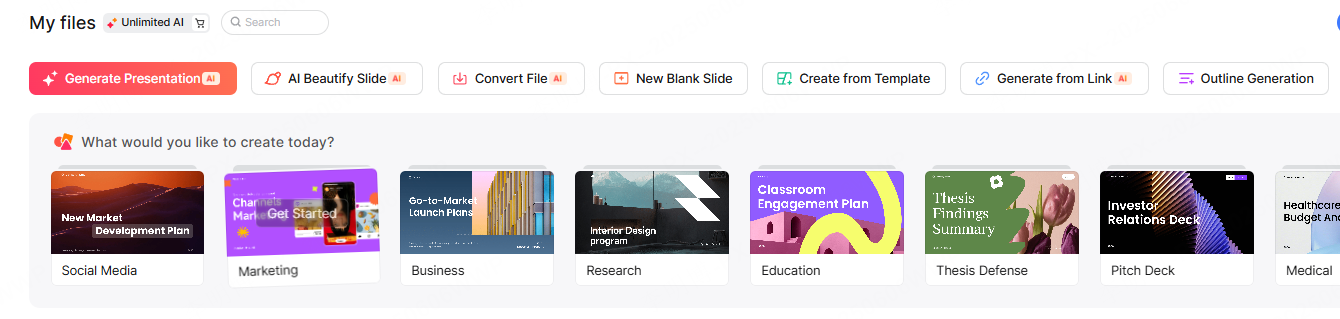
From the dashboard, select the option to generate a presentation from an imported file. Upload the PDF you want to convert and confirm the upload.
The system will automatically parse the document and prepare it for content extraction.
2.2 Select a Conversion Strategy
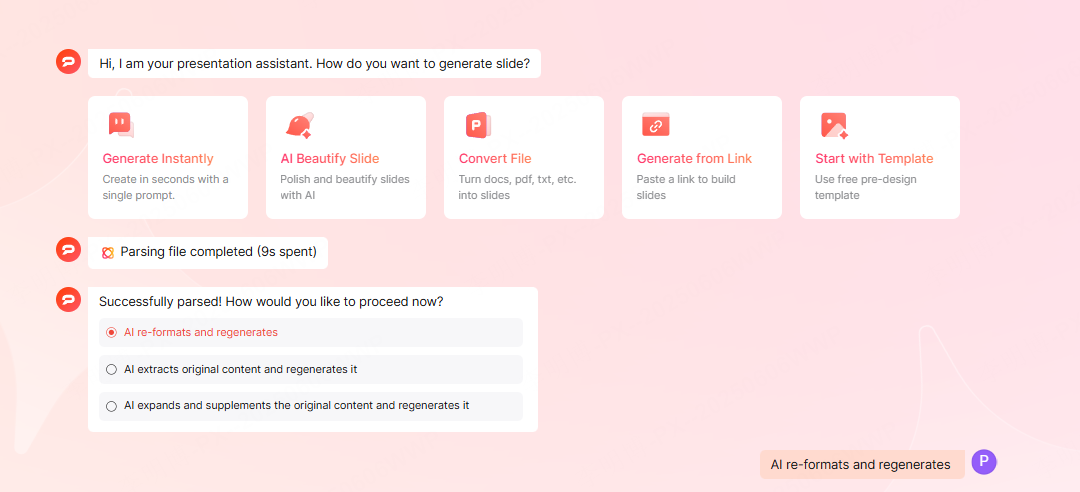
After the PDF is processed, you can choose how the AI should generate your slides. Presenti AI supports three practical approaches:
- Reformat and reorganize the original content
Best for structured documents such as reports or white papers. - Summarize and extract key points
Ideal for executive briefings, demos, or time constrained presentations. - Expand and enrich the content
Useful for training materials, lectures, or onboarding sessions.
Choose the method that best matches your presentation goal.
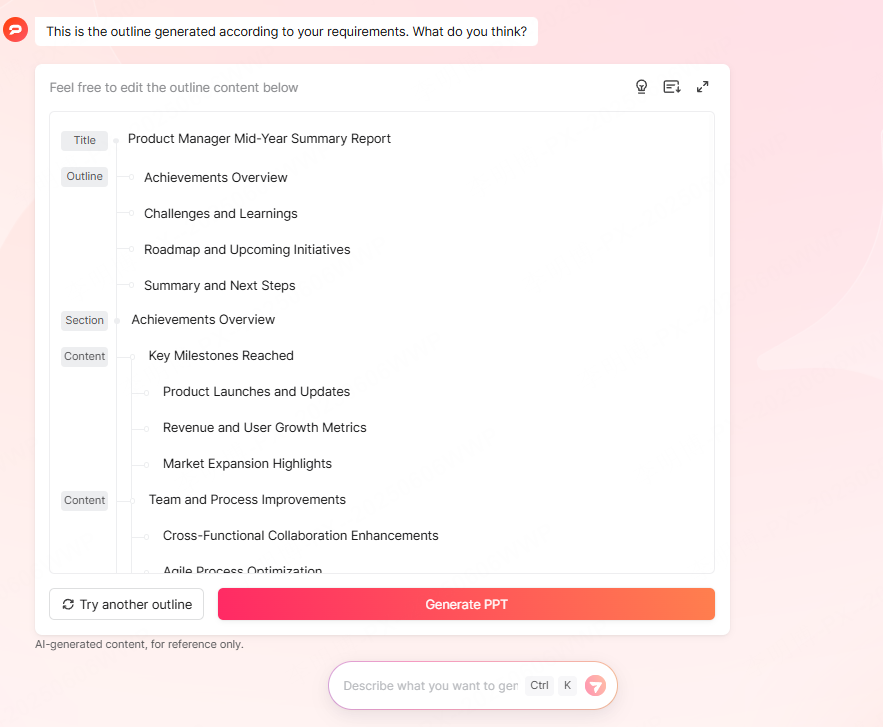
2.3 Review and Edit the Slide Outline
Before generating the slides, the tool creates a presentation outline based on your PDF. This step is critical.
You can manually edit section titles, reorder slides, or remove unnecessary content. This ensures the final deck aligns with your audience and presentation flow.
Once the outline looks right, proceed to template selection.
2.4 Select a PowerPoint Template
Presenti AI offers a wide range of professionally designed PowerPoint templates. These templates are optimized for business meetings, technical presentations, and educational settings commonly used in North America and Europe.
You can choose templates based on:
- Industry tone
- Color schemes
- Presentation context such as sales, education, or internal reviews
After selecting a template, start the generation process. The AI will automatically create a complete PowerPoint presentation.

Step 3: Optimize and Customize the Generated Slides
At this point, you have a fully generated PowerPoint file that is both editable and visually structured. The final step is refinement.
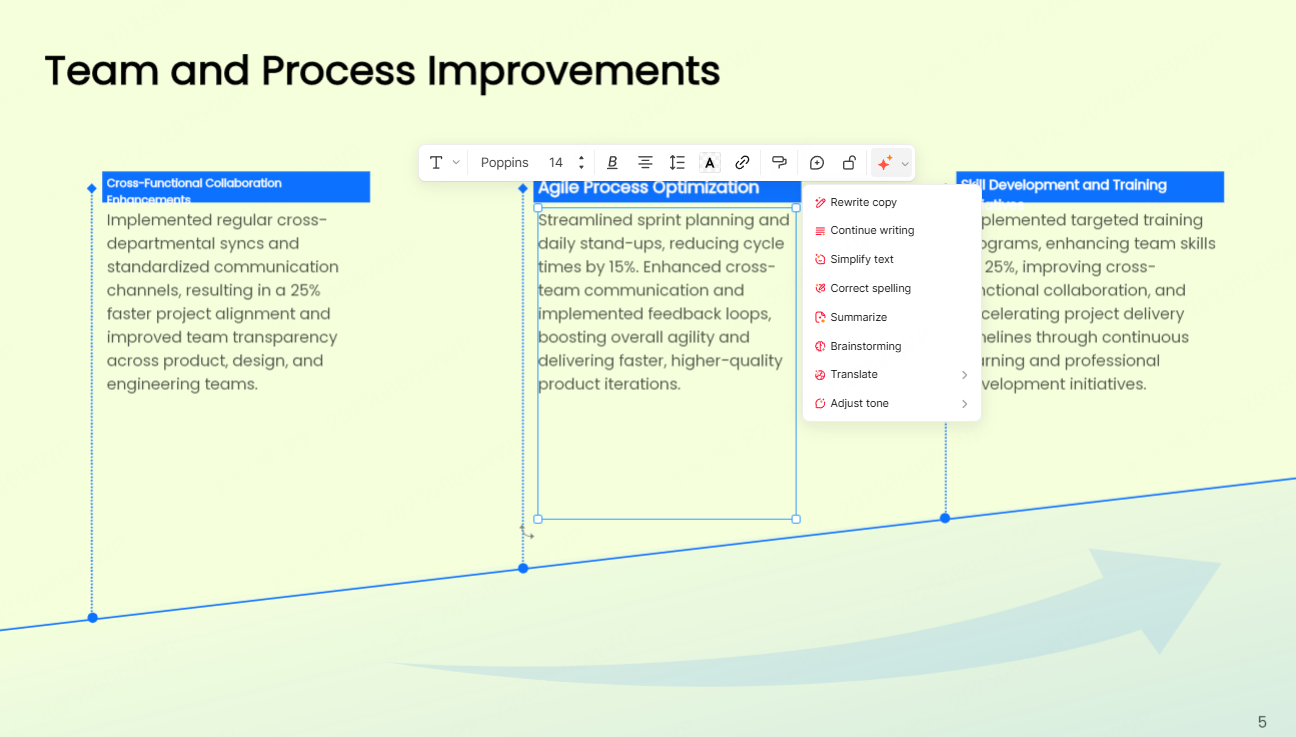
3.1 Improve Content with AI Assistance
Use the built in AI assistant to fine tune your slide text. Common tasks include:
- Rewriting content for clarity
- Shortening dense paragraphs
- Expanding bullet points into speaker notes
- Translating slides for international audiences
This is especially helpful when converting technical PDFs that were not originally written for presentation use.
3.2 Adjust Visual Elements
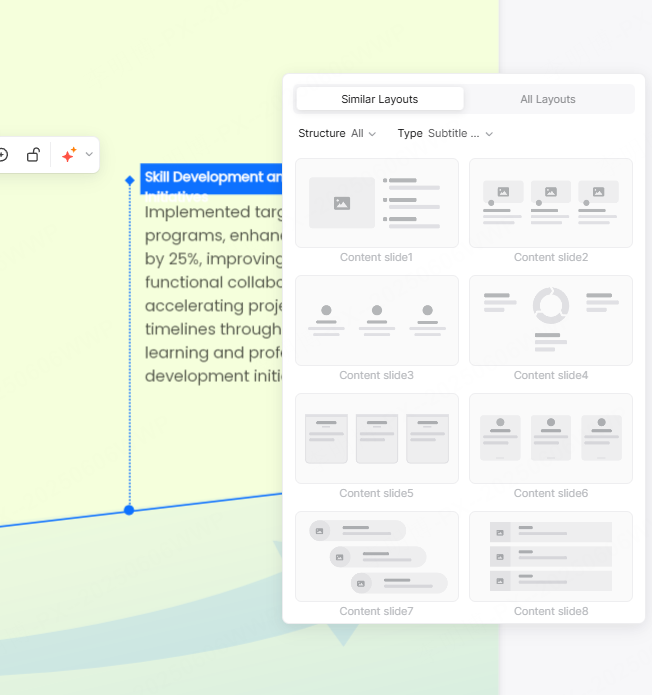
PowerPoint is a visual medium. Review each slide and adjust:
- Images and icons
- Charts and diagrams
- Backgrounds and layouts
You can switch slide layouts with one click or apply a different template if needed. This flexibility allows you to adapt the presentation to different audiences without starting over.
3.3 Share or Export Your Presentation
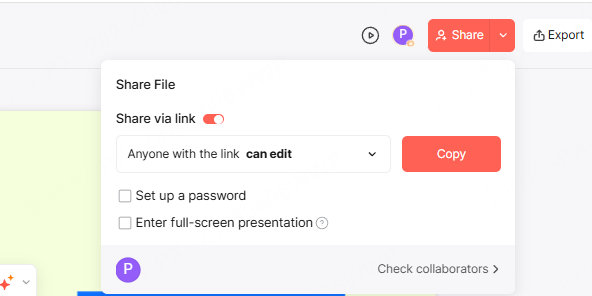
Once you are satisfied, you have several options:
- Share the presentation via a link for online collaboration
- Present directly using an online presentation mode
- Export the file as a standard PPTX for offline use
This makes the presentation easy to distribute across teams, classrooms, or client meetings.
Best Practices for PDF to PowerPoint Conversion
To get the best results, keep these tips in mind:
- PDFs with clear headings convert better than dense text blocks
- Remove unnecessary pages before uploading
- Always review the AI generated outline before finalizing
- Optimize for slide readability, not document completeness
Remember, a good presentation is about communication, not information overload.
Beyond PDF to PPT: Expanding Your Presentation Workflow
Modern AI presentation tools go beyond simple conversion.
With Presenti AI, you can also:
- Generate presentations from a single prompt
- Convert mind maps into structured slides
- Create decks from meeting notes or outlines
This dramatically reduces the time spent on manual slide creation and allows teams to focus on content quality and delivery.
Conclusion
Converting a PDF into a PowerPoint presentation does not have to be time consuming or frustrating. With the right AI powered tool, you can transform static documents into dynamic, editable presentations in just three steps.
For technical teams, educators, and project managers, this workflow saves hours of manual work while improving presentation quality. Whether you are preparing a training session, stakeholder update, or product demo, AI driven PDF to PPT conversion is now a practical and reliable solution.









