
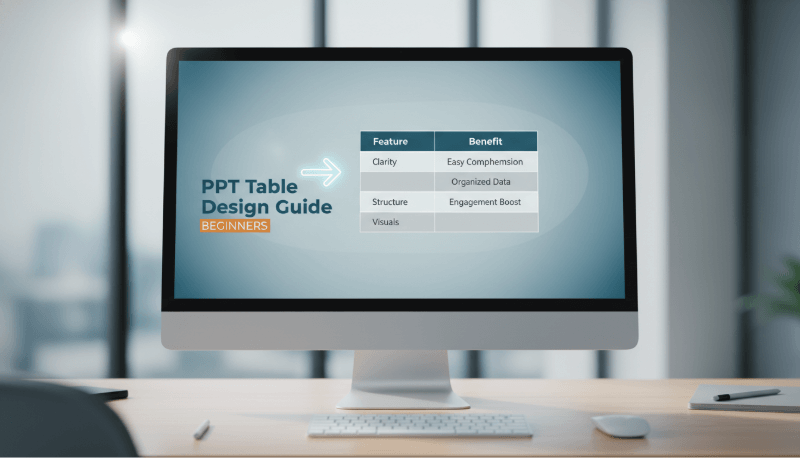
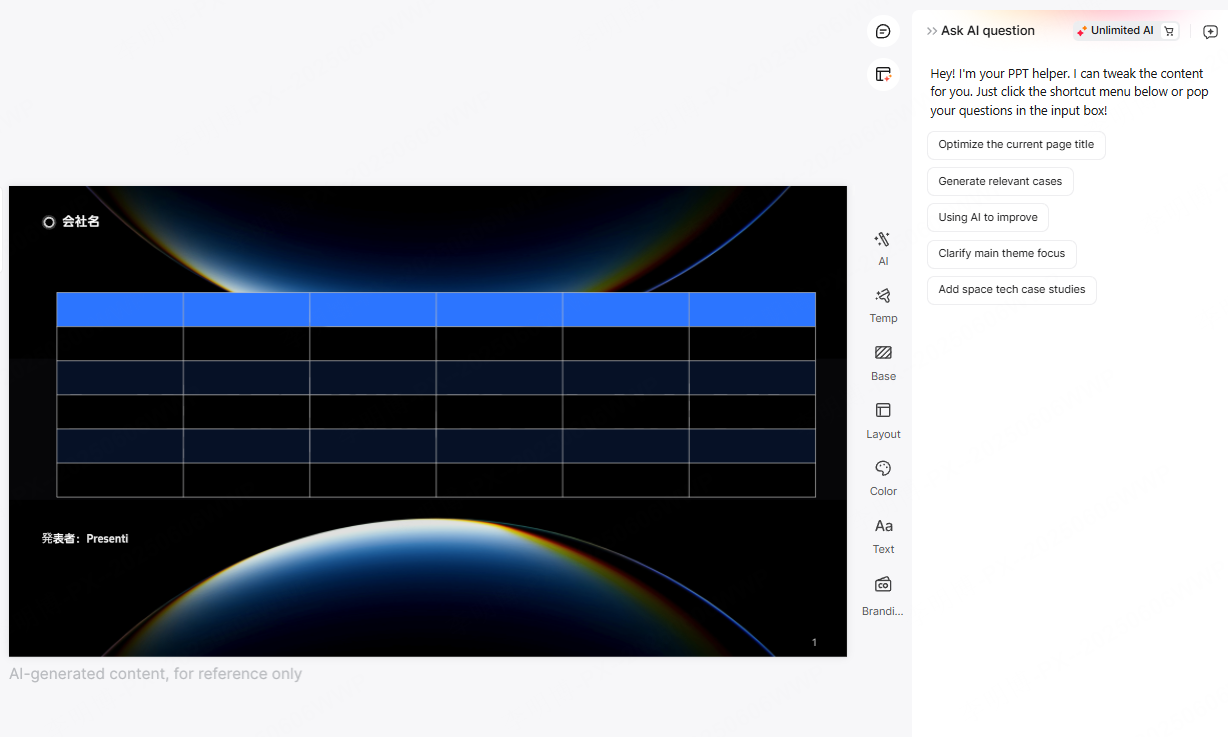
Tables are one of the most practical and versatile elements in PowerPoint. When designed correctly, they help audiences quickly understand data, compare information, and follow structured processes. Whether you are building a business report, an educational presentation, or a technical roadmap, tables play a key role in clarity and credibility. PowerPoint supports multiple table formats, including simple data tables, comparison tables, timeline based layouts, and structured process tables. Each type serves a different presentation goal.
This guide walks you step by step through creating, formatting, and enhancing tables in PowerPoint, with practical tips tailored for modern professional workflows.

1. Inserting a Table in PowerPoint
Creating a table in PowerPoint is straightforward, but understanding the available options helps you work more efficiently.
Step 1: Open the Target Slide
Launch PowerPoint and navigate to the slide where you want to add a table. Choose a slide layout with sufficient white space to keep the content readable.
Step 2: Insert the Table
Use one of the following methods:
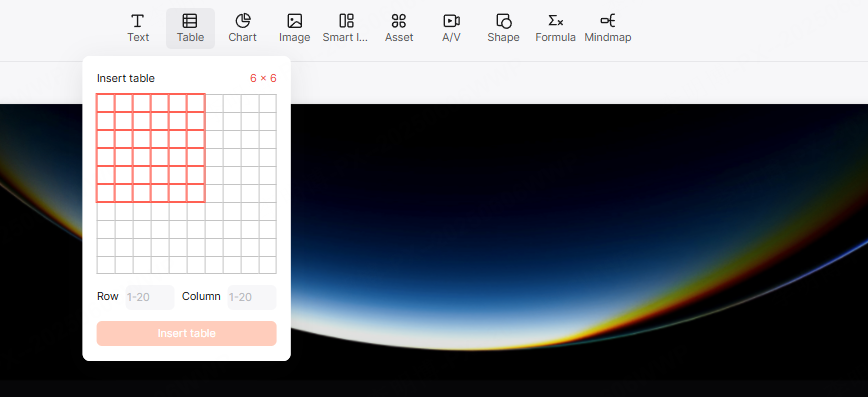
- Click Insert in the top navigation bar, then select Table
- Choose the number of rows and columns directly from the grid
- Insert a basic table and adjust it later as needed
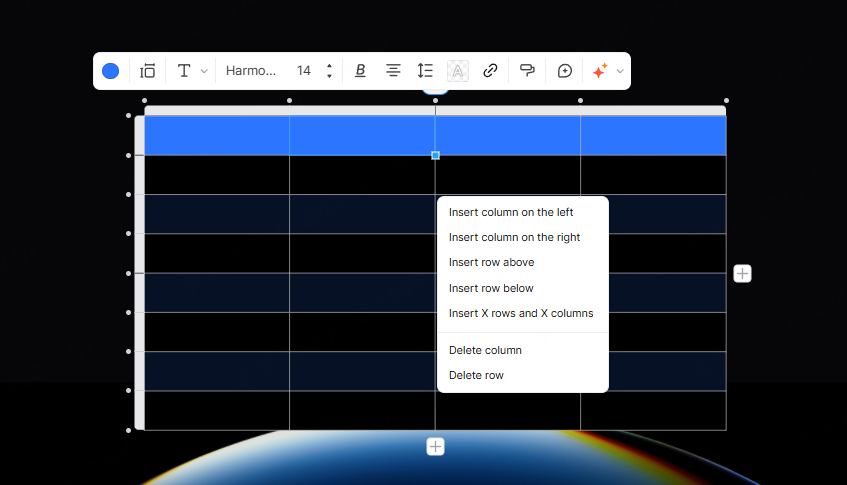
Once inserted, you can resize the table by dragging its borders. PowerPoint also allows you to add or remove rows and columns using the plus icons that appear along the table edges.
Step 3: Adjust the Table Size
Resize the table to match your slide layout. Avoid stretching it edge to edge unless the table contains complex data. Balanced spacing improves readability and visual hierarchy.
2. Customizing Table Styles
A well formatted table improves comprehension and reinforces your presentation’s visual consistency.
Change Table Colors
Select the table and open the Table Design tab. From here, choose a fill color that aligns with your slide theme. Neutral backgrounds with subtle contrast work best for professional presentations.
Avoid overly saturated colors, as they reduce readability and distract from the content.
Adjust Fonts and Text Alignment
Highlight the text within the table and customize the following:
- Font family and size
- Text color
- Horizontal and vertical alignment
For technical or business presentations, use clean sans serif fonts such as Calibri, Segoe UI, or Inter. Maintain consistent font sizes across all tables to avoid visual noise.
Control Row Height and Column Width
Under Layout, you can:
- Set precise row heights and column widths
- Auto adjust size based on content
- Ensure consistent spacing across all rows
Uniform spacing helps the table feel structured and intentional.

3. Filling and Formatting Table Content
Once the structure is ready, focus on content accuracy and clarity.
Match Content to Purpose
Before entering data, define the table’s goal:
- Comparison of features or metrics
- Step by step process
- Timeline or milestone overview
- Data summary for decision making
Keep text concise. Tables are not meant for long paragraphs. Use short phrases or key values that support spoken explanations.
Improve Consistency with Formatting Tools
PowerPoint’s formatting tools help maintain a professional look:
- Use Format Painter to apply consistent styles across cells
- Align numbers and text consistently within columns
- Use bold text sparingly to highlight headers or key values
Merge or Split Cells When Needed
Merging cells is useful for section headers or grouped data. Splitting cells helps organize detailed comparisons. Use these options carefully to avoid confusing layouts.
4. Enhancing Table Design for Better Visual Impact
Beyond basic formatting, visual enhancements can significantly improve engagement.
Apply Theme Based Color Schemes
Use PowerPoint’s built in theme colors or brand style guides to maintain consistency. Tables should visually align with charts, icons, and other slide elements.
For corporate or academic presentations, subtle contrast is more effective than decorative gradients.
Add Icons or Visual Indicators
Icons help guide the viewer’s attention and reduce cognitive load. Consider using:
- Checkmarks for feature availability
- Arrows for progress or direction
- Simple symbols for status indicators
PowerPoint’s built in icon library or tools like Microsoft Fluent Icons integrate well into professional slides.
Use Table Styles Strategically
Select the entire table and apply a predefined table style to quickly refine borders and fills. Choose minimal styles with clean lines. Heavy borders and excessive shading reduce clarity.
5. Using AI Assisted Tools to Optimize Table Content
Modern presentation tools increasingly integrate AI to improve efficiency and quality.
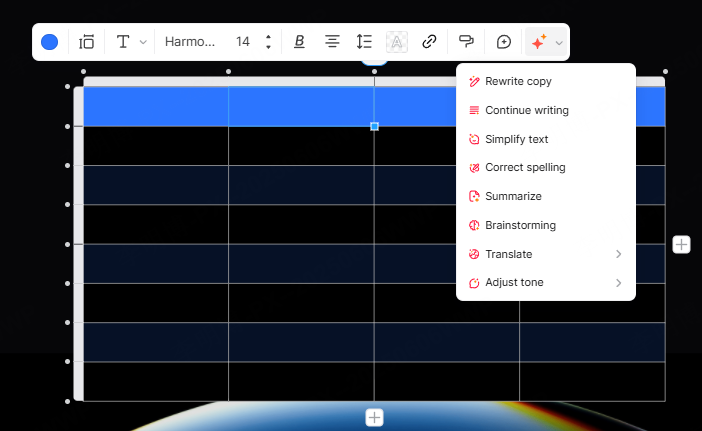
AI powered features can help:
- Rewrite table text for clarity
- Standardize tone across slides
- Suggest layout improvements
- Convert structured documents into tables automatically
For example, AI presentation tools commonly used in North America and Europe allow users to generate slides from outlines, Word documents, or PDFs. These tools are especially useful for project managers and educators working under tight deadlines.
When using AI, always review output for accuracy and relevance. Human judgment remains essential for high quality presentations.
6. Best Practices for Professional PowerPoint Tables
To ensure your tables meet professional standards, follow these guidelines:
- Limit the number of rows and columns per slide
- Use headers that clearly describe the data below
- Maintain consistent formatting across the entire deck
- Avoid placing tables too close to slide edges
- Test readability on large screens and projectors
A good table supports your message without overwhelming the audience.
Conclusion
Tables are one of the most effective tools for presenting structured information in PowerPoint. When created thoughtfully, they enhance clarity, improve decision making, and elevate the overall professionalism of your presentation.
By mastering table insertion, formatting, content organization, and visual enhancement techniques, you can create slides that communicate complex information clearly and confidently. With the support of modern AI assisted presentation tools, the process becomes even more efficient, allowing you to focus on strategy and storytelling rather than manual formatting.









