
Creating PowerPoint templates is no longer just a design skill reserved for professionals. Nowadays, anyone with a clear understanding of presentation structure and the right tools can build high quality templates that improve workflow efficiency and generate real side income.
In this guide, you will learn how PowerPoint templates are structured, what design principles matter most, and how to create reusable templates using modern AI powered tools. Whether you are a project manager, educator, startup founder, or developer preparing technical decks, this tutorial is designed to be practical, efficient, and easy to follow.
1. Understanding the Core Structure of a PowerPoint Template
Before designing a template, it is essential to understand the standard components used in professional presentations.
1.1 Key Components of a PowerPoint Template
Cover Slide
The cover slide is the first impression of your presentation. It typically includes the presentation title, an optional subtitle, the presenter’s name or organization, and sometimes the date or event name.
A strong cover slide should be clean and focused. Avoid clutter. Use typography and spacing to establish hierarchy and immediately communicate the topic.
Agenda or Table of Contents Slide
The agenda slide outlines the main sections of the presentation. It helps the audience understand the structure and flow before diving into details.
In business and technical presentations, a clear agenda improves audience engagement and makes complex information easier to follow.
Content Slides
Content slides form the core of the presentation. These slides contain text, charts, diagrams, images, and data visualizations.
Effective content slides prioritize readability. Use consistent layouts, sufficient white space, and visual cues such as icons or charts to support the message rather than overwhelm it.
Closing Slide
The closing slide summarizes key takeaways, thanks the audience, and often provides contact information or next steps.
In professional settings, a well designed closing slide reinforces credibility and leaves a lasting impression.
1.2 Design Principles for PowerPoint Templates
Consistent Layout
Each slide should follow a predictable layout. Titles, body text, visuals, and charts should appear in consistent positions across slides.
This consistency helps the audience process information faster and keeps the presentation visually coherent.
Unified Visual Style
Use a unified color palette, font family, font sizes, and icon style throughout the template.
A consistent visual system enhances professionalism and ensures the template can be reused across different projects without redesigning from scratch.
2. Tools for Creating PowerPoint Templates Efficiently
While traditional tools like Microsoft PowerPoint and Google Slides are still widely used, AI powered tools are changing how templates are created.
Recommended Tool: Presenti AI
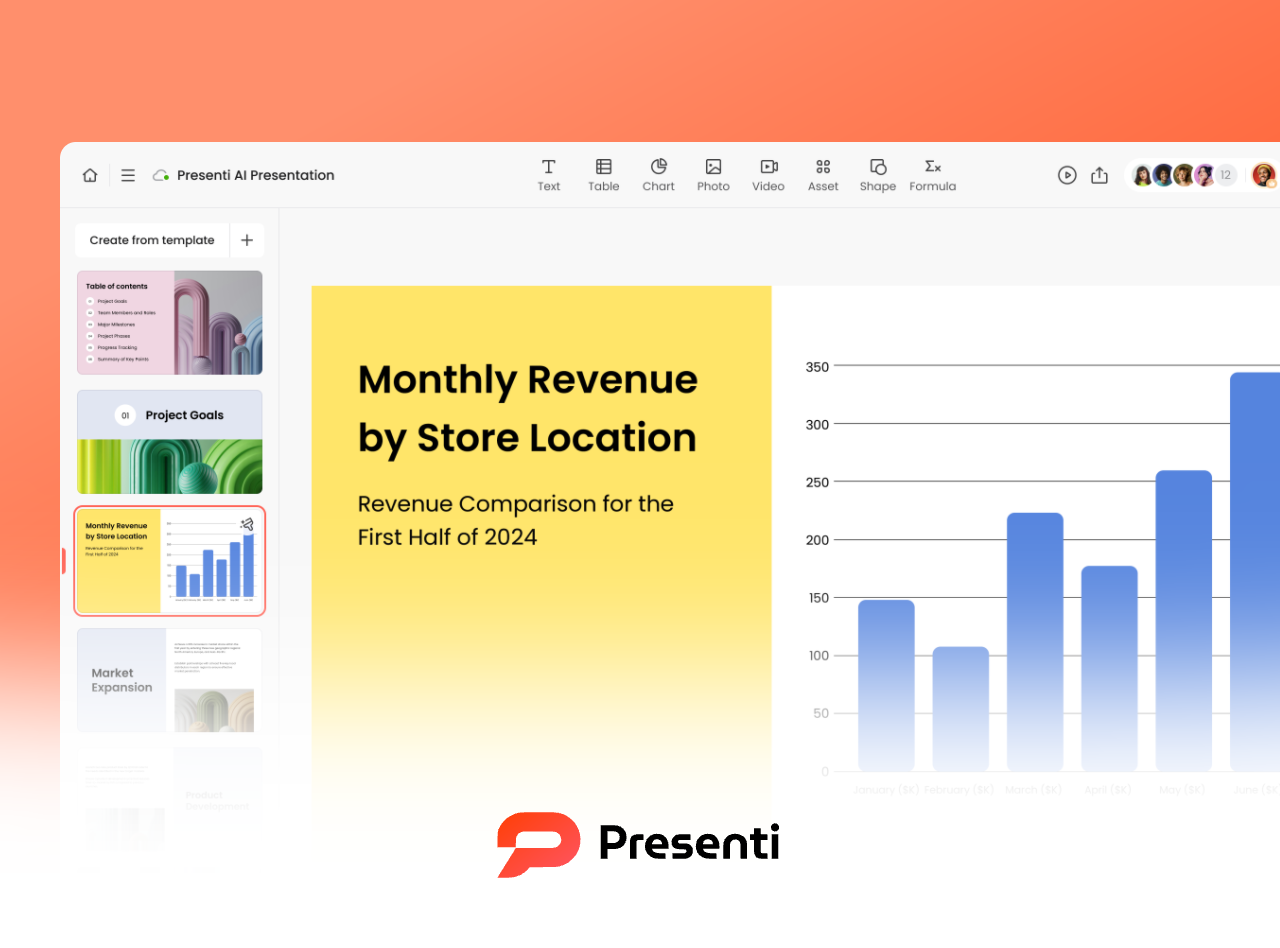
Presenti AI is a modern AI driven presentation tool designed for speed and professional quality. It offers:
- Clean, intuitive interface
- Pre built professional layouts
- AI assisted content generation
- Export options for PPTX and PDF formats
For freelancers, educators, and teams producing presentations regularly, tools like Presenti AI significantly reduce design time while maintaining high visual standards.
3. Step by Step Guide to Creating a PowerPoint Template
Step 1: Start a New Blank Presentation
Open your browser and navigate to the Presenti AI website. From the dashboard, select Create New Blank Presentation to begin building a template from scratch.
Starting with a blank canvas gives you full control over layout and design choices.
Step 2: Define the Template Use Case
Before designing, identify the primary scenario for your template. Common use cases include:
- Business Pitch Decks
Used for startup pitches, investor updates, and strategy presentations. Design should be clean, professional, and data focused. - Product Launch Presentations
Highlight product features, technical advantages, and market positioning. Visuals should feel modern and engaging. - Training and Education Slides
Common in corporate training and academic settings. Prioritize clarity, structure, and information hierarchy. - Resume or Personal Profile Decks
Used for job applications or personal branding. Design should be minimal, polished, and customizable.
Defining the use case early ensures the template meets real world needs.
Step 3: Build the Template Framework
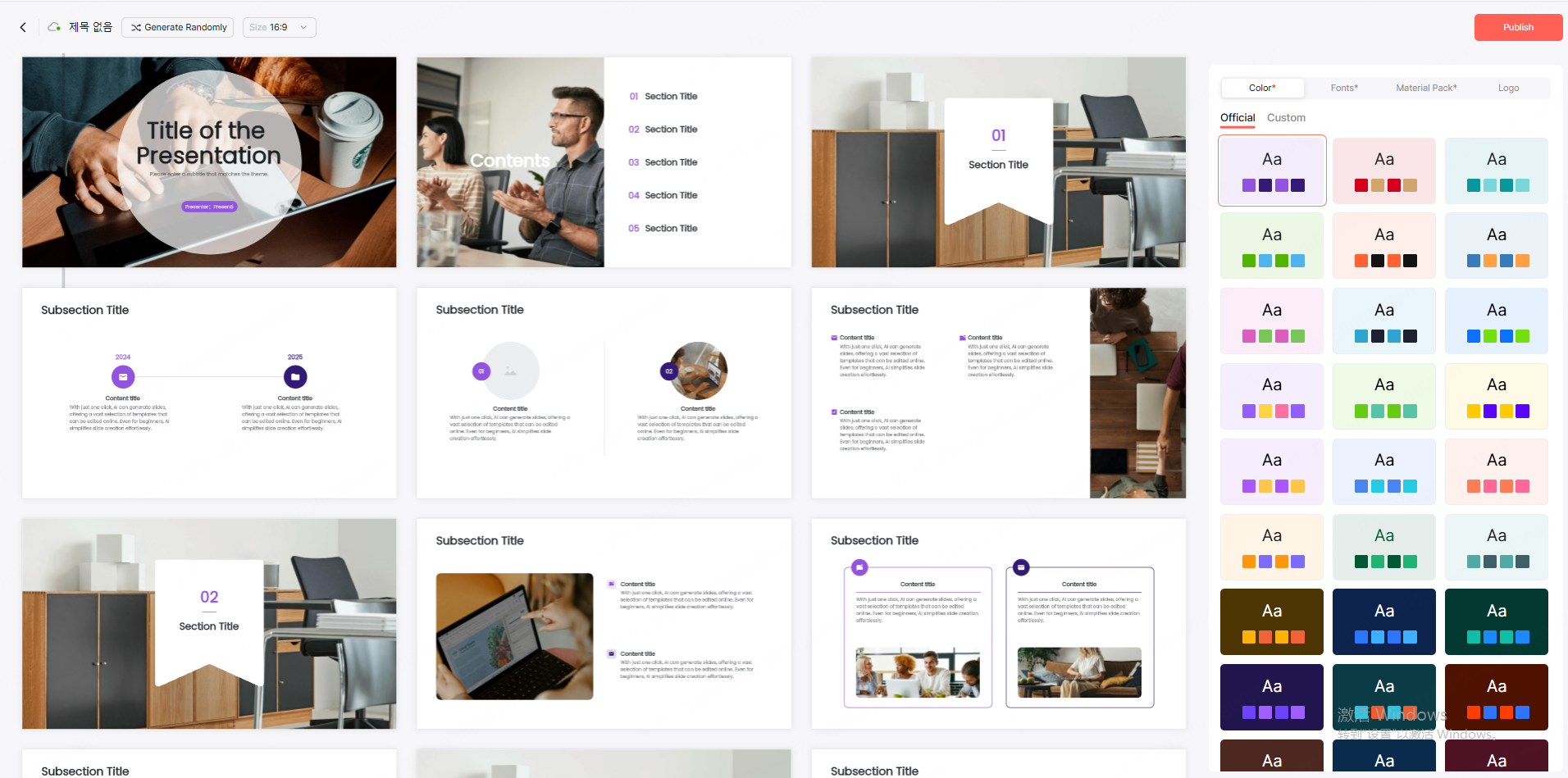
In Presenti AI, select Create from Template to quickly insert essential slide types such as cover, agenda, content, and closing slides.
Next, arrange placeholders for text, images, charts, and diagrams. Focus on logical flow and visual balance. Avoid over designing at this stage.
A strong framework allows future users to plug in content without breaking layout consistency.
Step 4: Add Custom and AI Generated Content
Once the structure is in place, begin editing placeholder text and visuals.
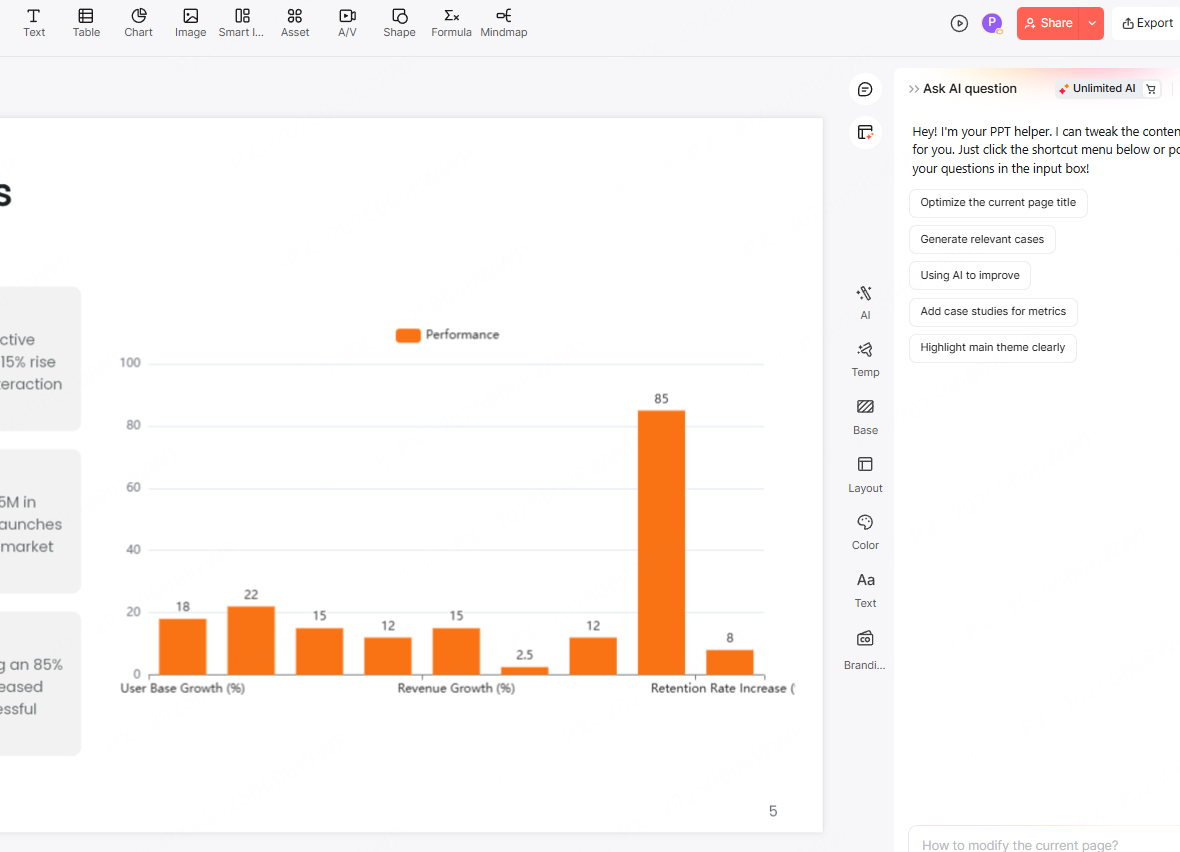
If inspiration is limited, use the AI content generation feature by selecting Generate with AI. Enter a slide title or brief description, and the system will generate relevant content and layout suggestions.
AI assistance works best as a starting point. Always review and refine the output to ensure accuracy and tone.
Step 5: Visual Refinement and Optimization
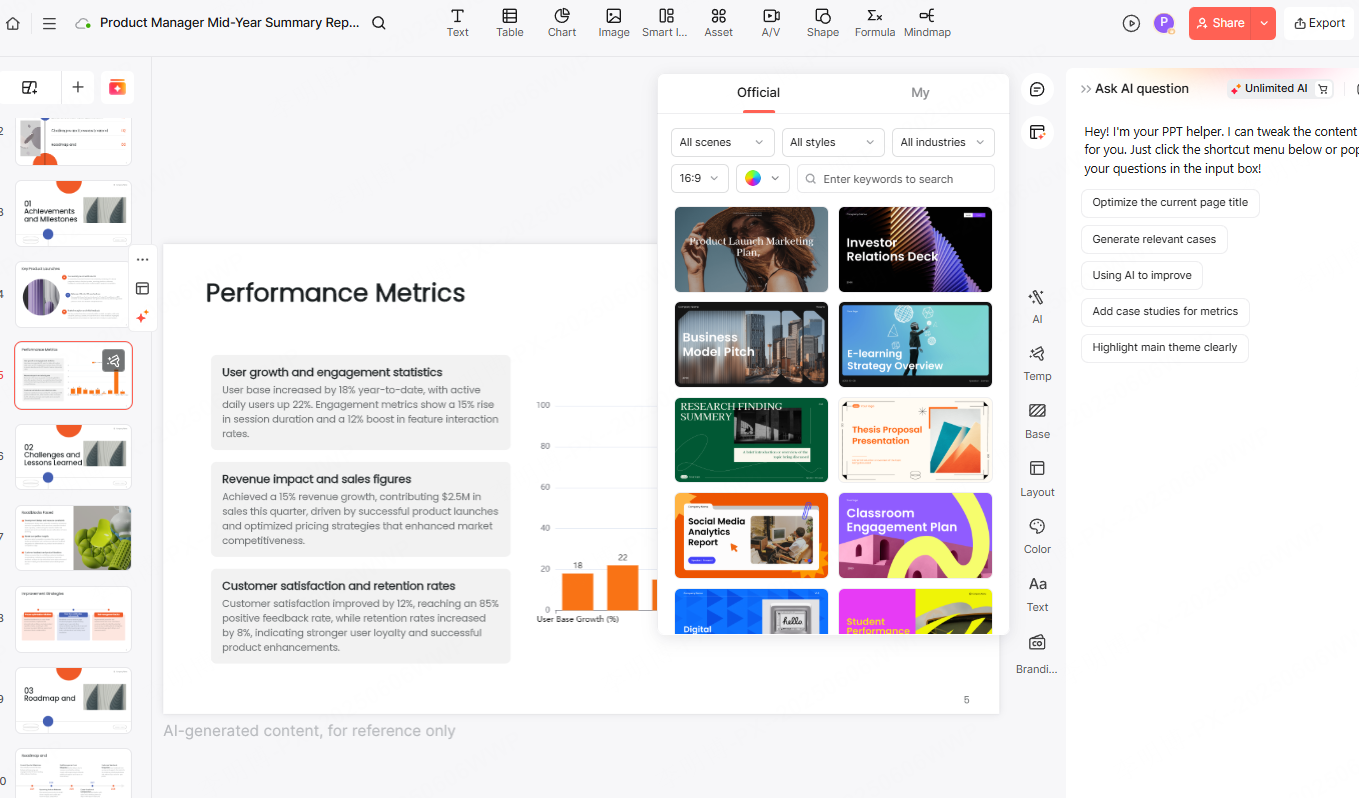
Open the Template panel to browse professionally designed styles. Presenti AI offers a wide range of templates categorized by industry, purpose, and visual theme.
After selecting a style, fine tune:
- Color schemes
- Font choices
- Spacing and alignment
- Icon and chart styles
This step ensures the template looks polished and suitable for professional use.
Step 6: Save, Share, and Reuse Templates
Presenti AI allows templates to be shared via links or published to a community workspace. This is useful for collaboration with clients or internal teams.
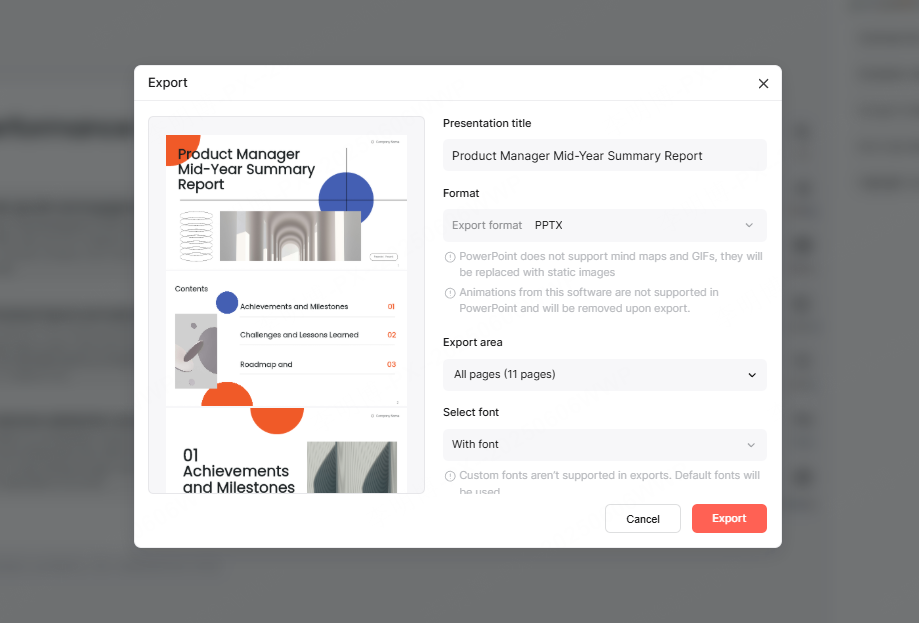
Templates can also be exported as PPTX or PDF files, making them compatible with PowerPoint, Google Slides, and offline presentations.
Reusable templates save time and ensure brand consistency across projects.
Step 7: Promote and Monetize Your Templates
Once your template is complete, consider sharing it through professional channels:
- LinkedIn and Twitter for business audiences
- Design marketplaces such as Gumroad or Creative Market
- Presentation focused communities and forums
Collaborating with other designers or content creators can expand reach and open new income opportunities.
Over time, a well curated collection of templates can become a reliable side income stream.
Final Thoughts
PowerPoint template creation is a practical skill with both professional and financial value. With a clear structure, consistent design principles, and modern AI tools like Presenti AI, creating high quality templates is more accessible than ever.
Whether you aim to improve internal workflows or build a side business, mastering template design is a smart investment that pays off in efficiency, credibility, and opportunity.









