

PowerPoint remains one of the most widely used tools for communication across business, education, and technology teams. From project proposals and technical briefings to training sessions and investor decks, a well structured presentation helps audiences understand complex ideas faster and remember key points longer. In the past, creating a high quality presentation required strong design skills and significant time investment. Nowadays, modern tools and AI powered workflows have simplified the process dramatically. Even beginners can now produce professional grade slides without starting from a blank canvas.
This guide walks you through three practical and reliable ways to create PowerPoint presentations, each designed for different working styles and experience levels. Whether you are a developer documenting a system, a project manager preparing a roadmap, or an educator building course materials, these methods will help you work faster and with better results.
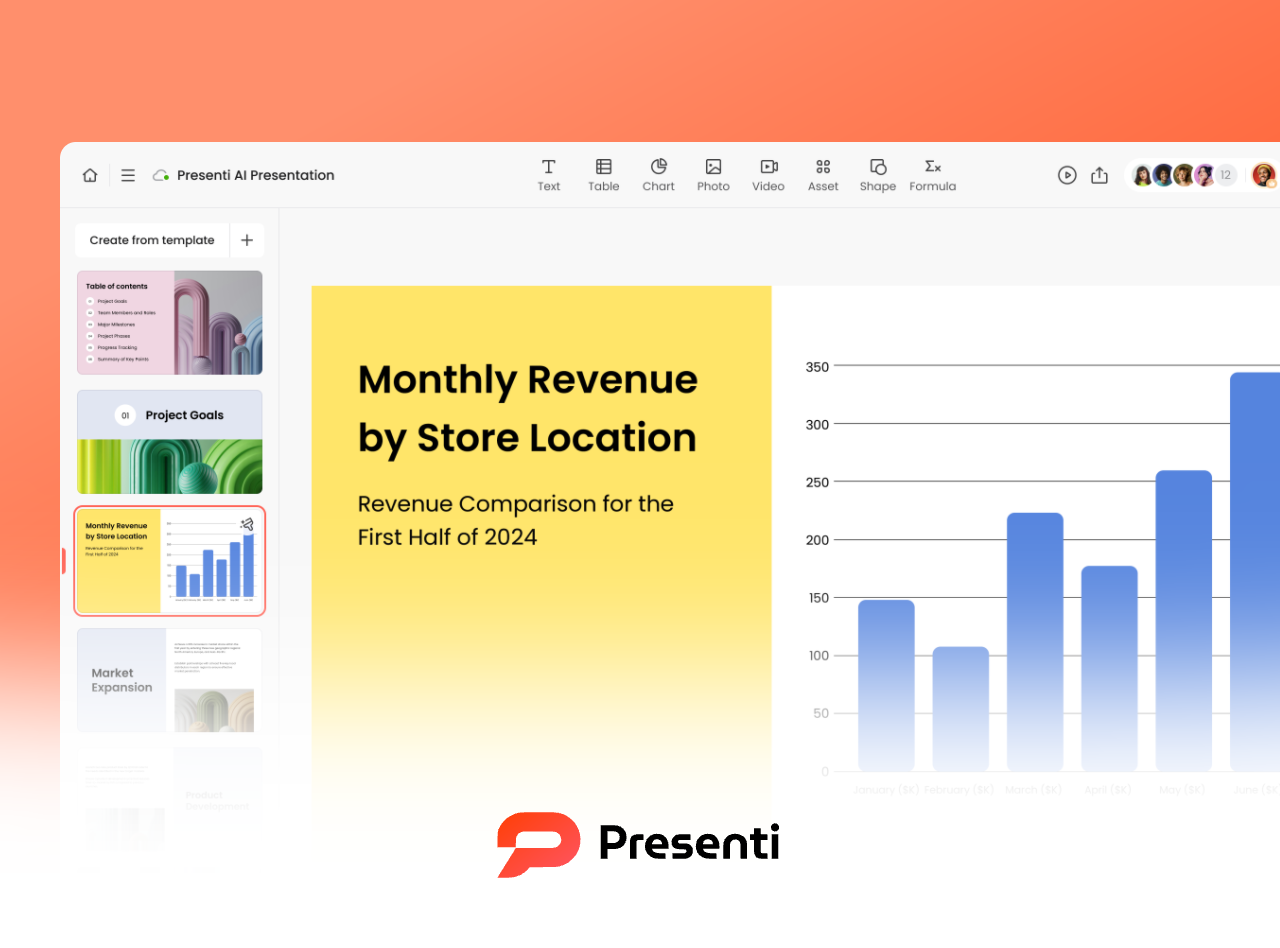
Method 1: Create a PowerPoint with AI Generated Content
AI powered presentation tools have changed how teams approach slide creation. Instead of manually outlining every slide, users can generate a complete draft in minutes and refine it as needed.
Step 1: Open the Presentation Editor
Start by visiting the official Presenti AI website and creating an account. Once logged in, you will be taken to the main workspace where all presentation projects are managed.
The interface is browser based, which means there is no software installation required. This makes it ideal for distributed teams and remote work environments.
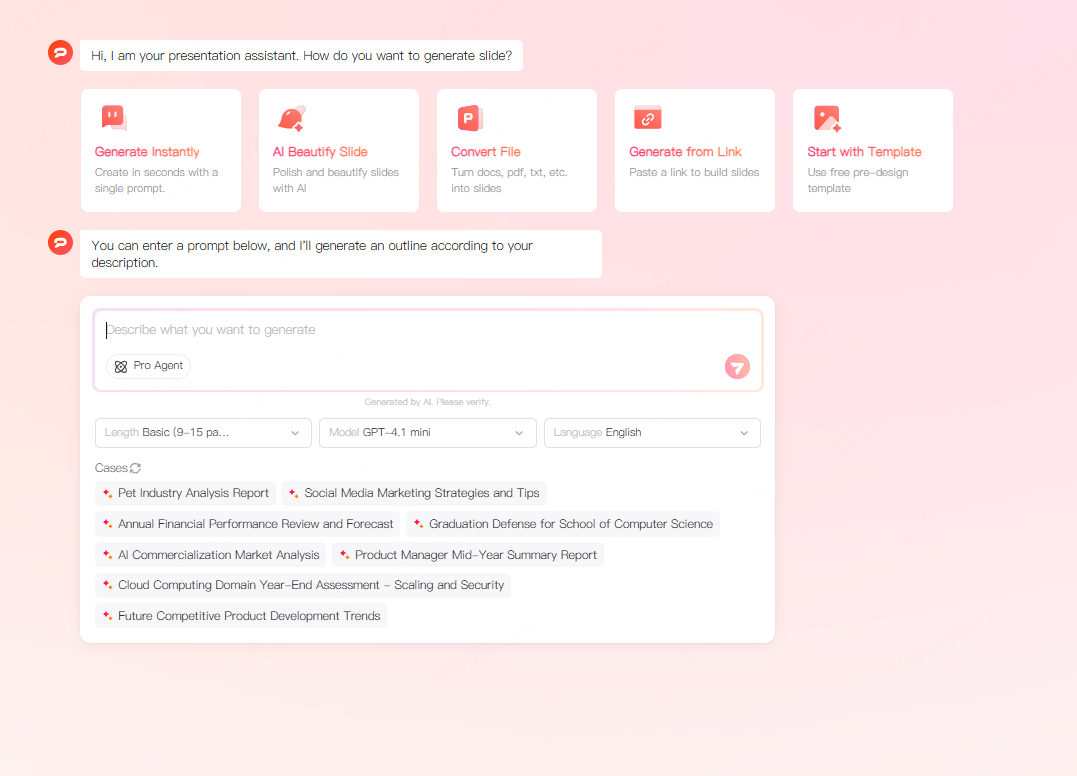
Step 2: Generate a Presentation with AI
In the input field, enter your presentation topic or a set of keywords. This can be as simple as:
- Cloud migration strategy
- Agile sprint review
- Introduction to data visualization
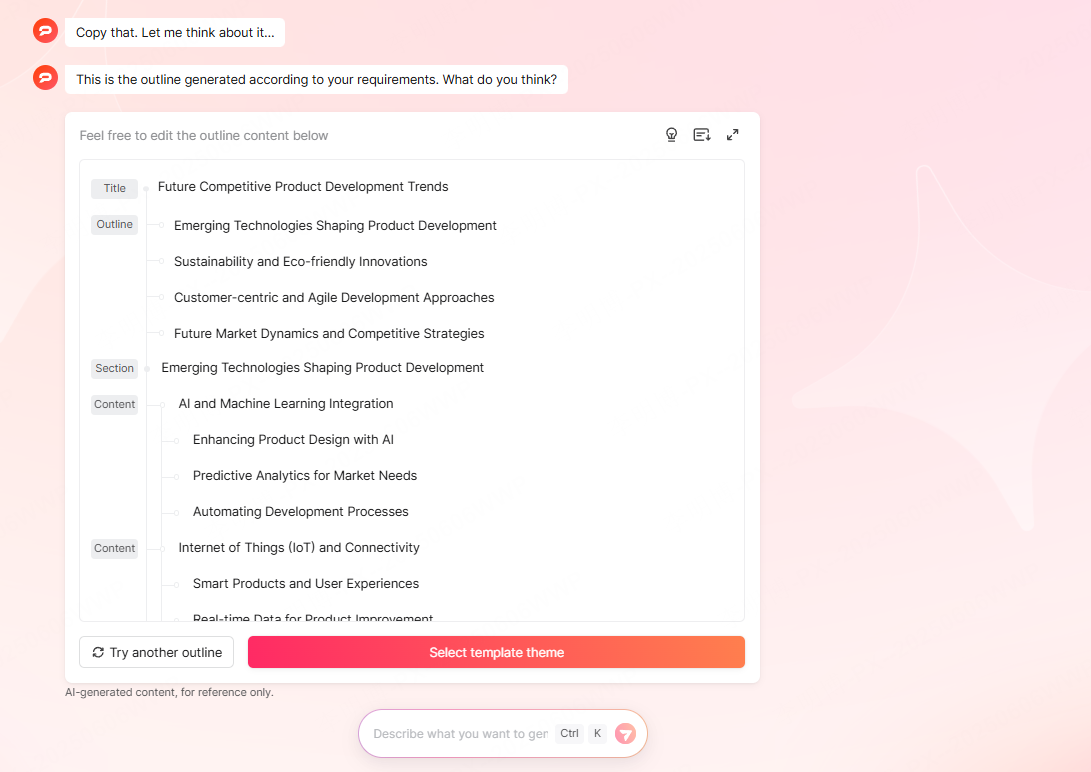
After clicking the generate button, the AI analyzes your input and produces a structured outline. A typical outline includes:
- Cover slide
- Agenda or table of contents
- Core sections with multiple subsections
- Summary or conclusion
You are not locked into this structure. Each section can be edited, reordered, expanded, or removed. This flexibility is especially useful for technical teams that need to align slides with existing documentation or meeting goals.
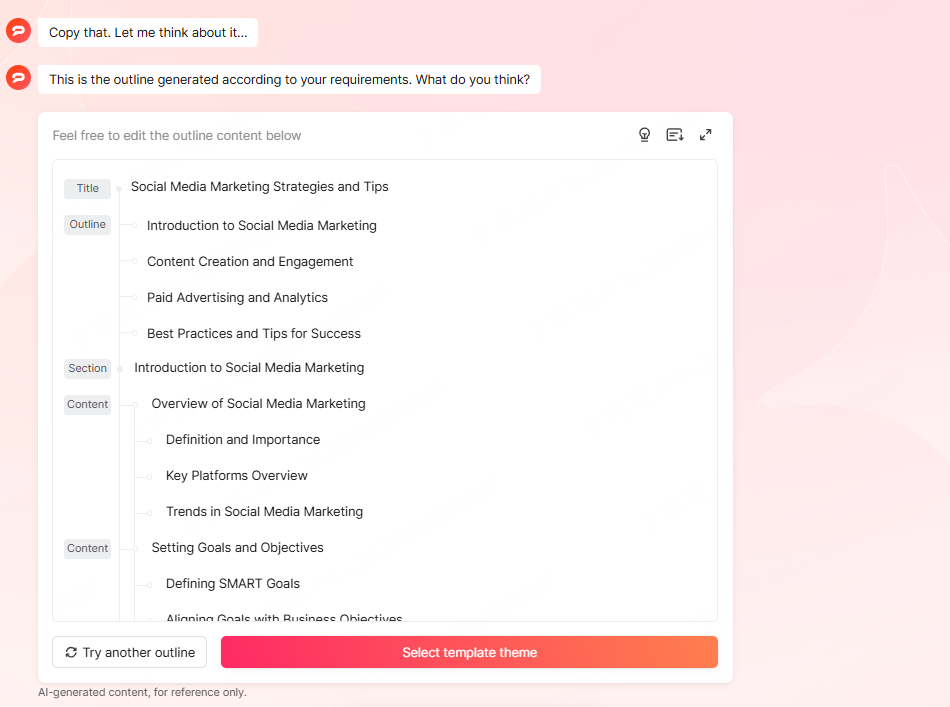
Step 3: Customize Content and Visual Style
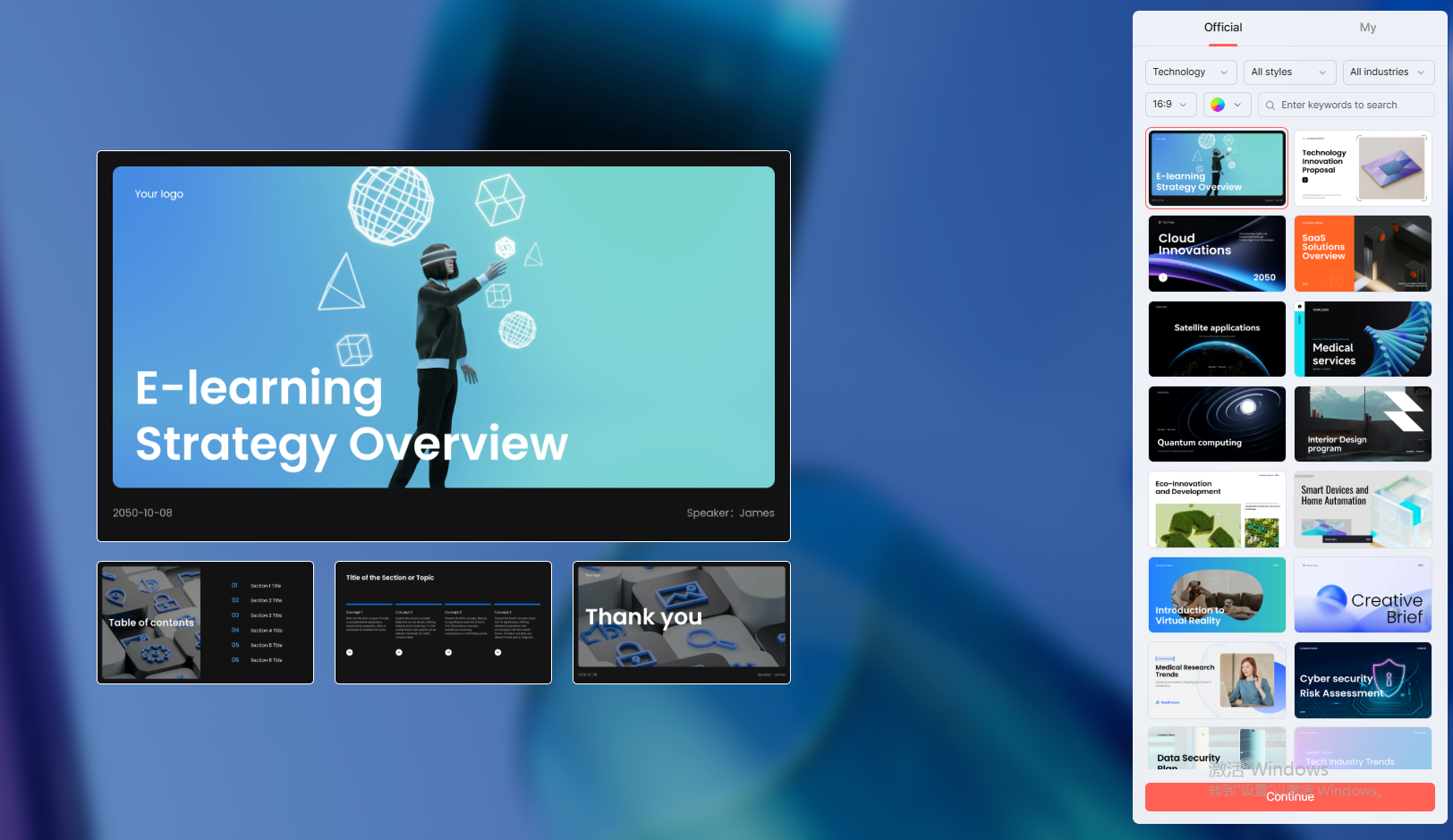
Once the initial outline is ready, select Choose a presentation theme to customize the visual design. Presenti AI offers a wide range of professionally designed templates suitable for:
- Product demos
- Technical documentation
- Training sessions
- Business reports
You can adjust layout, colors, fonts, and content directly within the editor. This ensures the presentation aligns with brand guidelines or organizational standards while keeping the content accurate and easy to follow.

Step 4: Generate and Edit the Final Slides
After confirming the theme, the system generates a complete PowerPoint file. The editor works similarly to traditional slide software, making it easy for users to adapt quickly.
If you decide to change the theme later, simply select a new template from the side panel. The content automatically adapts to the new layout, saving time and avoiding formatting issues.

Method 2: Convert Existing Files into a PowerPoint
Many professionals already have content stored in documents, PDFs, or notes. Converting these materials into slides is often faster than starting from scratch.
Step 1: Import Your Source File
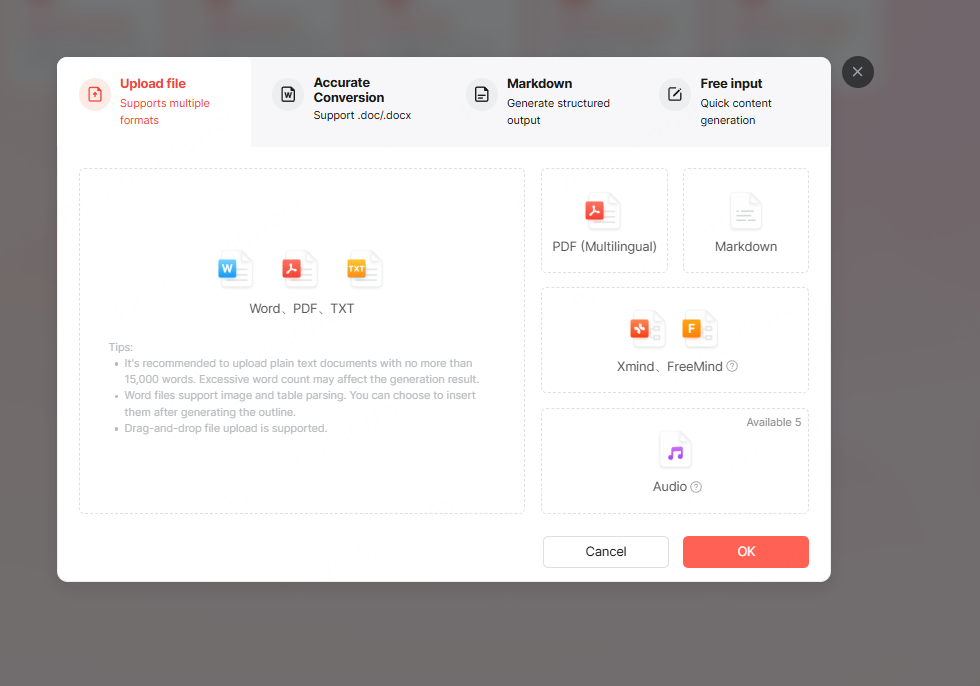
Presenti AI supports a wide range of file formats, including:
- Word documents
- PDF files
- Markdown files
- Plain text notes
- Mind maps
Upload your file through the import option. The system scans the document and identifies key sections and headings.
Step 2: Choose How the Content Is Processed
After the file is analyzed, you can select how the AI should handle the content:
- Reformat the existing structure into slides
- Expand and clarify the content for presentation use
- Summarize key points into concise slide friendly text
This step is particularly helpful for technical documentation, project specifications, or training manuals that need to be adapted for live presentations.
Step 3: Generate the Presentation
Once the outline is finalized, choose a template and generate the slides with one click. The result is a structured presentation that reflects the original document while improving readability and visual balance.
If the first version does not meet your expectations, you can adjust settings or switch processing modes without reuploading the file.
Method 3: Build a Presentation by Selecting a Template First
Some users prefer to start with a specific visual style or layout. This method works well for presentations with strict branding or design requirements.
Step 1: Select a Scenario and Style
Choose Create presentation from template to browse available designs. Templates are organized by common use cases such as:
- Business reports
- Educational training
- Marketing campaigns
- Startup pitch decks
- Academic presentations
Styles range from minimal and modern to corporate and creative. You can also filter by color palette to match your brand identity.
Step 2: Add Content Using AI or File Import
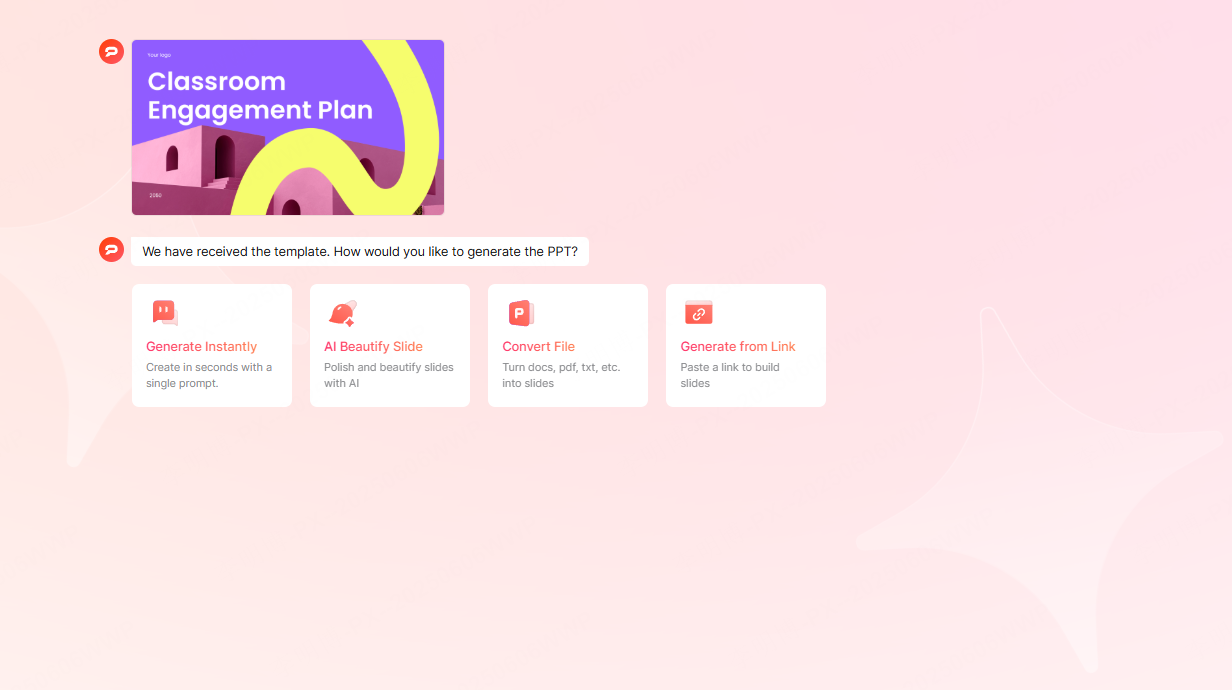
After selecting a template, you have two options to fill the slides:
- Use AI generation to create content from a topic or keywords
- Import an existing file to populate the slides automatically
Both approaches allow you to move quickly from layout selection to a finished presentation.
Why Presenti AI Works for Modern Teams
Once you understand how Presenti AI works, adapting to other AI presentation tools becomes easier. The platform focuses on reducing manual work while maintaining flexibility and control.
AI Assisted Content Creation
The AI analyzes your input and provides layout suggestions, content structure, and design alignment. This reduces repetitive tasks and allows users to focus on message clarity rather than formatting.
Fully Online Editing
All editing happens in the browser, making collaboration and access simple. You can add images, charts, videos, and diagrams to enrich your slides without switching tools.
Extensive Template Library
The built in template library covers a wide range of industries and scenarios. This allows teams to produce consistent and professional presentations without hiring designers or building templates from scratch.
Cloud Storage and Auto Save
All presentations are stored securely in the cloud. Changes are saved automatically, reducing the risk of data loss and making it easy to access files from different devices.
Final Thoughts
Creating effective PowerPoint presentations no longer requires advanced design skills or long production cycles. With AI driven tools and flexible workflows, professionals can produce clear, engaging slides that support their goals.
Whether you start with AI generated content, convert existing documents, or choose a template first, the key is selecting a method that fits your workflow. By combining structure, automation, and customization, you can build presentations that communicate ideas clearly and efficiently.








