
PowerPoint presentations remain one of the most essential communication tools in education, business, marketing, and public speaking. Whether you're delivering a project report, pitching an idea, presenting research, or preparing a classroom lecture, a well designed PPT can significantly enhance clarity, engagement, and impact. This guide breaks down everything you need to know, from key concepts to advanced design techniques, to help you create polished, professional slides with confidence.
1. Understanding the Basics of PPT Design
Many people think PPT design is simply adding text and inserting pictures. But a high quality presentation is a balance of information, logic, and visual appeal. Before you start designing, it’s crucial to understand the essential components.
(1) Page structure
- Cover Slide: Introduces the topic and sets the tone.
- Agenda Slide: Shows the structure and helps your audience follow the flow.
- Content Slides: The core section where your arguments and key points unfold.
- Closing Slide: Wrap up, summary, or call to action; often includes a “Thank You” message.
(2) Core elements
- Text: Communicate information clearly; keep it concise.
- Images: Add visual impact and help explain complex ideas.
- Charts: Transform data into easy to understand visuals.
- Icons: Enhance readability and professionalism.
- Animations: Guide attention and add rhythm; avoid overuse.
(3) Common use cases
- Classroom presentations
- Business reports and strategy summaries
- Thesis defense and academic research
- Marketing proposals
- Startup pitch decks
2. Step by Step Guide to Making a High Quality PPT
A great PPT is the result of a clear workflow, from planning content to refining the design.
(1) Identify your goal and audience
Ask yourself:
- Who will view this presentation?
- What message do I want them to remember?
Your audience influences tone, level of detail, layout style, color palette, and storytelling structure.
(2) Build a logical outline
Write the main headline for each slide, then break it into key points.
A recommended flow:
Cover → Agenda → Background or Problem → Key Insights or Solutions → Data and Evidence → Conclusion / Call to Action
Useful frameworks:
- Pyramid Principle: Start with your conclusion, then support it.
- SCQA Model: Situation → Complication → Question → Answer.
(3) Choose the right template
Match your template with:
- Scene (formal, academic, creative)
- Audience type
- Time available
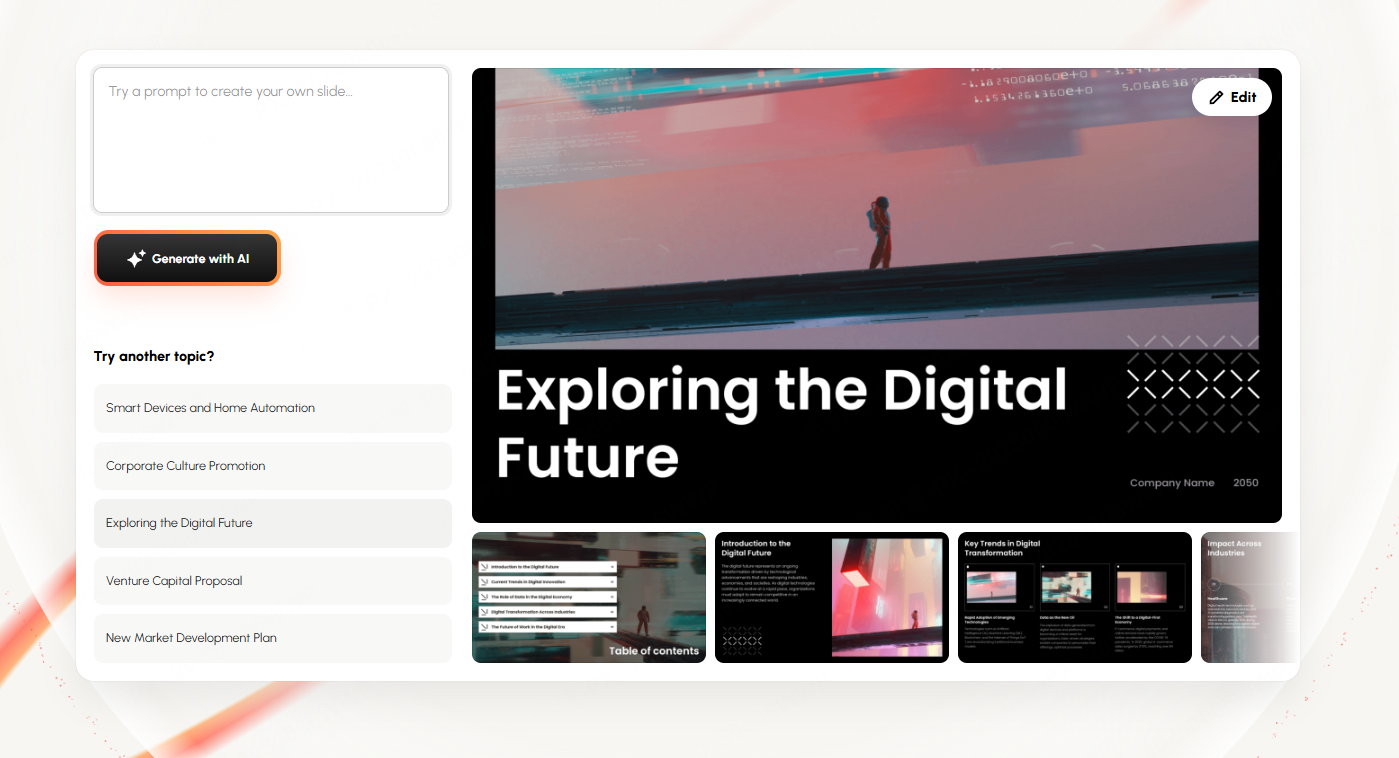
You can use built in PowerPoint themes, professional template websites, or AI tools like Presenti AI, which can automatically generate well structured designs based on your content.
(4) Fill in your content
- Replace long paragraphs with diagrams or bullet points.
- Focus each slide on one core idea.
- Use visuals for data instead of raw tables.
(5) Review and polish
- Keep colors, fonts, and icon styles consistent.
- Use clean transitions such as Fade or Push.
- Apply animations only when they reinforce meaning.
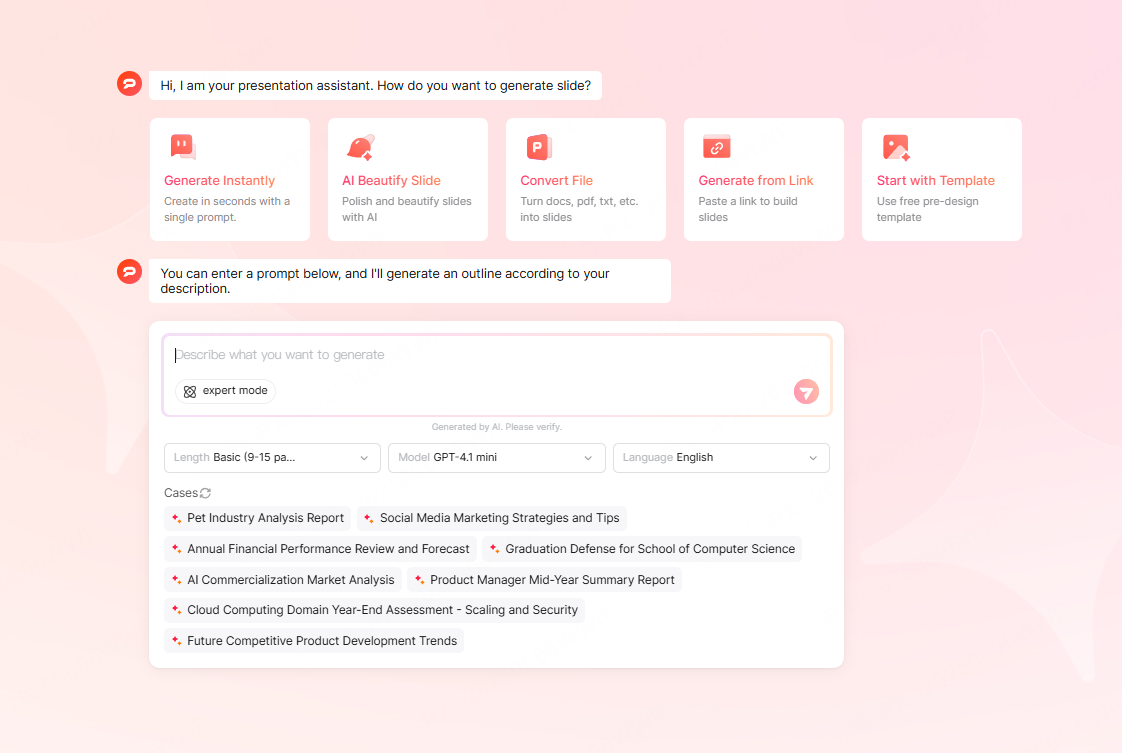
AI tools like Presenti AI can automatically optimize layout, adjust color harmony, and add appropriate animations, saving enormous time and ensuring visual consistency.
3. Layout & Animation Techniques for Better PPT Design
Many people struggle with cluttered slides. Mastering layout and animations can instantly elevate your presentation quality.
(1) Layout Techniques
- Rule of Thirds: Divide the page into focal zones to create structure.
- Effective White Space: Space creates elegance and emphasizes key content.
- Color Control: Use only 2 to 3 main colors for a clean, modern look.
(2) Animation Techniques
- Use simple animations like Fade, Appear, Wipe.
- Present bullet points one by one to maintain audience focus.
- Avoid distracting effects like Bounce or Spin.
AI design tools can automatically apply tasteful animation settings without manual fine tuning.
4. Advanced PPT Techniques & Recommended Templates
Once you’re comfortable with the basics, you can try more advanced methods for a professional finish.
(1) Create custom templates
Instead of redesigning from scratch each time:
- Use PowerPoint’s Slide Master to set fonts, colors, and layouts.
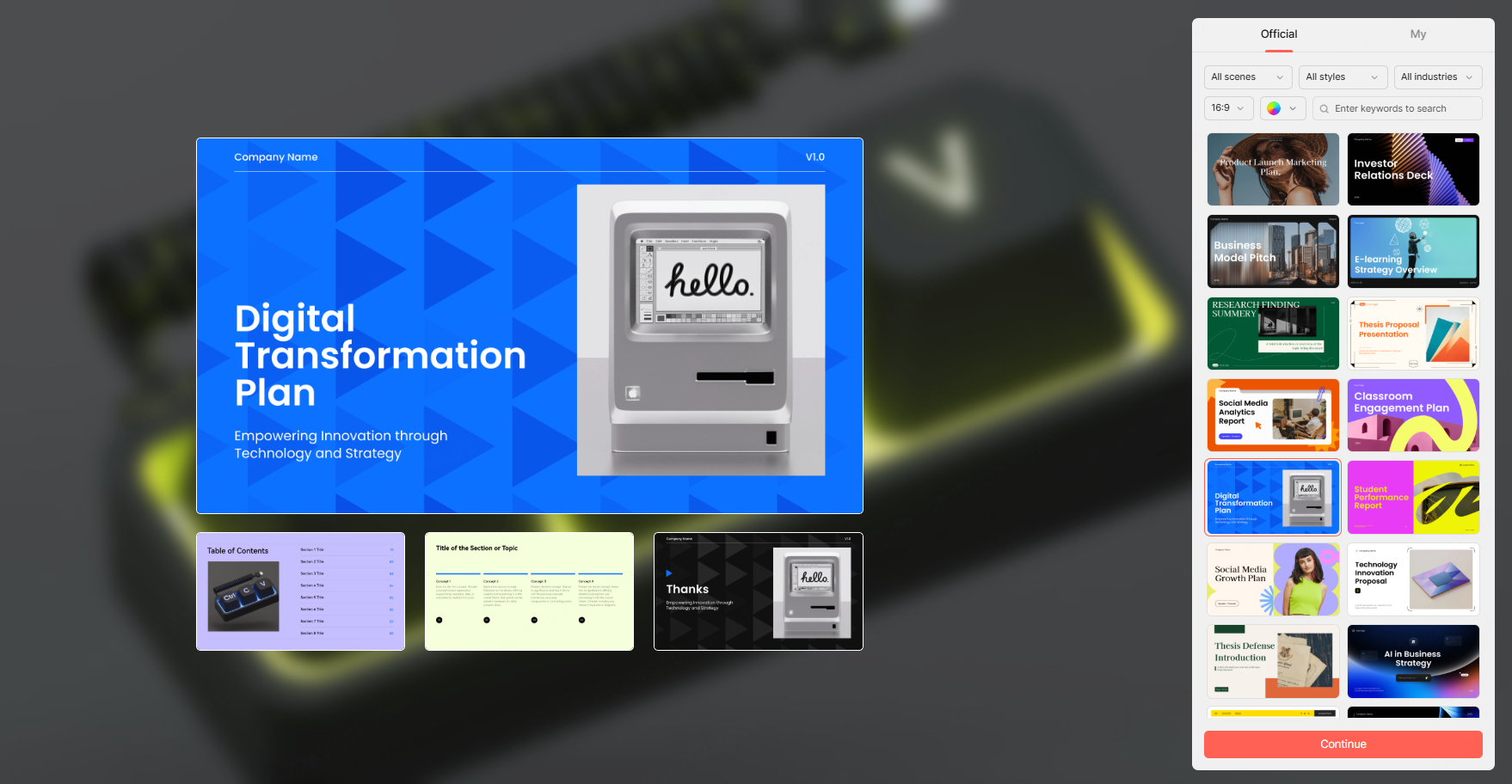
- In Presenti AI, you can generate custom templates, import your own PPT files, or build brand consistent themes with logos, corporate colors, and fonts.
- Save your template and reuse it across different projects.
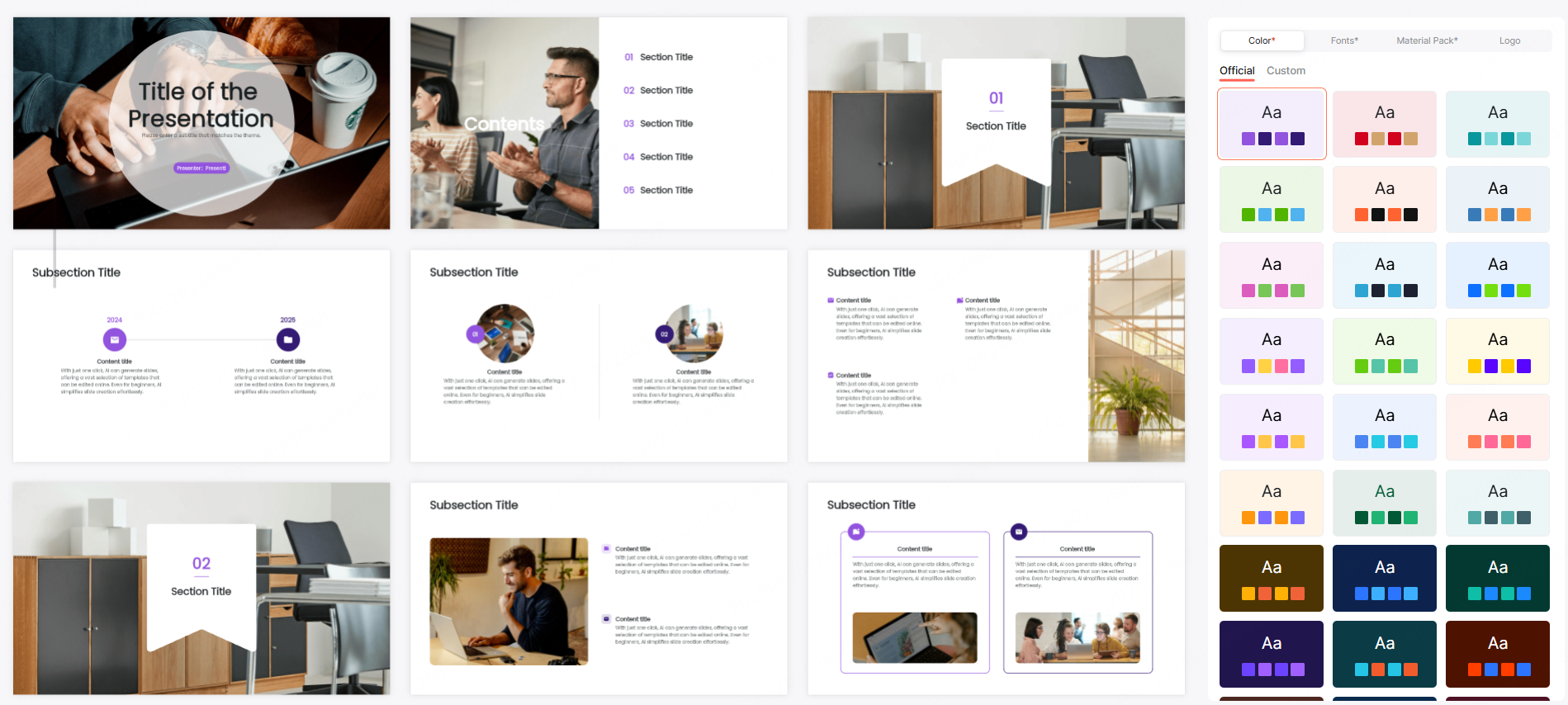
(2) Data Visualization
Data heavy slides can overwhelm your audience. Convert raw numbers into:
- Bar charts for comparisons
- Line charts for trends
- Pie or donut charts for proportions
- Radar charts for multi dimension evaluation
Presenti AI can recognize your data and automatically select suitable chart types and layouts.

(3) Template recommendations
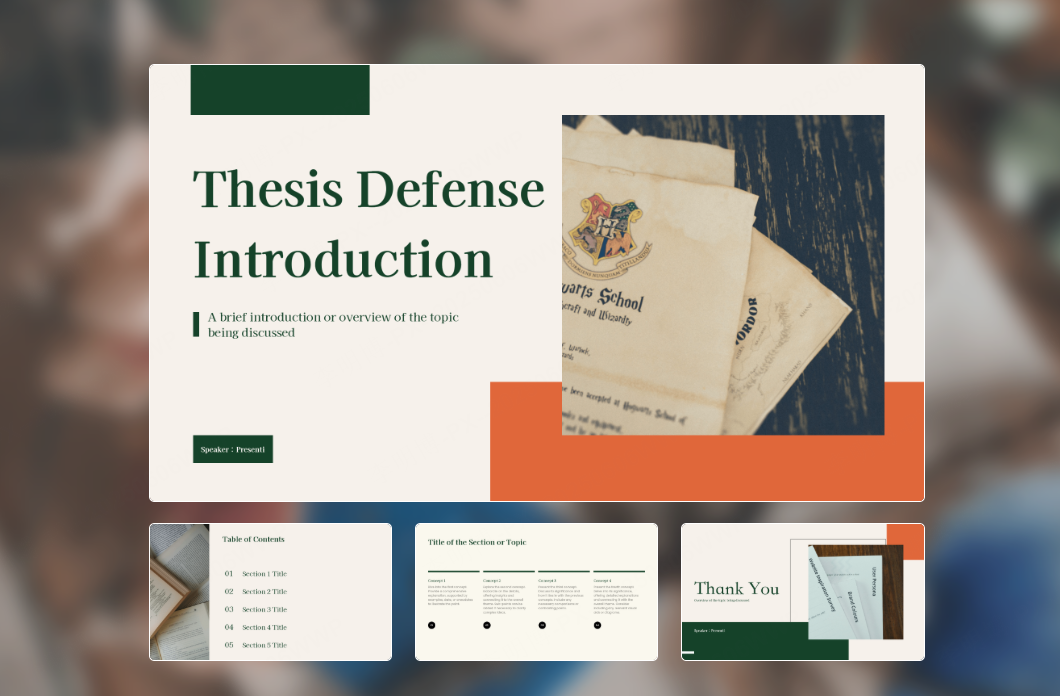
Academic templates
- Thesis defense
- Course reports
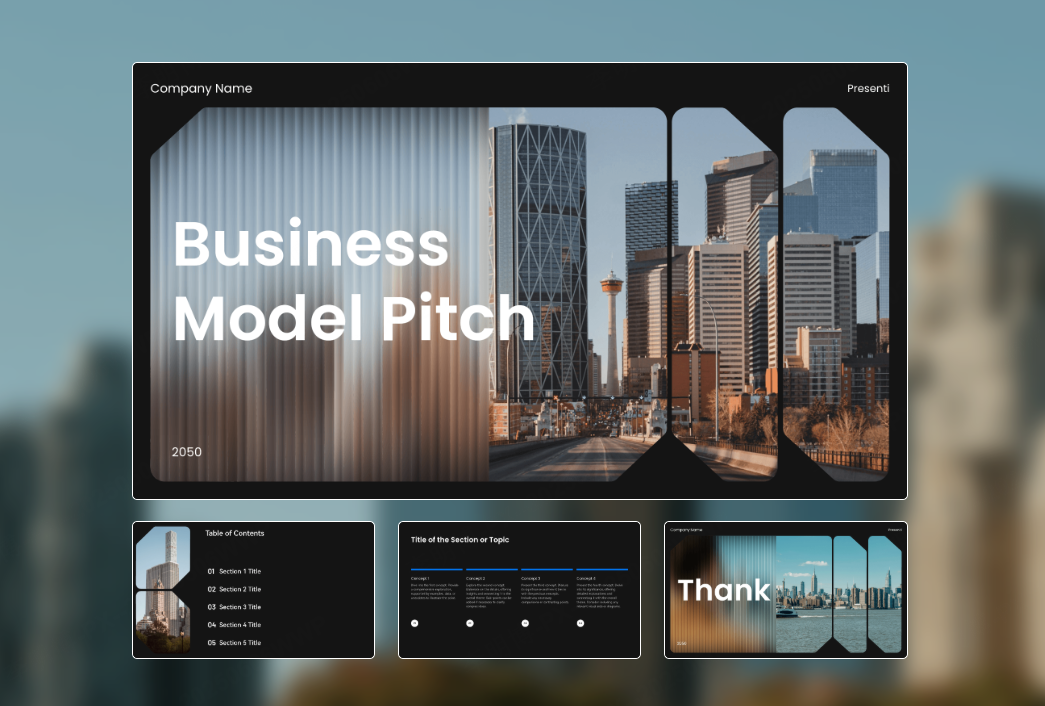
Business templates
- Annual reports
- Strategic plans
- Pitch decks
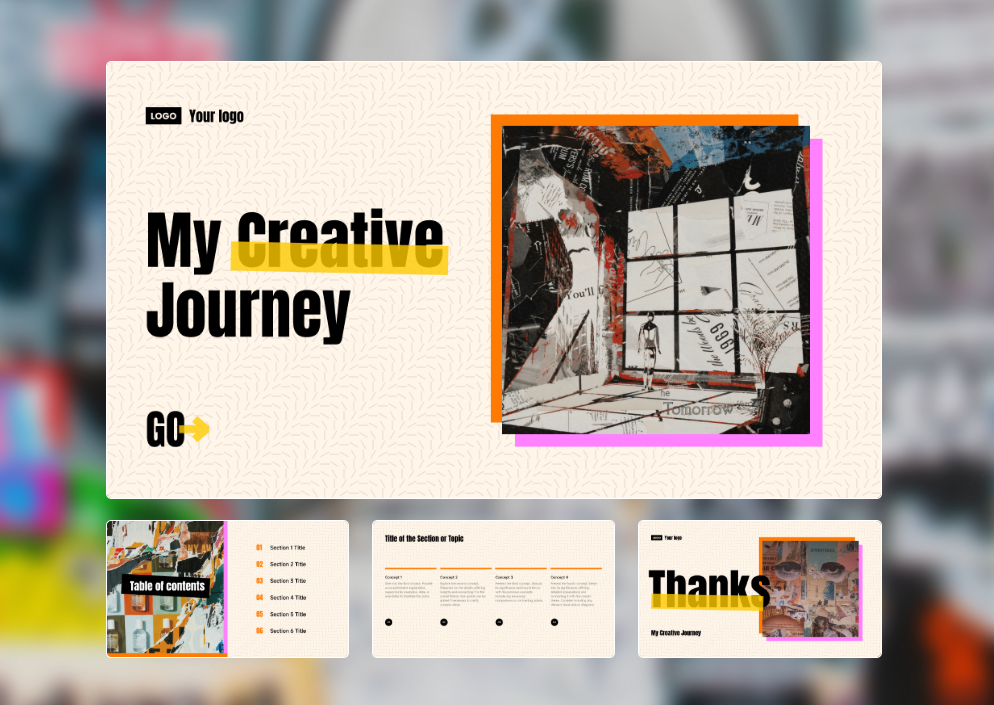
Creative templates
- Marketing proposals
- Product launches
With AI tools, even beginners can quickly generate visually appealing PPT drafts and focus more on storytelling rather than formatting.









