Creating a professional PowerPoint presentation does not have to be expensive or time consuming. With the right free tools and practical techniques, anyone can produce clear, polished slides for classes, meetings, or project updates.
In this guide, we walk through proven methods to create PowerPoint presentations for free. Whether you are a student, an early career professional, or someone building slides for the first time, you will find actionable steps and reliable tools you can use immediately. By the end of this article, you will understand how to build effective presentations with minimal learning effort and strong results.
1. Recommended Free PowerPoint Creation Tools
Choosing the right tool is the foundation of efficient presentation creation. Below are widely used, beginner friendly options that work well for technical, educational, and business use cases.
(1) Presenti AI
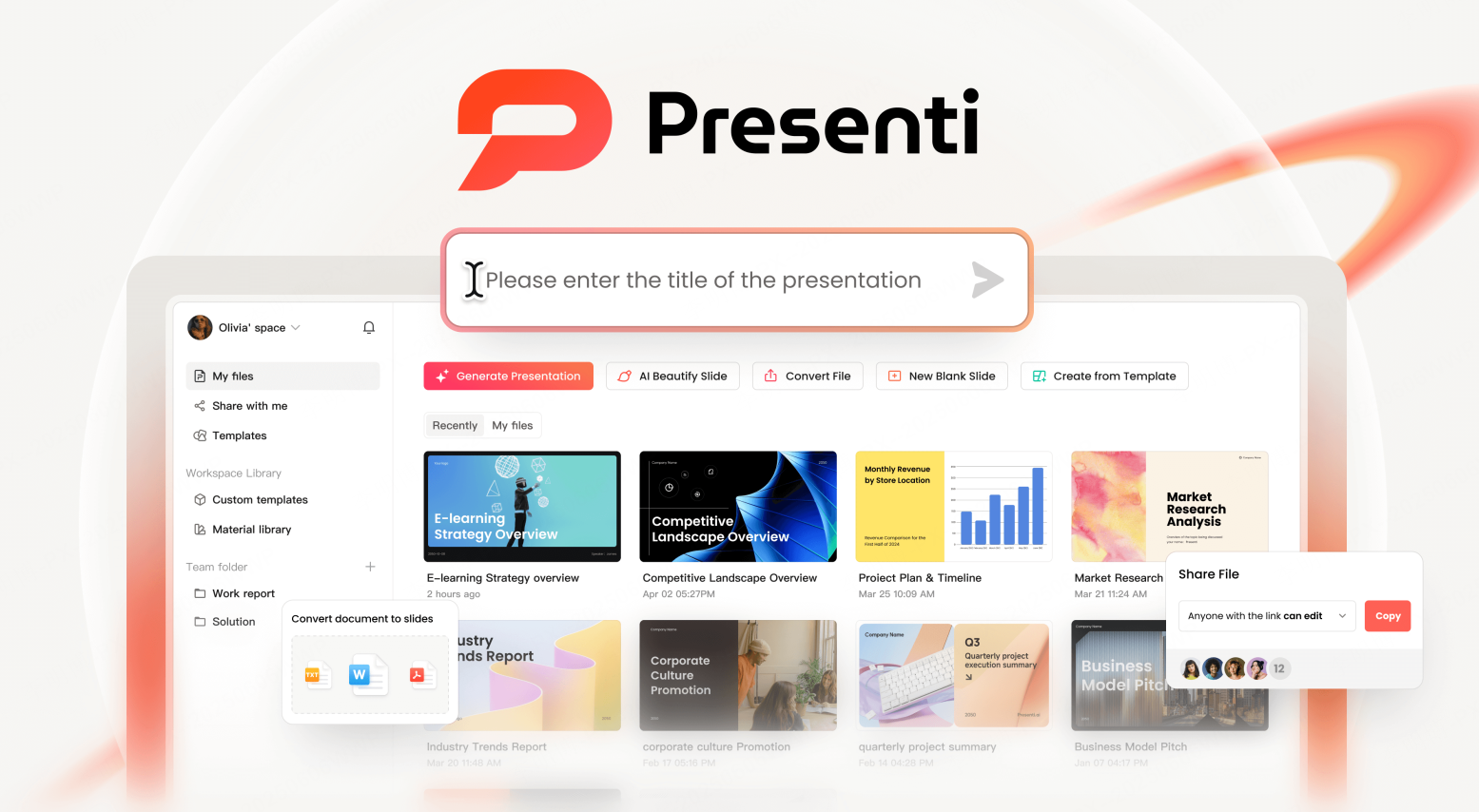
Presenti AI is an AI powered presentation generator designed to simplify slide creation from start to finish. Users can generate a complete PowerPoint by entering keywords or a topic, eliminating the need to design slides manually.
Key advantages include:
- One click AI generated presentations based on topics or documents
- A large library of professional templates for business, education, and technical content
- Web based editing with real time autosave and cloud storage
- Cross device access, allowing users to work from desktop or laptop
- Export options for PPTX and PDF formats
With Presenti AI, even first time users can produce visually consistent and well structured presentations in seconds. This makes it especially useful for technical teams, educators preparing lesson slides, and project managers who need fast turnaround.
(2) Google Slides
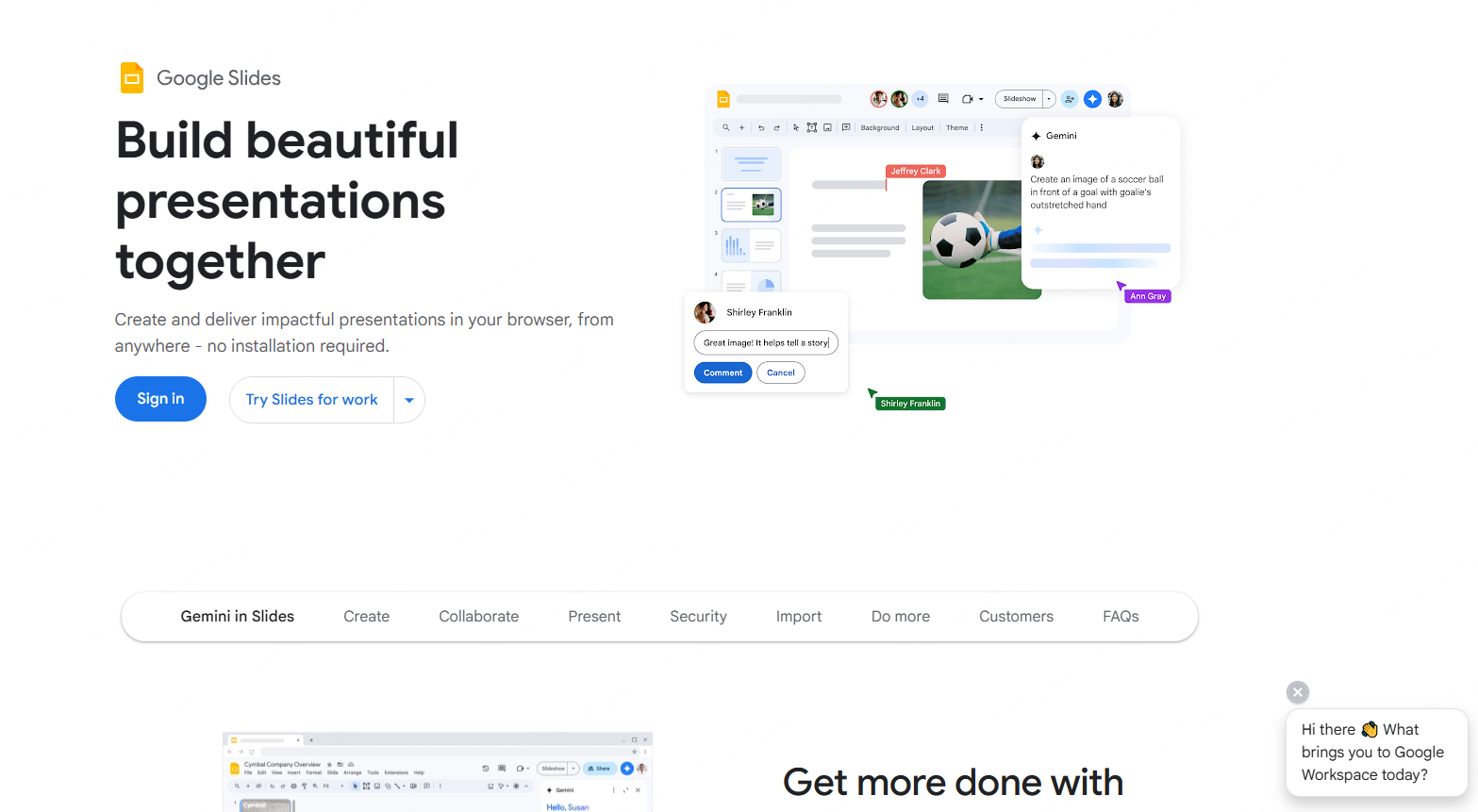
Google Slides is a free, web based presentation tool with a clean interface and intuitive controls. It is widely used across education and professional environments.
Key features include:
- Real time collaboration for distributed teams
- Automatic cloud saving through Google Drive
- Easy sharing and permission control
- Compatibility with PowerPoint files
Google Slides is ideal for team based projects, internal reports, and classroom presentations where multiple contributors need to work together efficiently.
(3) Slidesgo
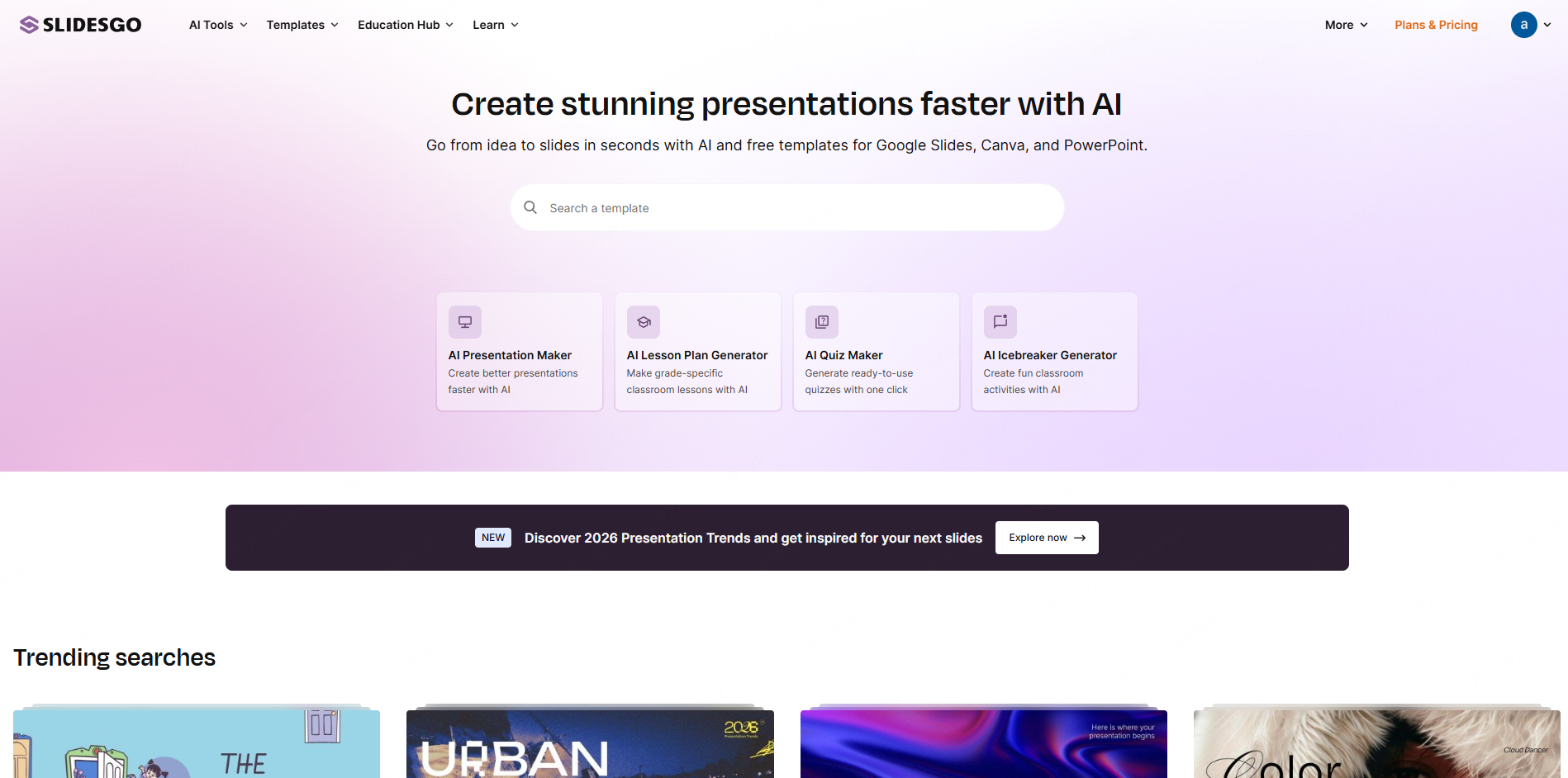
Slidesgo provides a broad range of professionally designed templates for different industries, including education, business, healthcare, and technology.
Highlights include:
- Templates compatible with both Google Slides and PowerPoint
- Prebuilt charts, icons, and color palettes
- Structured layouts that reduce formatting time
Slidesgo is particularly useful for users who want visually refined templates without starting from a blank slide.
(4) PPT Template Libraries
For users Western language environments, popular alternatives include:
- Microsoft Create
- Canva Free Templates
- SlideModel free samples
These platforms offer presentation templates optimized for Western business and academic scenarios, such as quarterly reviews, startup pitch decks, and training materials.
(5) Microsoft Office Online

Microsoft Office Online provides free access to PowerPoint through a web browser. While advanced features are limited compared to the desktop version, it still offers:
- High quality official templates
- Familiar PowerPoint interface
- Seamless file compatibility
This option works well for users already embedded in the Microsoft ecosystem.
2. Basic Steps to Create a Free PowerPoint Presentation
Regardless of the tool you choose, the core workflow for creating a presentation remains largely consistent.
(1) Choose a Template
Start by selecting a template that matches your presentation goal. A technical briefing, for example, benefits from clean layouts and restrained color use, while a marketing pitch may require stronger visuals.
When choosing a template:
- Match the visual tone to your topic
- Avoid overly decorative designs for professional settings
- Ensure consistent slide layouts
A good template reduces formatting effort and improves overall clarity.

(2) Add and Edit Content
Add Slides
Use the “New Slide” option from the toolbar or sidebar to insert slides as needed. Keep the total slide count aligned with your presentation length and audience attention span.
Edit Text
Click on text placeholders to add titles and body content. Focus on clarity and brevity. Slides should support your spoken explanation, not replace it.
Insert Images and Media
Use the “Insert” menu to add images, charts, audio, or video. Visual elements help explain complex ideas, especially in technical or educational presentations.
(3) Add Animations Carefully
Animations can enhance understanding when used sparingly. Apply simple entrance or emphasis effects to guide attention.
Best practices include:
- Keep animation styles consistent
- Avoid excessive motion
- Preview slides to confirm smooth transitions
Animations should support comprehension, not distract from content.
3. Practical Tips for Better PowerPoint Design
Strong slide design follows established principles that improve readability and audience engagement.
Visual Design Principles
Apply contrast, alignment, and whitespace intentionally:
- Contrast highlights key information
- Alignment creates visual order
- Whitespace improves focus and reduces clutter
These principles are especially important in technical presentations where clarity is critical.
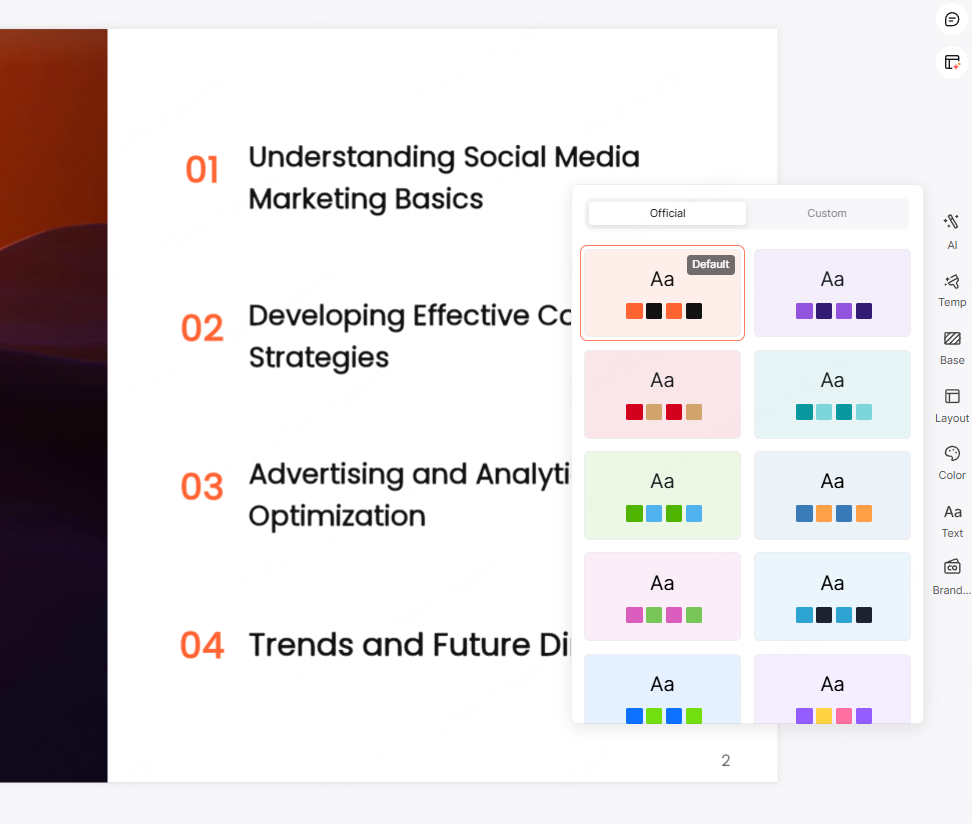
Color Selection
Limit your color palette to one or two primary colors plus neutral tones. This creates a cohesive look and avoids visual fatigue. Ensure sufficient contrast between text and background for accessibility.
Font Choice and Sizing
Choose readable fonts such as Arial, Calibri, or Inter. Maintain consistent font usage across slides:
- Larger fonts for titles
- Medium sized fonts for body text
- Avoid decorative fonts
Clear typography improves comprehension, particularly in data heavy slides.
4. Using AI Tools to Generate PowerPoint Presentations Efficiently
AI powered presentation tools are changing how professionals create slides. Instead of starting from a blank canvas, users can generate structured drafts in minutes.
(1) Advantages of AI Presentation Generators
AI tools provide several practical benefits:
- Time efficiency
Generate full presentations from keywords or outlines in seconds. - Professional design quality
Built in templates and layouts reflect modern design standards. - Intelligent content generation
Automatically creates titles, bullet points, and charts aligned with the topic. - Customization flexibility
Users can refine text, visuals, and structure after generation.
These benefits are particularly valuable for developers, educators, and project managers with limited design time.
(2) How to Generate a PowerPoint with Presenti AI
Using Presenti AI typically follows these steps:
- Create or log in to a Presenti AI account and access the dashboard
- Choose a generation method, such as AI topic-based generation or file import
- Enter a presentation topic or upload reference material
- Select a suitable template
- Review the generated outline and confirm creation
- Edit slides to refine content, layout, and visuals
This workflow allows users to move from idea to presentation quickly, while still maintaining control over the final output.
Conclusion
PowerPoint creation is far more approachable than it may seem. By selecting the right free tools and following clear design principles, anyone can build professional presentations with confidence.
Free platforms like Google Slides and Microsoft Office Online offer reliable foundations, while AI driven tools such as Presenti AI dramatically reduce preparation time. For beginners and experienced users alike, combining templates with intelligent automation leads to faster, higher quality results.
If you want to streamline your workflow and focus more on content rather than formatting, Presenti AI is a strong option worth exploring. Its AI powered presentation generation makes it possible to create polished, creative slides in a fraction of the usual time.