
A well designed PowerPoint agenda slide does more than list topics. It helps your audience understand the structure of your presentation, follow your narrative, and stay engaged from start to finish. Whether you are preparing a business pitch, a technical demo, a training session, or an academic lecture, the agenda slide sets expectations and defines the overall experience.
In this guide, you will learn why agenda slides matter, how to design them step by step, and which agenda slide layouts are most effective in real world presentations. You will also see how modern tools can streamline the process and help you create polished, professional results faster.
1. Why Agenda Slides Matter in PowerPoint
Clear Navigation for Your Audience
An agenda slide gives your audience a high level overview of your presentation structure. It allows viewers to quickly understand what will be covered and how the content is organized. This is especially important for longer presentations, technical walkthroughs, or training sessions where cognitive load can increase quickly.
For project managers, engineers, and educators, a clear agenda reduces confusion and helps the audience stay aligned with the speaker’s flow.
Strong First Impression
The agenda slide often appears at the beginning of a presentation, right after the title slide. A clean, well designed agenda establishes credibility and sets a professional tone. It signals that the presentation is well prepared and thoughtfully structured.
In business settings such as stakeholder reviews or client pitches, this first impression can directly affect how your message is received.
Setting Expectations and Focus
By clearly listing the topics you will cover, an agenda slide helps the audience form mental expectations. This improves focus and retention because viewers know what is coming next and why each section matters.
For educators and trainers, this structure supports learning outcomes and makes complex material easier to digest.
2. How to Create an Effective PowerPoint Agenda Slide
Step 1: Define the Agenda Content
Start by outlining the main sections of your presentation. Each agenda item should represent a meaningful block of content, such as a topic, phase, or chapter.
Best practices:
- Keep the number of agenda items between three and six
- Use concise, descriptive labels
- Avoid vague or overly long titles
For example, instead of “Background Information,” use “Project Context” or “System Overview.”
Step 2: Choose Readable Fonts and Colors
Typography plays a major role in clarity. Use fonts that are easy to read on both large screens and remote displays.
Recommended fonts commonly used in Western presentations include:
- Calibri
- Arial
- Helvetica
- Inter
Maintain strong contrast between text and background. A dark background with light text or a light background with dark text both work well. Avoid decorative fonts or low contrast color combinations that reduce readability.
Step 3: Design a Clean Layout
Your agenda slide layout should be simple and balanced. Common alignment choices include centered layouts for formal presentations and left aligned layouts for content heavy decks.
Use numbered lists or bullet points to indicate sequence. Pay attention to spacing. Proper line spacing and margins prevent the slide from feeling crowded or visually overwhelming.
Consistency with the rest of the slide deck is critical. The agenda slide should follow the same design system as your other slides.
Step 4: Add Visual Enhancements Carefully
Icons, shapes, and subtle animations can enhance engagement when used correctly. Simple icons next to each agenda item can help visually distinguish sections and improve scanability.
If you use animations, keep them minimal. A simple fade in or appear animation is usually sufficient. Avoid excessive motion that distracts from the content or feels unprofessional.
3. Eight Popular PowerPoint Agenda Slide Layouts
If you are unsure which agenda style best fits your presentation, the following eight layouts are widely used across business, education, and technical environments.
1. Minimalist Agenda Slide
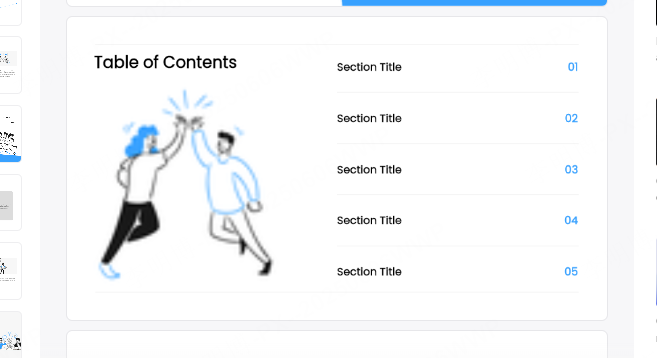
This style uses clean lines, ample white space, and sans serif fonts. The focus is on clarity and hierarchy rather than decoration.
Best for:
- Business presentations
- Executive briefings
- Academic or research talks
Minimalist agenda slides convey professionalism and make complex topics easier to follow.
2. Icon Based Agenda Slide
Each agenda item is paired with a simple icon. Color can be used to differentiate sections while maintaining visual balance.
Best for:
- Product demos
- Marketing presentations
- Creative or design oriented decks
Icons help the audience quickly associate each section with a concept or function.
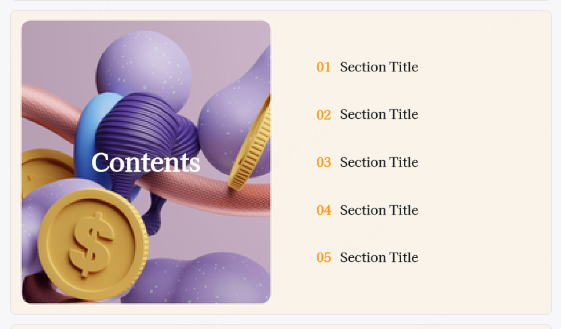
3. Image and Text Combination Agenda
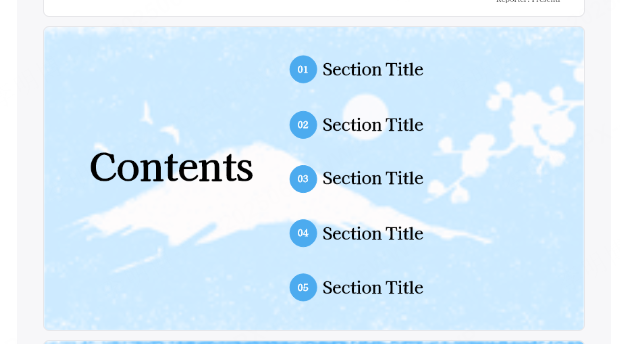
This layout places a small image or illustration next to each agenda item. The visuals reinforce meaning and add visual interest without overwhelming the slide.
Best for:
- Educational presentations
- Training sessions
- Workshops and onboarding materials
This approach works well when explaining concepts or processes to mixed experience audiences.
4. Timeline Style Agenda Slide
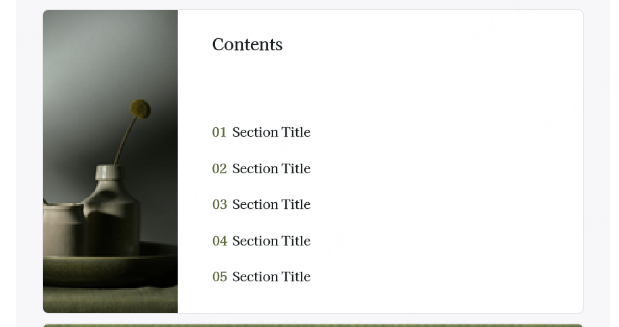
Agenda items are arranged along a horizontal or vertical timeline, emphasizing sequence or progression.
Best for:
- Project updates
- Roadmaps
- Historical overviews or development phases
Timeline agendas make it easy to understand order, milestones, and dependencies.
5. Hierarchical Agenda Slide
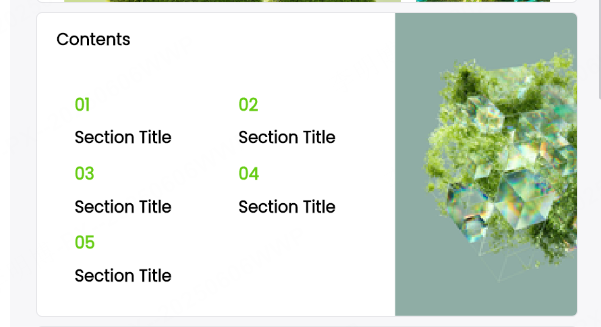
This structure shows main sections and sub sections, clearly visualizing content depth.
Best for:
- Technical documentation presentations
- Research papers
- In depth analysis reports
Hierarchical agendas help audiences grasp complex structures quickly.
6. Large Text Agenda Slide
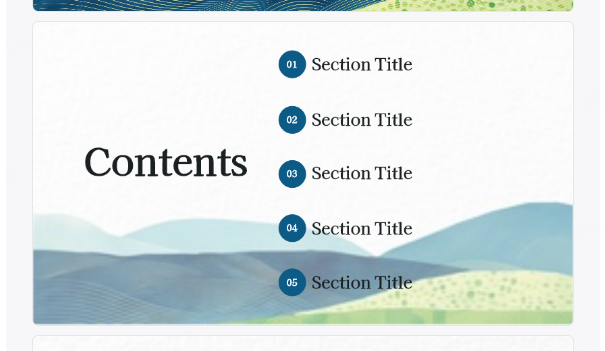
This style uses oversized typography to ensure maximum readability, especially in large rooms or remote meetings.
Best for:
- Conference presentations
- Town halls
- Virtual meetings with large audiences
Large text improves accessibility and reduces eye strain.
7. Industry Specific Agenda Slide
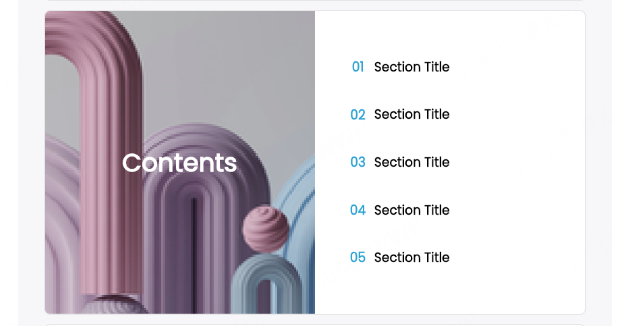
Industry themed visuals and color palettes reinforce relevance and credibility. For example:
- Healthcare decks may use clean blue tones and medical icons
- Finance decks may use charts, grids, and neutral colors
- Software presentations may use diagrams and modular layouts
Best for:
- Client facing presentations
- Industry conferences
- Specialized training
8. Interactive Agenda Slide
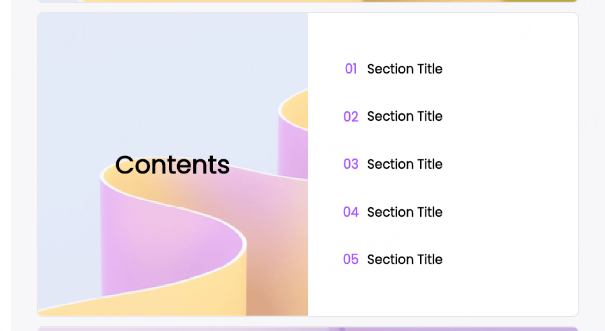
Interactive agendas use hyperlinks or clickable elements that allow viewers to jump directly to sections.
Best for:
- Training modules
- Workshops
- Self paced presentations
Interactive navigation improves usability and audience engagement, especially in digital environments.
4. Speeding Up Agenda Design with Modern Tools
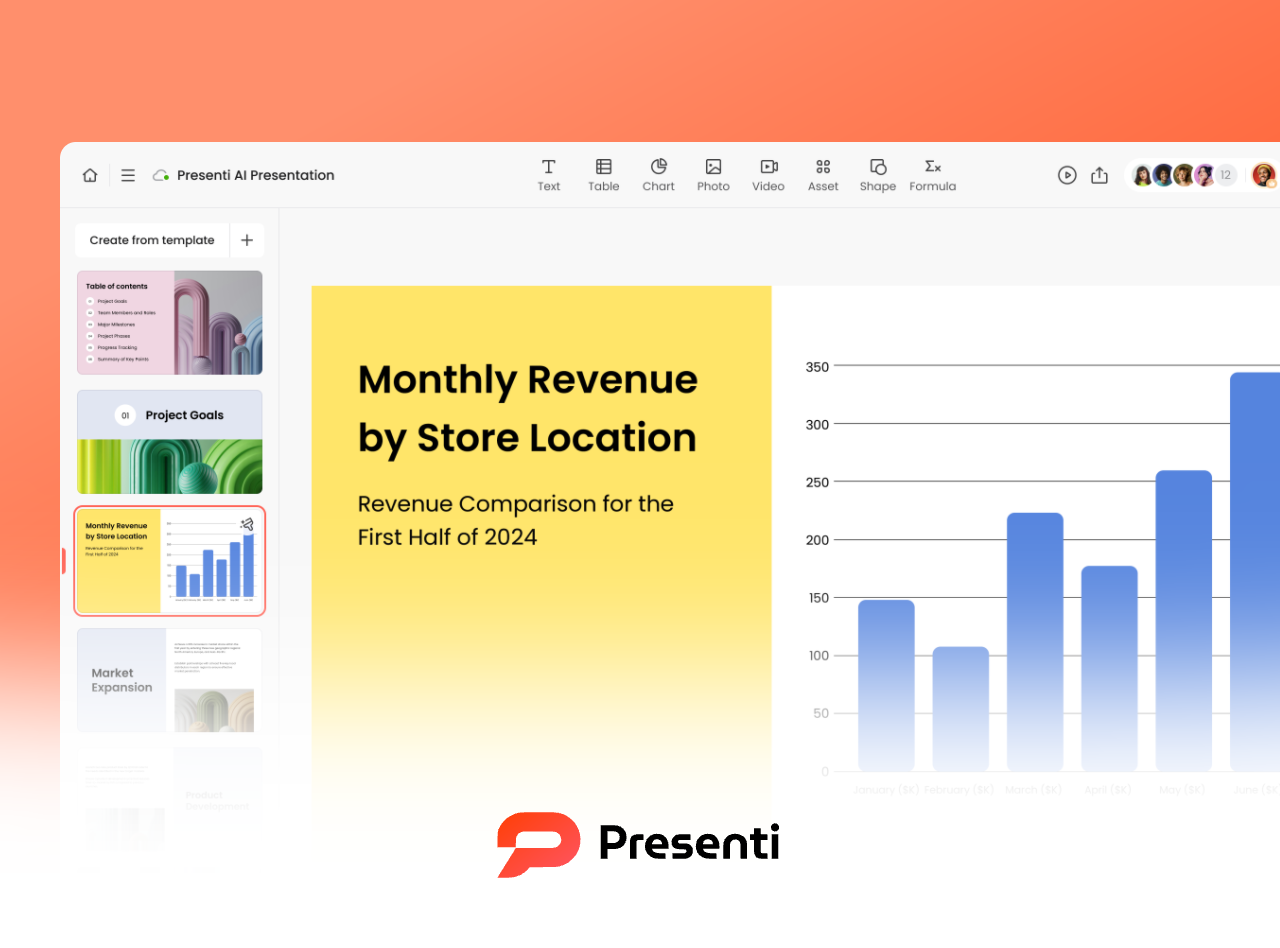
While templates are helpful, modern presentation tools can significantly reduce manual effort. AI powered presentation platforms allow users to generate agenda slides automatically based on content structure.
Tools like Presenti AI help users:
- Generate agenda layouts tailored to different presentation types
- Maintain consistent design across slides
- Access libraries of icons, layouts, and visual components
- Edit content efficiently without advanced design skills
For busy professionals, educators, and development teams, these tools improve productivity while maintaining quality.
Conclusion
A strong PowerPoint agenda slide is essential for guiding your audience, establishing credibility, and improving comprehension. By following proven design principles and selecting the right layout, you can create agenda slides that enhance both clarity and engagement.
Whether you choose a minimalist design, a timeline layout, or an interactive agenda, the key is alignment with your content and audience. Combined with modern presentation tools, creating professional agenda slides has never been more efficient.









