
Creating professional PowerPoint presentations no longer requires advanced design skills or hours of manual work. With modern AI powered online presentation tools, even beginners can produce clean, structured, and visually compelling slides in a fraction of the time.
This guide explains how to create presentations online using AI, focusing on practical workflows, tool selection, and real world use cases familiar to educators, project managers, developers, and technical teams. By the end, you will know how to move from an idea or document to a polished presentation ready for sharing or live delivery.
Why Use AI for Online Presentation Creation?
Traditional presentation workflows often involve multiple steps: outlining content, designing layouts, aligning visuals, and refining wording. AI driven presentation tools automate much of this process by transforming text, documents, or ideas directly into structured slides.
Key advantages include:
- Faster content to slide conversion
- Consistent visual design across slides
- Reduced reliance on design expertise
- Improved clarity and structure for technical topics
- Better collaboration for distributed teams
These benefits are especially valuable for professionals who need to communicate ideas clearly but want to minimize time spent on slide formatting.
Choosing the Right AI Presentation Tool
Selecting the right AI powered presentation tool is the foundation of an efficient workflow. A good tool should balance ease of use, flexibility, and output quality. Below are several tools commonly adopted by Western users.
Presenti AI
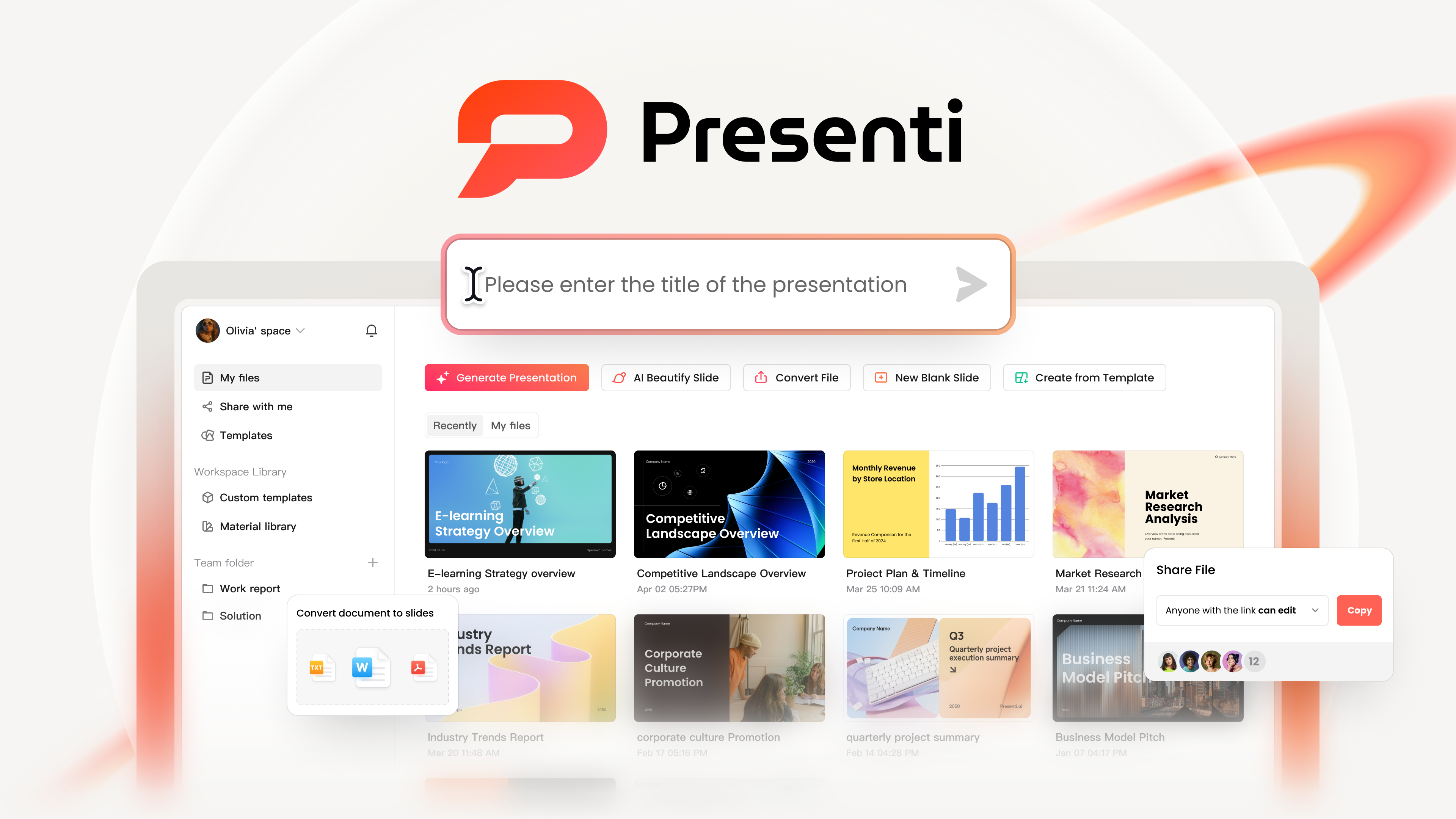
Presenti AI is a full featured AI presentation generator designed for speed and simplicity. Users can enter a topic or upload documents, and the system automatically generates slide structure, content, and layout. It supports multiple presentation styles and is well suited for beginners as well as professional teams.
Beautiful.ai
Beautiful.ai focuses on intelligent layout automation. It continuously adjusts spacing, alignment, and visual hierarchy as content changes. This makes it ideal for business presentations and executive summaries where consistency matters.
Visme Design Assistant
Visme includes an AI assisted design engine that recommends layouts, charts, and visuals based on user content. It works well for marketing, training materials, and data driven presentations.
Google Slides with AI Extensions
For teams already using Google Workspace, Google Slides combined with AI extensions such as Slidebean or Plus AI offers a collaborative and cost effective option. This setup is popular among educators and distributed product teams.
Understanding the Interface and Workflow
Before generating slides, it is important to understand the basic interface of an AI presentation tool. Using Presenti AI as an example, the workflow is designed to be intuitive and beginner friendly.
Workspace Overview
After signing in, users are taken to a central workspace with multiple creation options:
- Generate a presentation from a topic
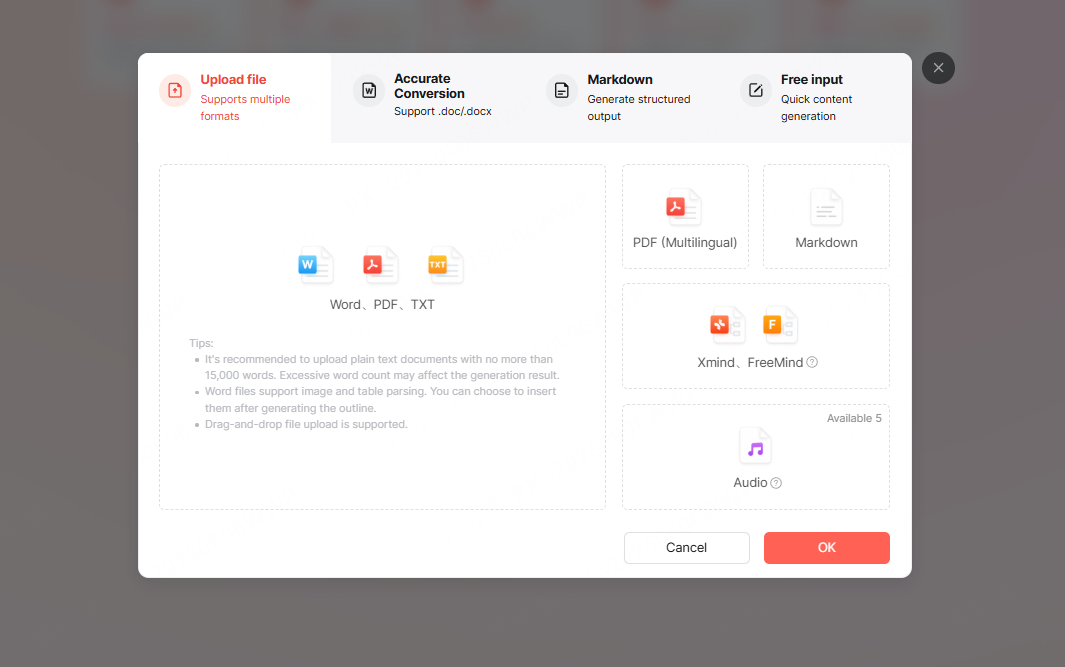
- Upload documents such as Word, PDF, Markdown, or text files
- Choose a presentation template before generating content
- Create slides from a URL by extracting web content
- Start with a blank presentation and generate slides page by page
This flexibility allows users to adapt the tool to different content sources and project needs.
Editing Interface
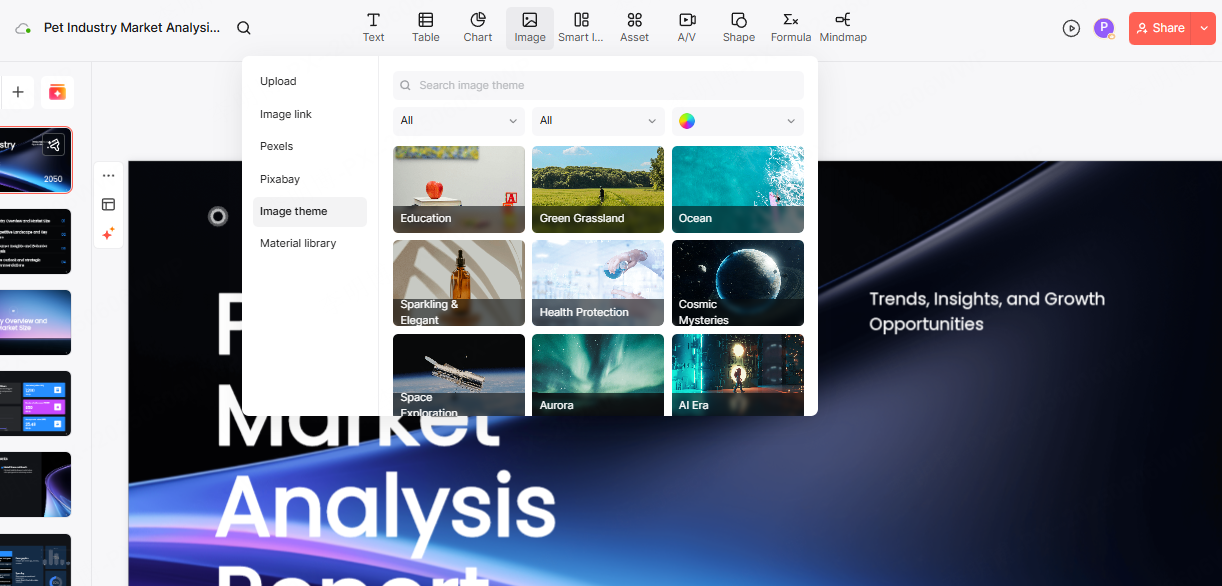
Once a presentation is generated, users enter the editing view where slides can be refined.
- Left panel: slide management, adding or duplicating slides
- Top toolbar: text, images, shapes, charts, diagrams, and icons
- Right panel: design settings such as layout, color themes, and typography
- Text tools: direct editing with optional AI assisted rewriting and optimization
The interface is designed to minimize friction, allowing users to focus on content rather than layout mechanics.
Creating a Presentation with AI
Step 1: Enter a Topic or Upload a Document
AI presentation tools typically accept two main input types.
Topic based generation
Users can enter a topic such as “Quarterly Business Review,” “Software Architecture Overview,” or “Product Launch Strategy.” The AI then generates a logical slide outline including titles and key points.
Document based generation
Users can upload files such as Word documents, PDFs, Markdown files, or mind maps. The AI analyzes the structure and extracts key information to form a slide deck.
This approach is particularly useful for converting reports, lesson plans, or technical documentation into presentations.
Step 2: Review and Customize the AI Generated Outline
After processing the input, the AI produces a complete presentation outline. This typically includes:
- Title slide
- Agenda or overview
- Section slides with bullet points
- Supporting data or visuals
Users can edit slide titles, reorder sections, or remove unnecessary content before finalizing the deck. This step ensures the presentation matches the intended audience and delivery context.
Step 3: Apply a Presentation Template
Most AI presentation platforms provide a library of templates covering business, education, technology, and creative use cases.
Once a template is selected, the system automatically applies it to the entire presentation, adjusting layouts, spacing, and visual hierarchy. This ensures consistency without manual formatting.

Refining and Optimizing the Presentation
AI Assisted Content Optimization
AI tools can help refine slide text by rewriting, summarizing, expanding, or translating content. This is especially useful for:
- Improving clarity of technical explanations
- Adapting content for non technical audiences
- Ensuring consistent tone across slides
These features help users produce clearer and more concise presentations.
Changing Templates and Styles
If the initial template does not meet expectations, users can switch styles with minimal effort. Color schemes, fonts, and layout density can be adjusted to match brand guidelines or presentation context.
Adjusting Layouts and Visual Hierarchy
For slides that feel crowded or unbalanced, preset layout options allow the system to automatically reposition elements. This ensures readability and visual balance without manual adjustments.
Enhancing Visual Elements
AI presentation tools often include built in asset libraries with icons, illustrations, and stock images. Users can replace placeholder visuals with relevant graphics to support key messages.
For technical teams, diagrams and charts help communicate complex ideas more effectively than text alone.
Sharing and Exporting Your Presentation
AI presentation platforms typically save work automatically in the cloud. This reduces the risk of data loss and enables easy collaboration.
Common export and sharing options include:
- Download as PowerPoint (PPTX)
- Export as PDF for distribution
- Share a live presentation link
- Collaborate with teammates through comments and real time editing
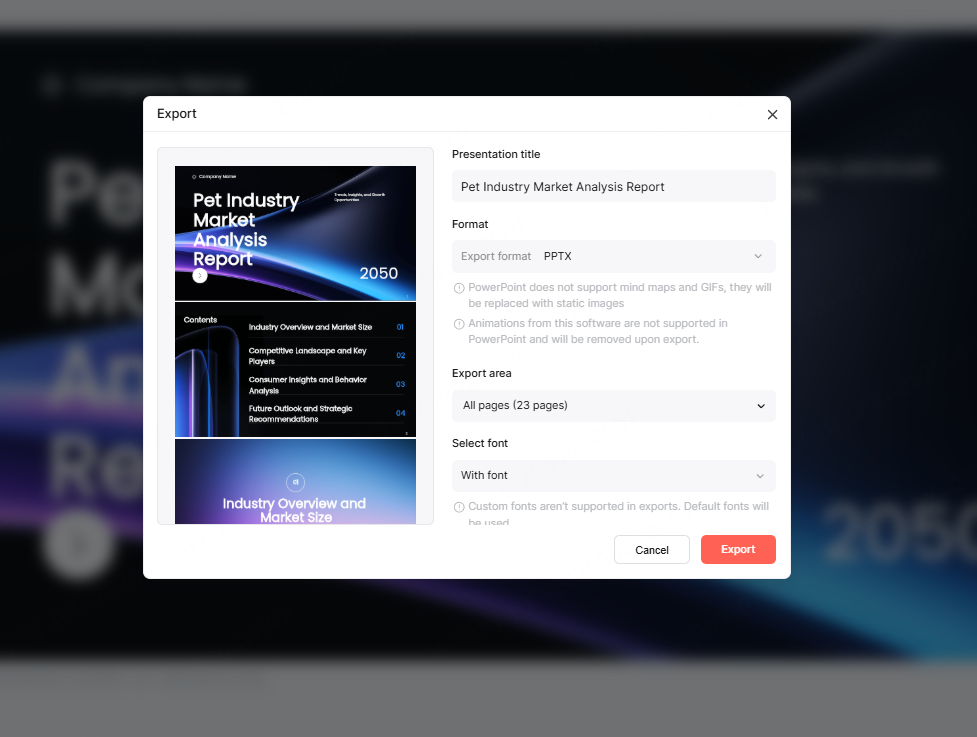
These features support both asynchronous review and live presentations.
Advanced Features for Teams and Professionals
Beyond slide creation, modern AI presentation tools often include additional capabilities:
- AI generated speaker notes and scripts
- Live presentation mode
- Inline comments and feedback
- Team collaboration and role management
These features make AI presentation tools suitable not only for individuals, but also for cross functional teams working on shared content.
Conclusion
AI powered online presentation tools have transformed how professionals create and share ideas. By automating structure, design, and content refinement, these tools allow users to focus on what matters most: clear communication.
Whether you are an educator preparing lessons, a project manager delivering updates, or a developer explaining system architecture, AI driven presentation creation can significantly improve efficiency and presentation quality.









