Enhancing a presentation deck has always been a challenge for busy professionals, educators, and development teams. You may have solid content, but poor layout, inconsistent colors, and messy visuals can easily undermine your message. Nowadays, AI powered slide design tools can provide a starting point for revising layouts, fonts, and visual consistency. With the right workflow, you can create a polished, visually cohesive presentation in just a few clicks.
This guide walks you through a complete, action oriented process to redesign and optimize PowerPoint slides using AI, for teams revising an existing slide deck.
1. Upload Your PPTX File to the AI Design Platform
Open the existing-slide improvement workflow in the tool you plan to use. Presenti offers a slide beautifier for PPTX files; other platforms may use different import and editing controls.
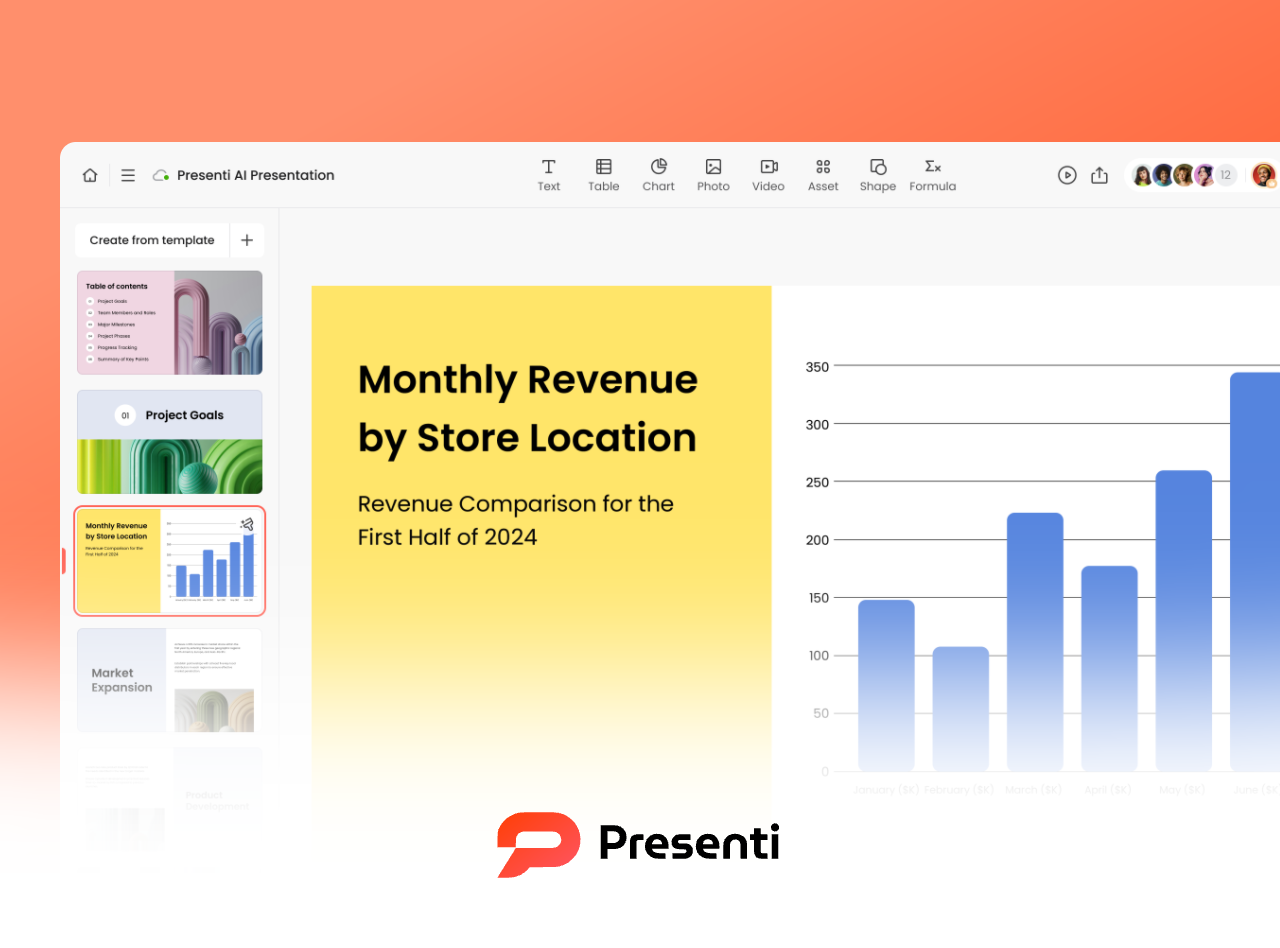
Upload your existing PPTX file. Before uploading, keep in mind:
- Presenti file limit: PPTX uploads up to 100 MB
- Presenti lists support for text, images, certain shapes, SVGs, tables, and basic charts; inspect other or complex elements after import
- Clean structure helps: a well organized deck: cover slide, agenda, sections, summary, improves AI accuracy and generates better visual output
- Avoid excessive manual formatting: let AI handle typography and layout
Once uploaded, the platform will automatically import the content into an online slide editor.
2. Apply One Click AI Design: Choose a Modern Template Style
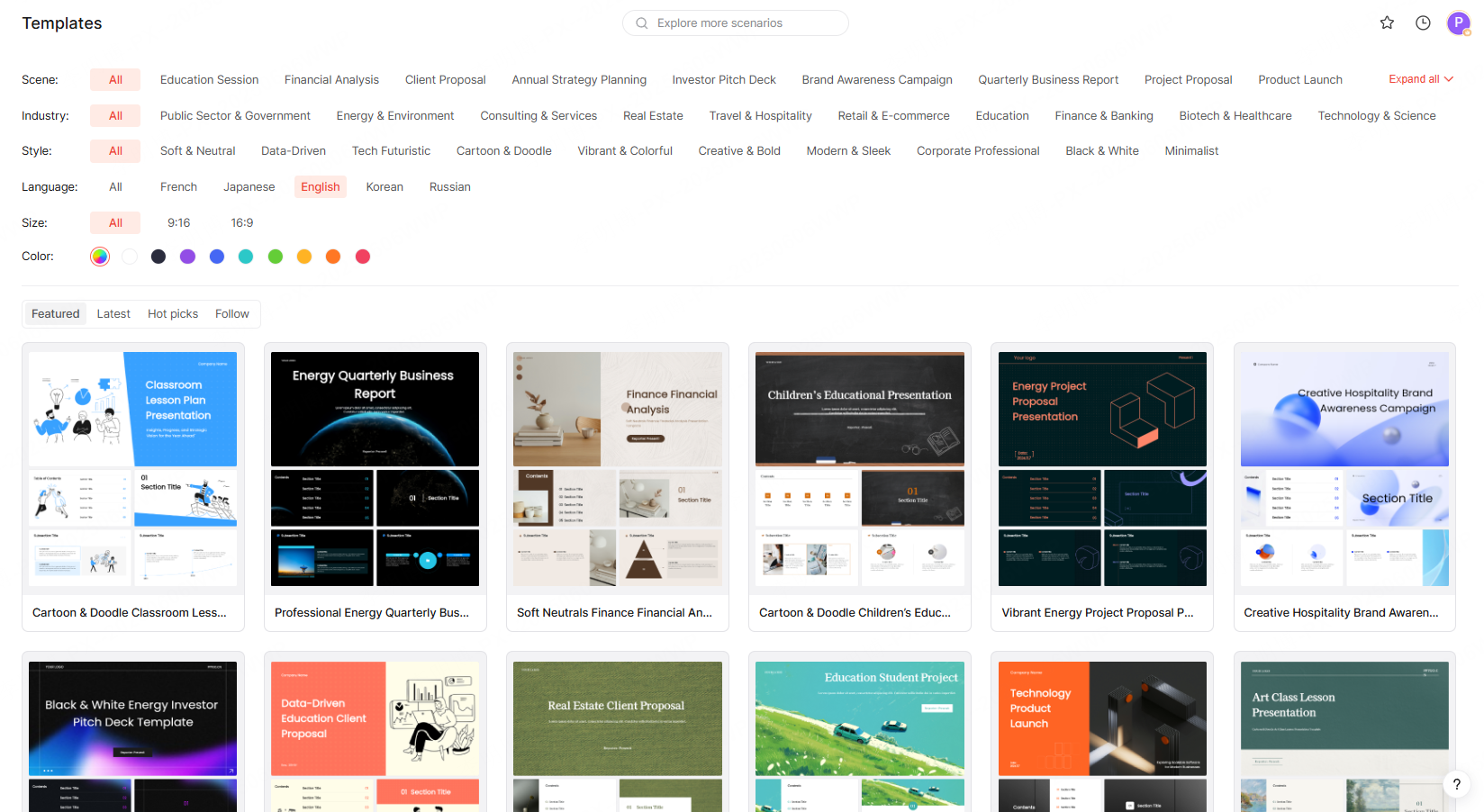
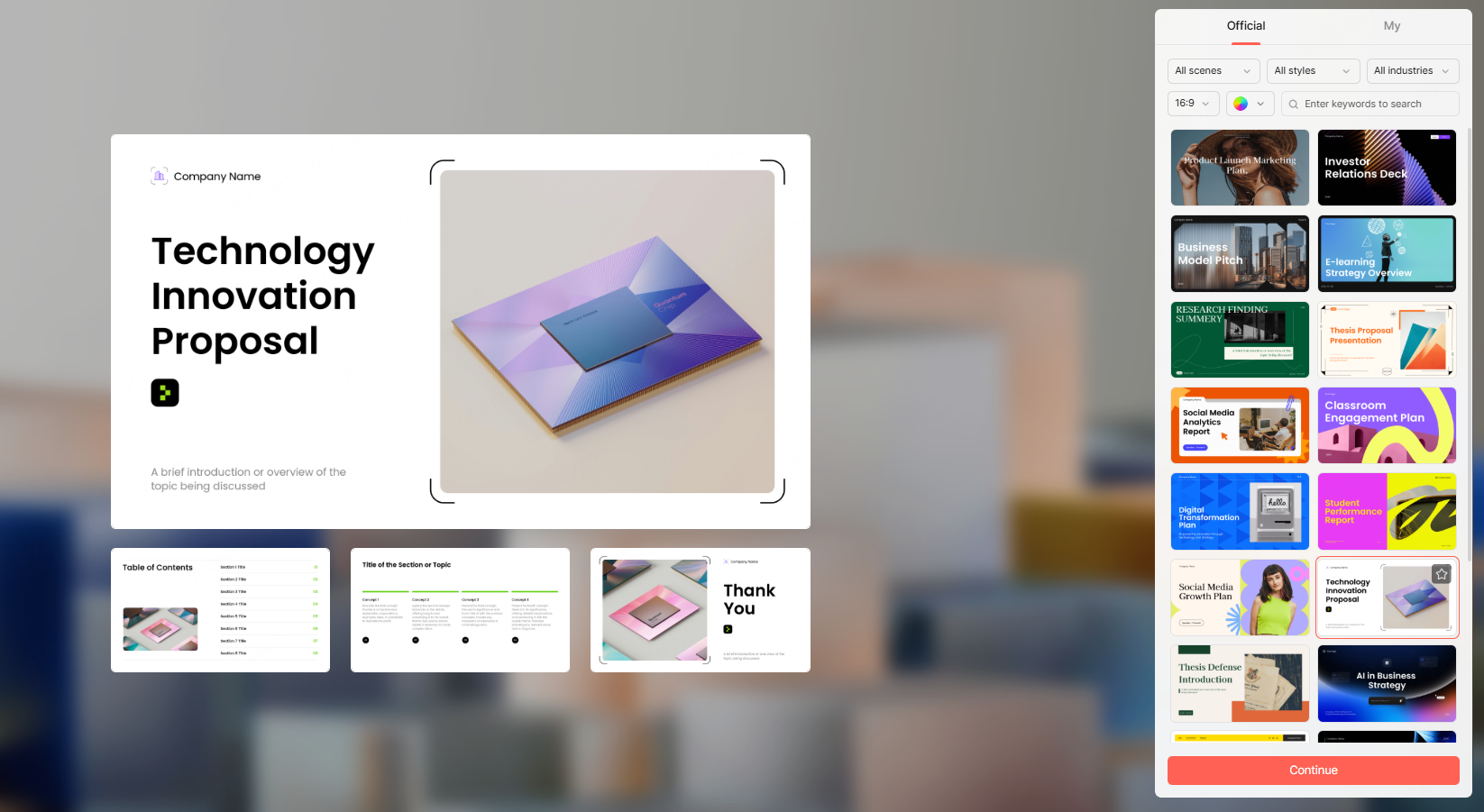
After import, review the available design or template options. Choose a style that gives the content enough space and suits the purpose of the presentation.
Most platforms let you filter templates by:
By Use Case
- Business proposals
- Product launches
- Academic lectures
- Marketing campaigns
- Project reports
- Technical documentation
- Training and onboarding
By Industry
- Software & IT
- Finance
- Education
- Healthcare & biotech
- Retail & e-commerce
- Manufacturing
- Consulting
By Visual Style
- Minimalist
- Corporate
- Creative / modern
- Flat design
- Bold & colorful
- Illustration based
- Tech-inspired UI style
By Color Palette
Choose brand colors or select a palette aligned with your organization’s design guidelines.
AI will then auto apply the selected style to your entire deck, providing a design to check for consistent typography, spacing, and composition.
3. Configure Image Sources to Ensure Visual Consistency
Decide which original images must remain and where replacements would be useful. Use the image controls your chosen tool provides, then check the result against the source deck.
File Images
If your original deck already contains images or diagrams, simply keep them.
Check that the redesigned slide preserves the meaning and quality of those visuals.
Template Images
Use the built in image resources provided by the template.
Recommended when you need a uniform visual theme across all slides.
AI Generated Images
Let AI generate images based on your slide text.
Generated images can illustrate abstract themes. Use checked diagrams for technical architectures, workflows, and data flows where relationships must be accurate.
This choice directly affects how coherent your final deck will look, so select the option that best matches your content strategy.
4. Generate and Review the Redesigned Deck
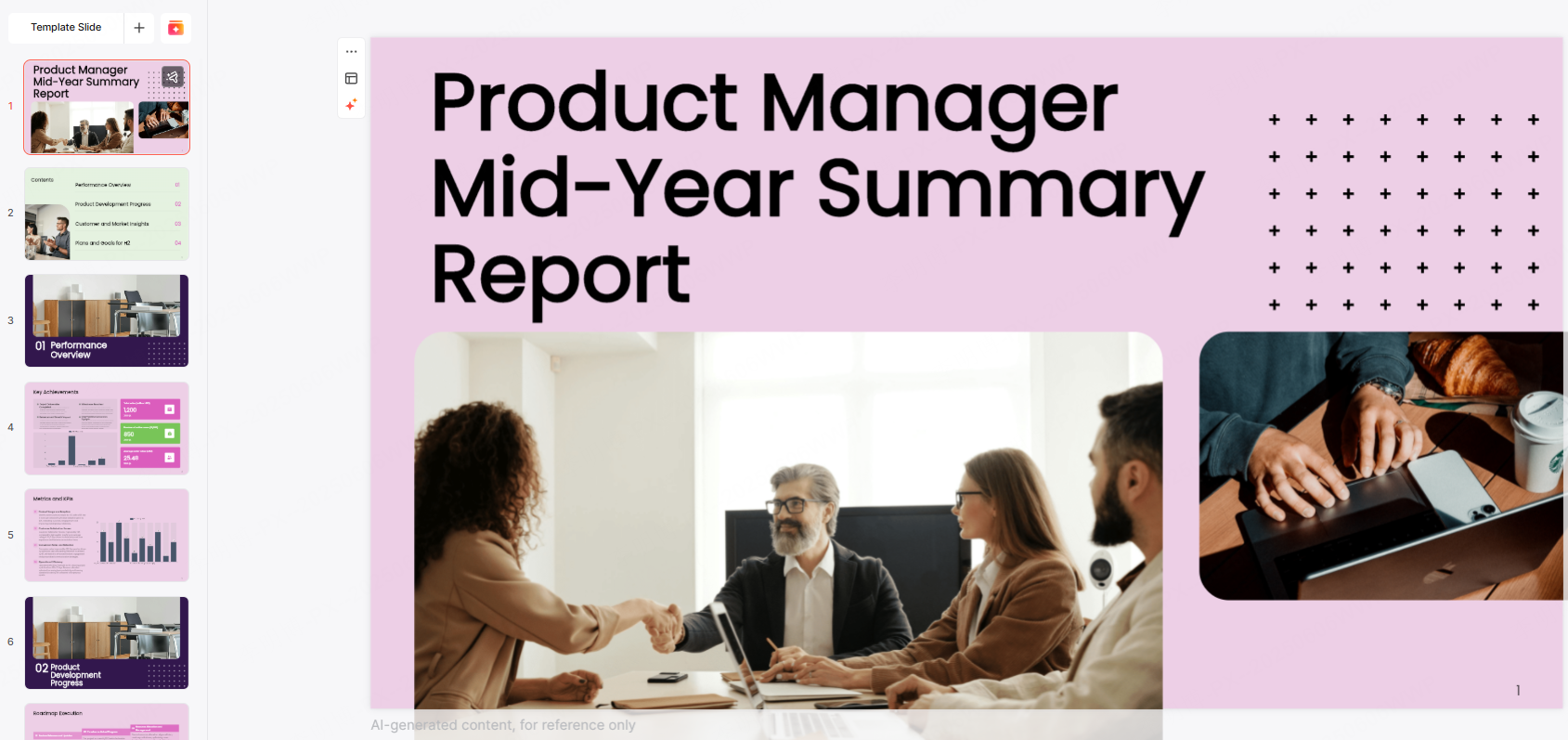
Start the redesign once you have chosen the available template and image settings. Processing time depends on the file and service. Review the result before treating it as the finished deck.
The automated enhancements include:
- Clean hierarchical layout
- Unified typography and consistent color usage
- Optimized spacing and visual balance
- Reorganized sections for readability
- Automatically inserted or updated images
- Sharper formatting of headings, highlights, and callouts
Inspect the draft for missing content, text overflow, changed figures, and unsuitable images. Compare important slides with the original.
A redesign may reduce repetitive layout work, but it still needs a content and visual check before delivery.
5. Cloud Editing, Collaboration, and Custom Templates
Modern AI presentation platforms aren’t just design tools, they're complete collaborative workspaces.
Cloud Storage for Instant Access
Uploaded presentations are saved in your cloud workspace.
You can edit, download, or share them on supported devices.
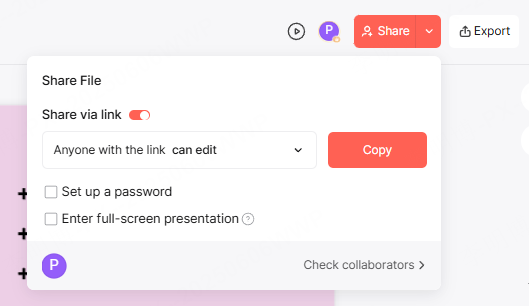
One Click Sharing
Generate a shareable link to send the deck to colleagues, clients, or students.
Set permissions such as view-only or collaborative editing.
Real Time Collaborative Editing
Multiple users can work on the same deck simultaneously.
Ideal for distributed teams, agile workflows, sprint reviews, and academic project groups.
Custom Brand Templates
Use approved colors, fonts, logos, and layouts where the editor supports them. Confirm whether custom templates or brand controls are available on your plan, and check the application across the deck.
Why AI Based PPT Enhancement Matters for Professionals
For technical teams, educators, and project managers, a well designed deck can significantly improve:
- Knowledge transfer and training efficiency
- Project reporting clarity during stakeholder briefings
- Customer facing presentations, product demos, and onboarding
- Internal documentation quality
- User trust in your brand’s professionalism
With AI, slide design becomes less of a bottleneck, allowing you to focus on delivering meaningful content instead of wrestling with formatting.