

In the professional and academic environments, converting Word documents to PowerPoint presentations is a common need for reports, lectures, and project summaries. Knowing a few efficient and straightforward conversion methods can significantly boost your productivity. This guide walks you through several super simple ways to turn your Word docs into compelling slides, easy to learn and quick to implement!
1. Method 1: Import a Word Document Directly into PowerPoint
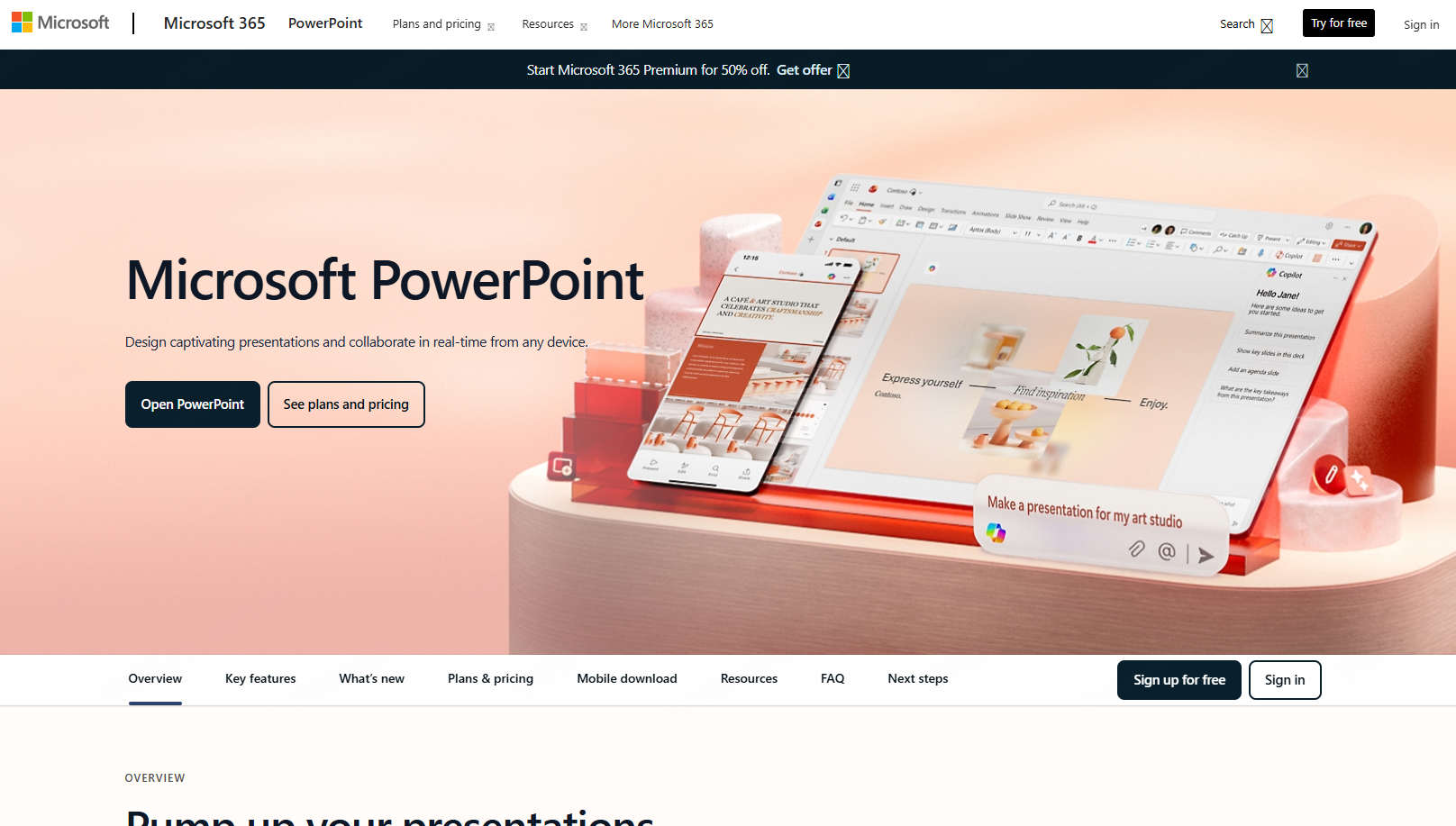
This is the most basic and simple method, ideal for well structured documents that use Word’s built in heading styles.
Steps:
- Open PowerPoint and create a new presentation.
- Go to the Insert tab and select Slides from Outline.
- Choose your Word file (must be .doc or .docx format).
Text formatted with Heading 1, Heading 2, etc., in Word will automatically become slide titles and bullet points in PowerPoint.
Things to Note:
- Your Word document must use heading styles for proper slide segmentation.
- This method creates a structured, clean PPT, suitable for formal reports and standard presentations.
2. Method 2: Use AI Tools or Online Platforms for One Click Conversion
If manually applying styles feels tedious, try a smarter approach, using AI powered tools or online converters to transform Word to PPT in one click.
Recommended Tools:
- boardmix: A collaborative whiteboard that imports Word docs and auto generates presentation content.
- AIPPT Generator: Upload a Word file, and the AI analyzes content logic to produce a polished PPT.
Walkthrough (using Presenti AI as an example):
Step 1: Log in to Presenti AI and Upload Your Word Document
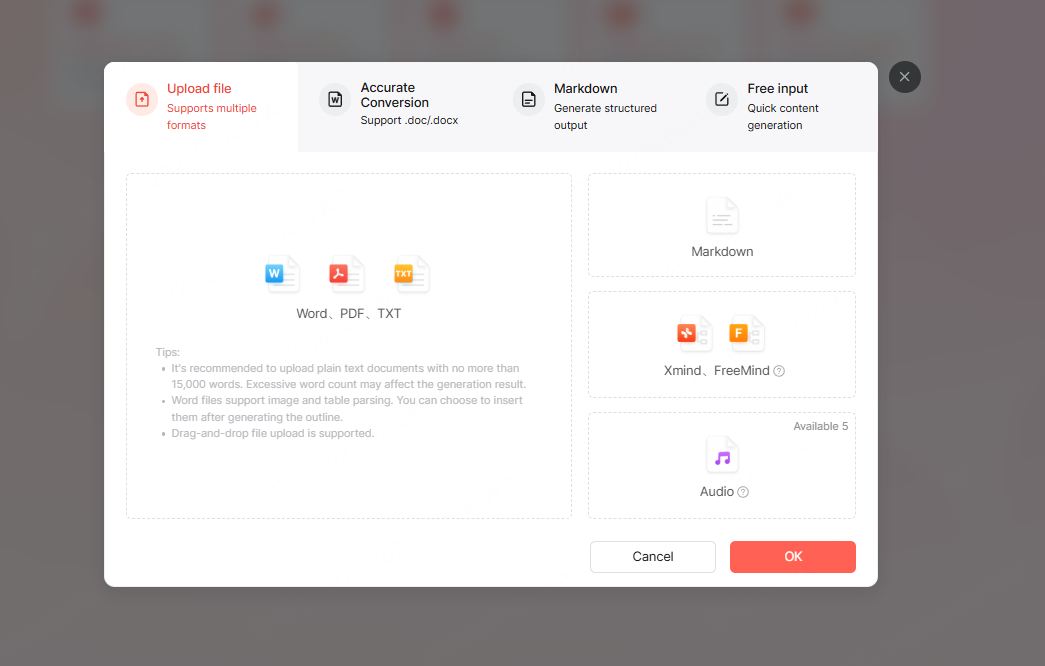
Visit the Presenti AI website, sign up or log in, and go to your dashboard. Find the file upload area and select your Word document. For best results, use heading styles in Word to define sections clearly, this helps the AI recognize your document’s structure.
Step 2: Convert Word to PPT and Generate a Draft Automatically

Once uploaded, choose how you’d like the AI to process your content options include “Reformat with AI” or “Summarize and generate.” In about a minute, you’ll see a slide outline. You can edit this outline directly if needed. Then, pick a PPT template to apply, and the tool will generate your first draft instantly.
Step 3: Refine and Optimize with AI Editing Tools

After conversion, use the built in editor to fine tune your slides. Adjust layouts, fonts, colors, and visuals. The AI assistant can also suggest wording improvements, switch layouts with one click, and enhance overall visual appeal. Finally, export your file as PPTX or generate a shareable link.
Why This Method Works:
- Automatically detects document structure and saves formatting time.
- Offers AI enhanced design and template matching for a professional look.
- No software installation required, everything happens online.
3. Method 3: Manual Copy Paste + Template Styling
This approach offers maximum flexibility and is perfect if you want full control over the design.
Steps:
- Open your Word document and copy the content you need.
- Paste it into the appropriate slides in PowerPoint.
- Adjust fonts, images, and layoutfor clarity and impact.
- Apply a PPT template to elevate the overall visual style.
Pro Tips:
- Dedicate one slide per key idea to keep logic clear.
- Use charts, images, or icons to make content more engaging.
- Keep text concise, avoid overcrowding slides.
Conclusion
Whether you’re an efficiency focused professional or a design conscious presenter, one of these Word to PPT methods will fit your workflow. For a truly streamlined experience, try Presenti AI, a versatile tool that not only converts Word to PPT but also handles PDF, TXT, Markdown, and XMind files. It supports AI generated slides, smart beautification, and delivers a fast, modern approach to presentation creation.









