AI powered presentation tools are rapidly transforming how slides are created. What once required hours of manual layout work, font adjustments, and color matching can now be completed in minutes with the help of artificial intelligence.
Instead of designing slides from scratch, users simply provide a topic or upload existing content. The AI handles structure, layout, visuals, and formatting automatically. This approach significantly improves productivity while maintaining a professional and polished result.
In this guide, you will learn how to create high quality PowerPoint presentations using AI tools. We will walk through tool selection, interface basics, step by step workflows, and practical optimization tips. No design background is required.
1. Choosing the Right AI Presentation Tool
As AI technology continues to mature, the market now offers a wide range of presentation builders. Below are four AI powered PPT tools that are particularly effective for professional and educational use.
Presenti AI
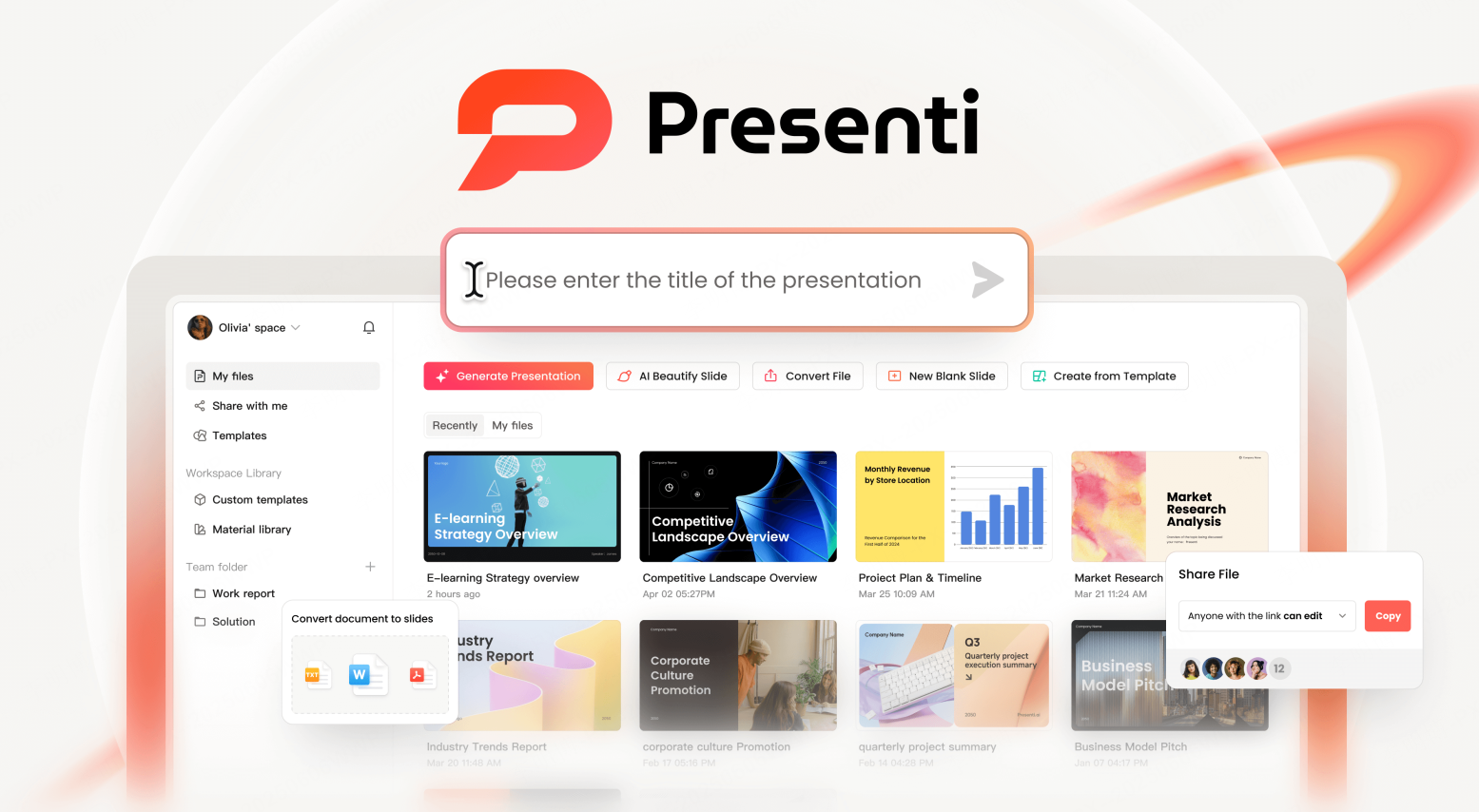
Presenti AI is a widely adopted AI presentation platform that provides an end to end solution for slide creation. Users can quickly generate complete presentations by selecting templates, inserting charts, and applying automatic layouts.
The platform intelligently adjusts spacing, typography, and color palettes to ensure visual consistency. This makes it especially suitable for business presentations, training materials, and project reporting where clarity and efficiency matter.
MindShow
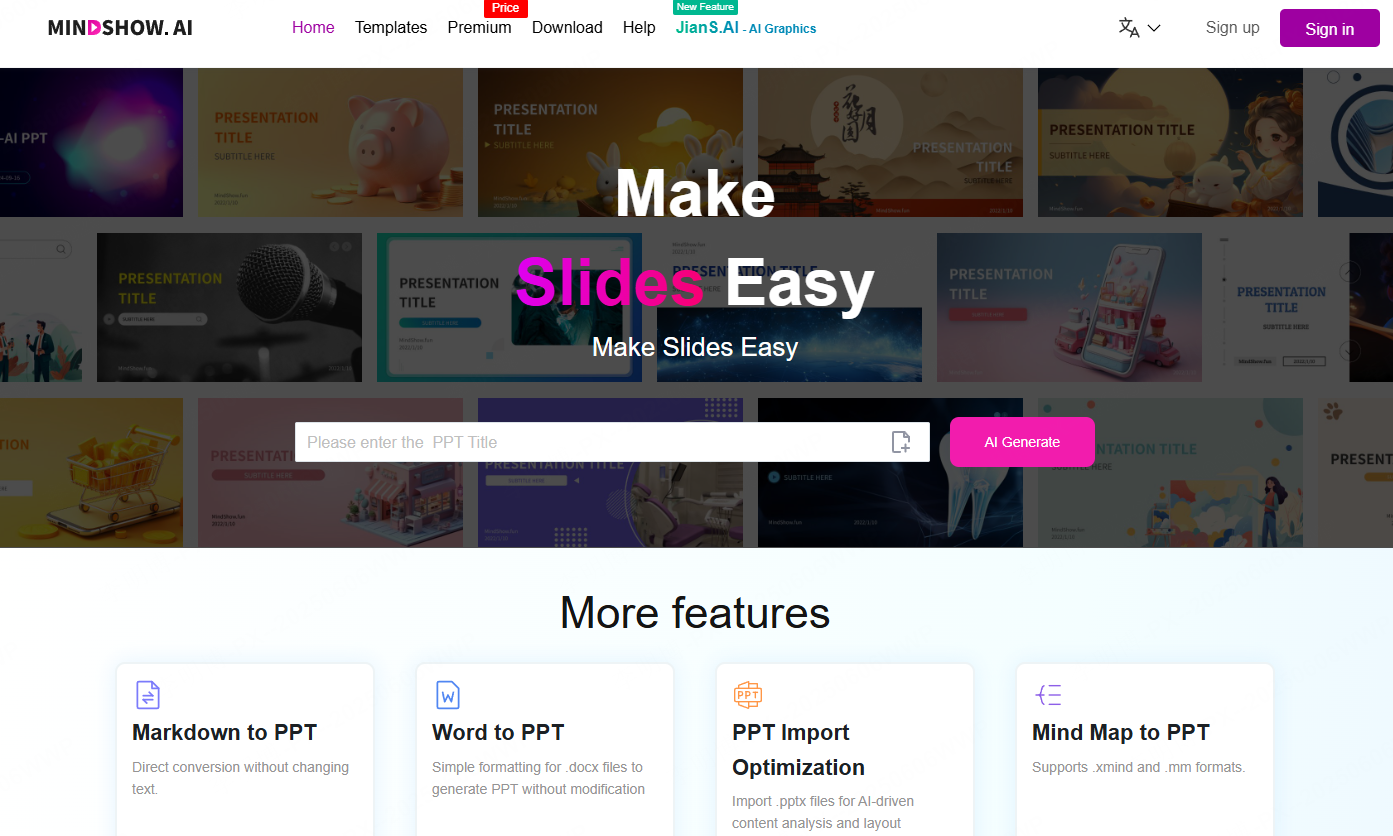
MindShow focuses on rapid slide generation based on structured outlines. It supports AI generated presentation frameworks, automatic image insertion, and basic content editing.
This tool works well for standardized presentations such as internal reports or instructional decks. However, its customization capabilities are more limited compared to full design oriented platforms.
DesignScape
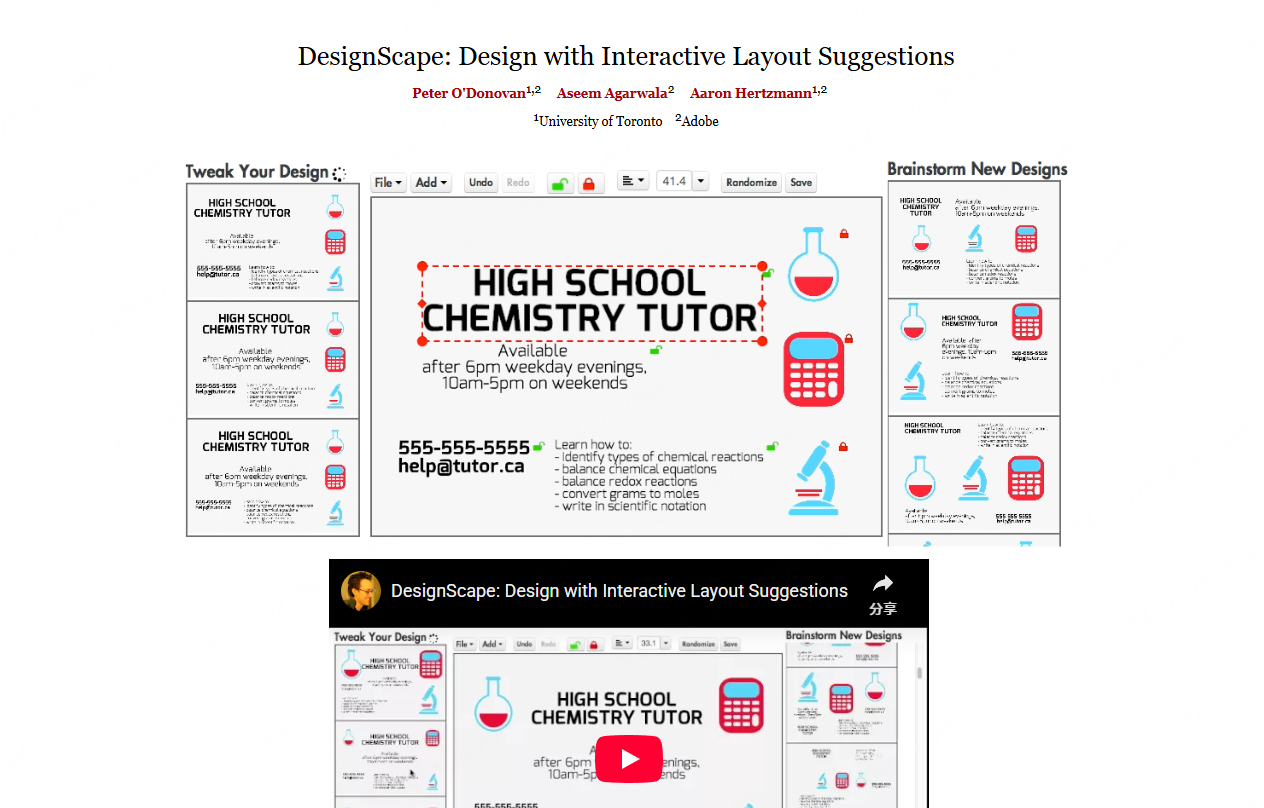
DesignScape assists users by providing AI driven layout and design recommendations in real time. It helps refine slide structure, spacing, and visual hierarchy.
This tool is well suited for marketing teams, creative professionals, and users who prioritize visual storytelling and presentation aesthetics.
2. Understanding the Tool Interface
To demonstrate the workflow clearly, the following sections use Presenti AI as an example. The principles apply to most modern AI presentation tools.
2.1 Dashboard Overview
My Files
This area serves as the primary entry point for creating presentations. Presenti AI supports multiple creation methods, including:
- AI generated presentations from a topic
- File to PPT conversion
- Template based creation
- Link to presentation generation
- Blank presentation creation
Users can also manage existing files, quickly reopen projects, and organize saved presentations.
Shared with Me
This section displays presentations shared by collaborators, making it easy to review and edit files within a team environment.
PPT Templates

The template library provides access to community created templates in a wide range of styles. Templates can be edited online or reused for future projects.
Workspace Resource Library
Users can create and manage custom templates, import PowerPoint files, and back up template resources. This feature is especially useful for organizations that require brand consistency.
Workspace Folders
Supports the creation of private and shared folders for better file organization and access control.
2.2 Presentation Editing Interface
Slide Management Panel (Left)
The left panel displays all slides in the presentation. Users can add new slides, duplicate existing ones, hide slides, reorder content, or delete slides as needed.
Top Toolbar
The toolbar provides quick access to essential elements such as text boxes, tables, charts, images, media, shapes, formulas, and mind maps.
Right Side Customization Panel
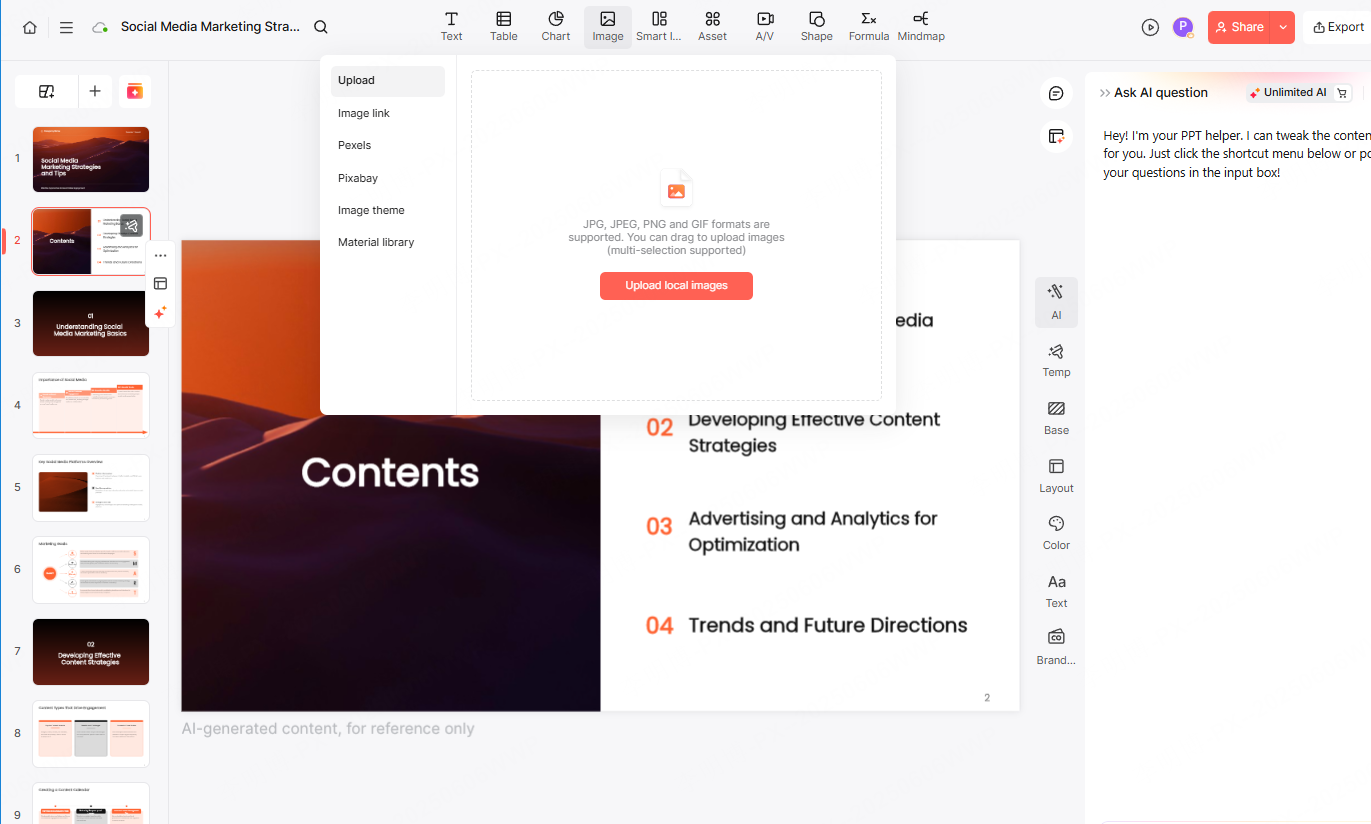
This area includes layout options, background styles, color schemes, and design presets. Users can fine tune each slide to match specific visual or branding requirements.
Additional AI powered features include automatic layout switching, content optimization, AI image generation, commenting, and live presentation mode. The interface is intuitive and accessible even for first time users.
3. How to Create a Presentation with AI
3.1 Enter a Topic or Upload a File
Enter a Topic
Users can input a single sentence or short title describing the presentation topic. The AI instantly generates a structured slide framework aligned with the topic.
Upload Existing Content
If you already have documents such as Word files, PDFs, text files, Markdown notes, or mind maps, simply upload them. The AI extracts key information and organizes it into a logical slide structure.
3.2 AI Generated Presentation Outline
Regardless of the input method, the AI automatically produces a detailed outline. This includes slide titles, key bullet points, suggested data visualizations, and content hierarchy.
Users can freely edit the outline before finalizing the presentation to ensure it aligns with project goals or audience expectations.
3.3 Select and Apply a Template
Template Library
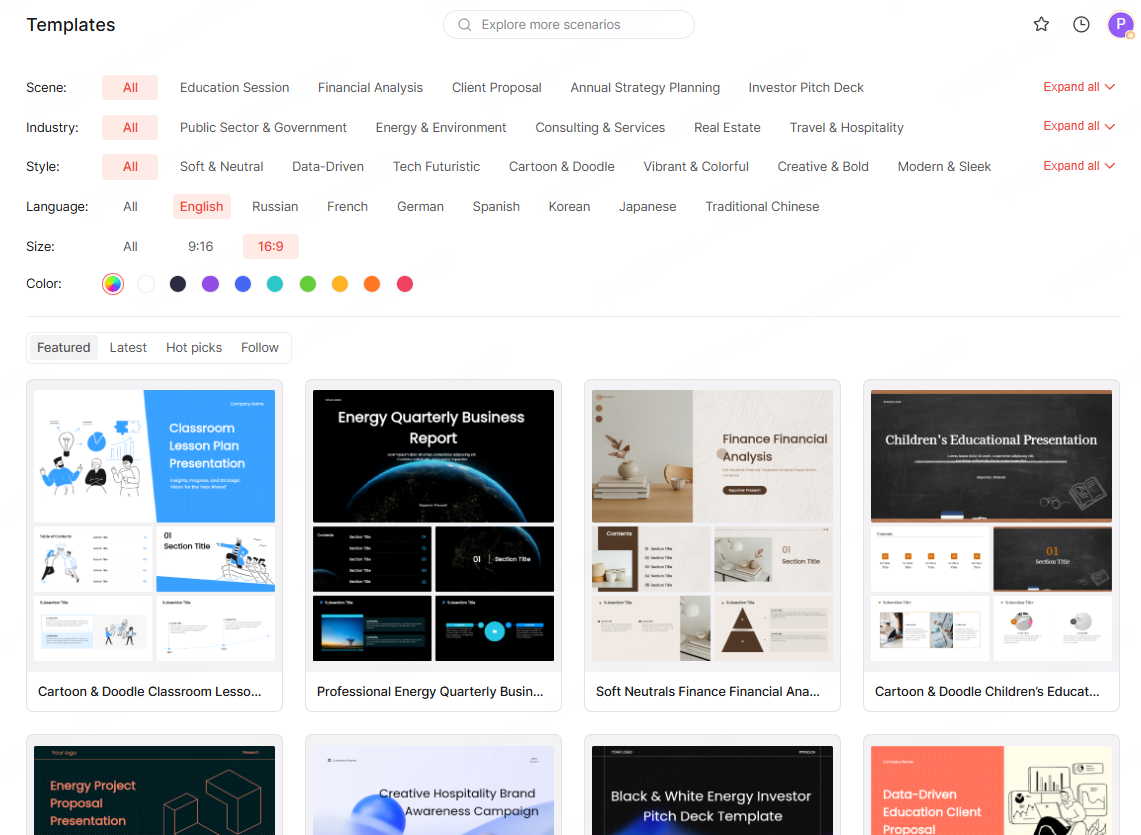
AI presentation tools offer templates for business, education, marketing, product demos, and creative projects. Users can browse and preview designs before selection.
Automatic Template Application
Once a template is selected, the AI applies it across the entire presentation and adapts content layout automatically. This eliminates manual formatting and ensures consistent design throughout the deck.
4. Practical Tips for Better AI Generated PPTs
Content Optimization
Built in AI writing tools allow users to rewrite, expand, simplify, summarize, or translate slide content. This is particularly helpful for refining messaging and improving clarity.
Layout Adjustments
Although AI handles most layout decisions, users can manually adjust slide structure through the customization panel. This ensures the presentation meets specific visual or informational requirements.
Smart Color Matching
If you are unsure about color selection, automatic color matching can generate harmonious palettes based on content and template design.
Data Visualization
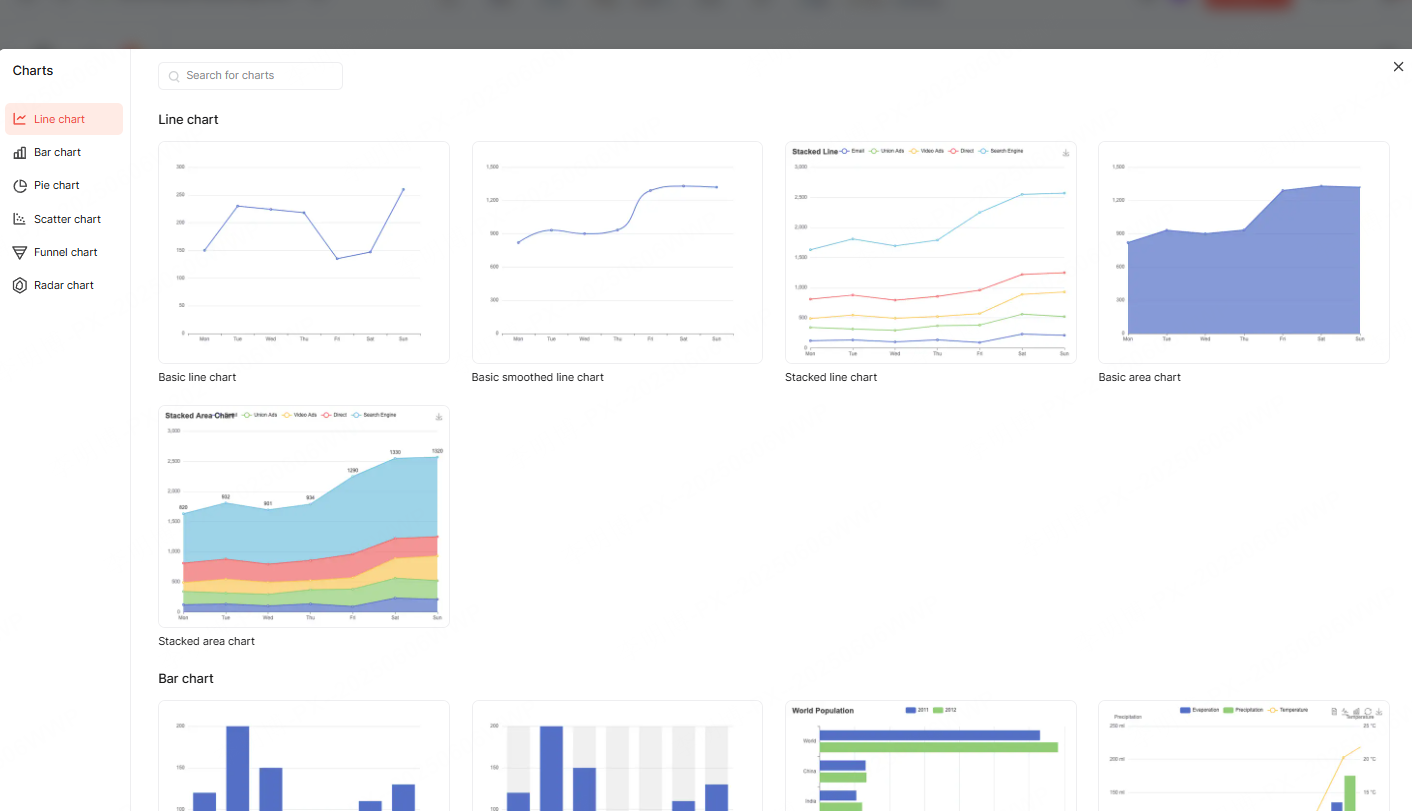
Charts make data easier to understand. By entering raw data into the chart tool, the AI automatically generates clean and readable visualizations.
Team Collaboration
For collaborative projects, shared editing and commenting features allow multiple users to work on the same presentation in real time. This improves efficiency and reduces version conflicts.
Conclusion
AI powered presentation tools simplify every stage of PPT creation, from structure and content generation to design and final refinement. By leveraging AI, users can focus more on ideas and communication rather than technical formatting.
Whether you are a beginner creating your first presentation or a professional managing frequent reports, tools like Presenti AI enable you to produce visually appealing and well organized slides with minimal effort. Presentation creation becomes a streamlined and even enjoyable process.