
Creating a PowerPoint presentation is a common challenge in both professional and academic environments. A well designed PPT does more than display information. It helps clarify ideas, guide discussions, and keep your audience engaged.
In this guide, we will walk through practical and proven methods for creating high quality presentations. You will learn both traditional slide design workflows and modern AI powered approaches. Whether you are a beginner or an experienced presenter, these techniques will help you work faster while delivering more polished results.
1. Traditional PowerPoint Creation Methods
Traditional PPT creation relies heavily on manual planning, content organization, and visual design skills. While this approach offers full creative control, it often requires significant time and experience.
Below is a step by step overview of the standard workflow used by professionals.
Define the Topic and Objective
Start by clearly defining the purpose of your presentation. Ask yourself what decision you want your audience to make or what knowledge they should gain. Identify your core message and target audience early, whether they are executives, students, developers, or stakeholders.
Collect and Structure Content
Gather relevant materials such as text, images, charts, and data sources. Organize them into a logical outline with a clear beginning, middle, and conclusion. A strong structure helps your audience follow your narrative without confusion.
Choose Presentation Software
Select a presentation tool that fits your workflow. Commonly used options include Microsoft PowerPoint, Google Slides, and Apple Keynote. Open a new presentation file and set the slide size based on your delivery environment.
Design Layout and Visual Style
Choose consistent fonts, color palettes, and backgrounds that align with your brand or topic. Creating a slide master early allows you to maintain visual consistency across all slides and saves time during editing.
Edit Slide Content
Add titles, subtitles, and body text to each slide. Insert charts, diagrams, and images where appropriate. Adjust spacing, alignment, font size, and contrast to ensure clarity and readability, especially for large screens.
Apply Animations and Transitions
Use animations sparingly to highlight key points or guide attention. Simple effects such as fade in or slide in are usually more effective than complex motion. Keep slide transitions clean and consistent.
Review and Revise
Preview the presentation regularly. Check for visual alignment issues, inconsistent styles, unclear wording, and data accuracy. Make adjustments to improve flow and readability.
Save and Share
Save the final presentation with a clear file name. Share it via email, cloud storage platforms like Google Drive or OneDrive, or upload it to your meeting or learning platform for remote viewing.
2. Advanced PowerPoint Creation with Presenti AI
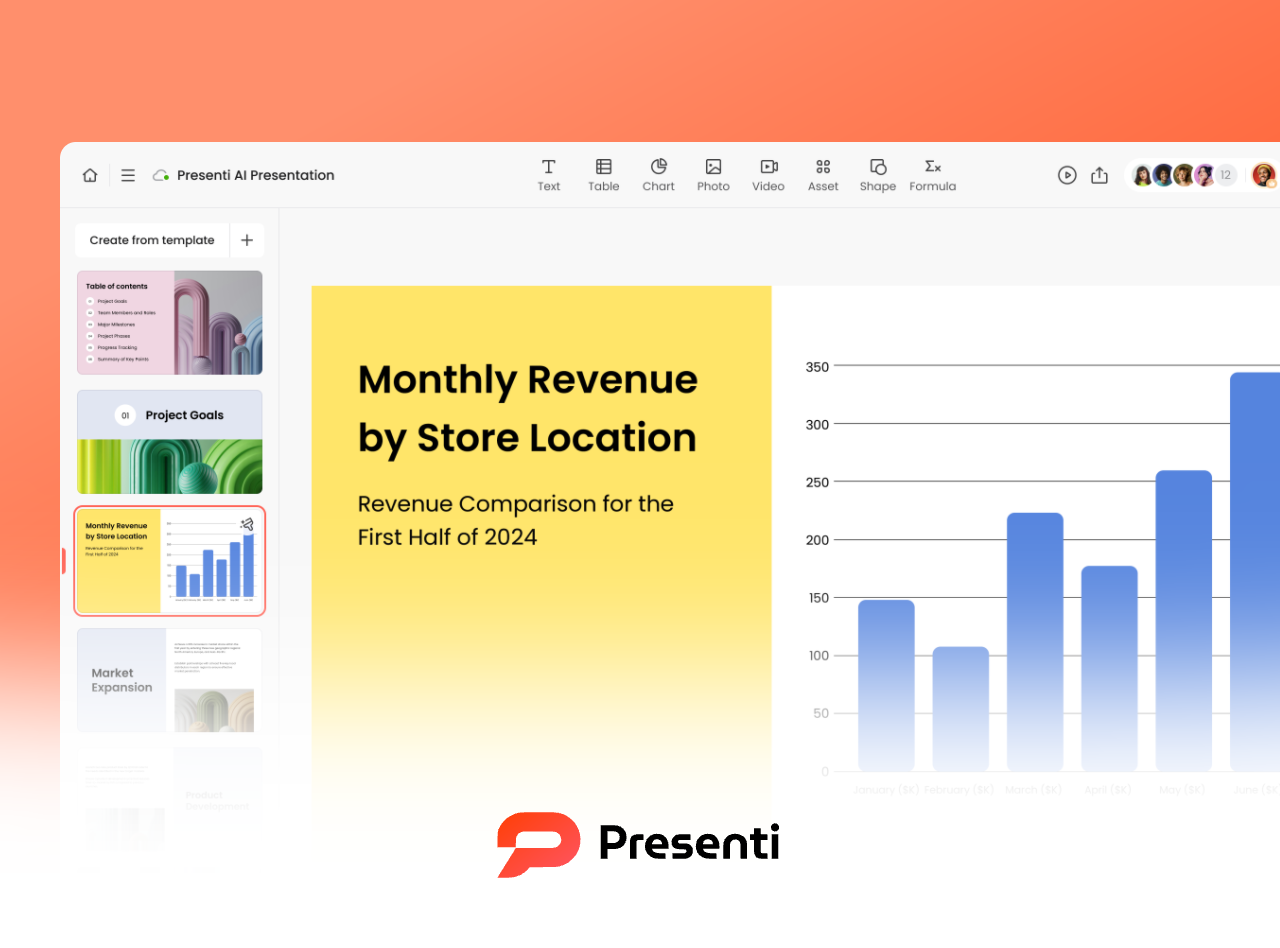
While traditional methods are effective, they can be time consuming. Presenti AI introduces an AI driven workflow that significantly reduces manual effort while maintaining professional quality.
Step 1: Access the Presenti AI Platform
Presenti AI is browser based and does not require software installation. Visit the official website, register an account, and log in to access the dashboard.
Step 2: Choose a Generation Method
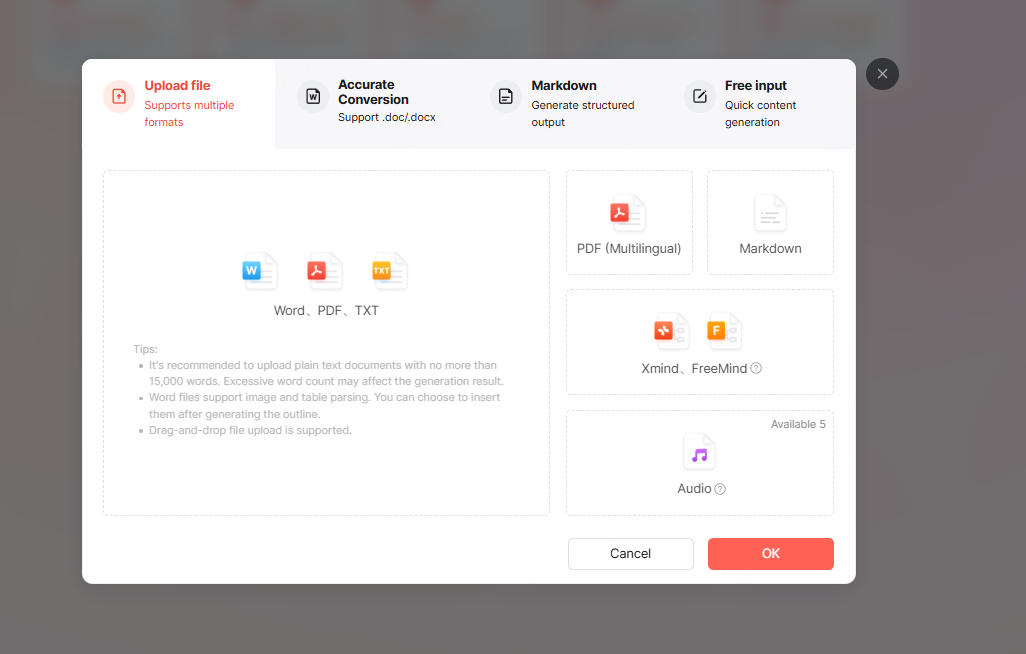
Presenti AI supports multiple ways to generate presentations, allowing flexibility for different use cases.
AI Generated Presentations from a Topic
Enter your presentation topic and let the AI generate a structured outline automatically. You can edit the outline directly online. Once confirmed, choose a presentation template and generate a complete slide deck in one click.
This option is ideal for quick project briefings, training sessions, or concept overviews.
Generate PPT from Existing Documents
If you already have content prepared, Presenti AI can convert it into a presentation. Supported formats include Word, PDF, Markdown, TXT, and mind mapping files.
The platform offers three AI processing modes:
- Content restructuring for clearer slide layout
- Intelligent expansion with added explanations
- Key point extraction and summarization
After reviewing the generated outline, select a template to produce a visually rich presentation that aligns with your original content.
Generate After Selecting a Template
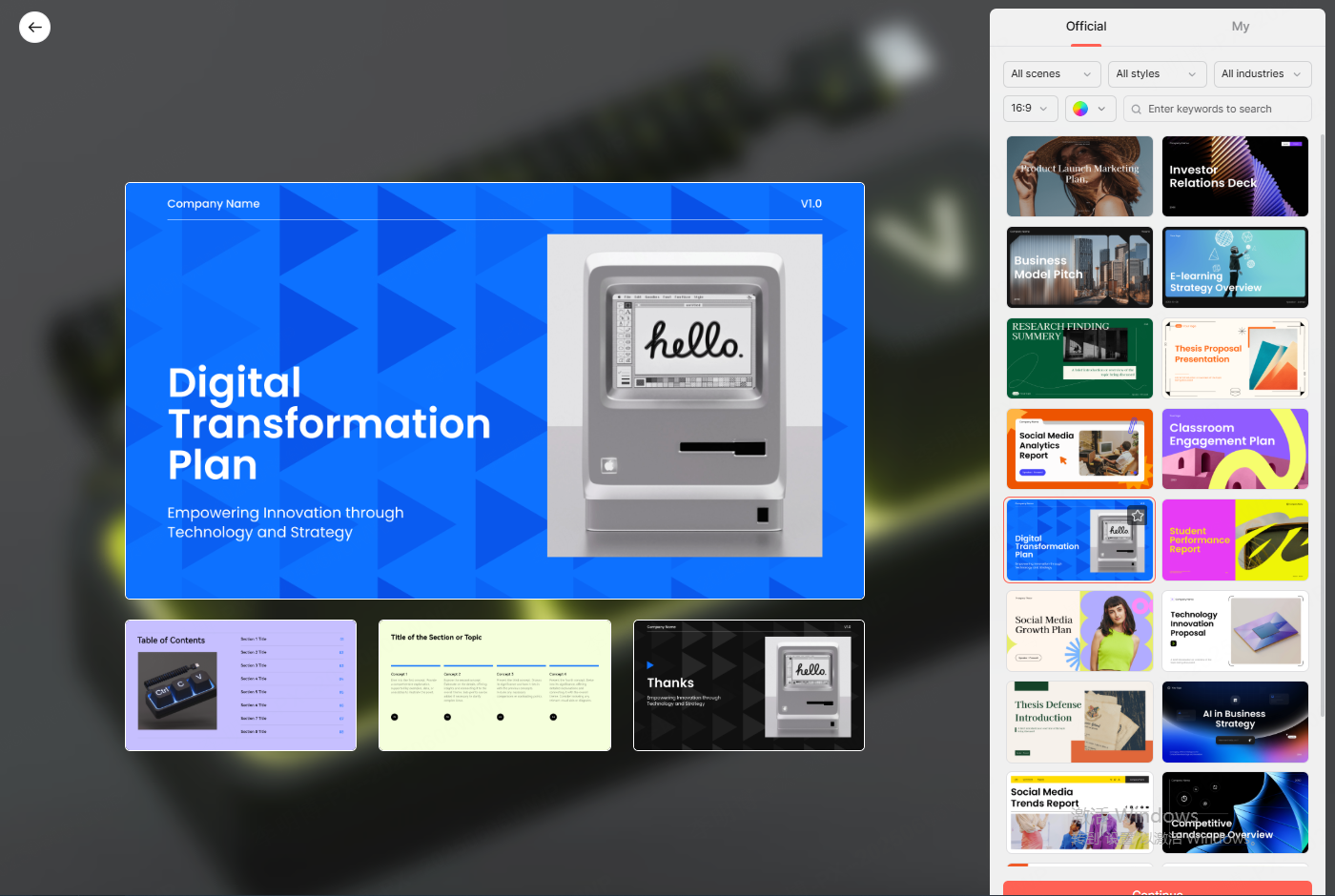
You can also start by choosing a template first. Then decide whether to generate content using AI or import an existing document. This approach works well when brand guidelines or visual style are fixed.
Step 3: Customize Content and Design
Once the presentation is generated, you retain full control over both text and visuals.
Content Editing with AI Assistance
Presenti AI provides built in writing tools that allow you to rewrite, expand, simplify, summarize, brainstorm, and translate content. This eliminates the need to struggle with slide copywriting.
Visual Design Adjustments

You can switch templates at any time without breaking the layout. The platform offers a wide range of layouts, color themes, icons, images, charts, diagrams, and mind maps. All elements can be added, removed, or modified as needed.
Step 4: Share, Present, or Download

After completing your slides, you can generate a shareable link for online collaboration or live presentation. Presenti AI also supports exporting files as PPTX or PDF for offline use.
3. Practical Tips for Creating High Quality PPTs
Regardless of the tools you use, these best practices will help you produce clean, professional presentations.
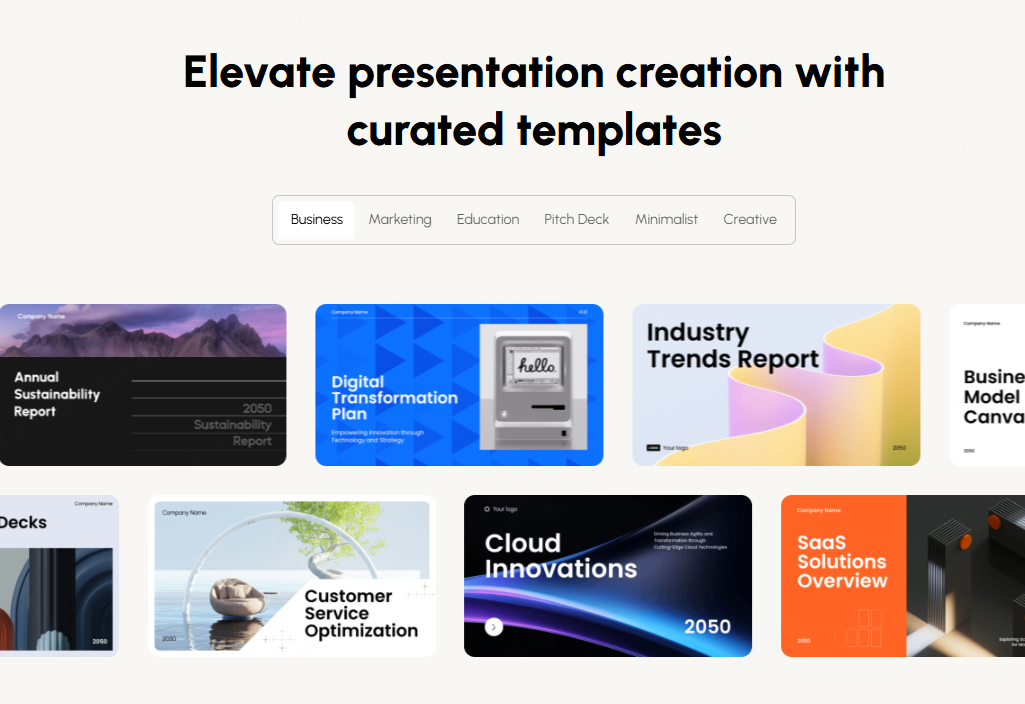
Choose the Right Template
Select templates that match your audience and purpose. Minimal and structured designs work best for technical and business presentations.
Keep Content Concise
Avoid overcrowding slides with text. Focus on key points and let spoken explanations provide additional context.
Prevent Information Overload
Break complex ideas into digestible sections. Use charts, diagrams, or bullet points to simplify explanations.
Highlight Key Messages
Use size, color, or visual emphasis to draw attention to critical data or conclusions.
Maintain Visual Consistency
Consistent fonts, spacing, colors, and layouts improve professionalism and comprehension.
Use White Space Effectively
Adequate spacing makes slides easier to read and helps the audience focus on important elements.
Limit Decorative Elements
Visual enhancements should support your message, not distract from it. Simplicity often leads to better impact.
Apply Animations with Purpose
Use subtle animations to guide attention. Avoid excessive motion that disrupts the presentation flow.
Conclusion
Creating a great PowerPoint presentation no longer requires hours of manual formatting and design. While traditional methods remain valuable, AI powered tools like Presenti AI dramatically improve efficiency and consistency.
If you are unsure how to build a PPT or want to speed up your workflow, Presenti AI offers a practical solution for business reports, academic lectures, technical demos, and marketing presentations. With intelligent content generation and flexible design tools, you can focus on your message and deliver presentations that are clear, professional, and engaging.









