Creating professional PowerPoint presentations used to be time consuming. From outlining content to searching for templates and aligning visuals, a single deck could take hours. Nowadays, AI powered presentation tools are changing that workflow entirely. With AI generated PowerPoint, you can turn a simple prompt into a structured slide deck in minutes. Whether you are preparing a business update, training material, classroom slides, or a product pitch, AI can handle content organization, design layout, and visual consistency for you.
This guide walks beginners through how AI PowerPoint generators work, their key advantages, step by step usage, and a practical comparison of presentation tools with different workflows. No design background required.
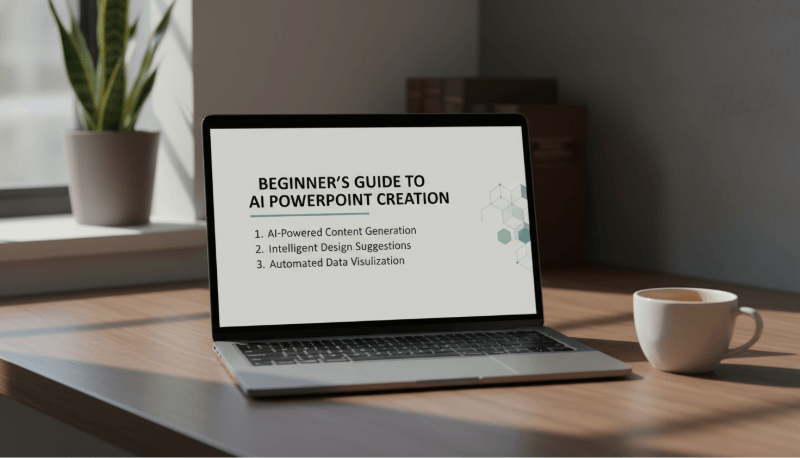
1. What Is AI Generated PowerPoint?
AI generated PowerPoint refers to the use of artificial intelligence to automatically create presentation slides based on user input. Most tools rely on natural language processing and machine learning models to interpret topics, keywords, or uploaded documents, then convert them into structured slide content.
For example, if you enter a prompt such as “Artificial intelligence market trends,” the system analyzes the topic, identifies logical sections, and builds a multi slide outline. It then selects an appropriate visual style, inserts charts or diagrams, and formats the slides according to best practices.
Unlike traditional PowerPoint creation, AI tools can propose layouts and visuals, which you can then review and refine. The result is a usable first draft that can be refined rather than built from scratch.
This approach is especially valuable for professionals who need to produce presentations quickly without sacrificing clarity or structure.
2. Key Advantages of AI PowerPoint Generators
Once you understand how AI presentation tools work, their benefits become clear. They are designed to solve the most common pain points of manual slide creation.
Dramatically Improved Efficiency
AI can shorten the initial drafting stage. The total effort depends on the source material, slide complexity, and amount of correction needed, so evaluate the workflow through to a reviewed final deck.
Professional Visual Design by Default
Many beginners struggle with slide aesthetics. AI PowerPoint generators use built in design systems that automatically apply consistent color schemes, typography, spacing, and chart styles. This helps avoid cluttered or unbalanced slides without requiring design expertise.
Flexible Customization for Teams
Modern AI tools support brand level customization. Users can apply company logos, brand colors, and custom templates to ensure presentations align with corporate guidelines. This is especially useful for marketing teams and enterprise environments.
Low Barrier to Entry
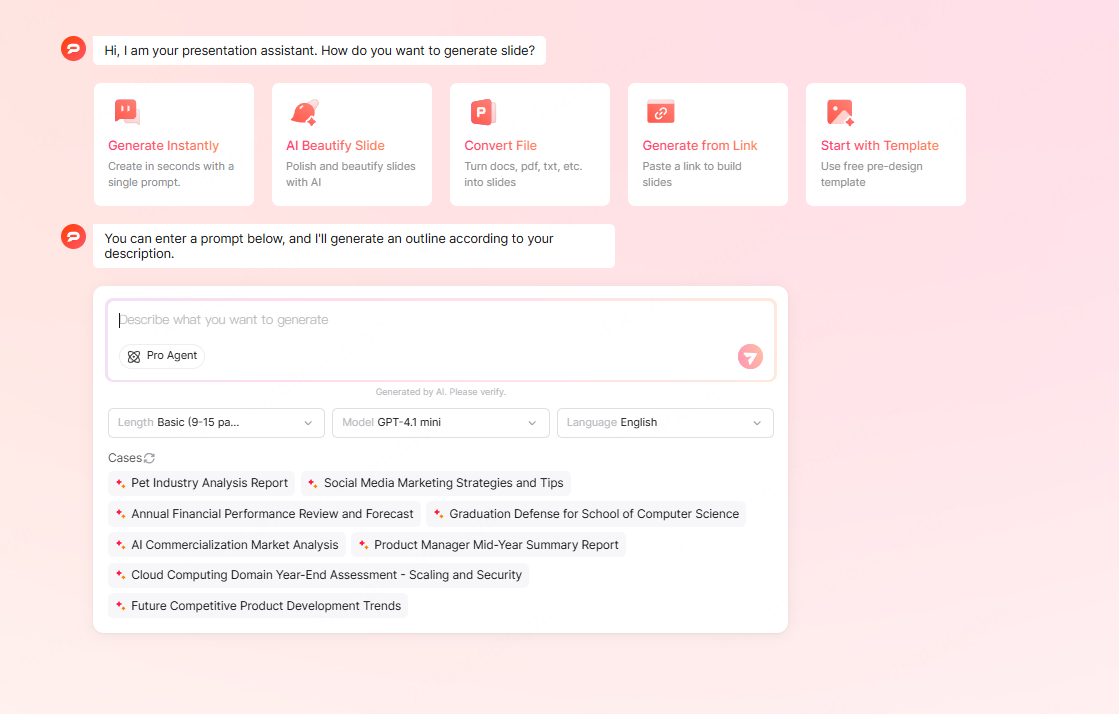
Traditional PowerPoint features such as animations, charts, and layouts can overwhelm new users. AI tools simplify the process. You can generate slides by entering text prompts or uploading existing documents such as Word files or PDFs.
3. Step by Step: How to Generate a PowerPoint with AI
Step 1: Define Your Goal and Audience
Before generating slides, clarify the purpose of your presentation. Is it a quarterly business review, a training session, or an investor pitch? Identify your audience to ensure the tone and depth are appropriate.
Step 2: Input Content or Prompts
Most AI PowerPoint tools allow multiple input methods. You can enter keywords, paste text, upload documents, or provide an outline. The AI extracts key points and prepares content for slide generation.
Step 3: Generate Structure and Content
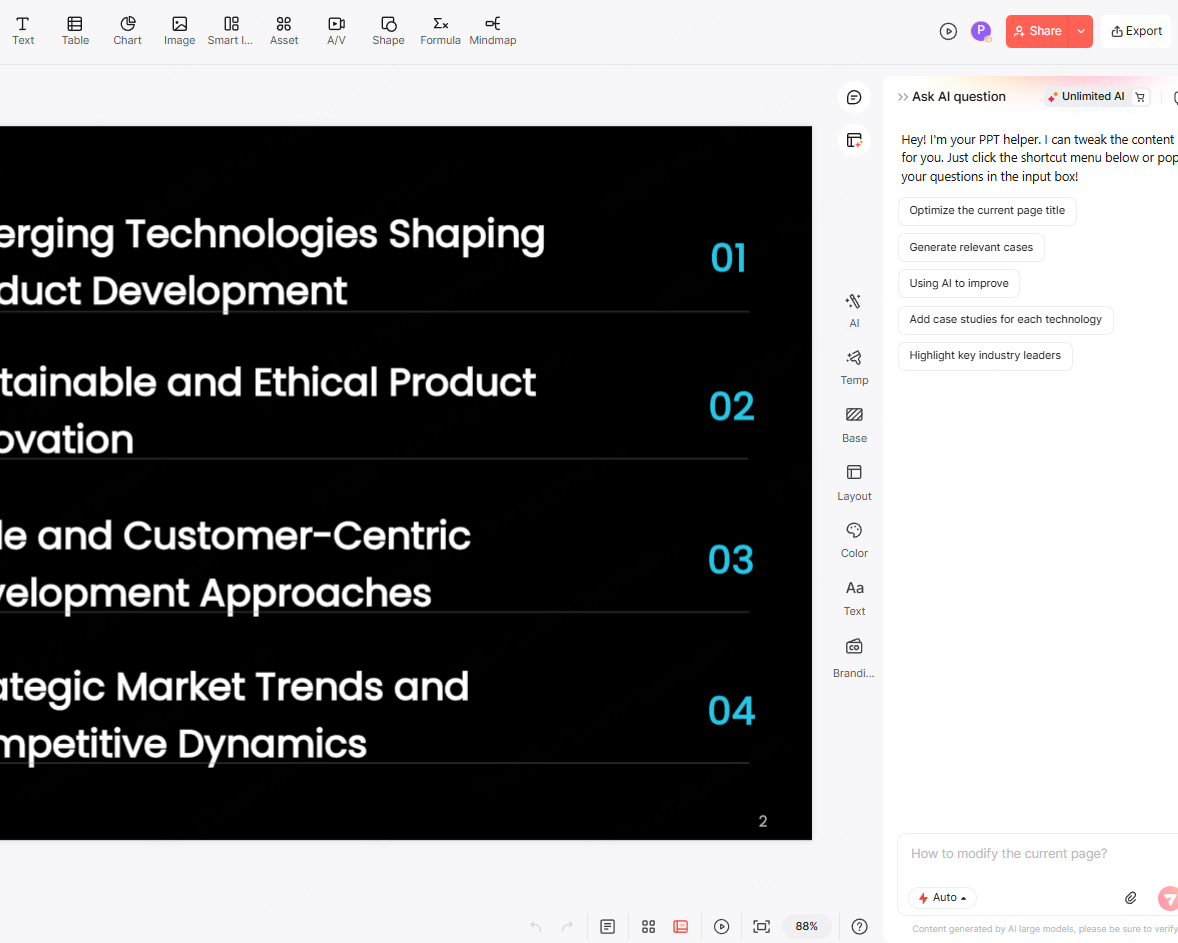
Based on your input, the system creates a logical slide structure. Each slide includes a title, bullet points, and supporting explanations. The goal is clarity and hierarchy rather than dense text.
Step 4: Apply Design and Layout
The AI automatically applies a visual theme, adjusts colors, and recommends charts or images. Slides are formatted for readability and consistency, following common presentation standards.
Step 5: Edit and Export
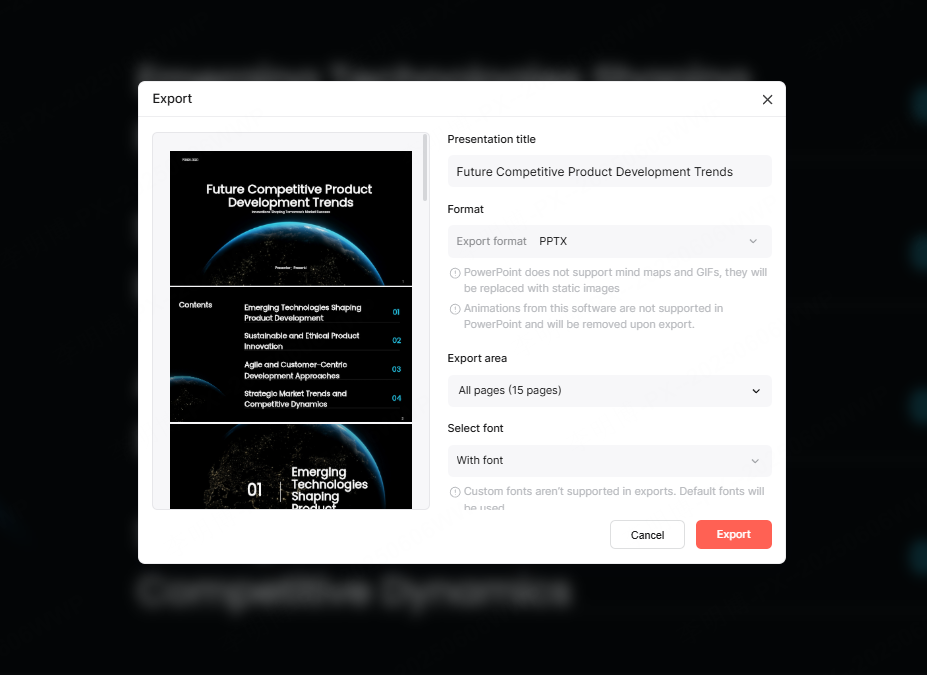
After generation, you can edit text, rearrange slides, or change design elements. Final presentations can usually be exported as PPTX or PDF files, or shared via online links for collaboration.
4. Recommended AI PowerPoint Tools
With many AI presentation tools available, choosing the right one depends on your use case. Below are three current options and a historical note about Tome Slides.
4.1 Presenti AI
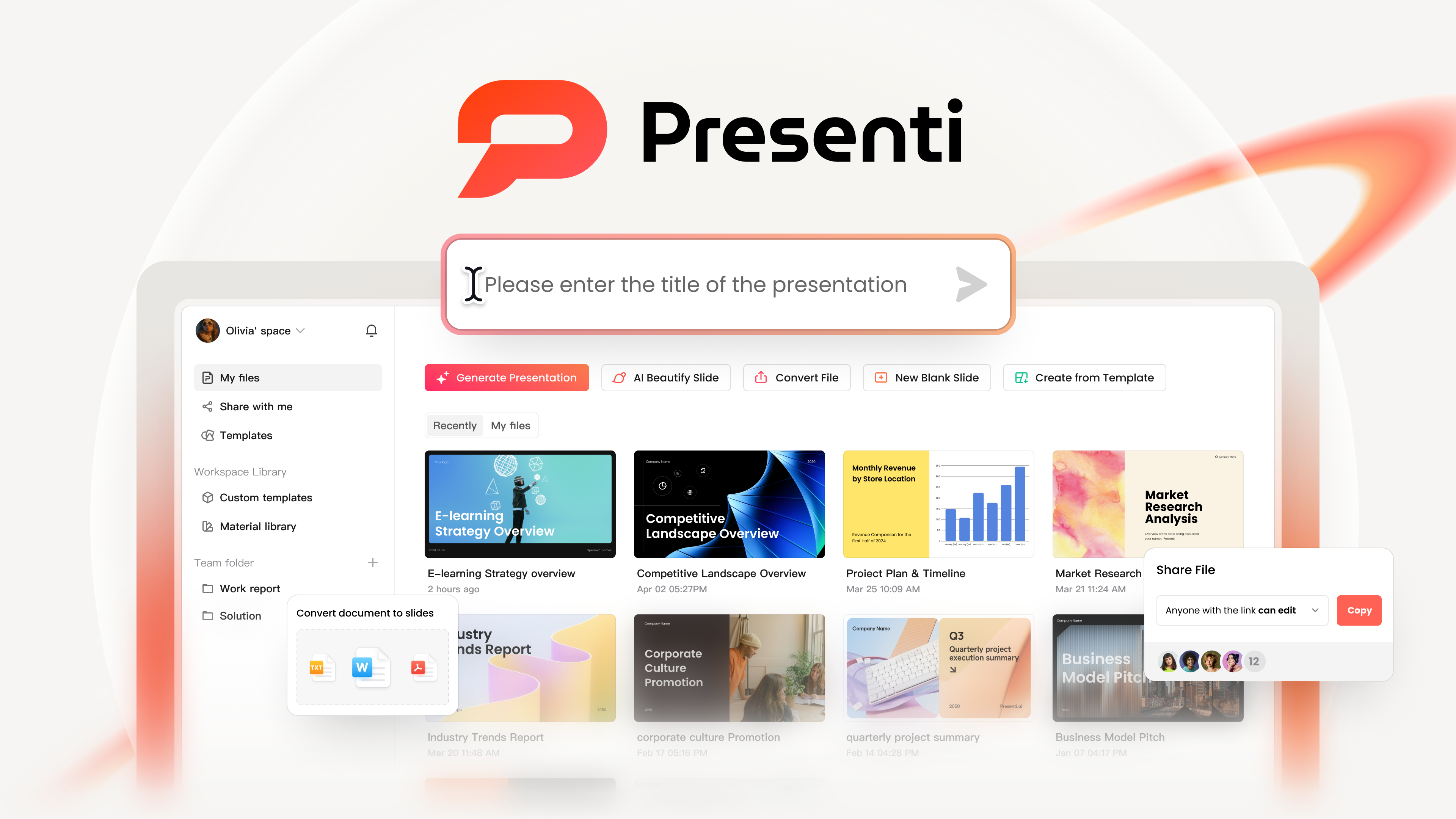
Presenti AI is an AI driven PowerPoint generator that supports both prompt based creation and document uploads such as Word, PDF, or mind maps. It produces well structured slides with clean visual design suitable for business and education.
Key features include intelligent chart insertion, customizable templates, and brand styling options. Presenti AI also supports real time collaboration, making it ideal for distributed teams and remote work environments.
Presenti’s free plan has limited AI credits. Paid plans include Word/PDF/TXT input and editable PPTX/PDF export; check the plan features required for your task.
Best for: business presentations, training materials, team collaboration
4.2 Beautiful.ai
Beautiful.ai focuses on design automation. Users input content, and the system adjusts layout and styling automatically. It includes industry specific templates and supports shared brand libraries for teams.
This tool works well for standardized presentations such as company reports, product launches, and internal training decks where visual consistency is critical.
Beautiful.ai offers a 14-day trial requiring a payment card, with billing afterward unless canceled before the trial ends. It is not a permanent general free plan.
Best for: brand focused corporate presentations
Tome Slides: discontinued presentation service
Tome Slides was discontinued on April 30, 2025 and is no longer available for new presentations. If you have saved PDFs, text, or images, use those materials to build a new deck in an available tool. This does not restore an inaccessible Tome project.

4.4 SlidesAI
SlidesAI integrates directly with Google Slides and supports multiple languages. Users can generate presentations quickly from text input, making it useful for international teams.
Test the language you need and verify references against the original academic sources.
Best for: academic presentations and global collaboration
5. How to Choose the Right Tool
Presenti offers topic and document drafting with workspace collaboration. Beautiful.ai emphasizes guided layouts, and SlidesAI offers a Google Slides workflow. Tome Slides is discontinued and should not be selected for new presentations.
Selecting the right tool depends on your presentation goals, team size, and workflow.
Conclusion
AI generated PowerPoint has become a standard productivity tool for modern professionals. By automating structure, design, and formatting, AI allows users to focus on content and impact rather than manual slide creation.
Tools like Presenti AI demonstrate how quickly a professional presentation can be created with minimal effort. With support for branding, collaboration, and rapid generation, AI PowerPoint tools are redefining how teams communicate ideas.
If you frequently create presentations, adopting AI driven workflows can save time and improve consistency across your work.