
Converting Word documents into PowerPoint presentations is a common requirement in daily work and academic environments. Many professionals search for reliable and free ways to turn Word files into presentation ready slides without wasting time on manual reformatting.
This guide provides a complete overview of free Word to PPT conversion methods, step by step instructions, practical tips, and key precautions. Whether you are preparing a business presentation, a lecture, or a project review, this article will help you convert Word documents into clear, structured, and professional looking PowerPoint slides.
1. Why Convert Word Documents into PowerPoint
Word and PowerPoint serve different purposes in professional communication.
Word is best suited for detailed writing, documentation, and long form reading. It works well for reports, lesson notes, project documentation, and research materials. However, it is not optimized for live presentations.
PowerPoint, on the other hand, is designed for structured visual communication. It presents information in a concise, hierarchical way, combining text, visuals, and layout to support spoken explanations. Slides help audiences understand key points faster and improve engagement during meetings, lectures, and presentations.
Converting Word to PowerPoint allows you to reuse existing content while adapting it to a more effective presentation format. This improves clarity, saves preparation time, and increases the impact of your message.
2. Three Common Free Methods to Convert Word to PowerPoint
There are several free ways to convert Word documents into PowerPoint slides. Each method fits different use cases. Below are three practical and widely used options.
Method 1: Using Built in Microsoft Word Features
If you are using Microsoft Office, Word includes a built in feature that allows you to send a document directly to PowerPoint. This option is completely free and does not require third party tools.
How to use it
- Enable the hidden conversion command
Open Word and go to File, then Options, then Quick Access Toolbar.
Under Commands Not in the Ribbon, find Send to Microsoft PowerPoint and add it to the toolbar. - Start the conversion
Return to your Word document and click the Send to Microsoft PowerPoint button.
PowerPoint will open automatically and generate slides based on the heading structure in your document. - Adjust the slides
After conversion, review the layout, fonts, and spacing. Make small adjustments if needed.
Pros and cons
This method works well for users with licensed Microsoft Office. It offers strong compatibility and data security since everything stays within the Office ecosystem.
However, the final result heavily depends on how well the Word document is structured. Documents without proper heading styles may produce poorly organized slides. This approach is best for users who already follow Word formatting best practices.
Method 2: Online Word to PowerPoint Conversion Tools
Online conversion tools are a popular option when you need quick results without installing software. These tools work directly in the browser and support uploads from local devices.
Common platforms used by global users include Smallpdf, iLovePDF, Convertio, and HiPDF.
How it works
- Choose an online conversion platform
Visit a trusted Word to PPT converter website. - Upload your Word document
Click Upload or Choose File and select the Word file you want to convert. - Download the PowerPoint file
After conversion, download the PPTX file and open it in PowerPoint or Google Slides. - Optimize the layout
Check fonts, spacing, and slide structure. Applying a clean presentation template can significantly improve visual quality.
Pros and cons
Online tools are fast, easy to use, and ideal for temporary or cross device work. They are useful for students, remote teams, or situations where Office software is unavailable.
However, free versions often limit file size or daily usage. Layout accuracy may vary, and uploading documents may raise privacy concerns. Avoid using these tools for sensitive or confidential content.
Method 3: Free AI Powered Word to PowerPoint Tools
AI based tools represent the most advanced approach to Word to PPT conversion. Instead of simply converting text, they analyze document structure, extract key ideas, and apply professional slide designs automatically.
Typical workflow
- Open the AI tool dashboard
Access the web platform or application. Upload your Word document
Select the option to generate a presentation from a Word file and upload your document.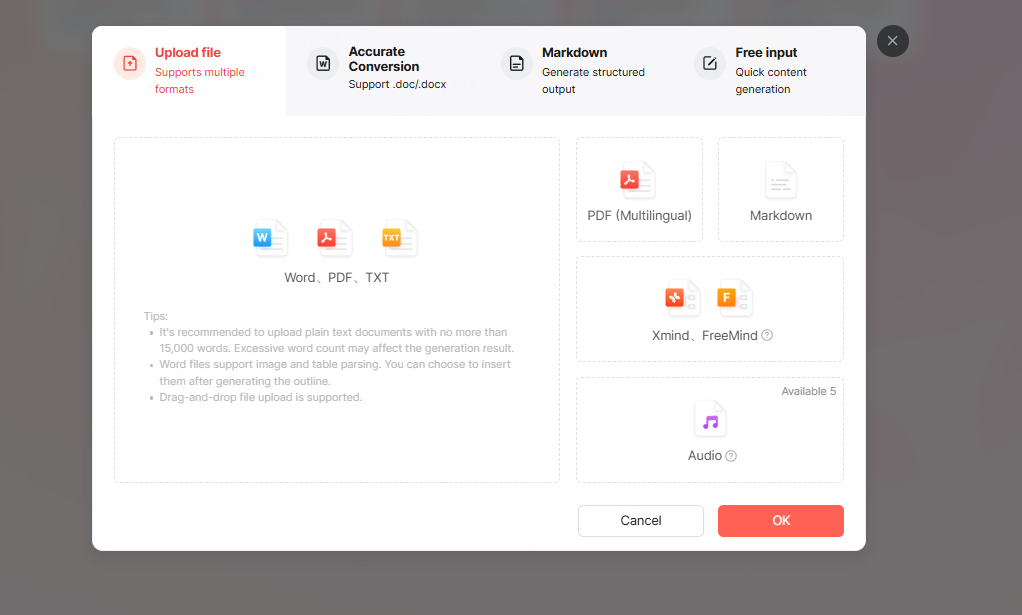
- Let AI generate slides
The system analyzes headings, sections, and key points, then produces a structured slide deck using built in design templates.
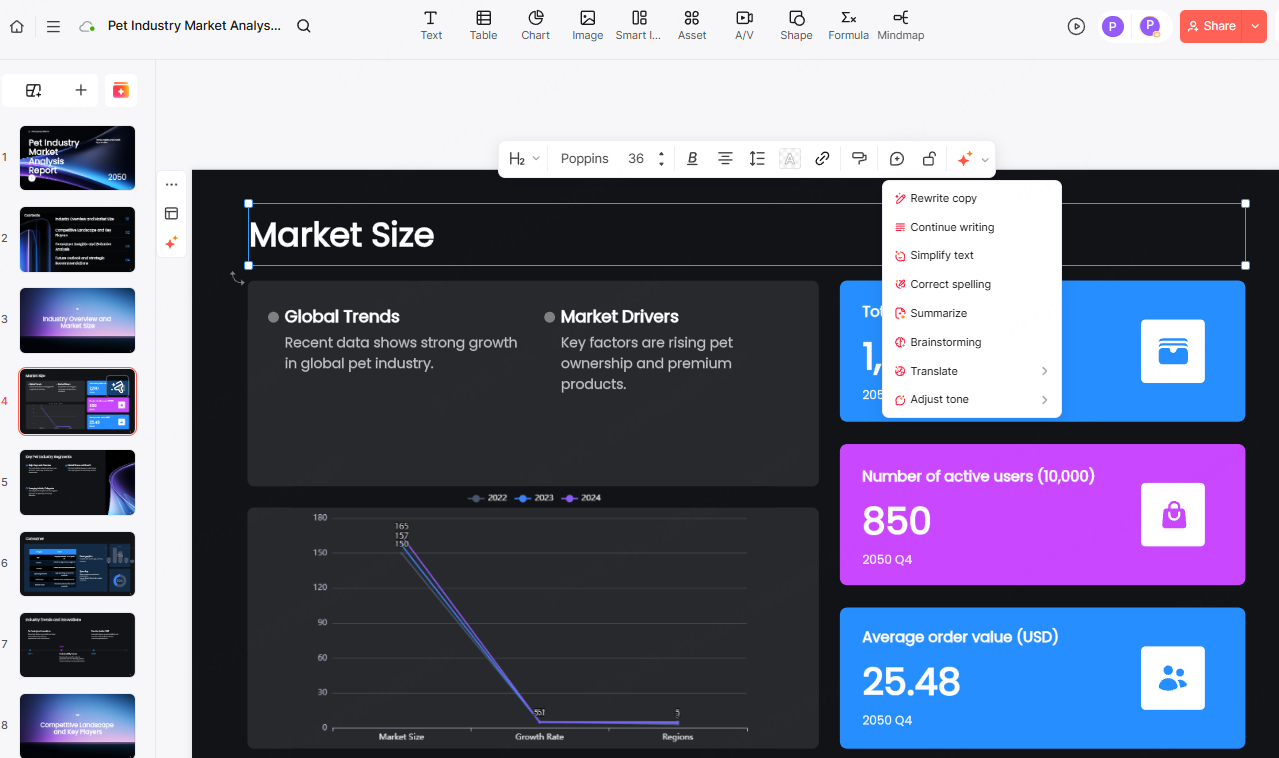
Unlike traditional converters, tools like Presenti AI focus on clarity and presentation quality. They handle slide hierarchy, typography, spacing, and visual balance automatically. After generation, you only need minor edits to finalize a polished presentation.
Why this method stands out
AI tools save time while improving output quality. They are especially helpful for educators, consultants, product managers, and developers who want professional looking slides without manual formatting. Many offer free plans or low cost access suitable for regular use.
3. Step by Step Guide to Free Word to PowerPoint Conversion
Successful conversion depends on both preparation and post processing. Follow these steps to achieve the best results.
Step 1: Prepare a Well Structured Word Document
Use Word built in styles consistently.
- Title 1 for main sections
- Title 2 for subsections
- Title 3 or Body Text for bullet points
Simplify content by removing overly complex tables, decorative symbols, and unnecessary paragraphs. Focus on key points that belong on slides.
Step 2: Choose the Right Free Conversion Method
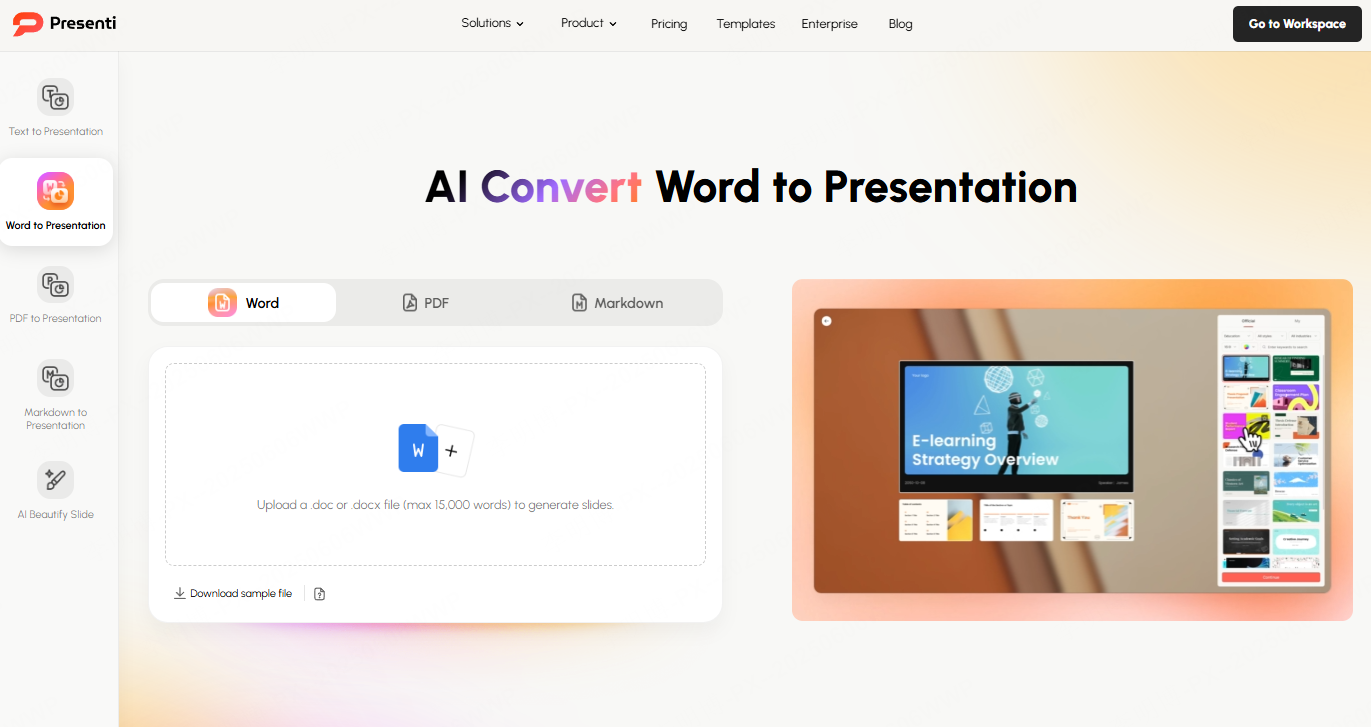
For most users, AI powered Word to PPT tools provide the best balance between speed and quality.
Upload the prepared Word document and allow the system to generate a draft presentation automatically. This approach reduces manual work and improves slide readability.
Step 3: Refine and Beautify the Presentation
After conversion, review the slides carefully.
- Apply a consistent color scheme
- Adjust fonts for readability
- Add relevant images, icons, or charts
- Ensure visual alignment and spacing
- Review slide flow and logical order
This final step ensures your presentation is both professional and easy to understand.
4. Practical Tips and Key Precautions
Free Word to PowerPoint conversion can be efficient, but attention to detail matters.
Document preprocessing tips
Use consistent heading styles and remove unnecessary elements before conversion. This improves accuracy and slide hierarchy.
Precaution
Always save a backup copy of your document before conversion.
Choosing the right tool
AI based tools are ideal for structured, visually appealing presentations. Online tools are suitable for quick tasks. Built in Word features work best for Office users.
Precaution
Avoid uploading sensitive documents to public online converters. Choose reputable tools with clear privacy policies.
Post conversion review
Standardize fonts and colors. Keep slides clean and avoid excessive animations or decorations.
Precaution
Double check content accuracy, especially headings and bullet points. Complex charts may require manual adjustment.
Conclusion
Free Word to PowerPoint conversion is no longer limited to basic text transfer. With the right tools and preparation, you can quickly transform written documents into effective presentations.
Among all options, AI powered tools such as Presenti AI stand out by combining free conversion with intelligent content extraction and professional design. They help users create clear, structured, and visually appealing slides with minimal effort, making Word to PowerPoint conversion faster and more effective than ever.









