If your Word document already contains the points you want to present, PowerPoint’s outline import can turn its headings into editable slide text. It is a useful starting point for meeting updates, teaching notes and short reports. It does not design the deck or decide which paragraphs deserve a slide.
This guide covers the native desktop method. For a document that needs to be shortened or reorganized, see the Word-to-PowerPoint AI and formatting guide. Those are different jobs: importing a prepared outline and asking a tool to draft one.
Prepare the Word outline
Give each proposed slide a clear title. Under it, write the points the audience needs to see. Move supporting detail into a separate notes document if it would make the slide hard to read.
For example, a project update might use “The launch date is unchanged” as its title, followed by the completed work and the one unresolved dependency. “Project update” alone tells the audience much less.
| Your Word text | Use this style | Purpose |
|---|---|---|
| The launch date is unchanged | Heading 1 | Slide title |
| Content review is complete | Heading 2 | Supporting point |
| Full meeting notes and background | Normal | Keep outside the imported outline |
Applying a larger font is not the same as applying a heading style. Select the text and choose its style in Word. Save a separate copy so you can shorten the presentation outline without losing the original report.
Import the outline in desktop PowerPoint
Microsoft’s outline-import instructions distinguish Windows, Mac and the web:
- Windows: save and close the Word file, then use New Slide → Slides from Outline in PowerPoint. Select the outline and insert it. The documented formats are DOCX, RTF and TXT.
- Mac: save the Word outline as RTF. In PowerPoint, open the arrow beside Home → New Slide and choose Outline.
- PowerPoint for the web: this outline-import feature requires the desktop app.
The native mapping uses Heading 1 for slide titles and Heading 2 for the text below them. Normal-style paragraphs are omitted. An unstructured document can produce a slide for every paragraph, so inspect the source styles before importing a long file.
Once the text is in PowerPoint, choose a theme and review the slides in order. Split a crowded slide where its argument changes. Keep a source citation with the claim it supports rather than placing all references on an unexplained final slide.
What this method will not do
A Word page is not a slide layout. Page margins, header decorations and the original arrangement of pictures are not a design brief for PowerPoint. Add charts and images deliberately after the text import, and use a layout that leaves enough room for them.
If an imported slide is nearly empty, check whether the missing text used a heading style. If one idea fills several slides, shorten the source outline or group its supporting points before trying again. If the wording is accurate but too dense to present, the problem is editorial: choose what the audience needs to remember.
For a report whose structure is unsuitable for a talk, you can build a shorter outline yourself or use a Word-to-presentation tool to draft one. Keep the source open while editing, especially where a number depends on a date, unit or qualification. If the prepared-outline method does not fit your document, the three-route Word-to-PowerPoint guide contrasts outline import, file conversion and AI summarization before you commit to another approach.
You may also find older instructions for Word’s Export to PowerPoint command. Microsoft now marks that web feature as being deprecated. It is not a dependable alternative to the desktop instructions above.
Start with a source file you can inspect
Download the blank project-update Word outline to prepare your own slide titles and supporting points. It contains prompts to replace, not a finished project report.
For an example with public source material, use the NASA 2024 temperature brief in Word. The brief is based on NASA’s January 10, 2025 announcement; it keeps the temperature values beside their reference periods. This is an editorial source document, not a NASA presentation or a customer case.
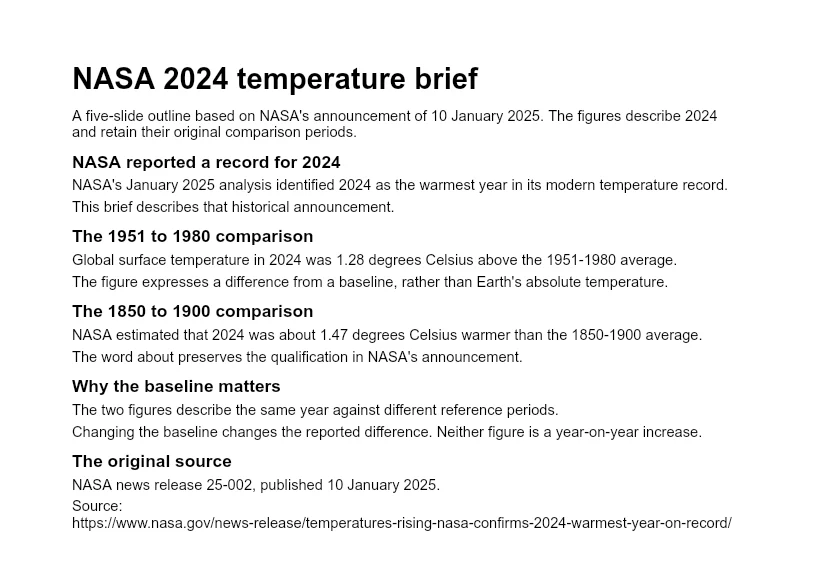
The companion editable reference deck shows one way to organize that material. It was prepared as a teaching example, not captured from PowerPoint outline import or Presenti. Use it to compare the source’s meaning with the slide structure, not as a promise of automatic output.