For years, the corporate world suffered from "Stock Photo Fatigue" that collective eye roll whenever a slide featured a generic business handshake in a sunlit office. But as we moved into the AI era, a new villain emerged: "Cheap AI Slop." We’ve all seen it the hyper saturated, weirdly melted illustrations that scream "I spent thirty seconds on a prompt and didn't check the results." When you use mismatched, low-quality visuals, you aren’t just making a "boring" slide; you are actively eroding your professional credibility.
To win over an audience today, you need ai graphics for powerpoint that look like they were commissioned from a high-end design agency, not scraped from a generic bot. This guide explains how to choose AI graphics tools, describe a consistent visual style, and review the results before adding them to PowerPoint.
Why "Generic AI" Fails the Professional Standard
The Cohesion Gap
You generate a beautiful 3D isometric icon for Slide 1, but when you ask for a similar icon for Slide 2, the AI gives you a flat vector. By Slide 5, you’ve got a watercolor painting. This inconsistency looks amateur. It signals to your audience that you lack attention to detail. In a business presentation, inconsistent styles can distract from the message.
Brand Disconnect
Most AI tools are "black boxes" when it comes to color theory. If your company’s brand is built on a specific shade of midnight blue and slate grey, a tool that keeps outputting neon purple and orange is useless. Professionals need to control Hex codes and brand guidelines, something generic tools simply aren't built to do. This results in custom visuals for presentations that feel like "foreign objects" rather than integrated parts of the brand story.
The "AI Aesthetic" trap
Early AI models leaned heavily into a hyper saturated, "uncanny valley" look everything was too shiny, too smooth, and slightly "off." For a professional deck, you often want a refined, minimalist aesthetic. You want visuals that whisper "sophistication" rather than scream "AI-generated." Finally, there is the "Contextual Mismatch." A generic AI often fails to understand the difference between "art" and a "business asset." If you ask for a "growth chart," a standard AI might give you a glowing sci-fi hologram that looks cool but conveys zero data. Professional-grade ai graphics for powerpoint must understand that a business deck requires clarity and sobriety, not just visual flair.
Top-tier AI Tools Help You Generate Custom Visuals
Here are five top-tier AI tools to help you generate custom visuals for your next presentation:
Presenti
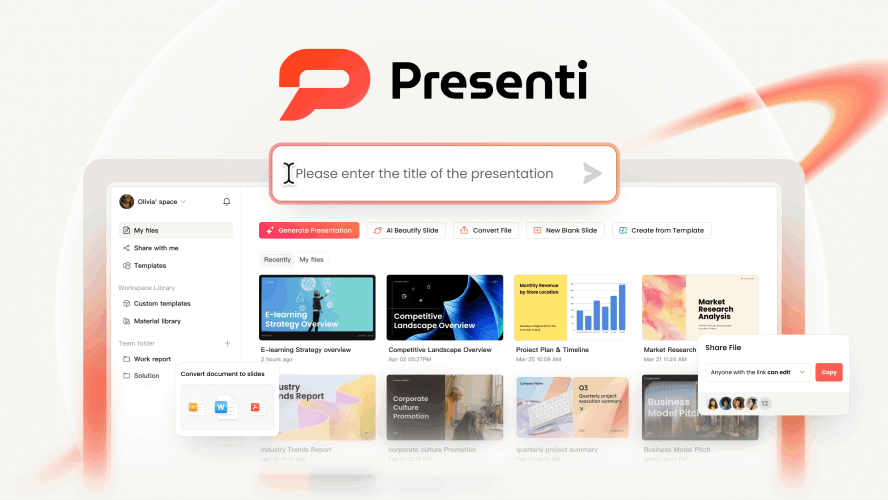
While many AI tools focus solely on generating standalone images, Presenti AI takes a holistic approach by transforming raw information into a cohesive visual narrative. It acts as an AI-powered creative director that understands your content before designing your slides.
Key Features:
- Intelligent Content Parsing: Presenti excels at "Content-to-Visual" transformation. You can upload complex PDFs, Word documents, or even Mind Maps, and the AI will automatically distill the key points into a structured slide deck.
- Contextual Asset Generation: It doesn’t just pick random stock photos. Presenti generates and selects custom AI graphics, icons, and layouts that align specifically with the logic of your text—whether it’s a technical flowchart or a high-level strategic roadmap.
- Fully Editable .pptx Output: Unlike many web-based generators that export static images, Presenti provides native PowerPoint files. Check which elements are native editable objects after export. An AI-generated image remains an image; its internal shapes and text do not automatically become PowerPoint objects.
- Dynamic Layout: Try a different layout when the text does not fit, then review spacing, balance, and readability with your actual content.
The Best for:
- Corporate Professionals: Who need to turn dense meeting minutes or project reports into executive-ready presentations under tight deadlines.
- Educators & Researchers: Who want to convert complex academic papers into visually engaging lecture slides without manual formatting.
- Consultants: Who require high-quality "v1" drafts of proposals that they can later customize in the familiar PowerPoint environment.
Microsoft Copilot (DALL-E 3 Integration)
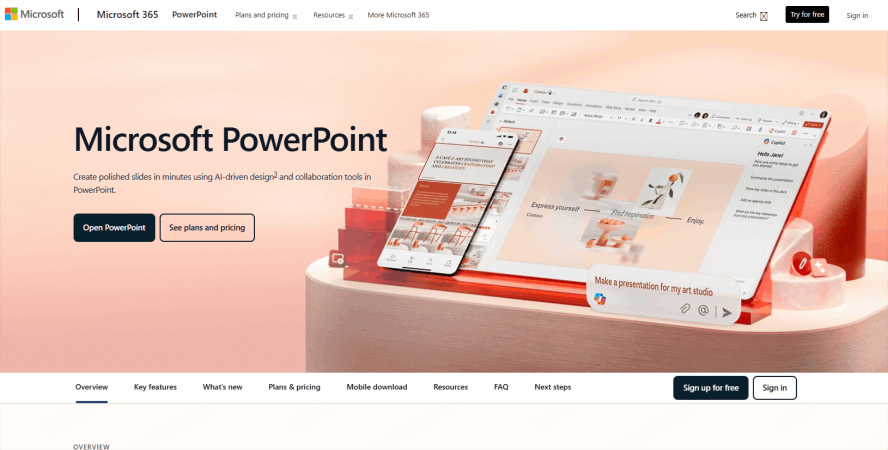
As part of the Microsoft 365 ecosystem, Copilot is available within supported PowerPoint workflows, depending on your account and version. It leverages DALL·E 3 to generate custom imagery without requiring you to switch tabs.
Key Features:
- In-Slide Image Generation: Use the "Create an image of..." prompt directly in the side pane to generate custom visuals that auto-insert into your slide.
- Contextual Designer: It suggests layouts and high-quality graphics based on the existing text on your slide, ensuring visual-to-text alignment.
- Brand Alignment: For Enterprise users, it can pull approved graphics from your company's "Brand Center" to ensure every custom visual stays on-brand.
Target Audience: Corporate professionals and heavy Office 365 users who prioritize workflow speed and seamless integration.
Beautiful.ai
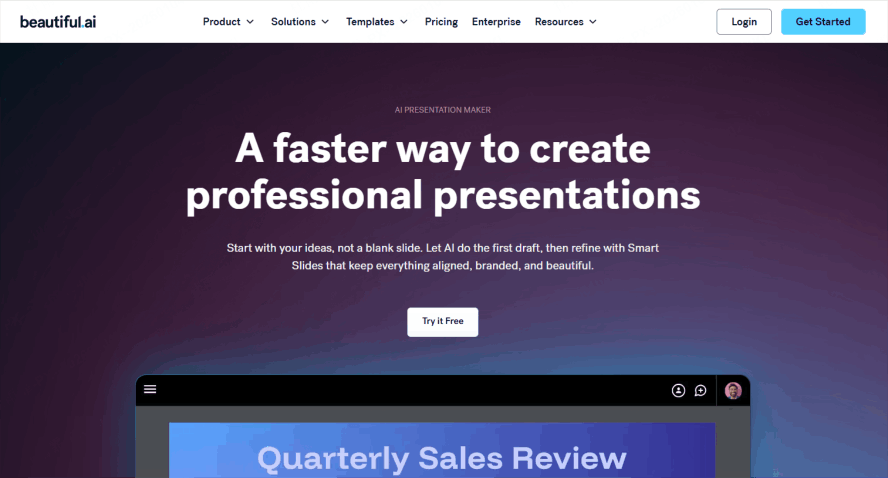
Beautiful.ai uses Smart Slides to arrange content within structured layouts. Try the relevant chart or diagram layout and check whether its controls fit the visual you need.
Key Features:
- Smart Slide Templates: As you add content, the visuals (like timelines or bar charts) automatically resize and realign using AI design logic.
- AI Image Generator: Includes a built-in generator that matches the specific "theme" of your presentation, so a realistic photo won't clash with your minimalist deck.
- Data Visuals: Use a suitable chart layout, then check the data, labels, formatting, and any animation with the actual values.
Target Audience: Consultants, data analysts, and researchers who want structured chart and diagram layouts that they can adjust for their own data.
Canva (Magic Media)
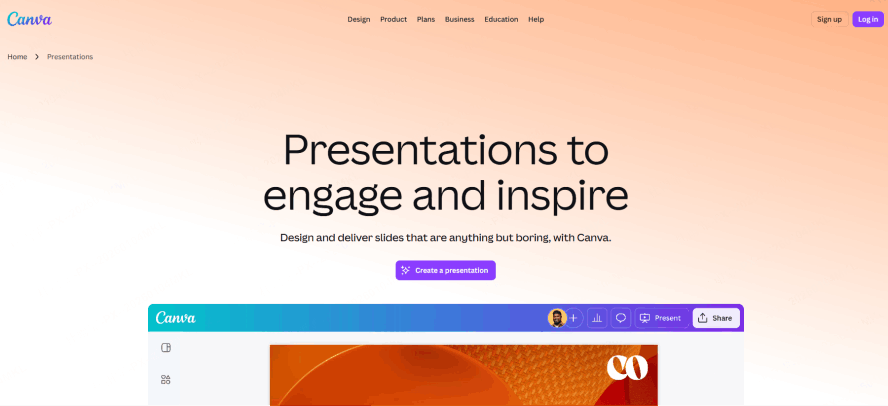
Canva’s Magic Media suite has become a powerhouse for generating more than just photos. It is uniquely capable of creating varied visual assets like icons, stickers, and videos.
Key Features:
- Text-to-Graphic: Unlike many tools that only produce photos, Canva can generate custom flat icons, 3D stickers, and illustrations with specific style controls (e.g., "minimalist," "neon," or "watercolor").
- Magic Morph: Transform simple text or shapes into custom textures or 3D objects (e.g., turning a circle into a "shiny chrome sphere").
- Magic Edit: Brush over any part of a generated visual to change it—perfect for swapping out a "laptop" for a "tablet" in an otherwise perfect graphic.
Target Audience: Marketers, creative teams, and social media managers who need highly stylized and diverse visual assets.
Gamma
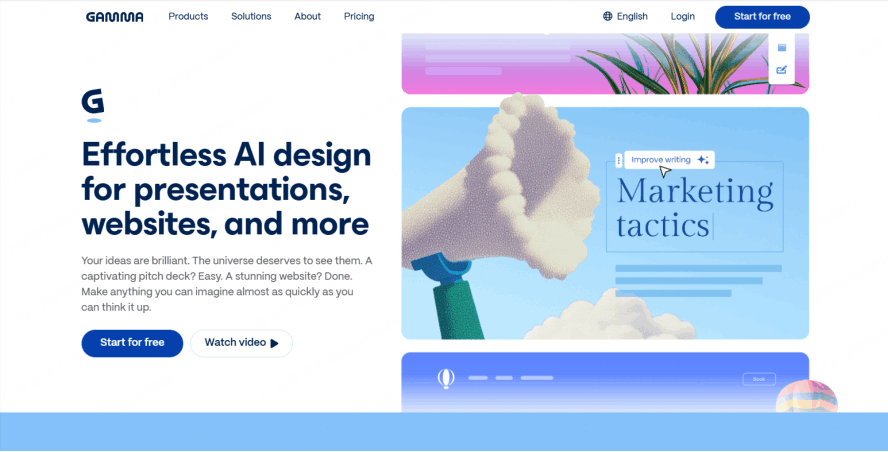
Gamma breaks the traditional "slide" mold by creating interactive, web-based presentations. It excels at turning a single text prompt into a visually rich narrative.
Key Features:
- One-Prompt Decks: Enter a topic, and Gamma builds the entire deck, including custom-generated AI images that fit the story arc.
- Embedded Media: It goes beyond static images, allowing you to embed interactive custom graphics, live websites, and videos directly into the presentation "cards."
- Style Uniformity: It applies a unified visual language across all generated elements, ensuring your icons, images, and backgrounds feel like they belong to the same set.
Target Audience: Startup founders, educators, and "storytellers" who want to move away from static slides toward modern, interactive visual experiences.
Advanced Strategies: Moving from Images to Narrative Scaffolding
Move beyond thinking of graphics as "decorations."
With Presenti, you can use "Contextual Awareness" to dictate composition. For example, ask for a composition with open space on the left for a title and the main subject on the right. Inspect the result and adjust the crop or layout if the image does not leave enough room. This creates a "Narrative Scaffolding" that guides the audience’s eyes exactly where you want them.
Lean into the "Non-AI Look."
Use Presenti to generate "Sketch" or "Minimalist Vector" styles. These styles are often more effective in professional settings because they look like high-end custom agency work. When your custom visuals for presentations look hand-drawn or architecturally precise, it removes the "distraction" of AI and keeps the focus on your expertise.
Security, Copyright, and Corporate Compliance
For Fortune 500 companies and privacy-conscious professionals, the "where" and "how" of data are just as important as the visual output. Before uploading confidential content, review the provider’s current privacy policy, data-use terms, and your organization’s approved-tool rules. Establish what material may be uploaded and who can access the project.
Review the terms for generated images and any reference material you supply. Commercial use, recognizable people or brands, and third-party rights require attention beyond whether an image was generated by AI. Keep the relevant source and license records with the presentation assets.
Conclusion
In the modern business landscape, the quality of your ideas is often judged by the quality of your delivery. Professional presentations require more than just "images" they require a cohesive visual system that reinforces your brand and clarifies your message. Don't settle for mismatched slides or generic "AI slop" that distracts from your hard work. Instead, use a consistent brief, choose relevant visuals, and check the final graphics in the context of the deck.