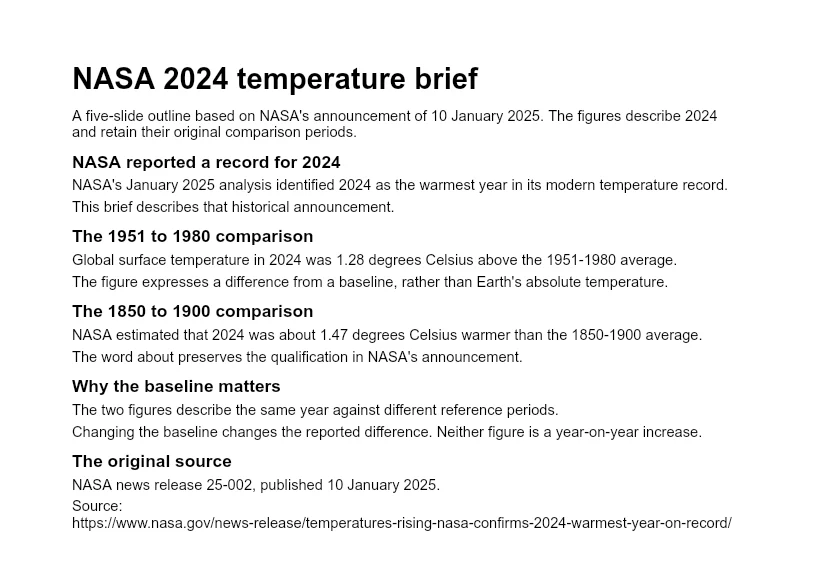
Remote teams need a clear way to prepare, review, and share presentations across locations and schedules. The right tool depends on the files you use, the editing control you need, and how the audience will receive the deck. This guide compares seven workflows and the requirements to check.

5 Remote Work Essentials for 2026
Start with the team’s actual requirements. These five areas can help you evaluate a presentation workflow:
1. Async Narration
For asynchronous updates, decide whether a narrated recording, written notes, or a self-contained deck is most useful. Confirm whether recording is built in or requires a separate tool.
2. Source Data and Updates
Identify the approved source for each metric and how it reaches the deck. Verify any Jira, Notion, or spreadsheet integration individually; do not assume that AI generation includes a live data connection.
3. Real-Time Collaboration
Collaborative presentation software isn't just about editing together; it's about being present together. Look for tools that offer live cursors, reactions, and the ability for users to browse slides independently during a live talk without disrupting the presenter.
4. Automated Brand Control
Decide which fonts, colors, logos, and layouts the team should use. Check the product’s template and brand controls, then include a visual review in the approval process.
5. Meeting and Delivery Support
Test screen sharing, videos, and participant interactions in the meeting software your team uses. Connection quality and device support still matter, even when a product offers an integration.
Comparing the Top Best PowerPoint Programs for 2026
Some teams need a PowerPoint file for detailed editing or delivery; others prefer a shared online deck. The following summary introduces several options before the individual tool sections.
| Tool | Core Positioning | Best For... |
|---|---|---|
| Presenti | Drafting and Shared Editing | Source-Based Drafting and Team Review |
| Microsoft 365 | The Corporate Gold Standard | Traditional corporate environments & offline stability |
| Gamma | The Web-First Visualizer | Quick, one-off visual docs and interactive briefs |
| Google Slides | The Lightweight Collaborator | Basic team tools with frictionless web sharing |
| Canva | The Creative Template Hub | Visual-first creators and social media assets |
1. Presenti: Drafting and Shared Editing
Why We Picked It
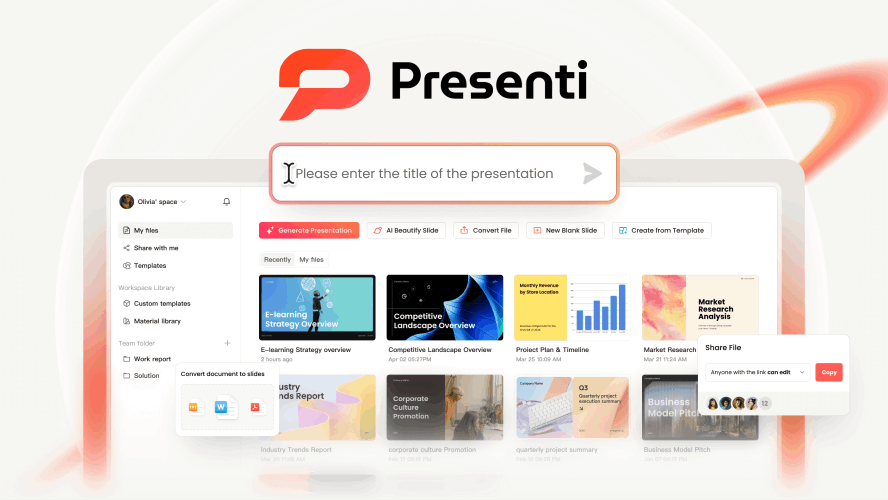
As a PowerPoint alternative, Presenti can help teams draft slides from a topic or supported source material. Its outline and slide-editing workflow is useful when the author wants to review the structure before sharing the deck.
Use an approved brief or document as the source, review the generated outline, and edit the content for the intended decision. Presenti documents workspace invitations and real-time collaboration; verify any additional review or integration requirements separately.
Key Features
- Supported source inputs: Presenti lists Markdown/XMind input on the free plan and Word/PDF/TXT input on paid plans. Audio-to-PPT is also listed with plan allowances; check the supported file and account limits for your recording.
- Pro Agent: Presenti lists this feature in its plans. Review the generated structure and source coverage; the feature name does not establish autonomous research or verified citations.
- Collaboration and language: Invite colleagues to the workspace and review translated wording in the target language. Check terminology and layout after translation.
- Brand consistency: Use approved colors, fonts, and logos, then review the deck against your organization’s standards.
Best For
Fast-moving tech companies, global agencies, and modern enterprises that have outgrown static slides. It is the ideal choice for teams that prioritize asynchronous communication, require real-time data accuracy, and need Figma-level design precision combined with enterprise-grade brand governance.
2. Microsoft PowerPoint 365 (Legacy Plus)
Why We Picked It
PowerPoint is an option for teams that need detailed slide editing and delivery in the PowerPoint format. The desktop application supports offline work on local files, while connected features depend on accounts, services, and network access. Test linked content and media before an offline presentation.
Key Features
- Copilot access: Check the Microsoft 365 license and supported PowerPoint workflow. Connected source access depends on account permissions and feature availability.
- Excel-linked content: Choose deliberately between embedding, linking, and static copies. Test whether the chart updates and remains available in the delivery environment.
- Advanced Motion Path & 3D Rendering: While AI tools focus on speed, PowerPoint focuses on "The Big Stage." Its Morph transition and 3D model support remain the industry leaders for high-end keynote visuals.
- Offline delivery: Save required files locally and test the full presentation without a connection.
Best For
Corporate executives, financial analysts, and keynote speakers who require heavy-duty data visualization, complex animations, and the security of a desktop-native environment within the Microsoft ecosystem.
3. Gamma: The Web-Doc Hybrid
Why We Picked It
Gamma offers a card-based workflow for online presentations and visual documents. Evaluate it when the shared online experience matters, then check the exported file if colleagues also need a conventional PowerPoint deck.
Key Features
- One-Click Aesthetic Transformation: Gamma’s AI doesn't just suggest layouts; it applies entire "visual identities" across your deck, ensuring that fonts, colors, and image styles are perfectly synchronized for you to review.
- Responsive Web-Native Design: Unlike traditional PPTs, Gamma decks are responsive. They automatically adjust their layout for mobile devices, making them perfect for sending "decks" that people actually read on their phones.
- Interactive Web Embeds: You can bake live websites, interactive maps, and functional apps directly into your slides, turning a static presentation into a "living" portal.
- AI drafting: Provide the audience, objective, and source material, then review the content and layout of the resulting draft.
Best For
Startups, freelancers, and marketers who need to move at high speed and want their presentations to feel modern, web-ready, and effortlessly stylish.
4. Google Slides (2026 Update)
Why We Picked It
Google Slides can suit teams already using Google Workspace and shared browser editing. Check the account’s AI features, sharing permissions, and file requirements before deciding how much of your existing workflow it covers.
Key Features
- Gemini features: Confirm the AI features and source access included in the relevant Google Workspace account.
- Shared editing: Test Google Slides with your team’s accounts, permissions, and connection quality.
- Massive Add-on Marketplace: Its greatest strength is its openness. By integrating with tools like Plus AI or Slido, Google Slides can be customized into a specialized power-tool for almost any niche.
- Simplified Web Sharing: The "Share" button remains the gold standard for ease of use—no file downloads, with permissions and access settings to check.
Best For
Education sectors, internal project teams, and Google Workspace-native companies that prioritize real-time teamwork and cross-platform simplicity over high-end design complexity.
5. Canva: The Design Powerhouse
Why We Picked It
Canva combines presentation editing with a wider design workspace. It may suit teams that reuse visual assets across slides and other materials. Check the plan’s asset licenses, brand controls, and export options.
Key Features
- The Magic Studio Suite: Use AI to remove backgrounds from videos, "Magic Grab" objects to move them around slides, or "Magic Expand" a photo to fit a wide-screen layout perfectly.
- Design Asset Library: Access millions of premium photos, videos, 3D elements, and music tracks directly within the presentation editor—eliminating the need for external stock sites.
- Present-and-Record Workflow: Canva’s built-in recording studio allows you to create high-quality, "picture-in-picture" video presentations that are perfect for social media, training, or asynchronous updates.
- Social-to-Slide Repurposing: With the "Magic Switch," you can instantly turn your 10-slide presentation into a series of Instagram carousels, a LinkedIn PDF, or a short-form video.
Best For
Social media managers, small business owners, and creative educators who need their presentations to be visually "loud," vibrant, and multi-purpose.
6. Pitch: Aesthetic Consistency & Analytics
Why We Picked It
Pitch is an option for teams preparing and sharing presentation decks. Evaluate its collaboration, brand, and analytics features against the plan you intend to use; a view metric does not by itself establish a prospect’s intent.
Key Features
- Deck analytics: Check which view and engagement metrics Pitch provides on your plan, how they are collected, and what they can reasonably tell you.
- Smart Styles for Absolute Consistency: Pitch eliminates "design drift." Through its Smart Styles engine, you can define your brand’s visual language once and apply it across every slide. If you update a font or a primary brand color, the change ripples through the entire deck instantly, ensuring a consistent starting style.
- Unified Team Workflows: Pitch provides a seamless, Google Docs-like co-editing experience. With built-in task management and status labels (e.g., "In Progress," "Needs Review"), it is built for fast-moving marketing departments that need to collaborate without leaving the platform.
- Interactive Player Experience: In 2026, the Pitch web player is more than a slide viewer; it’s a cinematic experience. It supports high-fidelity embeds and smooth transitions that make your shared links feel like high-end microsites rather than PDF exports.
Best For
Modern sales organizations, growth marketers, and business development teams who need to track engagement and maintain a high-end, consistent brand presence across every outbound proposal.
7. Beautiful.ai: The Smart Template Guardian
Why We Picked It
Beautiful.ai emphasizes layouts that adjust as content changes. Try the slide types you use most and check how much control you retain over dense content, charts, and exported PowerPoint elements.
Key Features
- Heuristic Design Engine: This is the tool's foundational magic. As you add a new bullet point, a third image, or a complex data set, the layout automatically resizes and realigns all elements. It removes the tedious "manual dragging" and pixel-hunting that plagues traditional PowerPoint users.
- Data slides: Check the supported data-entry and chart options. Verify the source values, labels, and any exported chart elements.
- Enterprise Brand Governance: For large organizations, Beautiful.ai offers "Locked Themes." Admins can set strict brand controls that prevent team members from using non-approved colors or off-brand fonts, ensuring that even the most design-challenged employees produce polished, professional output.
- DesignerBot AI Assistant: You can describe a slide concept (e.g., "a 3-step timeline for a product launch") and the DesignerBot will draft the structure, select the icons, and populate the layout, providing a high-quality starting point in seconds.
Best For
Consultants, project managers, and data-heavy professionals who need to produce high-frequency, polished presentations but want to spend 90% of their time on the message and only 10% on the design.
Step-by-Step: How to Manage a Global Presentation Project with Presenti
To illustrate the power of this collaborative presentation software, let’s look at a typical workflow for a global team launch.
Step 1: Set Up the Team and Source Material
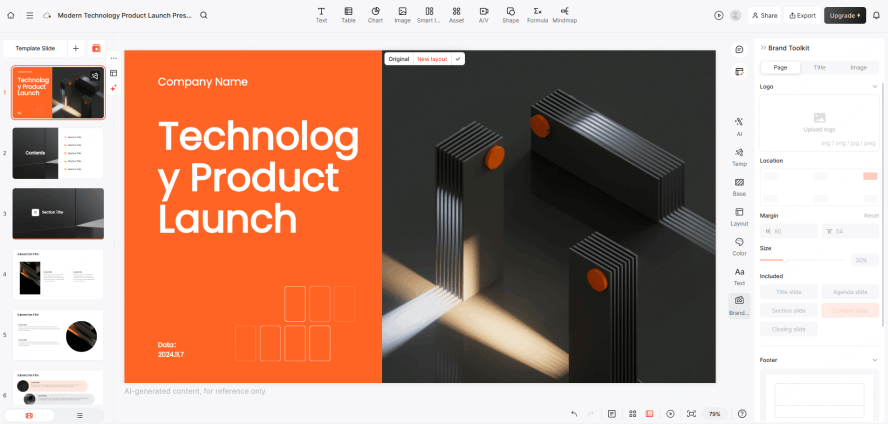
Create the working deck and invite the colleagues who need to edit it. Share the approved outline, sources, brand assets, and responsibilities before drafting.
Step 2: Prepare and Review the Source Content
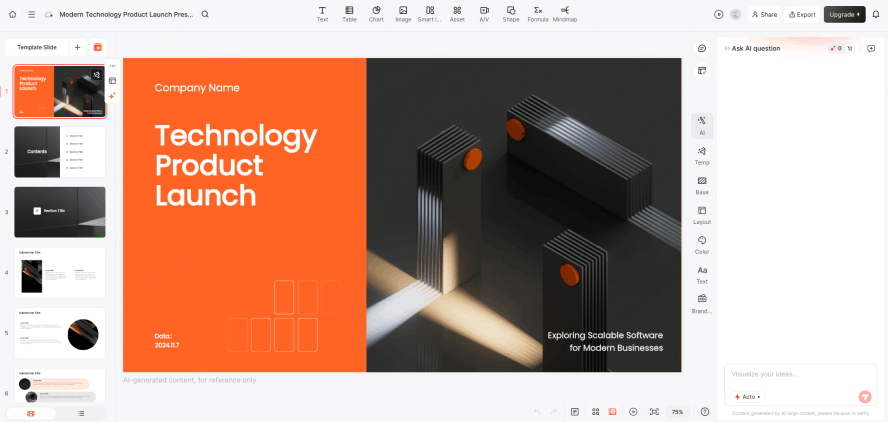
Prepare the relevant data from your team’s approved systems and include it in the brief or supported source file. Generate the outline, then compare it with the current project status and source values.
Step 3: Collect Asynchronous Feedback
For asynchronous review, explain the decision the deck supports and identify the slides that need input. Collect feedback in the review tool your team already uses, with a clear deadline and an owner for each change.
Step 4: Collaborative Polishing
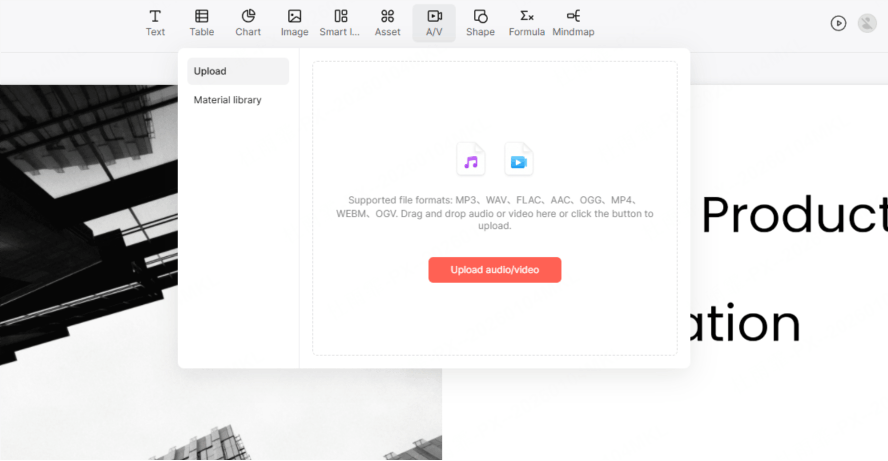
Use Presenti’s documented workspace collaboration to edit with colleagues where appropriate. Agree on section ownership, resolve conflicting changes, and check the saved version before the final review.
Step 5: Global Localization
Review translated wording, names, dates, units, and examples with someone familiar with the target audience. Check charts and layouts after text changes. Do not assume an automatic process has validated cultural meaning or local conventions.
Conclusion
A useful remote-team workflow gives everyone access to the right source material and a clear route to the approved deck. Choose the editor around those needs and test delivery in the format the audience will use.
Presenti lists AI agents among its features and supports drafting and shared editing. Combine the tools with your established source, review, and meeting processes. Start a deck in Presenti with an approved brief and a clear review owner.