Markdown is useful for presentations because you can revise the wording and order without moving text boxes. The file stays readable in a plain-text editor. A presentation tool then decides how that structure becomes slides.
That last distinction matters. Markdown does not define a universal slide format. Heading levels, separators, tables and images can behave differently across conversion tools. Start with a clear outline, then choose a renderer that produces the file you actually need.
Write the slide argument before the formatting
Use a heading for the point you want to make, then add the evidence or explanation beneath it. “The pilot needs a second supplier” gives an audience something to follow; “Risks” leaves the meaning to the presenter.
A simple starting pattern is one document title, one second-level heading for each proposed slide, and a few supporting points. This is an authoring convention for your source file, not a guarantee that every converter will use the same slide boundaries.
# Project update
Reporting period: [dates]
Audience: [team or decision-maker]

## Where the project stands
- Current status: [state the position plainly]
- Evidence: [result, date and source]

## What changed
- [Change that affects the plan]
- [What that change means for the team]

## The open issue
- [Issue and its practical consequence]
- [What is known and what is still uncertain]

## The decision needed
- [Decision to make]
- [Who needs to decide and by when]

## Next steps
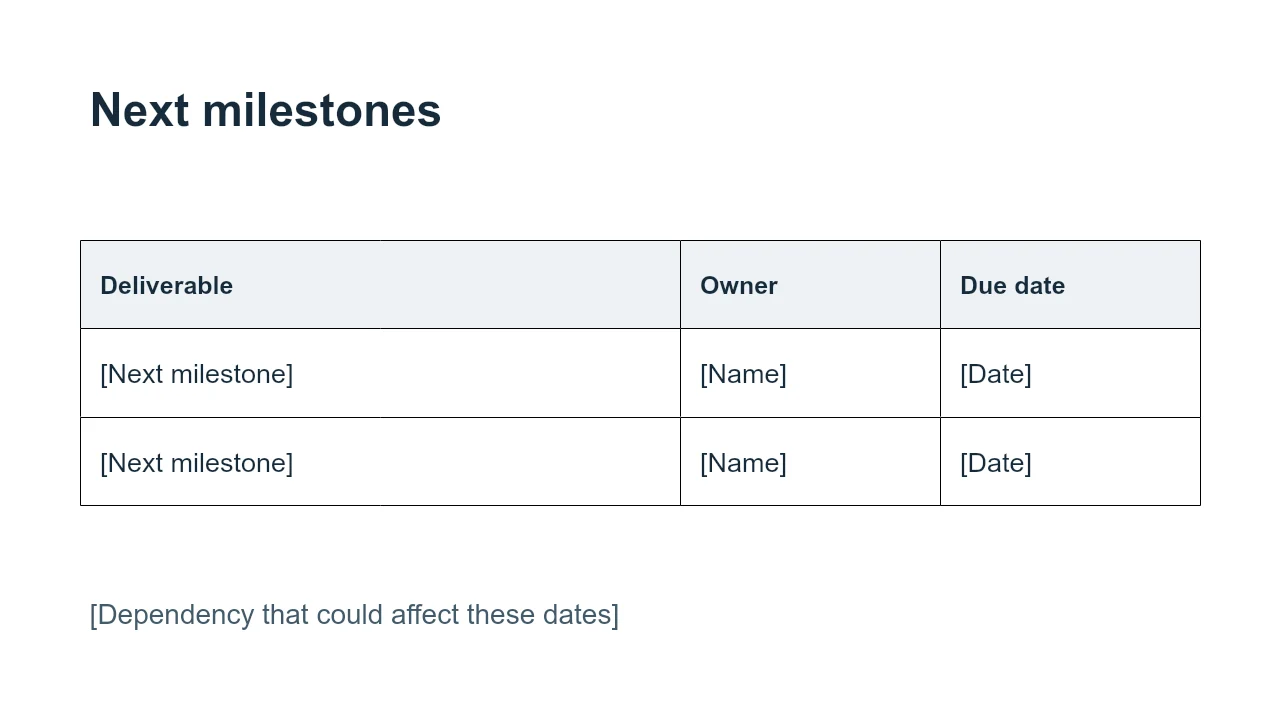
- [Action, owner and date]
- [Where supporting material can be found]
Download the blank project-update Markdown file to adapt the outline. The placeholders are deliberately empty: dates, results and commitments need to come from your project.
Which Markdown features travel well?
The CommonMark reference explains headings, lists, emphasis, links, images and code blocks. It does not make them presentation layouts. Use the small set your chosen tool supports rather than adding syntax solely because another Markdown editor can display it.
| Source element | How to use it | What to confirm in the slide tool |
|---|---|---|
# and ## | Make the document hierarchy visible. | Which heading level starts a slide. |
| Short bullet lists | Group the points that support one message. | Whether the list fits without reducing the text size. |
[label](URL) | Keep the source beside a factual claim. | Whether the exported link remains clickable. |
 | Identify an image and its purpose. | Whether the tool can access the file or URL. |
--- | A horizontal rule in ordinary Markdown. | Whether the slide renderer instead uses it as a slide break. |
Keep a blank line around separators. Some tools also use YAML between separators at the top of the file for configuration; copying that header into another tool may not have the intended effect.
Tables, task lists, footnotes and mathematical notation need particular care because support varies. For a wide table, describe the comparison in the source and keep the full data available separately. For a code sample, include only the lines the audience needs to discuss.
Work through a sourced example
The NASA temperature Markdown brief contains a short outline based on a public announcement, with its source attached. The editable reference deck shows one editorial way to present the same material. It is not a captured output from a Markdown converter.
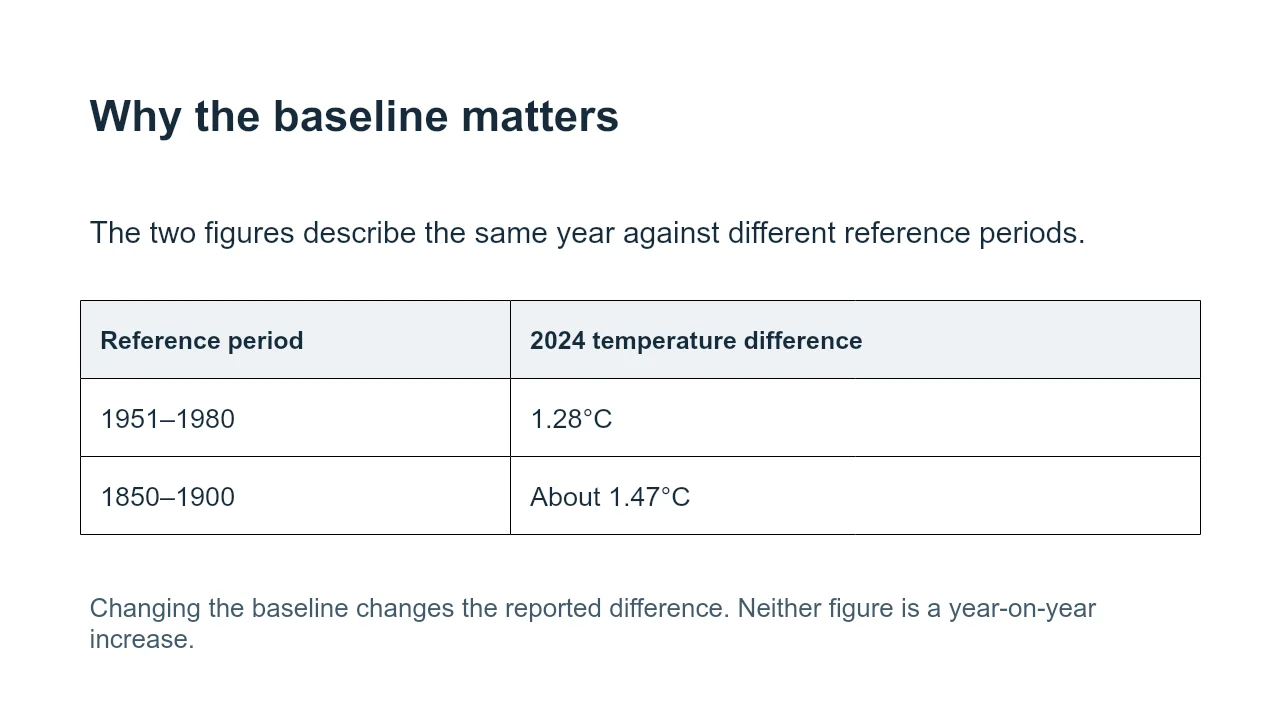
Read the brief and the deck side by side. Notice which detail belongs in a title, which label must stay beside a number and which explanation can sit in notes. A converter may propose a different layout; the source is what lets you decide whether that layout still says the right thing.
For your own file, name the output requirement before converting: editable PPTX for a colleague, PDF for a fixed handout, or a browser presentation for interactive material. The Markdown tool comparison explains those routes. If you want to draft online in Presenti, use the Presenti import walkthrough.
When the output does not match the outline
Everything lands on one slide. Check the renderer’s slide-break rule. A clear hierarchy in the text does not guarantee the tool has interpreted it as separate slides.
A local image is missing. A path such as images/chart.png refers to a file on a particular machine. Uploading the Markdown alone may not give a web tool access to that image. Supply it using the tool’s supported method.
The slide shows raw syntax. Reduce the problematic section to plain text and reintroduce only supported formatting. A table or formula that works in one Markdown extension need not work in another.
The PowerPoint opens, but the text cannot be edited. Some exporters put a picture of each slide inside a PPTX. Choose an editable export mode where available, or choose a different output route. The extension alone does not tell you what is inside the file.
Keep the Markdown as the source you can revise. Keep the presentation as the version you have checked for the intended audience and application.