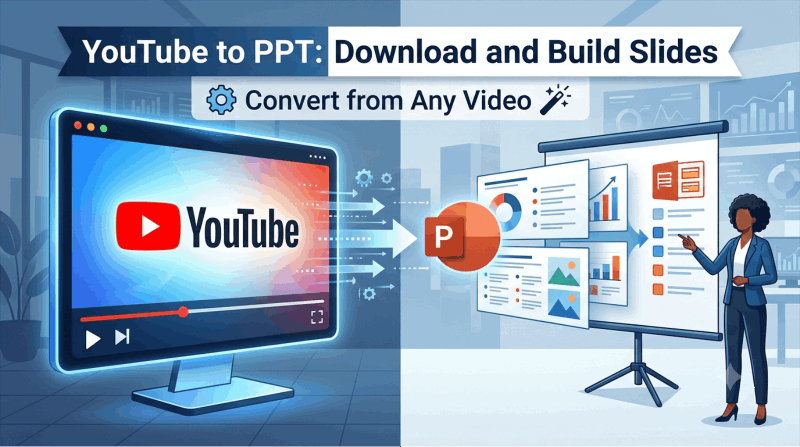
If you have ever watched a YouTube video packed with useful information and wished you could convert YouTube to PPT without transcribing every word manually, you are not alone. Educators repurposing lecture recordings, analysts extracting insights from conference talks, marketers building training decks from product demos — the need to turn video content into downloadable, editable slides comes up constantly.
Choose a workflow based on the source: a captioned talk can provide a transcript, while a visual demonstration may need screenshots or your own notes. The methods below explain those differences.
Why Convert YouTube to PowerPoint?
Before getting into the how, it helps to understand what makes this workflow genuinely useful rather than just technically interesting.
A video may not be the right format for every presentation. Playing a YouTube clip inside a presentation introduces dependency on internet connection, platform availability, and video controls that distract from your message. Slides extracted from that same video are portable, editable, and fully under your control.
Key information in videos is hard to reference. A 45-minute conference talk contains insights you want to cite, share, or build on. A PowerPoint deck derived from that talk makes those insights searchable, quotable, and shareable in a format colleagues can open without watching the whole video.
Training and education workflows benefit enormously. Corporate trainers who find a relevant YouTube tutorial, educators who want to adapt a recorded lecture, and course creators who need to convert video content into slide materials all save significant time by converting rather than rebuilding from scratch.
Method 1: Use an AI Tool to Auto-Generate Slides from a YouTube URL
Some presentation tools accept video URLs; others need transcript text. Check the tool’s specific YouTube support. The transcript route below gives you source text to review before generation.
A video-to-slides service may retrieve captions and draft slides from them. Availability depends on the video, its captions, access restrictions, and the service. Review the extracted text rather than assuming the URL contains everything needed.
How It Works
Step 1: Find the YouTube video you want to convert. Copy the full URL from the browser address bar.
Step 2: Open an AI presentation tool that supports URL or transcript input. Tools like Presenti AI accept text-based input including transcripts, and several dedicated video-to-slides converters accept YouTube URLs directly.
Step 3: Paste the URL or the video’s transcript into the tool’s input field. For tools that require a transcript rather than a URL, use YouTube’s built-in transcript feature (described in Method 2 below) to extract the text first, then paste it into the AI generator.
Step 4: Select a template style that fits the content — clean and minimal for educational content, bold and structured for business insights, data-forward for analytical presentations.
Step 5: Generate. The AI reads the transcript, identifies the key arguments, structures them into a logical slide sequence, and applies professional design across the full deck.
Step 6: Review the generated slides. Check that the key points from the video are accurately represented and that the slide structure reflects the video’s narrative arc. AI generators work from the text layer of the video, so any information communicated visually in the video without verbal explanation may not appear in the slides.
Step 7: Export as PPTX or PDF. Presenti AI lists editable PPTX/PDF exports on paid plans; check the file in your intended editor.
What to Expect from the Output
The quality of AI-generated slides from a YouTube transcript depends heavily on how well-structured the original video is. A well-edited tutorial or a professionally recorded conference talk with clear verbal signposting produces excellent slide output. A casual conversational video with no clear structure produces slides that need more manual editing.
For structured educational content, product demos, and recorded presentations, this method can provide a draft to compare with the original video.
Method 2: Extract the YouTube Transcript and Use It as Slide Input
If you prefer more control over what goes into your presentation, extracting the transcript and editing it before generating slides is the right approach. This method is slightly slower than pure URL input but produces stronger output because you review the content before the AI structures it.
Step 1: Get the YouTube transcript
Open the video’s description and select Show transcript, if available. YouTube provides this option for videos with captions. If there is no usable transcript, use your own notes or an authorized transcript.
Step 2: Copy the transcript text
Select and copy the relevant transcript text. Check that the copied material contains the passage you need; browser-wide Select All may include unrelated page content.
Step 3: Clean the transcript
Paste the transcript into a text editor. Remove timestamps if they are present, delete filler words and repeated phrases, and organize the content into clear sections that map to the slides you want to create. Add section headings to indicate where major topics begin and end. This editing step takes five to fifteen minutes and meaningfully improves the quality of AI-generated output.
Step 4: Paste into an AI presentation generator
Take your cleaned transcript text and paste it into Presenti AI or another AI slide generator. The tool reads your structured text, identifies the sections, and builds slides around the content you have already organized.
Step 5: Select a template, generate, and export
Follow the same generation and export process described in Method 1. Because your input is already structured and cleaned, the output typically requires less editing than raw transcript input.
Method 3: Build Slides Manually Using YouTube Screenshots and Notes
For videos where the visual content is as important as the spoken content — product demonstrations, tutorial videos with on-screen actions, data-heavy presentations — the AI transcript method captures the verbal layer but misses the visual layer. In those cases, a manual approach captures both.
Step 1: Watch the video with note-taking intent
Open the YouTube video and watch it with a notes document open alongside it. Pause at each key point and write down the core idea. Note the timestamp so you can return to capture screenshots.
Step 2: Capture screenshots of key visual moments
On Windows, press Windows + Shift + S to open the Snipping Tool and capture any screen area. On Mac, press Cmd + Shift + 4 to capture a selected area. Capture the on-screen visuals that communicate important information — charts, diagrams, product interfaces, data slides.
Step 3: Build your PowerPoint structure
Open PowerPoint or Presenti AI and create a slide for each key point from your notes. Use your written notes as the basis for slide text, and insert the screenshots as supporting visuals.
Step 4: Organize and refine
Arrange slides in the same logical sequence as the video’s argument. Add slide titles that summarize each key point. Remove any screenshot elements that are not relevant to your presentation context. Apply consistent formatting across all slides.
This method takes the most time but produces slides that most faithfully represent both the verbal and visual content of the source video. It is worth the investment for high-value content — a keynote presentation from a major conference, a detailed technical tutorial, a product demo you need to repurpose for training.
Method 4: Use PowerPoint’s Built-In Screen Recording
If you want to capture a video’s content as a recorded element rather than extracting it into slides, PowerPoint for Windows’ built-in screen recording feature lets you record your screen while the YouTube video plays and embed that recording directly into a slide.
Step 1: Open PowerPoint and navigate to the slide where you want the recording to appear.
Step 2: Go to the Insert tab and click Screen Recording in the Media group.
Step 3: Use the crosshair tool to select the area of your screen containing the YouTube video player.
Step 4: Click Record and play the relevant section of the YouTube video. Click Stop when you have captured what you need.
Step 5: The recording embeds directly into your PowerPoint slide as a video object you can play during presentations.
This method is useful for capturing demonstrations that are difficult to represent as static slides. The limitation is file size — embedded video recordings make PPTX files significantly larger, which can create sharing and upload problems. Use this method selectively for short, essential demonstrations rather than as a primary slide-building approach.
Comparison: YouTube to PPT Methods at a Glance
| Method | Main Preparation Work | Visual Content Captured | Best For | Tools Needed |
|---|---|---|---|---|
| AI from URL or transcript | Check source access and generated content | Text only | Structured talks, tutorials, demos with strong verbal content | AI presentation generator |
| Edited transcript to AI | Edit the transcript before drafting | Text only | Any video where content quality matters over speed | Text editor, AI generator |
| Manual screenshots and notes | Capture and organize relevant evidence | Text and visuals | Visually complex content, product demos, data-heavy talks | Screen capture tool, PowerPoint |
| PowerPoint screen recording | Record, trim, and test the clip | Full video | Short demonstrations that must be shown, not described | PowerPoint for Windows |
Tips for Better YouTube to PowerPoint Conversion
A few practices consistently improve the quality of converted presentations, regardless of which method you use.
Choose structured source videos. Videos with clear verbal signposting — “there are three key points here,” “let me walk you through the steps,” “the main takeaway is” — produce much better AI-generated slide output than conversational or unscripted content. The AI organizes around structure that already exists in the source material.
Use YouTube chapters as your slide structure. Many YouTube videos include chapter markers in the description or timeline. These chapter titles are essentially ready-made slide headings. When building manually or editing a transcript, use the chapter structure as your primary organizational guide.
Verify facts independently. AI generators work from what was said in the video, not from verified external sources. Any factual claim in your converted presentation — statistics, dates, product specifications — should be confirmed against original sources before the slides go to any audience.
Respect the source’s reuse conditions. Use material you own, have permission to reuse, or can use under an applicable license or exception. Attribution alone does not provide permission. Keep the video title, creator, URL, and relevant timestamps with your source notes.
Clean up before presenting. AI-generated slides from video transcripts often contain artifacts from the transcription layer: incomplete sentences, verbal filler carried over into slide text, repetitive phrasing from spoken delivery. A 15-minute editing pass to clean these elements significantly improves the finished presentation.
How to Convert YouTube to PPT Download: Quick Start
For users who want the fastest path to a downloadable PowerPoint file from a YouTube video, here is the condensed workflow:
Step 1: Open the video description and choose Show transcript if the video has captions.
Step 2: Copy the transcript text and paste it into a text editor. Spend five minutes adding section headings and removing timestamps.
Step 3: Paste the cleaned transcript into Presenti AI.
Step 4: Select a template appropriate to the content type.
Step 5: Generate the presentation and review each slide for accuracy.
Step 6: Export as PPTX for immediate download. Open the file in the intended editor and inspect its layout.
Preparation time depends on transcript quality, the number of visuals, and the amount of review. Judge the workflow by the accuracy and usefulness of the finished slides.
Convert YouTube to PPT: The Right Tool Makes the Difference
The ability to convert YouTube to PPT and download a professional slide deck from video content is one of the more practical applications of AI presentation tools in 2026. The manual methods work but are time-consuming. The AI-assisted methods are fast but require clean, structured input to produce strong output.
For the most reliable results, extract the YouTube transcript, do a quick editing pass to add structure and remove filler, and feed that cleaned text into an AI presentation generator with document-level input support.
Presenti AI accepts your transcript text, structured outlines, and Word or PDF documents, then generates a complete, professionally designed slide deck in minutes. Word/PDF input and editable PPTX/PDF exports are listed on paid plans.
For a broader look at how AI presentation tools compare across different input methods and use cases, the overview of the best AI PPT tools in 2026 covers every major option in detail.
Try Presenti AI free today — paste your YouTube transcript, generate a complete presentation in minutes, and check paid-plan access for an editable PPTX download.