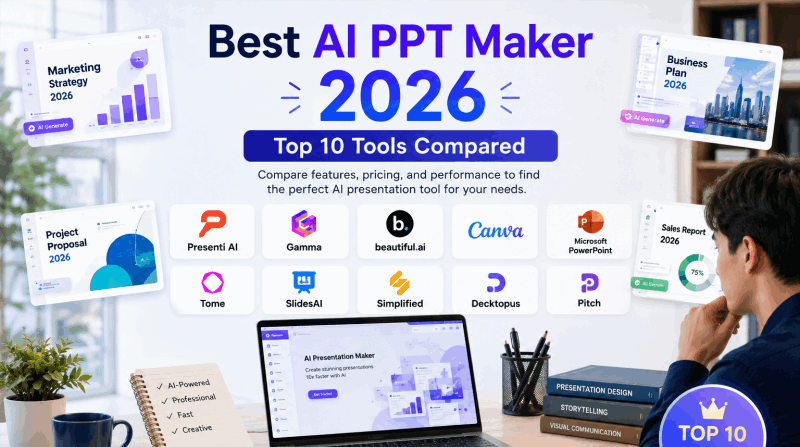
AI presentation tools can help draft an outline and arrange slides. The right choice depends on your source material, editing needs, and the file or link you need to deliver.

What to Look for in PPT AI?
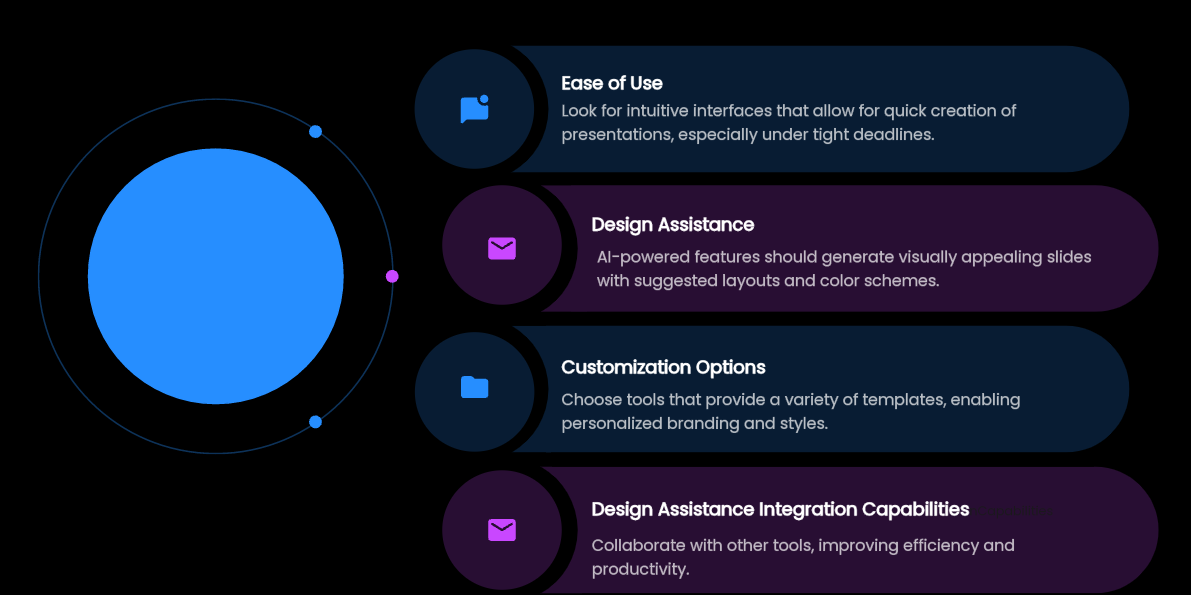
1. Ease of Use
The first thing to consider is how easy it is to use the PPT AI tool. A steep learning curve can be a major setback, especially when you're on a tight deadline. Look for tools with intuitive interfaces that allow you to create presentations quickly and without fuss.
2. Design Assistance
AI design assistance can provide a useful starting layout. It can help you generate slides that are visually appealing without much time and effort. The AI should be able to suggest layouts, color schemes, and design elements that complement your content, elevating your presentation to a professional level.
3. Customization Options
A good AI tool should offer a variety of templates and customization options. This allows you to tailor your presentation to fit your brand or personal style, ensuring that your message is delivered in a way that resonates with your audience.
4. Integration Capabilities
Check whether the tool works with your existing files and sharing process. If you need connections to document storage, a CRM, or project-management software, verify those integrations individually rather than assuming that AI features include them.
How to Pick the Best PPT AI?
Choosing the best PPT AI is no small feat. You want a tool that not only meets your current needs but also scales with you. Here's how to make the right choice.
1. Assess Your Needs
Start by assessing your specific needs. Do you need a tool for quick, on-the-fly presentations, or are you looking for something that can handle more complex, data-driven presentations? Identifying needs may help you make a quick decision.
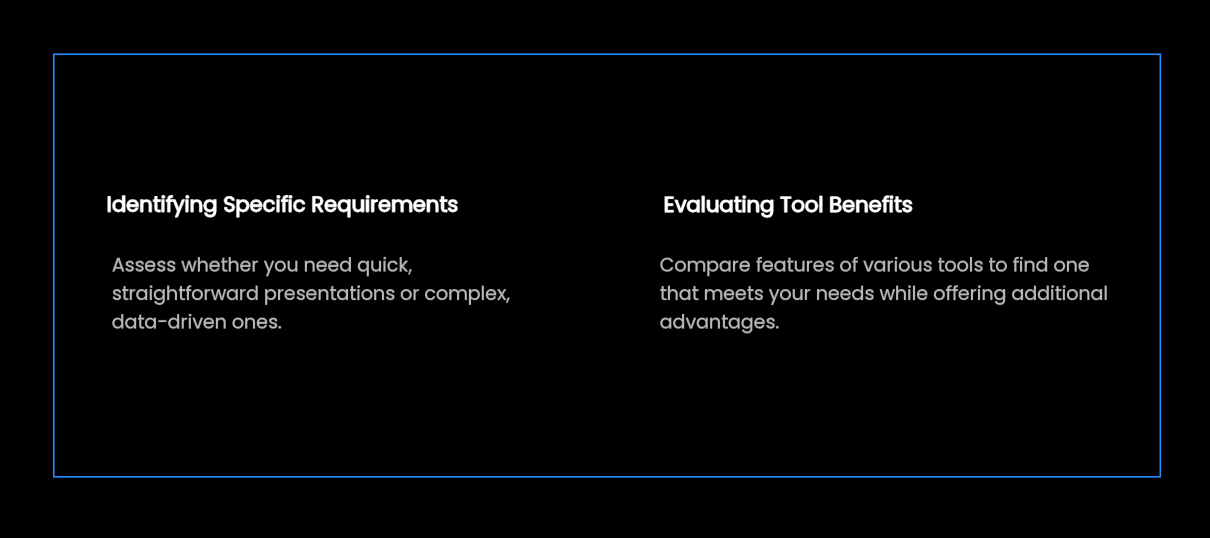
2. Compare Features
Once you've identified your needs, compare the features of different PPT AI tools. Look for tools that offer the features you need and go beyond with additional benefits that can enhance your presentation capabilities.
3. Read Reviews
Don't underestimate the power of user reviews. They can provide valuable insights into the strengths and weaknesses of different PPT AI tools. Look for reviews from users who have similar needs to yours to get a sense of which tools are truly the best fit.
4. Test Them Out
Finally, get your hands on the tools. Many tools offer free trials or demos. Use this opportunity to test out the tools and see which ones you prefer. Pay attention to how intuitive they are, how well they meet your needs, and how they fit into your workflow.
Top PPT AI Tools
1. Presenti.ai

Simplified Process
Presenti.ai stands out for its simplicity and efficiency in presentation design. It enables users to swiftly assemble a comprehensive set of slides with minimal effort, allowing them to concentrate on the substance of their presentations rather than getting bogged down in design details. This streamlined process is particularly appealing to those who value content development over intricate formatting tasks.
Customizable Templates
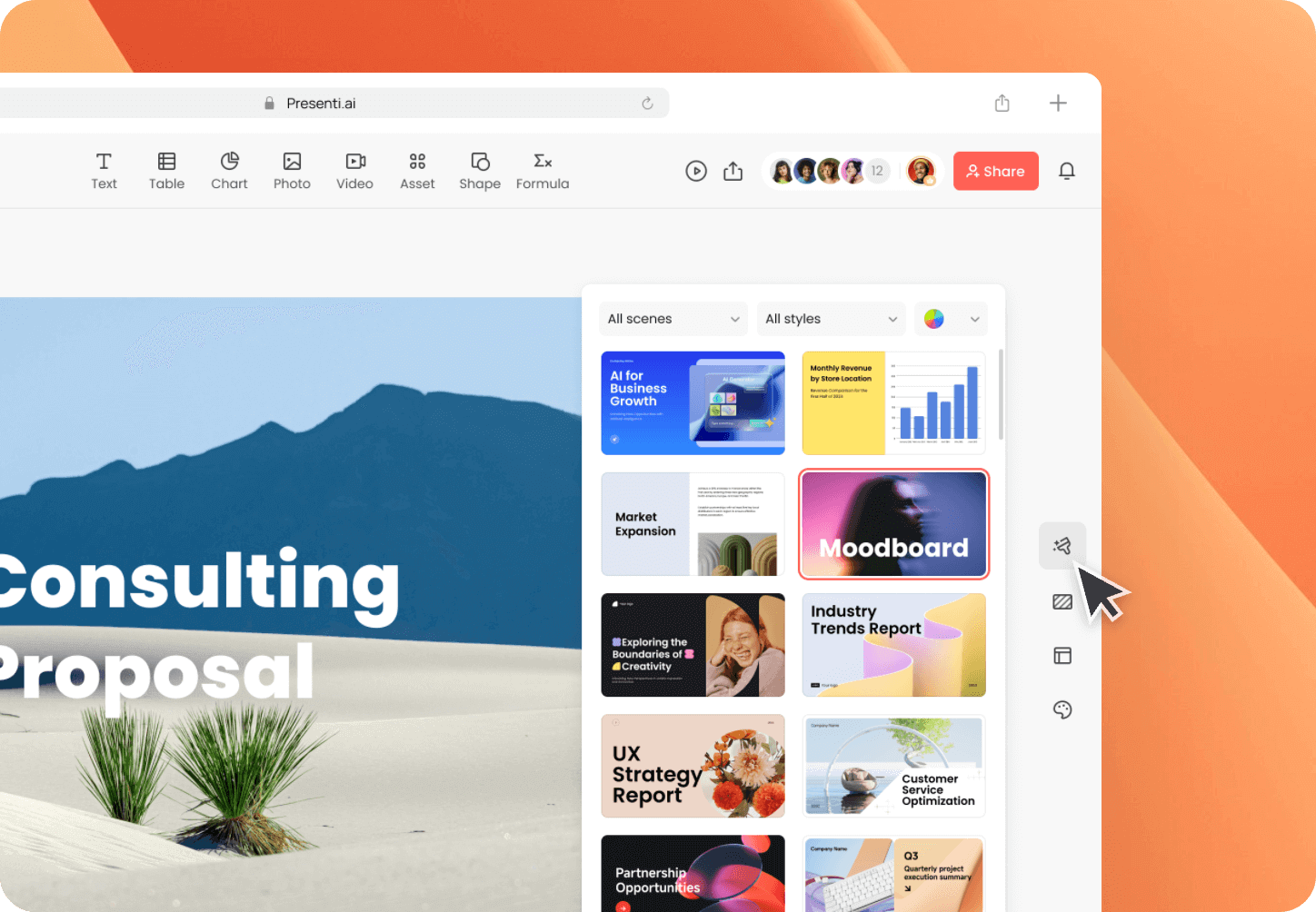
Presenti offers templates for different presentation types, including business and education. Choose one that fits the amount and type of content on your slides, then adjust its styling to suit your audience.
Structured Outline
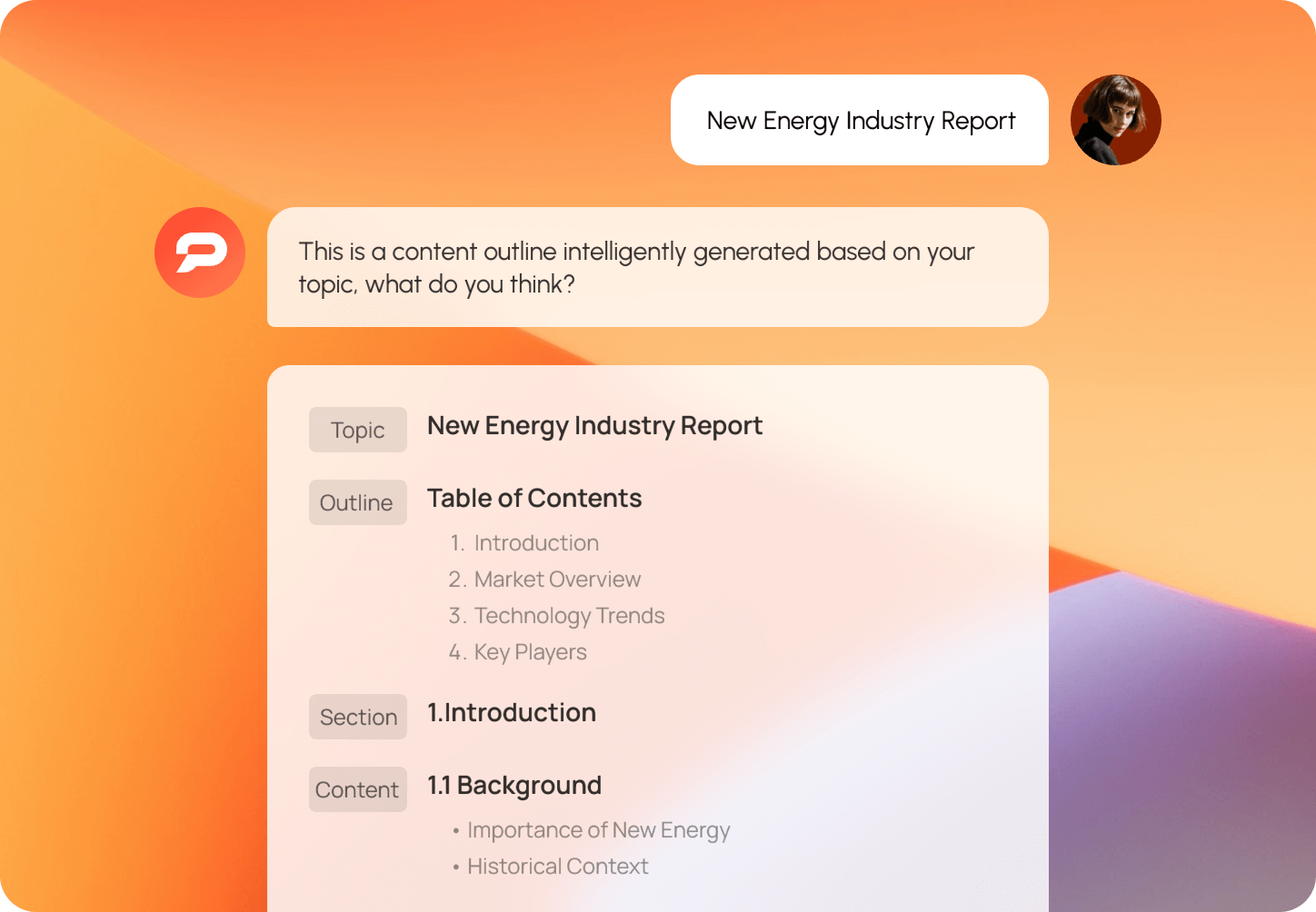
Presenti can generate an outline from your input. Revise the structure before creating slides. Free use has limited AI credits; document imports and editable PPTX/PDF exports depend on the plan.
2. Gamma

Features
Gamma is a tool that helps you make presentations fast and well. It uses smart tech to help you write, pick how things look, and make your slides look nice.
Limitations
Try Gamma with the type of deck you actually need. Check how its card-based editor handles dense content and whether the exported PowerPoint file gives you the editing control you need.
Tome Slides: discontinued presentation service
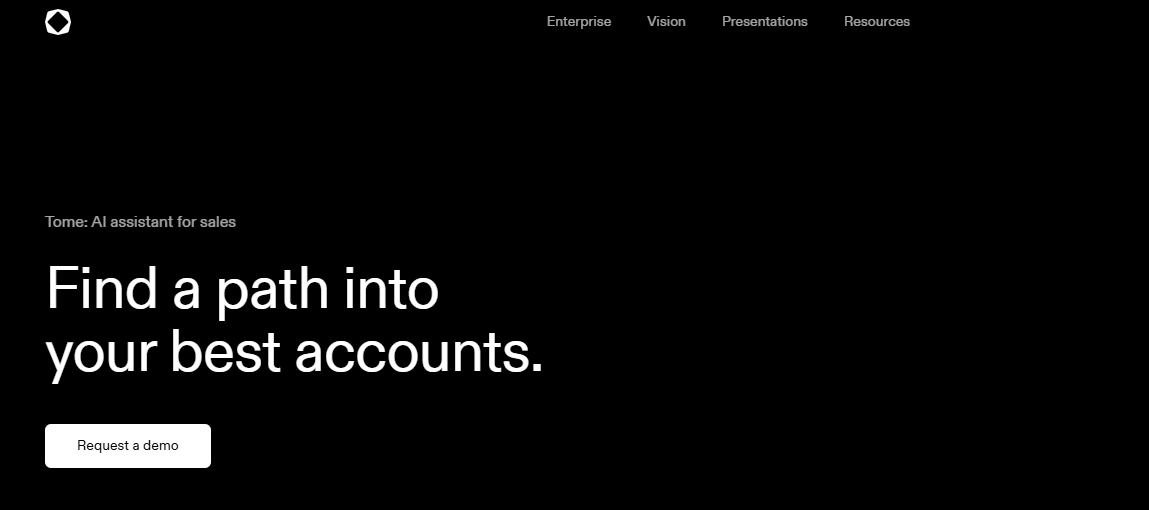
Tome Slides was discontinued on April 30, 2025 and is no longer available for new presentations. If you have saved PDFs, text, or images, use those materials to build a new deck in an available tool. This does not restore an inaccessible Tome project.
Features
The former Tome Slides service generated content and layouts from user input. This description is historical and does not indicate a service available for new presentations.
Limitations
When reusing saved Tome material, shorten text-heavy sections and check whether images contain embedded text. Rebuild the structure in an available presentation editor and review the new layout.
Final Thoughts
Compare tools with the same short outline and a clear deliverable, such as an editable PowerPoint file or a shared online deck. If you try Presenti AI, review the outline, editing controls, and export options before committing a full project.