Whether you’re building a monthly report, reusing a branded template, or moving content between decks, knowing how to copy slides efficiently can save you a surprising amount of time. This guide walks you through every major scenario — from copying a single slide in Google Slides to duplicating across files in PowerPoint — and covers how to review copied content in Presenti AI.

How to Copy a Slide in PowerPoint?
Copying a single slide in PowerPoint takes seconds once you know where to look. There are two reliable methods.
Method 1: Slide Panel (Recommended)
- Open your PowerPoint presentation.
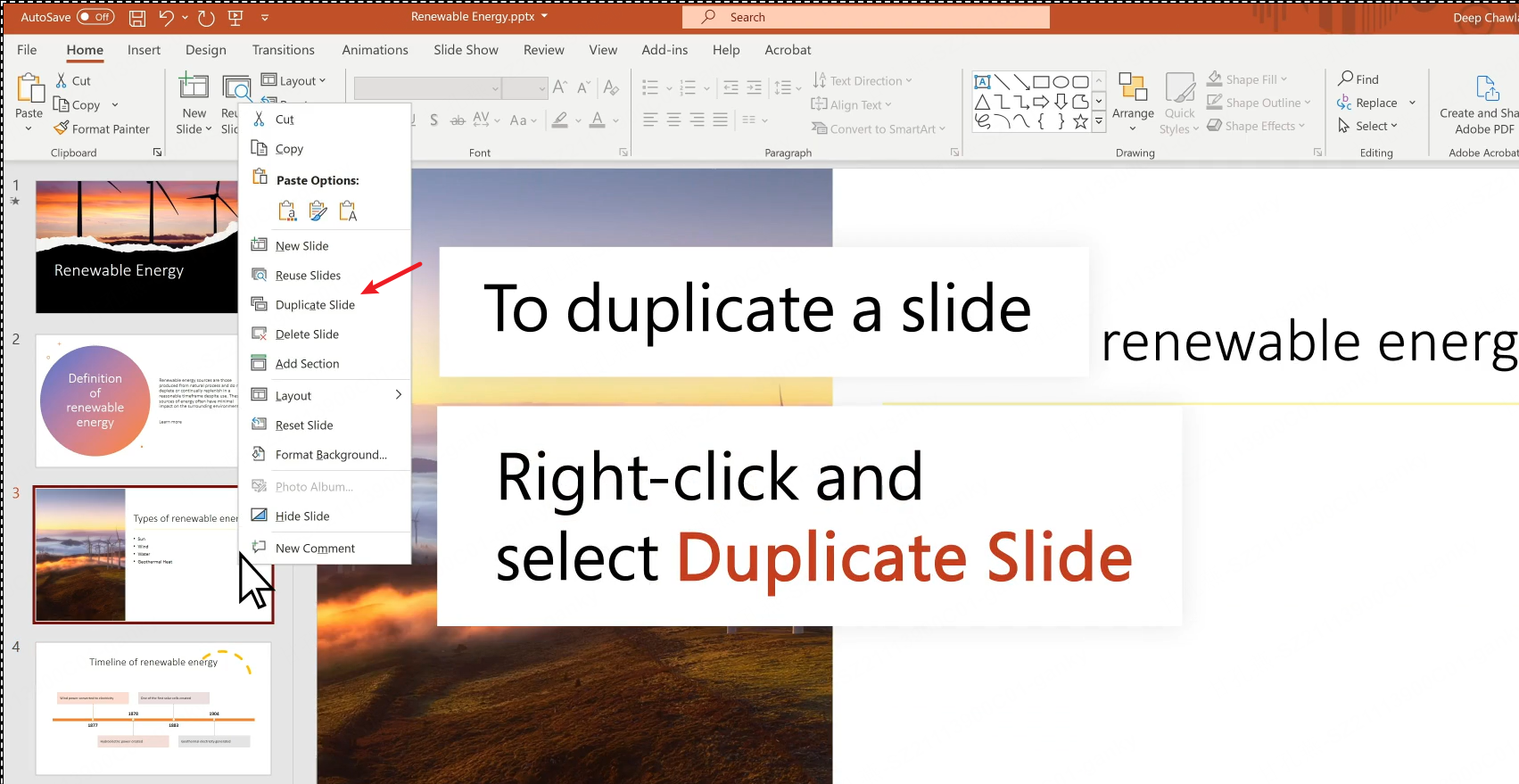
- In the left-hand slide panel, right-click the slide you want to copy.
- Select Duplicate Slide to create an instant copy directly below the original. All content, animations, and formatting are preserved.
Method 2: Copy and Paste
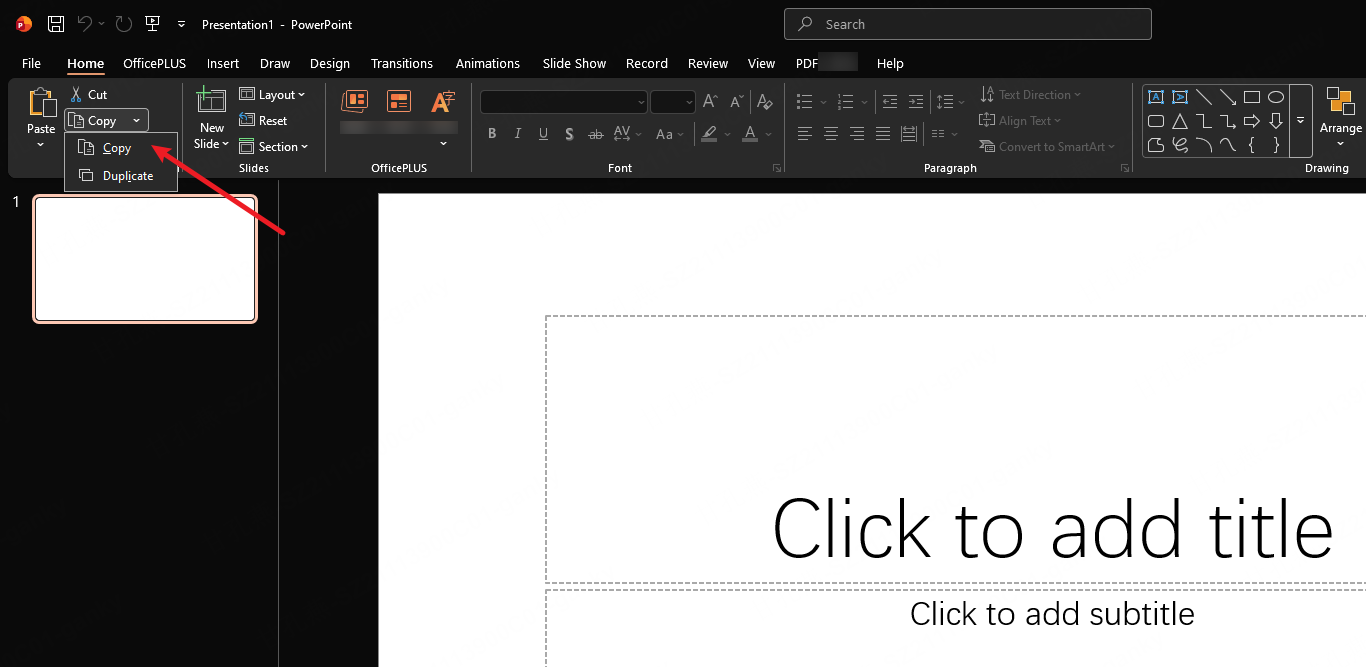
- Right-click the slide thumbnail in the slide panel.
- Select Copy (or press Ctrl+C).
- Click the position in the slide panel where you want the copy to appear.
- Right-click and select Paste — or press Ctrl+V.
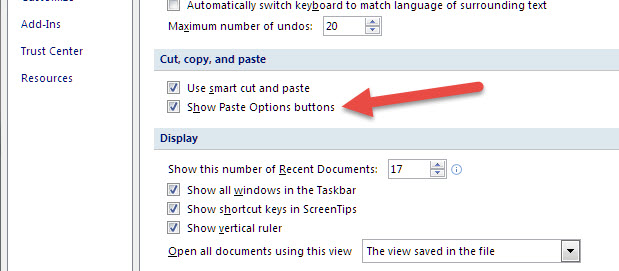
When using Paste, PowerPoint gives you two paste options via the small icon that appears:
- Use Destination Theme — adapts the pasted slide to match your current presentation’s color scheme and fonts.
- Keep Source Formatting — preserves the original design exactly as it was.
For most reuse scenarios, Keep Source Formatting is the safer choice when the original design needs to stay intact.
How to Copy Slides from One PowerPoint to Another?
Moving slides between separate PowerPoint files is a common need — and there are two clean ways to do it.
Method 1: Copy and Paste Between Files
- Open both presentations in PowerPoint.
- In the source file, right-click the slide thumbnail you want to move and select Copy.
- Switch to the destination file and click in the slide panel where you want it inserted.
- Right-click and select Paste. Use Keep Source Formatting to preserve the original design, or Use Destination Theme to blend it in.
Method 2: Reuse Slides (Insert Without Opening the Source File)
- In the destination presentation, go to Insert → Reuse Slides (in the Home tab on some versions).
- Browse to the source .pptx file.
- Click any slide from the source to insert it directly. Check Keep source formatting at the bottom if you want the original styling intact.
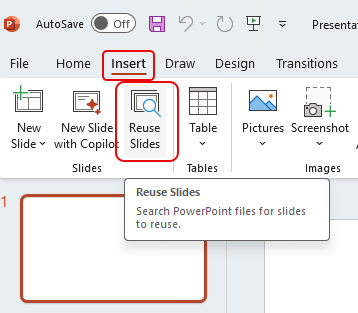
This second method is particularly useful when you’re pulling slides from a master template and don’t want to open that file separately each time.
Common issues when copying slides between PowerPoint files:
- Fonts not installed on the destination machine may substitute automatically
- Linked charts or embedded Excel data may lose their data connection
- Custom slide master elements may not transfer unless you also copy the slide master
How to Copy a Slide in Google Slides?
Google Slides makes slide copying straightforward, and the keyboard shortcut method is the fastest route.
Method 1: Right-Click in the Slide Panel
- Open your Google Slides presentation.
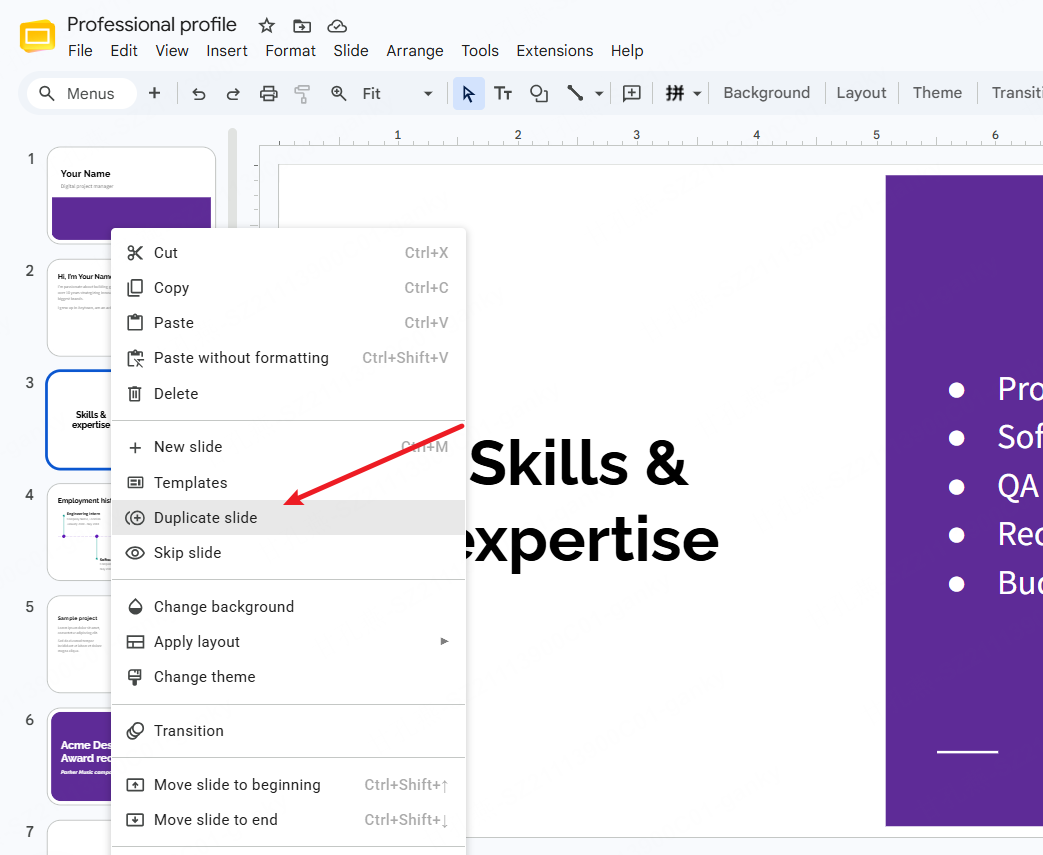
- In the left slide panel, right-click the slide thumbnail you want to copy.
- Select Duplicate slide. The copy appears immediately below the original.
Method 2: Keyboard Shortcut
- Click the slide thumbnail in the left panel to select it.
- Press Ctrl+D (Windows) or Cmd+D (Mac) to duplicate instantly — no right-click required.
Method 3: Copy and Paste to a Different Position
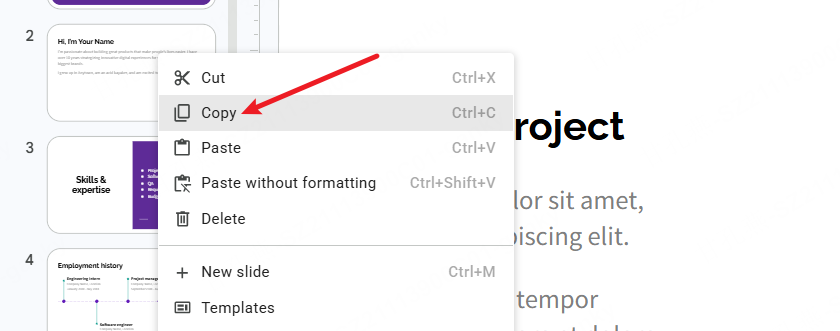
- Click the slide thumbnail to select it.
- Press Ctrl+C to copy.
- Click the position in the slide panel where you want the copy inserted.
- Press Ctrl+V to paste.
When moving slides between Google Slides presentations, review the import or paste options and inspect the resulting theme. File > Import slides provides an explicit route for choosing slides and whether to keep their original theme.
Can You Copy and Paste Crop Shade in Google Slides?
Short answer: yes, but with some caveats worth knowing upfront.
Google Slides supports cropping images and applying color fills or shading to shapes. When you copy and paste a cropped or shaded element — whether onto another slide or into a new file — the formatting generally carries over intact. That said, a few things can go wrong:
- Crop settings on images are preserved when pasting within the same presentation. If you paste into a different file with a different slide size, the crop may shift slightly.
- Shape shading and gradient fills copy cleanly within Google Slides. Between files, the fill style is retained as long as the destination file supports the same theme color palette. If the themes differ, custom colors may default to their hex values rather than theme-linked swatches.
- Transparency and shadow effects on text boxes and shapes copy reliably in most cases.
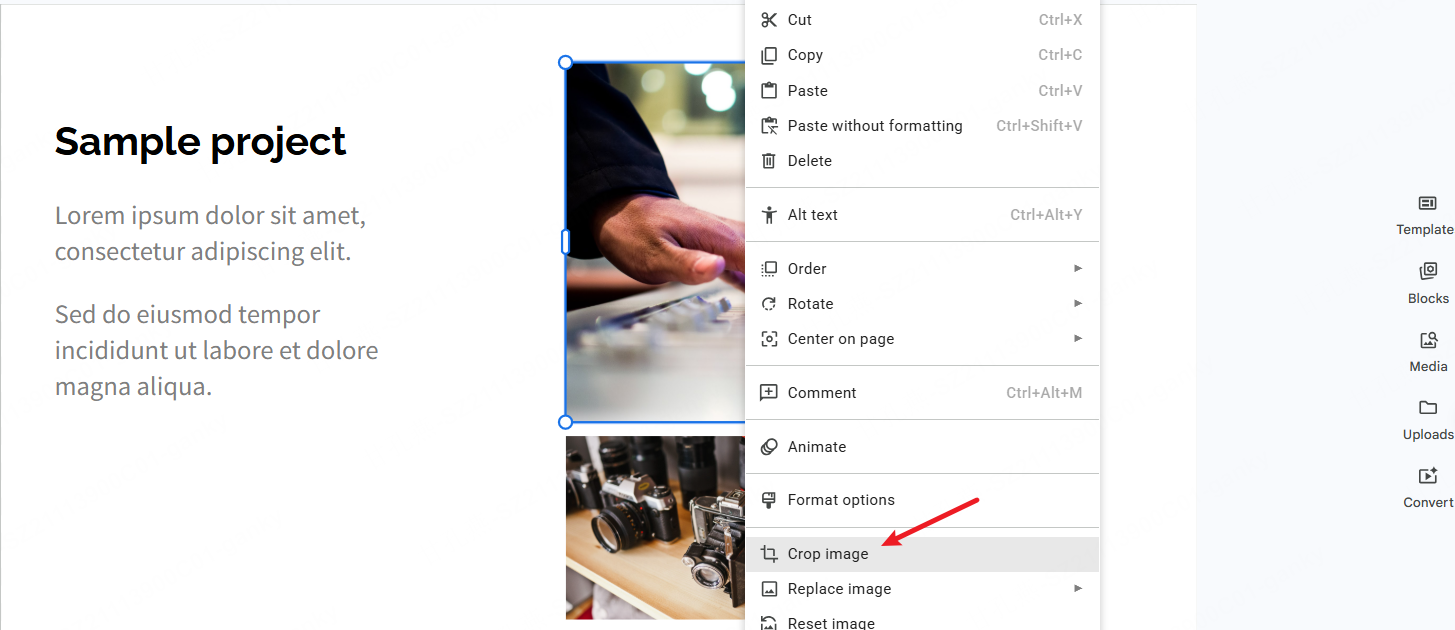
To copy and paste a cropped or shaded element in Google Slides:
- Click the image or shape you want to copy.
- Press Ctrl+C (Windows) or Cmd+C (Mac).
- Navigate to the target slide.
- Press Ctrl+V (Windows) or Cmd+V (Mac).
- After pasting into a different presentation, inspect the crop, fill, shadow, and transparency. Theme options for whole slides do not establish how an individual image will be cropped.
How to Copy Slides in Presenti AI
Standard copy-paste works. But if you’ve ever duplicated ten slides and then manually updated the data on each one, you already know the frustration. Presenti AI approaches slide copying differently — and the difference becomes obvious at scale.
Duplicating a slide reuses its current content. Whether linked charts update depends on the link type, source permissions, and destination environment; copying does not universally sever every connection.
In Presenti, duplicate a slide to reuse its layout, then update and verify the content in the copy. Do not assume that it establishes or preserves a live connection to an external spreadsheet.
How to copy a slide in Presenti:
- Open your presentation in Presenti AI.
- In the slide panel, click the slide you want to duplicate.
- Press Ctrl+D to instantly duplicate the slide.
- Replace the copy’s content and compare any chart or table values with the current source.

For a monthly report with one slide per region, duplicate a reviewed layout and enter the correct regional figures in each copy. Check titles, units, periods, and sources so that an old value is not carried into the new slide.
Presenti vs. Standard Slide Tools: Slide Copy Comparison
| Feature | PowerPoint / Google Slides | Presenti AI |
|---|---|---|
| Alignment after duplication | Check copied layout | Check copied layout |
| Chart and data integration | Check link type and source access | Verify values; do not assume live updates |
| Speed for 10+ duplicate slides | Duplicate selected slides where supported | Use available duplicate control |
| Theme consistency across files | May break when moving between files | Review theme after copying |
| Export copied slides | .pptx, PDF | Paid plans list PDF and editable PPTX |
A reusable layout can reduce repeated formatting work. Compare the copied slide with its source and verify each changed value before sharing the deck.
Presenti lists editable PPTX/PDF export on paid plans. Open the exported deck in the target application and check fonts, chart values, and layout.
Duplicate vs Copy Slides: What’s the Difference and When to Use Each
You need a slide with the same layout as an existing one — same structure, same fonts, same visual weight — just with different content. So you copy it, paste it, and then spend the next few minutes nudging text boxes back into place or wondering why the colors look slightly off.
The root issue is simple: duplicate and copy feel like they do the same thing, but they operate differently and serve different purposes. Mixing them up produces predictable headaches:
- Pasting a copied slide into the wrong position in the panel, then having to drag it to where it should be
- Opening a copied slide in a different file and watching the design theme shift or break entirely
- Spending more time than necessary on a task that should take one keystroke
Duplicate vs Copy Slides: Core Differences at a Glance
Here’s the clearest way to frame it:
Slide duplication creates an identical copy of the selected slide and inserts it immediately after the original — all in a single step, without touching the clipboard.
Copying and pasting a slide stores the slide on your clipboard first, then lets you paste it wherever you choose — including into a completely different file or application. It’s a two-step process that trades speed for flexibility.
| Feature | Duplicate Slide | Copy & Paste Slide |
|---|---|---|
| Definition | Instantly creates a copy in the same file | Saves to clipboard, then pastes at chosen location |
| Result | New slide appears directly after the original | Inserted at the position you select |
| Shortcut | Application-specific; see below | Ctrl+C → Ctrl+V / Cmd+C → Cmd+V |
| Paste step required | No — single action | Yes — two steps |
| Cross-file use | Same file only | Works across different files and apps |
| Formatting retained | Fully preserved | May shift to match destination theme |
| Best use case | Repeating layouts within the same deck | Moving slides between files or reusing content |
Duplication is a one-step shortcut for working within a single file. Copying is a two-step operation that unlocks flexibility — at the cost of an extra action and occasional formatting surprises.
Keyboard Shortcuts and When to Use Each Method
A single shortcut difference can change the pace of your entire workflow on a slide-heavy project.
1. Duplicate Slide Shortcut:
| Operating System | Shortcut |
|---|---|
| Windows | Google Slides: Ctrl+D; desktop PowerPoint slides: Ctrl+Shift+D |
| Mac | Google Slides: Cmd+D; desktop PowerPoint slides: Cmd+Shift+D |
Select the slide thumbnail before using a duplication shortcut. Google Slides uses Ctrl+D on Windows or Cmd+D on Mac. Microsoft documents Ctrl+Shift+D for a slide in desktop PowerPoint on Windows and Cmd+Shift+D on Mac. The shortcut for an object can differ from the shortcut for a slide.
When duplication wins:
- You’re building multiple slides with the same layout inside one deck — monthly report pages, product slides, team bios
- You need to quickly scale a repeating structure without interrupting your flow
- You want to avoid the paste-in-the-wrong-spot mistake that copy-paste invites when you’re moving fast
2. Copy and Paste Shortcut:
| Action | Windows | Mac |
|---|---|---|
| Copy | Ctrl + C | Cmd + C |
| Paste | Ctrl + V | Cmd + V |
When copy-paste wins:
- You’re pulling a slide from one PowerPoint file into another, or from PowerPoint into Google Slides
- You need to insert the slide at a very specific position — the end of the deck, before a particular section, between two existing slides
- You want to keep a slide on the clipboard and paste multiple copies at different points throughout the presentation
One practical note on cross-file pasting: PowerPoint gives you two paste options when moving slides between files — Keep Source Formatting (preserves the original design) and Use Destination Theme (adapts to the new file’s style). Choose Keep Source Formatting when the source design must remain, or Use Destination Theme when the slide should follow the new deck.
In Google Slides, use File > Import slides when you want explicit control over importing slides and keeping their original theme. Review the result after insertion.
Conclusion
Knowing how to copy slides is one of those foundational skills that affects how fast you can build, reuse, and scale presentation content. Whether you’re duplicating a single slide in Google Slides with Ctrl+D, transferring slides between PowerPoint files with the Reuse Slides feature, or maintaining crop and shade formatting on copied elements — each platform has its own logic worth understanding.
Use duplication to repeat a layout within a deck and copy/paste or import to move slides between decks. In PowerPoint, Google Slides, or Presenti, check the copied content, theme, and any linked data before presenting.