
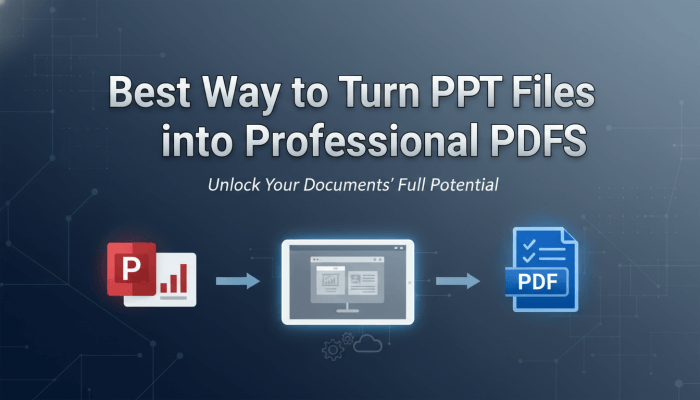
PowerPoint and PDF are two of the most widely used document formats in modern work and learning environments. PowerPoint files are ideal for creating, editing, and delivering presentations, while PDF files are preferred for sharing, printing, and long term storage due to their layout stability and cross platform consistency.
At some point, almost every professional needs to convert a PowerPoint presentation into a PDF. The challenge is doing it in a way that preserves visual quality, keeps formatting intact, and does not require complicated steps or specialized technical skills.
This guide walks you through why converting PPT to PDF matters, what benefits it brings, and how to complete the conversion quickly and efficiently using a modern AI powered workflow that fits the needs of global teams, educators, and developers.

Why Convert PowerPoint to PDF?
Before diving into the conversion process, it helps to understand why PDF has become the preferred format for sharing finalized presentations.
Easier Sharing and Distribution
PDF files are typically smaller and easier to distribute than PowerPoint files. They can be sent via email, uploaded to cloud storage, or shared through collaboration platforms without worrying about compatibility issues or broken layouts.
For teams working across different locations or organizations, PDF ensures that everyone views the same content, exactly as intended.
Strong Cross Platform Compatibility
One of the biggest advantages of PDF is its consistency. Whether the recipient opens the file on Windows, macOS, Linux, or a mobile device, the layout, fonts, and visual elements remain unchanged.
This makes PDF especially suitable for client deliverables, training materials, and academic submissions where presentation accuracy is critical.
Print Ready Output
When a presentation needs to be printed, PDF is the most reliable format. Page size, margins, images, and fonts are preserved precisely, ensuring that the printed version matches what you see on screen.
This is particularly important for reports, handouts, and formal documentation derived from presentation slides.
Common Use Cases for PPT to PDF Conversion
Converting PowerPoint files to PDF is common across many professional scenarios:
- Project managers sharing final presentations with stakeholders
- Educators distributing lecture slides to students
- Developers and product teams documenting workflows or system designs
- Consultants delivering proposals or analysis reports
- Marketing teams preparing presentation decks for offline review
In all of these cases, PDF provides a stable and professional final format.
How to Convert PowerPoint to PDF Using Presenti AI
Presenti AI offers a streamlined and efficient way to convert PowerPoint files into high-quality PDF documents. The platform is designed for global users and supports consistent formatting across devices, making it suitable for both individual users and collaborative teams.
Below is a step by step guide to completing the conversion.
Step 1: Access the Presenti AI Platform
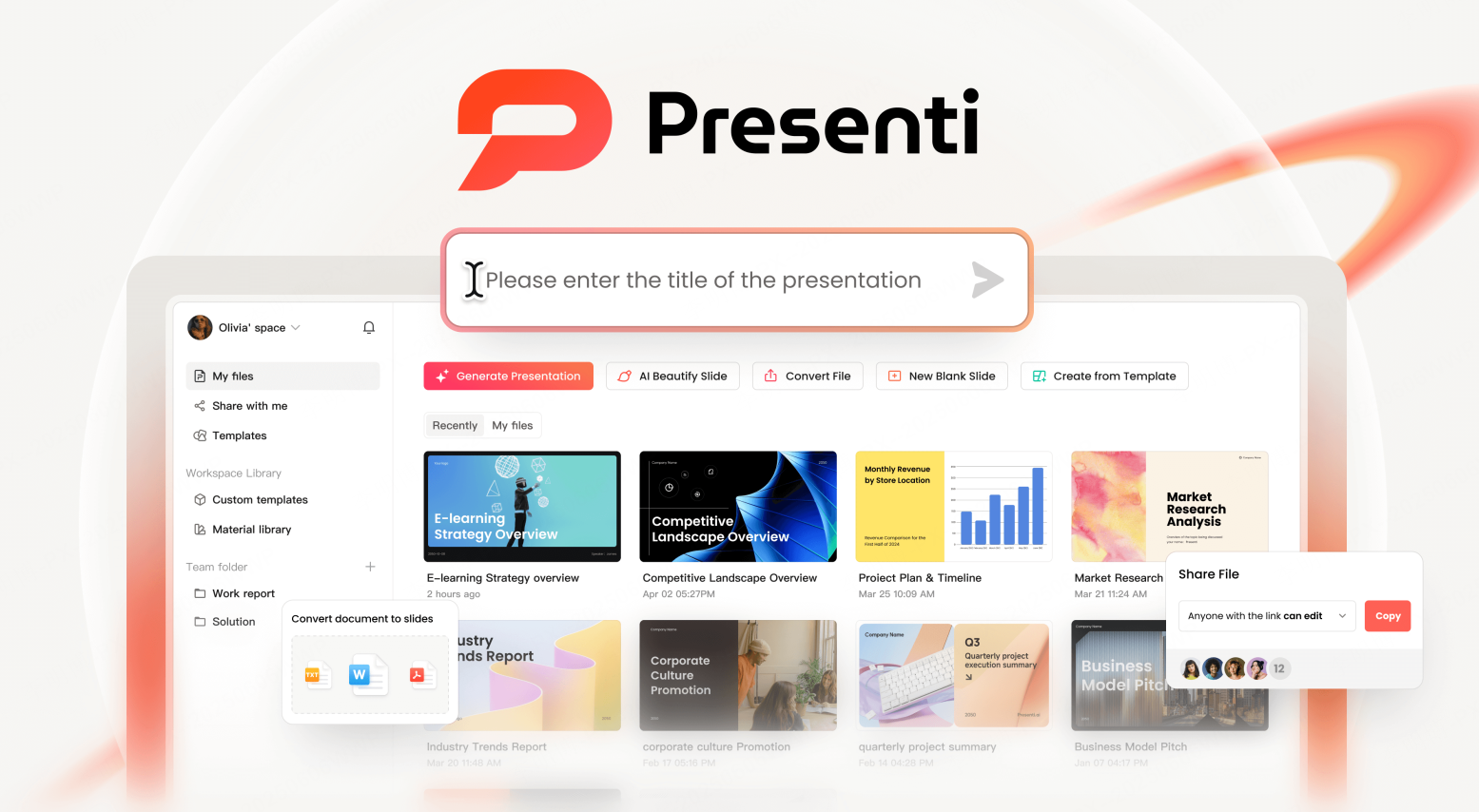
Open your web browser and navigate to the official Presenti AI website. After registering or signing in, you will be taken to your personal workspace.
The interface is designed to be intuitive, so even first time users can get started without a learning curve.
Step 2: Upload Your PowerPoint File
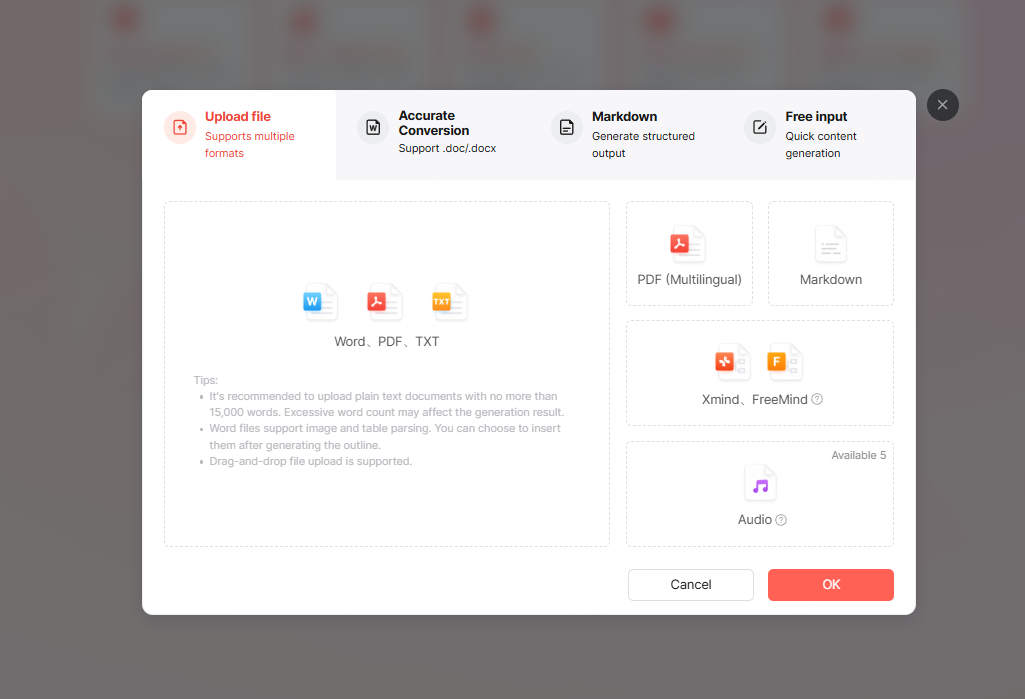
From the main dashboard, select the option to import a file and generate a presentation. Choose the PowerPoint file you want to convert and upload it to the platform.
Once uploaded, Presenti AI analyzes the content of your slides. At this stage, you can optionally use its AI powered features to refine the presentation, such as:
- Reorganizing slide structure
- Summarizing or expanding text content
- Improving layout consistency
- Enhancing readability for a global audience
These features are particularly useful if the PPT needs light optimization before being finalized as a PDF.
Step 3: Export the Presentation as a PDF
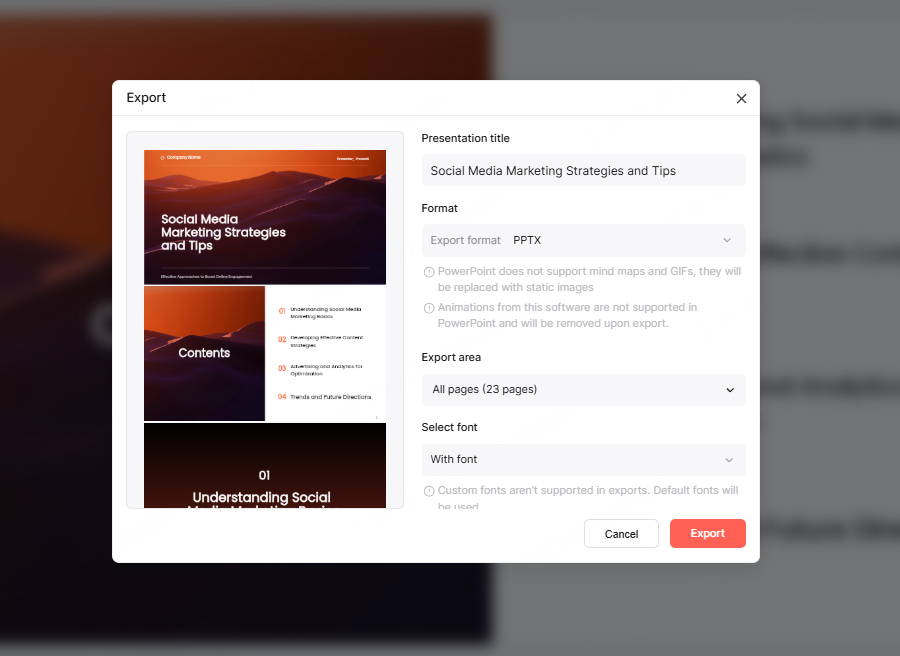
After the presentation has been processed or regenerated, click the export option located in the upper right corner of the interface. Select PDF as the export format.
The system will automatically convert your PowerPoint into a PDF file while preserving layout, fonts, images, and overall design. Once the process is complete, you can download the PDF directly to your device or share it with colleagues, clients, or students.
Advantages of Using an AI Based Conversion Workflow
Using an AI powered platform like Presenti AI goes beyond simple file conversion. It offers several advantages compared to traditional desktop tools.
Consistent Formatting Across Devices
AI driven processing helps ensure that spacing, alignment, and visual hierarchy remain consistent, even when the original PPT was created using different templates or fonts.
Time Efficiency for Teams
Instead of manually adjusting slides or re-exporting files multiple times, teams can complete the conversion in minutes. This is especially valuable in fast paced project environments.
Scalable for Different Content Types
Whether the presentation is a technical walkthrough, an educational lecture, or a business proposal, the conversion process adapts to different content structures without requiring manual intervention.
Best Practices for High Quality PPT to PDF Conversion
To get the best results when converting PowerPoint files to PDF, consider the following tips:
- Use standard fonts that are widely supported
- Keep slide dimensions consistent
- Avoid excessive animations, as they do not translate to PDF
- Review the final PDF on multiple devices if possible
Following these practices ensures that your PDF looks professional and remains easy to read.
Beyond Conversion: What Else Can Presenti AI Do?
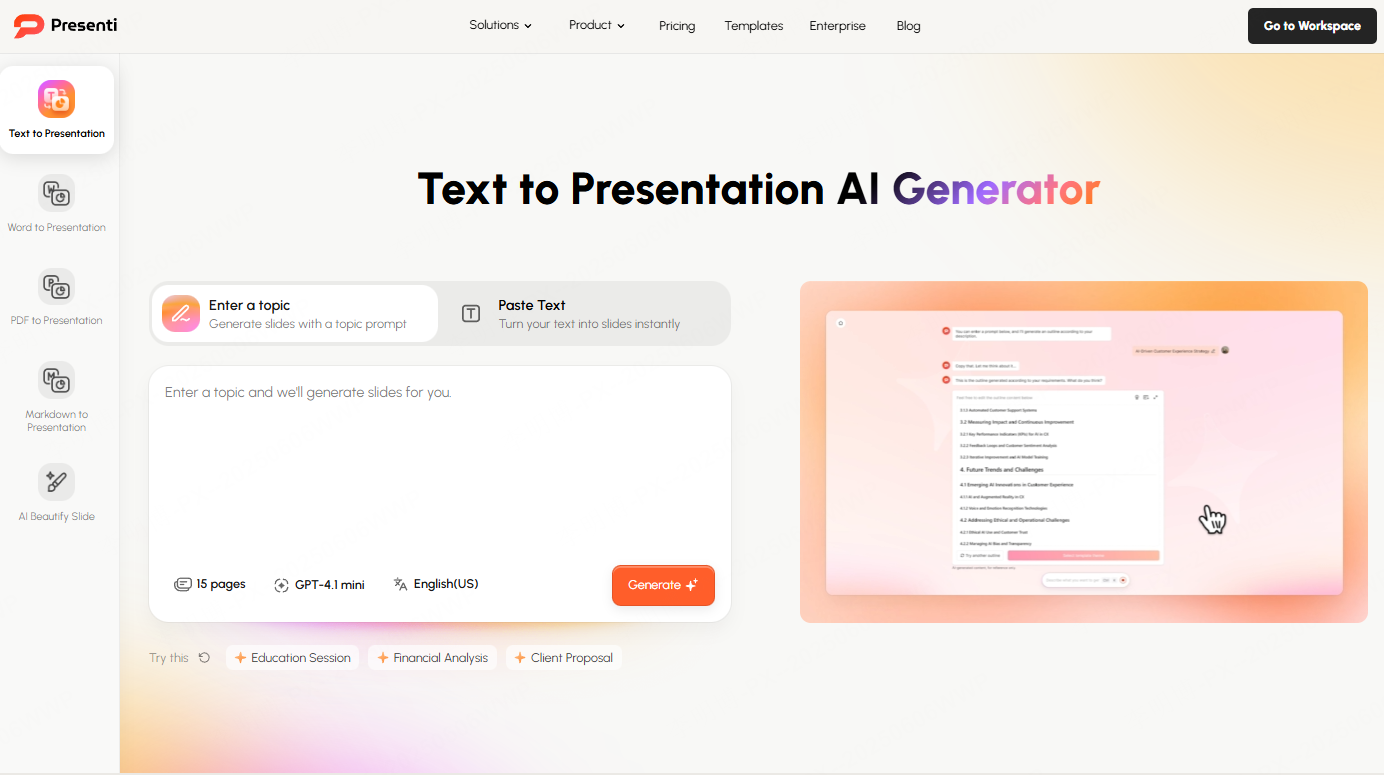
In addition to PPT to PDF conversion, Presenti AI offers a broader set of presentation focused features:
- One click AI generated presentations
- Text to PPT and document to PPT conversion
- A library of professional templates and design assets
- Tools for refining content clarity and structure
These capabilities make it a practical choice for users who regularly work with presentations as part of their workflow.
Conclusion
Converting a PowerPoint presentation to PDF is a simple but essential task in modern digital workflows. PDF provides a reliable, shareable, and print ready format that ensures your content looks the same everywhere.
With Presenti AI, the process becomes faster and more flexible. From uploading your PPT to exporting a polished PDF, each step is designed to save time while maintaining visual quality.
If you frequently work with presentations and need a dependable way to finalize and share them, an AI assisted PPT to PDF workflow is well worth considering.








