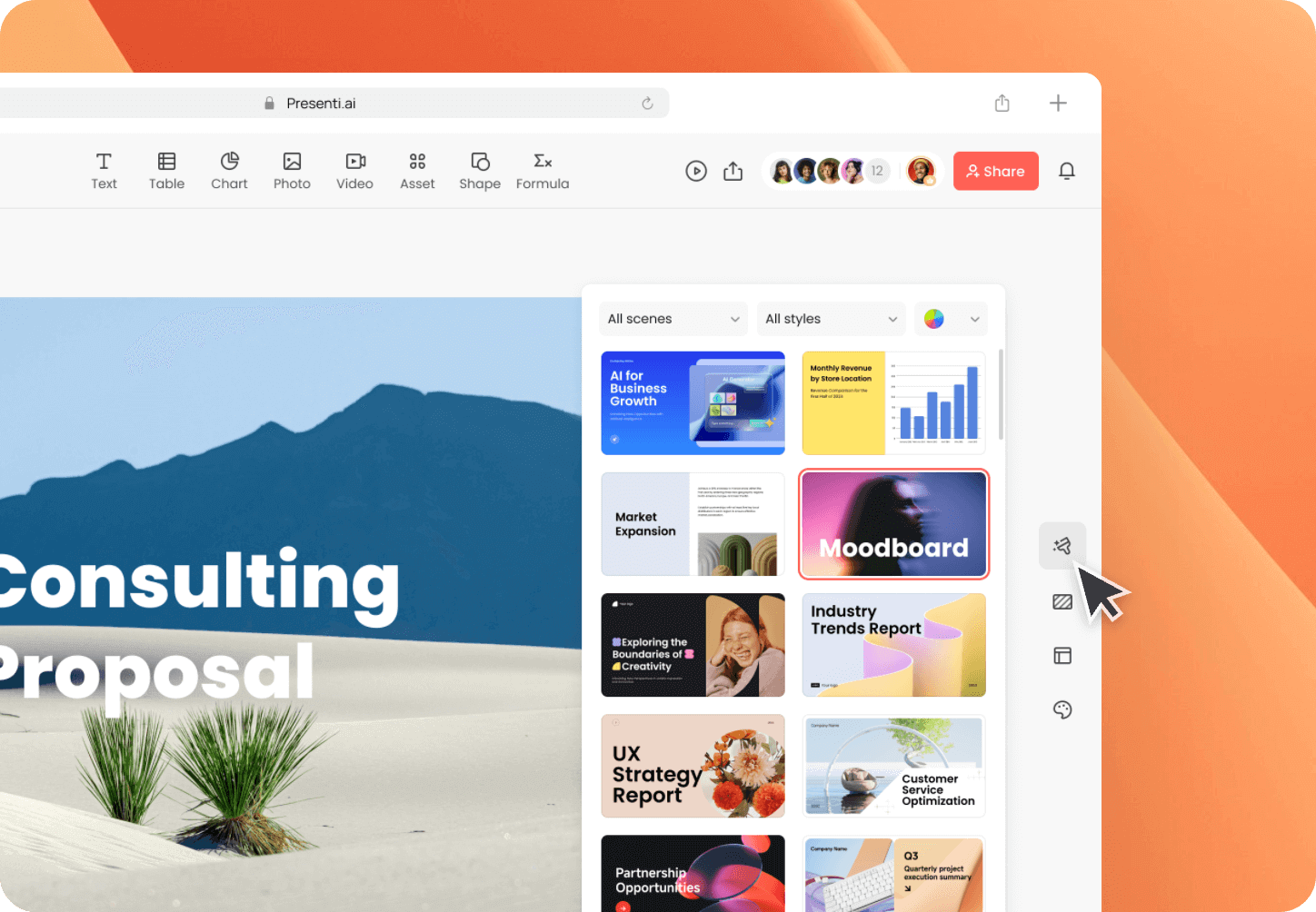
First decide what you want from the PDF. A slide image preserves a page’s appearance. A converter tries to make its content editable. A summary turns the document into a shorter talk. These results serve different purposes, even when each is saved as a PowerPoint file.
If the original PowerPoint file still exists, ask for it before converting the PDF. It gives you a better starting point for editing the original slides, especially charts, notes and animations.

Choose the result before choosing a tool
| Your task | Starting method | What to expect |
|---|---|---|
| Show an existing page exactly as it appears | Insert a page image | The picture can be resized or cropped; its words remain part of the picture. |
| Edit text from a PDF slide deck | Export PDF to PPTX | Inspect the converted objects, fonts and line breaks in the output. |
| Present a long report in a short meeting | Write or generate a summary outline | Select the evidence and rebuild the layout for a presentation. |
| Reuse a scanned document | Recognize and correct the text first | A readable scan may still produce incorrect text or reading order. |
For a contract excerpt or a finished diagram that must look unchanged, a page image is often sufficient. For a report with paragraphs running across an A4 page, putting one page on each slide usually leaves the audience with text that is too small to read.
Convert to PPTX when you need editable content
Adobe documents a direct route in Acrobat: open the PDF, select Convert, choose Microsoft PowerPoint PPTX and save the result. See Adobe’s current instructions for the interface and available options in your version.
Open the output and try the edit you actually need. Change a sentence, resize an image and select a table cell. A chart that looks correct may have become a picture. If the chart needs new values, recover its source data and rebuild it as a chart.
Start with one representative page before converting a large batch. Include a page with the layout most likely to cause trouble: columns, footnotes, equations or a dense table. A successful title page says little about the rest of the document. If you still need to choose a service, the PDF-to-PowerPoint tool comparison separates page conversion from AI drafting and explains what to inspect in the editable output.
Insert a page when appearance matters
Microsoft’s PDF insertion guide covers a picture of PDF content and an embedded PDF object. Inserting the file as an object keeps it available as an attachment; it does not turn its paragraphs into editable slide text.
The PDF insertion tutorial explains the picture and object routes, including platform differences. Use it when the audience needs to see the original page, not a rewritten version.
Summarize a report when the talk needs to be shorter
For a report, write a brief before importing anything: who is listening, how much time they have and what they need to understand or decide. Select the sections that answer that brief. Keep page references beside the evidence as you work.
Presenti offers document-based presentation drafting. Use its PDF-to-presentation entry when you want to build a new slide outline from the material. Review the proposed wording and structure before choosing a design. Import and download allowances depend on the account; the current plans page lists the published conditions.
For a longer document, follow the report-to-slides guide. It explains how to preserve the argument while leaving supporting detail in notes or an appendix.
Work through a source-backed example
Our one-page PDF brief summarizes NASA’s January 10, 2025 announcement. It reports 2024 temperatures relative to two periods: +1.28°C against 1951–1980 and about +1.47°C against 1850–1900. The two values describe the same year. They do not show an increase from 1.28°C to 1.47°C.
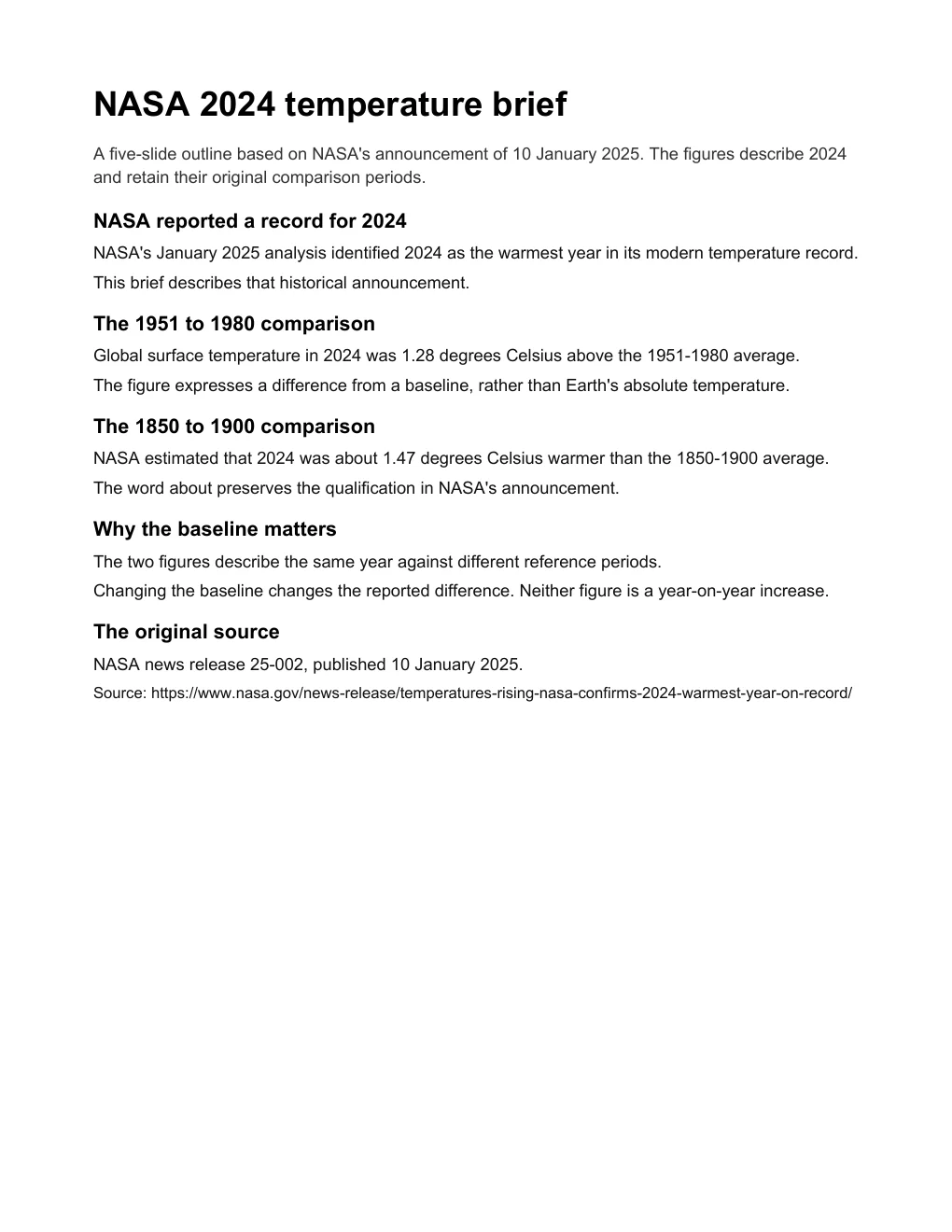
The editable five-slide reference separates those comparisons and keeps the source visible. We prepared these teaching files editorially; they are not an automatic conversion result. Compare your own output with them to see whether the year, units and reference periods remain clear.
A single page image would preserve the wording but keep the entire brief on one slide. An editable conversion would let you revise its text. A summary could devote a slide to each comparison. Choose the result that suits your audience.
Fix problems in the source or the converted objects
If text cannot be selected or copies out in the wrong order, address that before generating more slides. The scanned PDF and OCR guide covers recognition errors, columns and tables. Re-running the same upload does not correct a wrong decimal in the extracted text.
When only the output layout is wrong, work on the affected objects. Split a crowded table, replace an unavailable font or restore a cropped figure. Keep the original caption and units beside the visual. Those details are part of its meaning.
Common questions
Can PowerPoint open a PDF as editable slides?
Inserting a PDF picture or object does not create editable text and shapes from its contents. Use a PDF-to-PPTX export tool, or rebuild the selected content in slides.
Will a PDF chart become an editable PowerPoint chart?
Do not assume it will. A PDF may contain only the rendered appearance of the chart. Use the original spreadsheet or source data if you need to change the values.
Is summarizing a PDF the same as converting it?
Summarizing selects and rewrites the material. Conversion aims to carry existing content into another file format. Use the summary route for a shorter talk and keep the evidence behind each claim.