PPT software SDK development is about creating, editing, or converting presentation files from code. The right approach depends on whether you need to change a PPTX package, render slides, run a desktop Office workflow, or help an author draft content in a web editor.
This guide separates those jobs, compares documented development options, and explains the integration work that still belongs in your application. A presentation editor and a programmable SDK are different products, even when both can produce slides.

1. What Is PPT Software SDK Development?
An SDK is a set of libraries, tools, and documentation used to build software. A presentation SDK can expose operations such as adding slides, replacing text, or converting files. The exact operations depend on the library.
Common use cases
- Generate recurring reports from approved templates and application data.
- Replace text, tables, or images in existing decks.
- Create slide previews or convert a presentation to PDF where the chosen library supports rendering.
- Build an authoring workflow that combines generated content with editable slide elements.
SDK vs API: What Is the Difference?
An API is an interface your code calls. An SDK may provide a convenient wrapper around a remote API, or it may process files within your own application. “SDK” does not automatically mean offline, and “API” does not automatically mean cloud-only.
| Approach | Where the work happens | Main consideration |
|---|---|---|
| File-processing library | Your application or service | Supported formats, rendering, runtime, fonts, and license |
| Remote service API | A provider’s service | Documented endpoints, authentication, quotas, and data handling |
| Desktop Office automation | An installed Office application | Interactive environment, deployment, and automation support boundaries |
2. Presentation Automation Options
2.1 Presenti AI: An Authoring Workflow
Presenti is a browser-based tool for creating and editing presentation drafts from a topic or supported source material. It can be useful when a person needs to review and refine the slides before sharing or exporting them.

Use the published product plans to evaluate the authoring workflow. For a software integration, obtain the provider’s API documentation, access terms, and supported endpoints before designing around it. The authoring workflow and a programmable integration should be evaluated separately.
2.2 Microsoft Open XML SDK and Office Automation
The Open XML SDK provides typed classes for working with Office Open XML packages, including PPTX files. It is useful for manipulating document structure; it is not the PowerPoint application and does not by itself provide PowerPoint’s rendering engine.
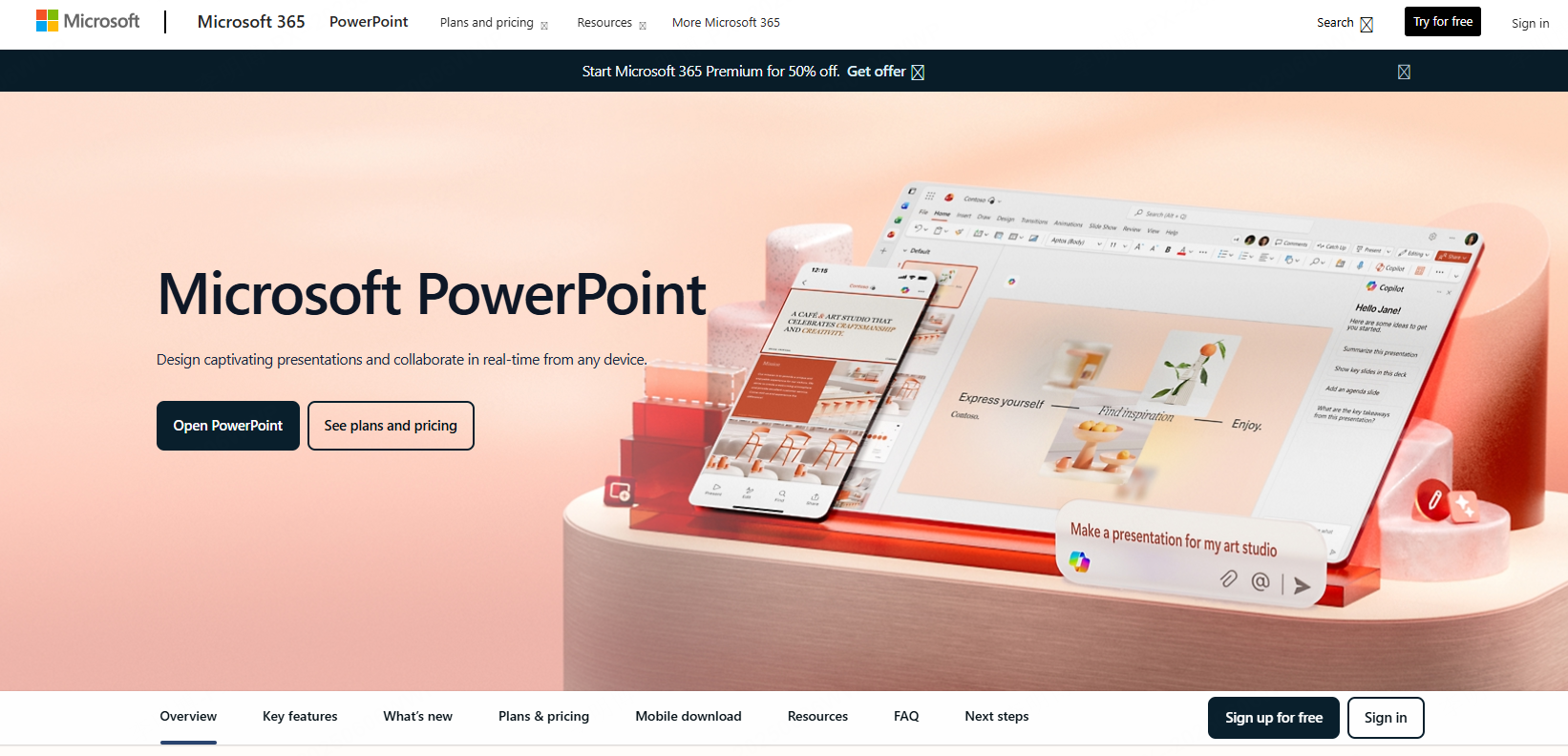
COM automation controls an installed Office application and has different deployment requirements. Microsoft documents important limitations for unattended Office automation; do not treat it as a general-purpose server rendering service.
2.3 Aspose.Slides
Aspose.Slides for .NET is a library for creating, editing, converting, and rendering presentations without Microsoft PowerPoint installed. Choose the package and runtime that match your deployment target.
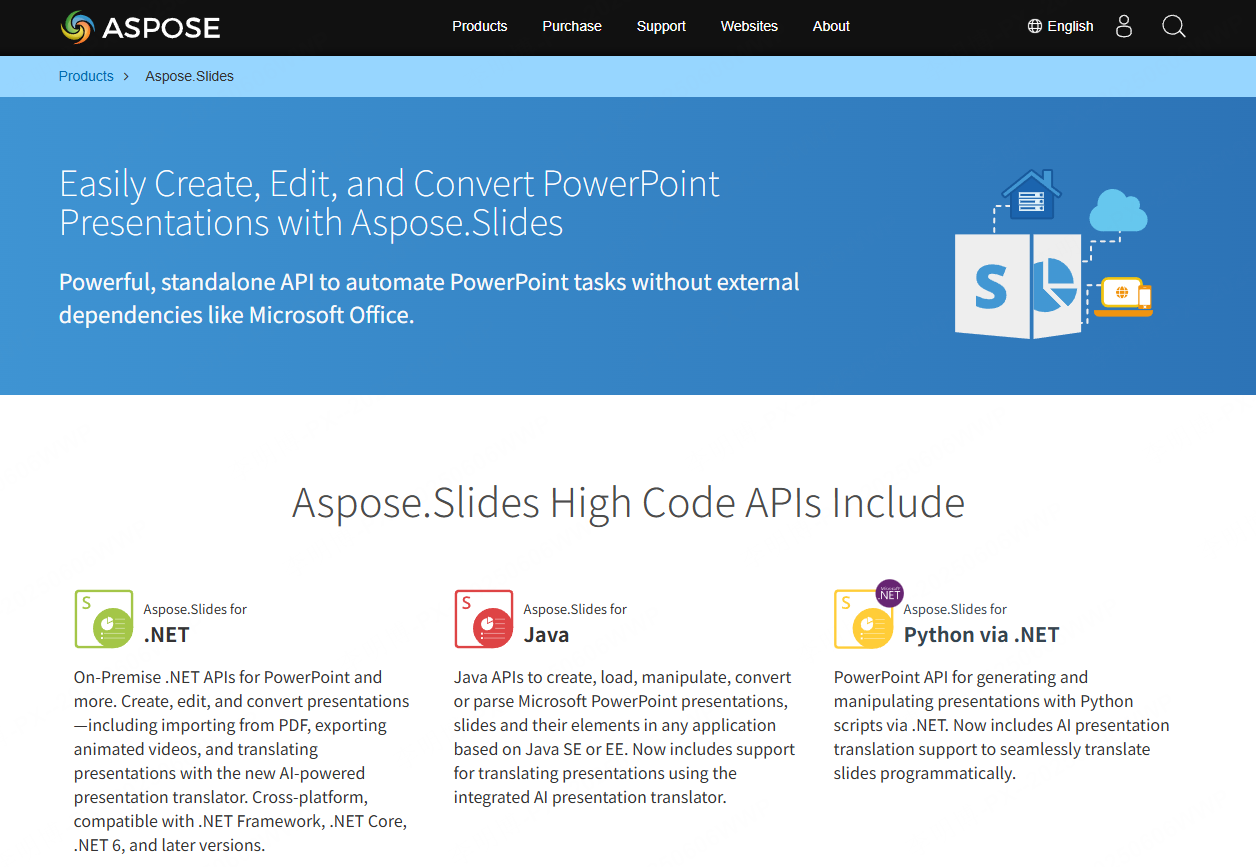
Its feature documentation lists supported formats and rendering capabilities. Test the formats, fonts, and slide elements your application needs. Evaluation builds have license-related limits, so include licensing in the implementation plan.
3. The Workflow for Integrating a PPT SDK
Step 1: Define the required operations
List the input formats and required outputs. Creating a simple PPTX, rendering a preview, converting a legacy PPT, and preserving animations are separate requirements. Choose a library based on those operations and your target runtime.
Step 2: Install the documented package
Follow the selected vendor’s installation instructions. For a .NET file-structure workflow, start with the Open XML SDK documentation; for a rendering or conversion workflow, follow the Aspose.Slides installation guide. Pin the package version in your project so changes can be tested before deployment.
Step 3: Build a small end-to-end example
Use one representative deck containing text, an image, a chart, and the fonts your organization uses. Load or generate the deck, change one element, save it, and open it in the target presentation app. This reveals compatibility issues before you add a full user interface.
Step 4: Add the required file operations
- Create or clone the slide structure and apply an approved template.
- Map application data to text, tables, images, or supported chart objects.
- Save the editable presentation and produce previews or PDFs only if supported.
- Handle invalid files and unsupported content with clear errors.
Step 5: Connect the application workflow
Add authentication, authorized file access, job tracking, and output storage. Set file-size and processing-time limits appropriate to your service. Keep a regression set of representative decks for package and environment updates.
4. Where AI Fits in a Presentation Pipeline
Use AI to propose an outline or draft wording, then pass structured, reviewed content to the presentation layer. Keep important figures and source references in your application data rather than asking a model to invent them.
Separate content from rendering
A simple content model can contain a slide title, body blocks, image references, and chart data. The rendering library then turns those fields into the supported slide elements. This makes it easier to revise content without rebuilding the entire layout.
Use templates deliberately
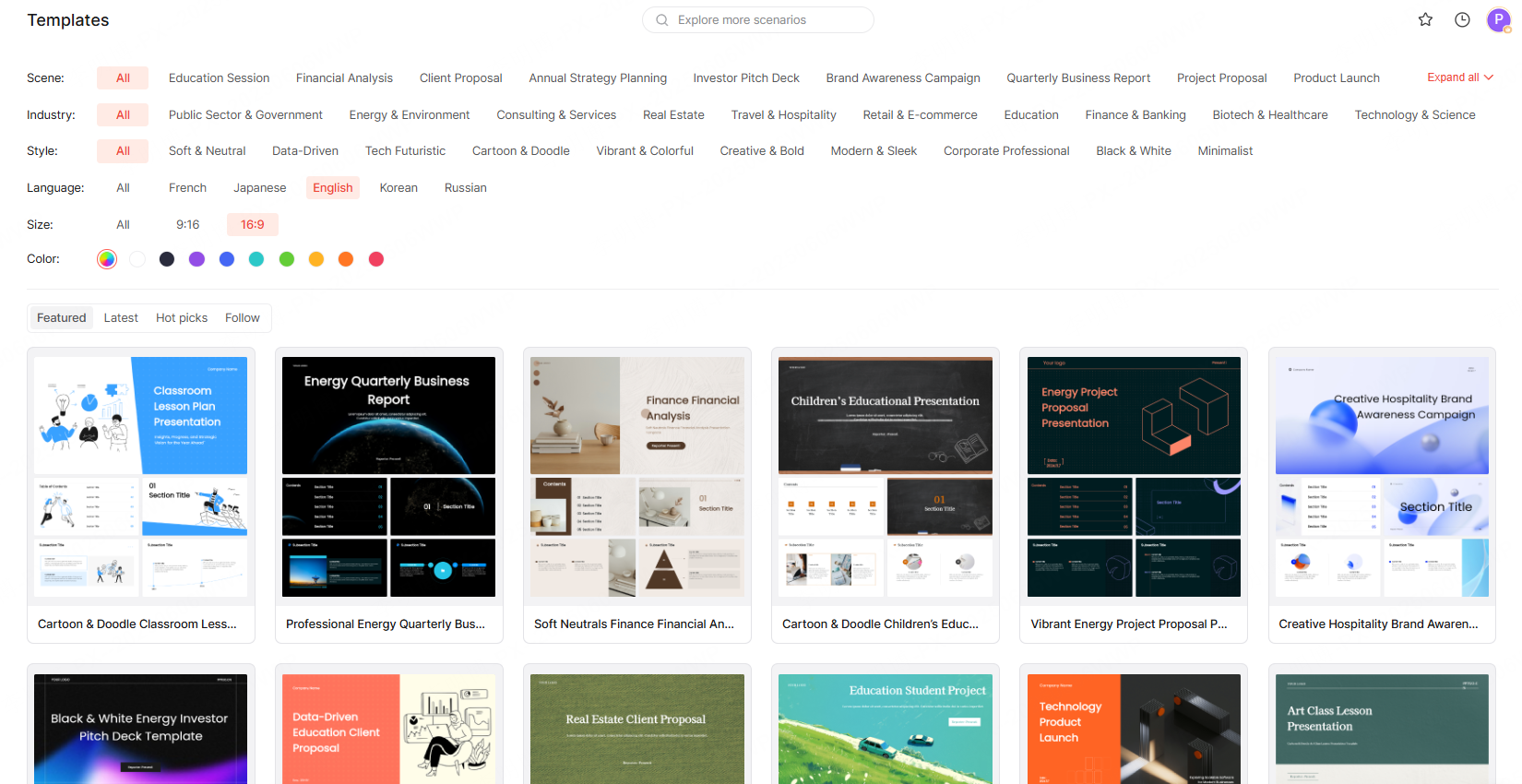
Define a small set of approved layouts and the amount of content each can hold. Match long text to an appropriate layout or split it across slides. Fonts, theme colors, and logos should come from assets you have permission to use.
Choose the deployment model separately
A hosted authoring tool may be enough for an individual presentation. A software service needs documented runtime, licensing, storage, and access behavior. Local processing, offline operation, or private deployment should be confirmed for the particular product and contract; they do not follow from the word “AI.” For Presenti, the private deployment overview is a starting point for that discussion.
5. Common PPT SDK Challenges and Solutions
PPTX and PPT compatibility
PPTX and legacy PPT are different file formats. Confirm whether your library reads, writes, and converts each one. A library that edits PPTX packages does not automatically support legacy PPT or visual rendering.
Font and layout differences
Make required fonts or suitable substitutes available in the rendering environment. Test line wrapping, text overflow, and chart labels across representative decks. Validate both the saved presentation and any generated preview or PDF.
Cloud and local processing
Choose where documents are processed according to your application’s requirements. For a remote API, account for authentication, network failures, and request limits. For local processing, account for runtime dependencies, resource use, and library licensing.
Conclusion
Choose a PPT SDK for the operations your application must perform. Open XML package editing, standalone rendering, desktop Office automation, and browser-based authoring solve different problems. Start with a documented integration and a representative sample deck, then expand only after the required output works in the target environment.