A screenshot in a presentation should make one observation easier to see. If the audience has to read an entire browser window to find a button, the slide is asking them to do the presenter's work. Keep enough context to identify the screen, enlarge the relevant detail, and explain what the detail establishes.
Start by writing the sentence the screenshot should support: “Use Paste Text when you already have source material,” for example. Then choose the crop and annotation that make that sentence visible. This is part of improving a slide's layout and content, not simply making the picture larger.

Choose what the screenshot needs to prove
Screenshots do different jobs. An orientation image shows where someone is in a product. An instruction image shows the next action. A result image shows what happened after an action. They need different framing.
- Orientation: retain the page title, selected section, and neighboring controls that help a reader locate the screen.
- Instruction: make the relevant control readable and show the context needed to distinguish it from similar controls.
- Result: show the visible output or state, together with enough context to understand what produced it.
A picture of a Generate button establishes that a control is present. It does not establish that a presentation was successfully generated. Similarly, an empty editor is not evidence of the finished file. Match the claim to the state you actually captured.
A worked example: explaining two Presenti input routes
Presenti's public text-to-presentation page displays Enter a topic and Paste Text. For a reader who already has notes, the useful observation is that there is a route for supplied text rather than just a short topic prompt.
A full-page capture includes navigation, marketing sections, examples, and a footer. Those elements establish context, but they make the input controls tiny when the whole capture is fitted onto a slide. In this example, the screenshot is the teaching subject: we are showing how to find an input mode, not claiming that a deck has been generated.
View 1: show enough of the page to locate the task
Use a wide view that includes the page heading and the input-mode selector. Omit unrelated lower sections from this slide. The audience should be able to recognize the page and find the area you will discuss next.
Keep the product's identity and control labels as captured. Do not redraw the interface to make it look cleaner or invent a localized button label that the screenshot does not contain. If you are presenting in another language, explain the English label in the caption or spoken instruction.
View 2: enlarge the choice that matters
Crop around the two mode options and the start of the input field. Retaining both options makes the distinction understandable: Enter a topic begins from an idea; Paste Text provides source material. Cropping to the words Paste Text alone would lose that useful comparison.
Use one outline or a short arrow to identify the selected mode. Place the annotation outside the label so it does not obscure the words the reader needs to recognize. The annotation should point to an existing control, not suggest that you added a new one.
View 3: show prepared input only when it advances the explanation
If the next point is how to supply useful notes, capture the field with a short, task-specific brief. Include the audience, desired message, and facts that must remain intact. Give the example enough room to be readable; do not paste a whole document into the picture and expect the audience to read it.
Keep the actual brief as selectable slide text or in the accompanying article when readers need to copy it. The screenshot shows where the input belongs; the written text carries the reusable information. There is no need for a third image if your presentation only explains which mode to choose.
Crop away clutter without changing the meaning
Before cropping, ask which nearby elements change how the image should be interpreted. A disabled control, an unsaved-change indicator, a selected filter, or a warning may be essential context. Removing one can make a truthful capture support a false impression.
For a settings tutorial, keep the selected section and the setting's label. For a chart, keep the relevant axes, units, and legend. For a search result, keep the query and filters that explain the result. Crop empty space and unrelated chrome first, not the qualifiers.
Save the original capture separately from the edited image. Prepare the crop in an image editor you can inspect, then add that version to the slide. If the image must be stretched to fill a decorative frame, choose a different layout instead: circles, letters, and controls should keep their original proportions.
Fix unreadable screenshots with framing, not sharpening
Fit the finished slide into the size in which the audience will actually see it. On a laptop in a video meeting, a screenshot that looks crisp at full image size can still be unreadable inside the deck.
If readers cannot identify the important control, try these options in order:
- Remove unrelated space from the capture while preserving the necessary context.
- Give the screenshot a larger share of the slide instead of surrounding it with decorative elements.
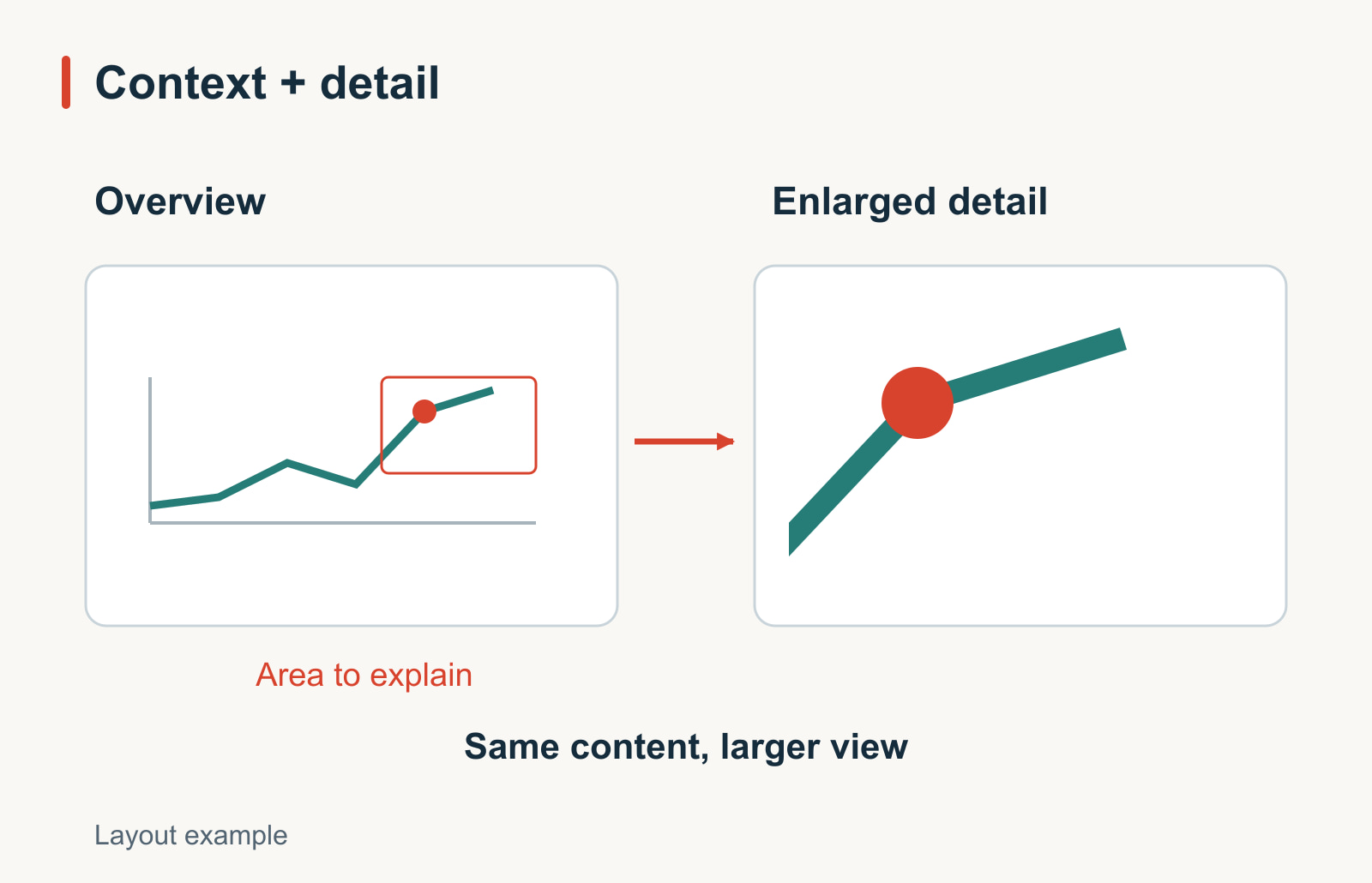
- Show an overview followed by a detail, or use an overview with a clearly linked enlargement.
- Replace text that readers need to read with editable slide text, keeping the screenshot as supporting evidence.
Sharpening and upscaling cannot recover information that was never captured. Take a new image at the source when the original is too small or compressed. If you enlarge a region, make the relationship between the overview and detail clear; do not present two crops as two different product states.
Use annotations to guide the eye
One screenshot rarely needs a forest of arrows. For a single action, one marker is usually enough. For a sequence, put the steps in a visible order and capture a new state when the interface changes.
Suppose a tutorial asks someone to choose a mode, paste text, and inspect a generated draft. A numbered screenshot of the empty input page cannot show all three completed states. Use separate captures for the steps you actually performed, or stop the illustrated sequence at the prepared input. Explain any later step in words until you have its genuine capture.
Use a short caption that adds information: “Paste Text is selected; the field contains the supplied briefing notes.” Avoid captions that merely repeat “Screenshot” or make unsupported promises such as “A perfect deck in one click.”
Remove private information before sharing
Look beyond the main workspace. Browser tabs, account menus, notifications, document titles, addresses, and side panels can disclose information unrelated to the demonstration. Use a safe example workspace where possible and close unrelated panels before capturing.
If redaction is necessary, create a separate sanitized image and inspect the exported pixels. Do not rely on putting a movable rectangle over the original inside an editable deck: a recipient might move the rectangle or extract the underlying picture. Use a solid replacement for sensitive text rather than a light blur that could leave characters readable.
Redaction must not change the lesson. Removing an account name is different from removing a warning that explains why an action is unavailable. When the warning matters, keep it and choose a safer example account or explain the limitation.
Give readers another way to understand the image
Important instructions should exist as text, not only inside a screenshot. A concise alt description can explain the image's purpose and the relevant state: “Presenti input selector with Paste Text selected above the source-text field.” It should not enumerate every navigation link or repeat the whole caption.
Keep the caption and any copyable example nearby. This helps readers using small screens, people who cannot inspect the image, and anyone returning to the material later. If the screenshot contains a dense table, provide the relevant values as text or an accessible table rather than putting a second picture of the same data below it.
Check the slide, not only the image file
Open the final deck in the presentation mode or export format you will use. Check that the picture is not cropped by its frame, annotations still point to the intended controls, and the next action is readable. Compare any “before” and “after” views at equivalent scales so a size change is not mistaken for a product improvement.
Finally, read the slide title and ask whether the image really supports it. If your title says where to paste source text, an input screenshot can do the job. If the title says the tool produced a usable presentation, you need the actual result and an appropriate check of that result. Good screenshot slides make the observation clear without making the evidence claim more than it shows.