A Word document usually contains more detail than a presentation needs. Before converting it, decide which points belong on the slides, which need an example or chart, and which should stay in the handout. A clear source outline helps both AI tools and manual workflows.
These ten options take different routes from Word content to a deck: some generate slides from an imported document, some work from a prompt or outline, and others help you arrange the text yourself. The useful distinction is how much control you need over the wording, layout, and final PowerPoint file. For the AI drafting option, see how Word-to-presentation conversion uses a document as the starting point for slides.
Use the comparison to choose a workflow, not a quality ranking: a template library, an outline importer and an AI generator do different jobs. The product descriptions below are based on official documentation; the example is a planning exercise, not a benchmark of generated files.
1. Presenti AI
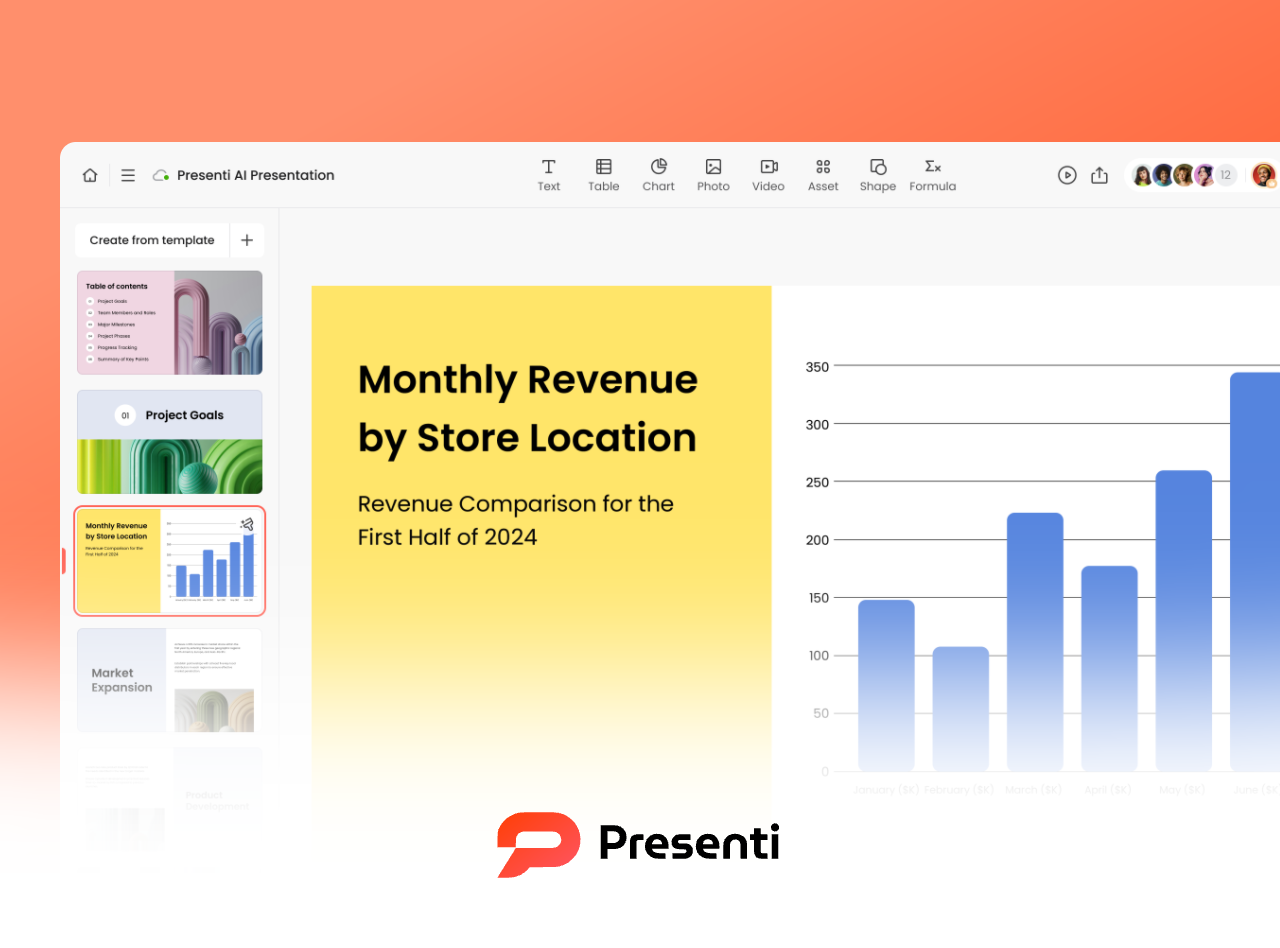
Presenti generates a presentation draft from supported source documents, including Word. Review the extracted outline, choose a template, and refine the slide text and visual layout in the editor.
When to use it
Choose this route when you have a report or lesson plan and want a shorter presentation built around its main points. Tell the tool who the audience is and which figures or conclusions must remain.
What to review
Compare the draft with your document, especially numbers, headings, table labels, and references. Rearrange slides when the source document’s order does not suit the talk.
Plan details
Free access includes limited AI credits. Presenti’s plan table lists Word input and editable PPTX/PDF downloads on paid plans.
2. Boardmix

Boardmix combines presentation drafting with a collaborative whiteboard. Its documented Word workflow lets you import a document to a board, select AI extraction for a presentation, review the extracted content, and choose a theme.
When to use it
This is useful when a team wants to discuss a document’s structure alongside diagrams or notes before presenting it. Keep supporting material on the board and select the points the audience needs.
What to review
Check the generated slide sequence and exported file separately from the surrounding whiteboard. A large planning canvas should not become a crowded presentation.
Plan details
Board allowances, AI usage, and export access are separate considerations when choosing a plan.
3. SlideModel Templates
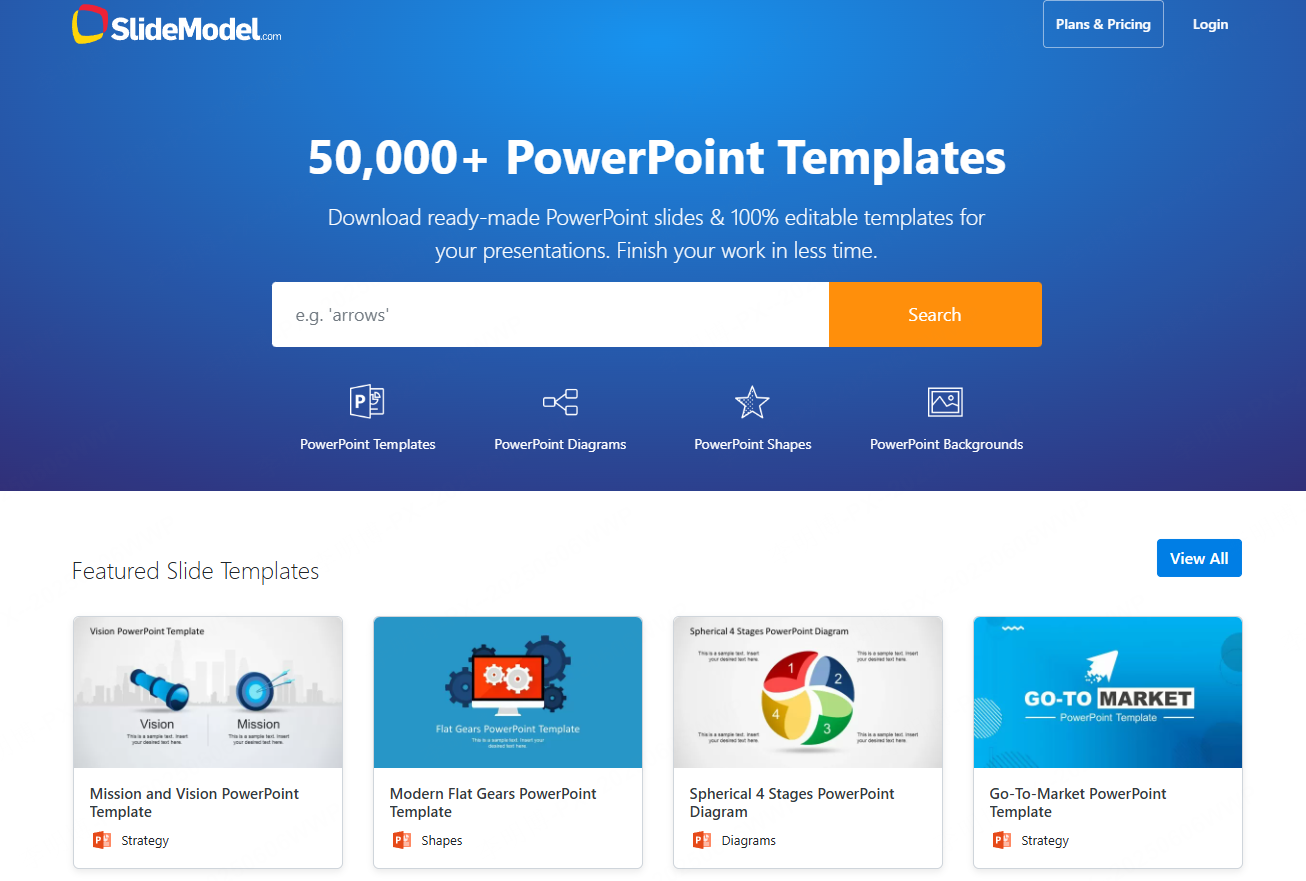
SlideModel provides presentation templates that you can use to arrange material from Word. The template route gives you control over each slide’s message and layout; it is useful even when you do not want AI to rewrite the document.
How to use the templates
Turn the document headings into a short slide outline. Choose layouts for the actual content—a comparison, process, timeline, or chart—and replace the sample text with your own points.
When to use it
Use this approach for consulting, finance, and executive presentations where you already know the story and need a consistent visual system.
Plan details
Check the license and access terms for the templates you select. A template subscription should not be treated as evidence of automatic Word conversion.
4. PowerPoint Desktop Outline Import
PowerPoint desktop can create slides from a text outline. In Word, apply Heading 1 to slide titles and Heading 2 to supporting points. Save the document and close Word before importing it. Microsoft’s outline-import instructions explain the supported desktop routes.
Windows and Mac steps
On Windows, choose Home → New Slide → Slides from Outline and select a DOCX, RTF, or TXT file. On Mac, save the Word outline as RTF and use Home → New Slide → Outline. PowerPoint for the web does not support this outline-import command.
What to expect
The outline supplies slide titles and text. Add images, tables, charts, and speaker notes separately, then apply your theme. This is a useful option when you want to keep the source wording and edit directly in PowerPoint.
Access
You need a license that includes the desktop PowerPoint application.
5. Prezi
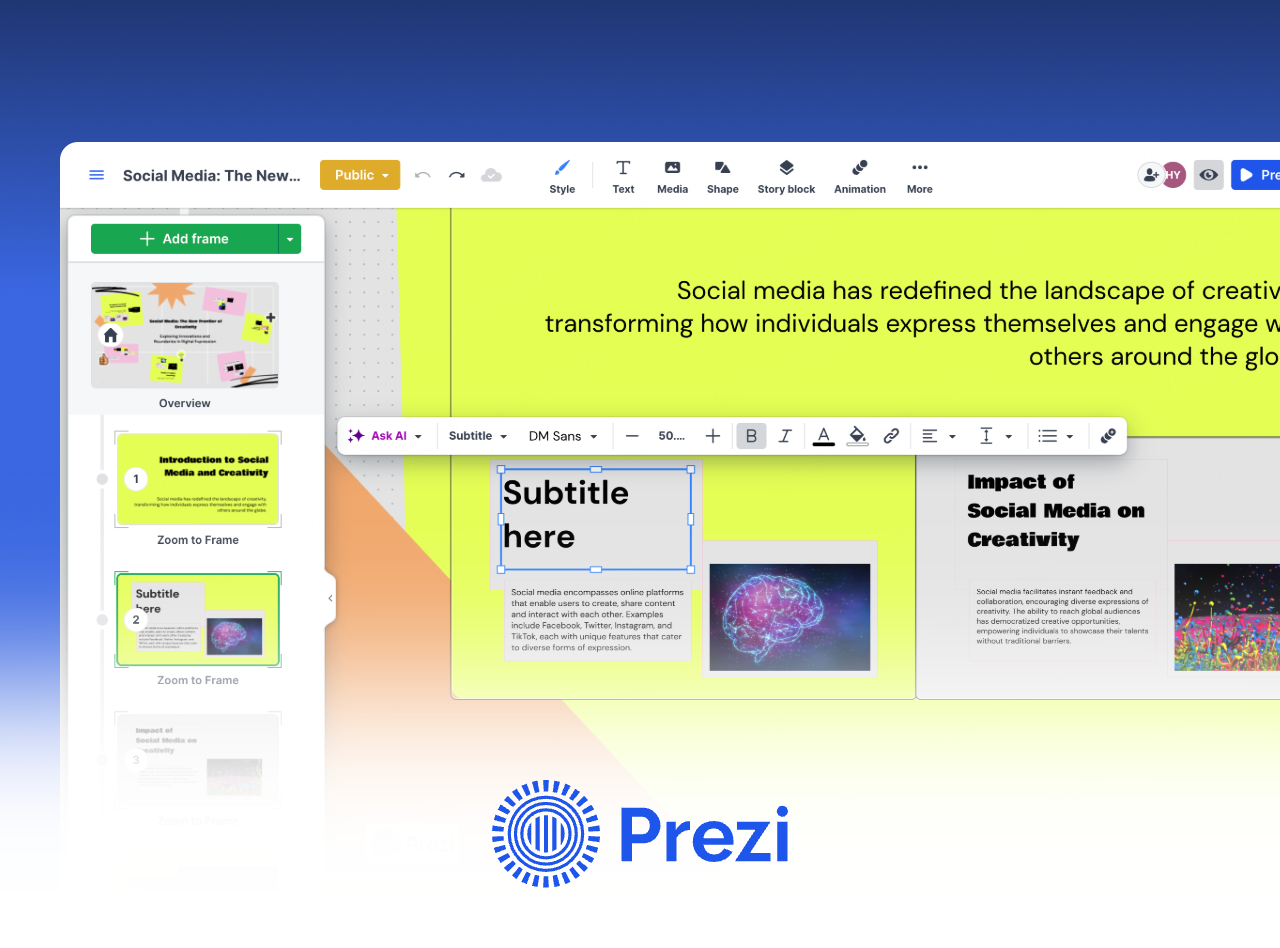
Prezi AI accepts a Word document as source material for a presentation built on its zooming canvas. Group related ideas into topics so the audience can see both the overall structure and the detail.
When to use it
Consider it for a product explanation, a training session, or another talk where movement between related topics supports the story.
PowerPoint handoff
Prezi supports PPTX export, but the export turns its frames into static slides. The zooming path is part of the Prezi experience and should not be expected to play back in PowerPoint.
Plan details
Check the plan’s privacy, creation, and download options for the workflow you need.
6. Canva
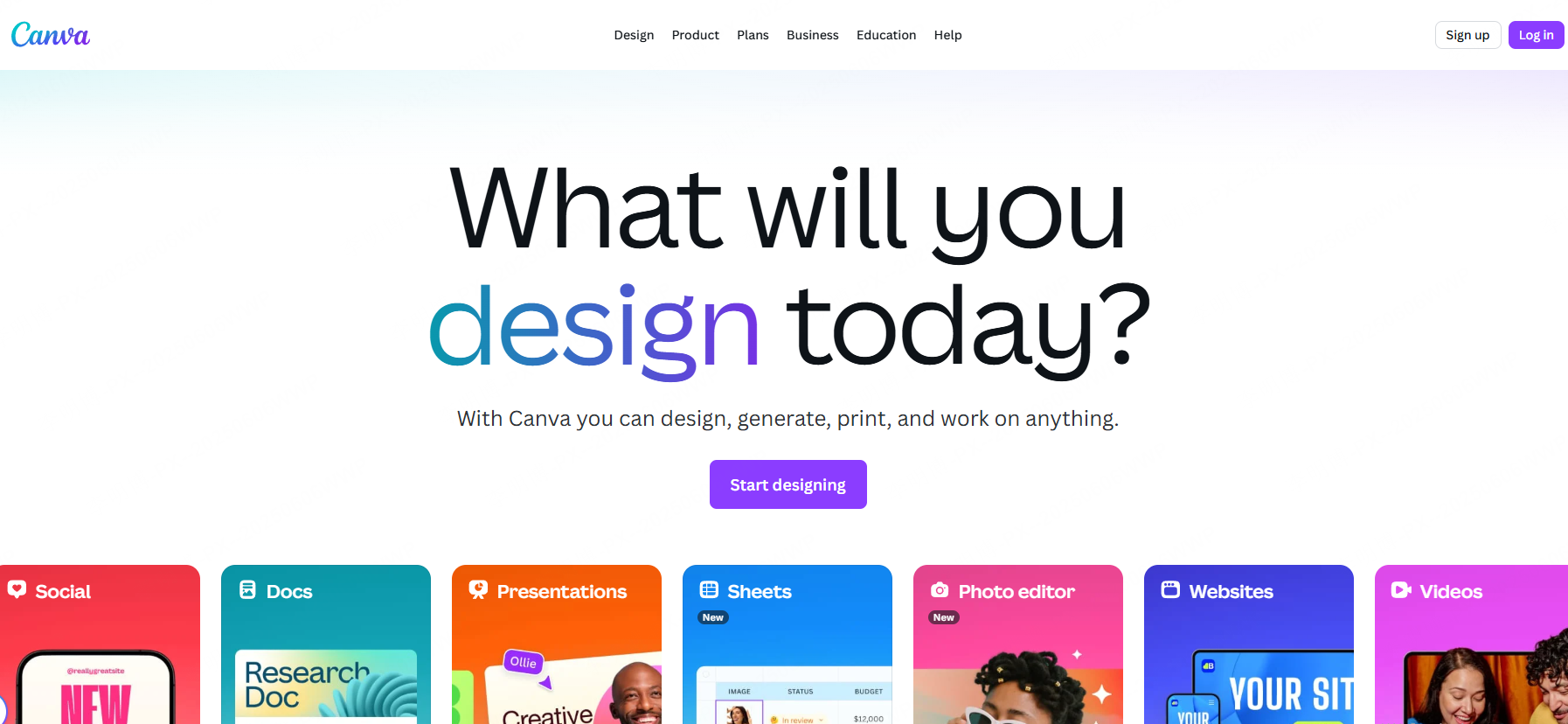
Canva’s presentation tools offer templates, a visual editor, and AI-assisted drafting. You can use selected text from a Word document as a brief, then arrange the resulting material with images and layouts.
When to use it
This route suits campaign decks and visual explanations where you want to spend time choosing assets, adjusting typography, and refining the design.
What to review
Reduce long paragraphs before moving them onto slides. If you download a PPTX, open it in PowerPoint to check fonts, line breaks, and elements that behaved differently in Canva.
Plan details
Free access, premium assets, AI usage, and Brand Kit features have different limits. Choose licensed assets that fit the plan you intend to use.
7. Google Slides
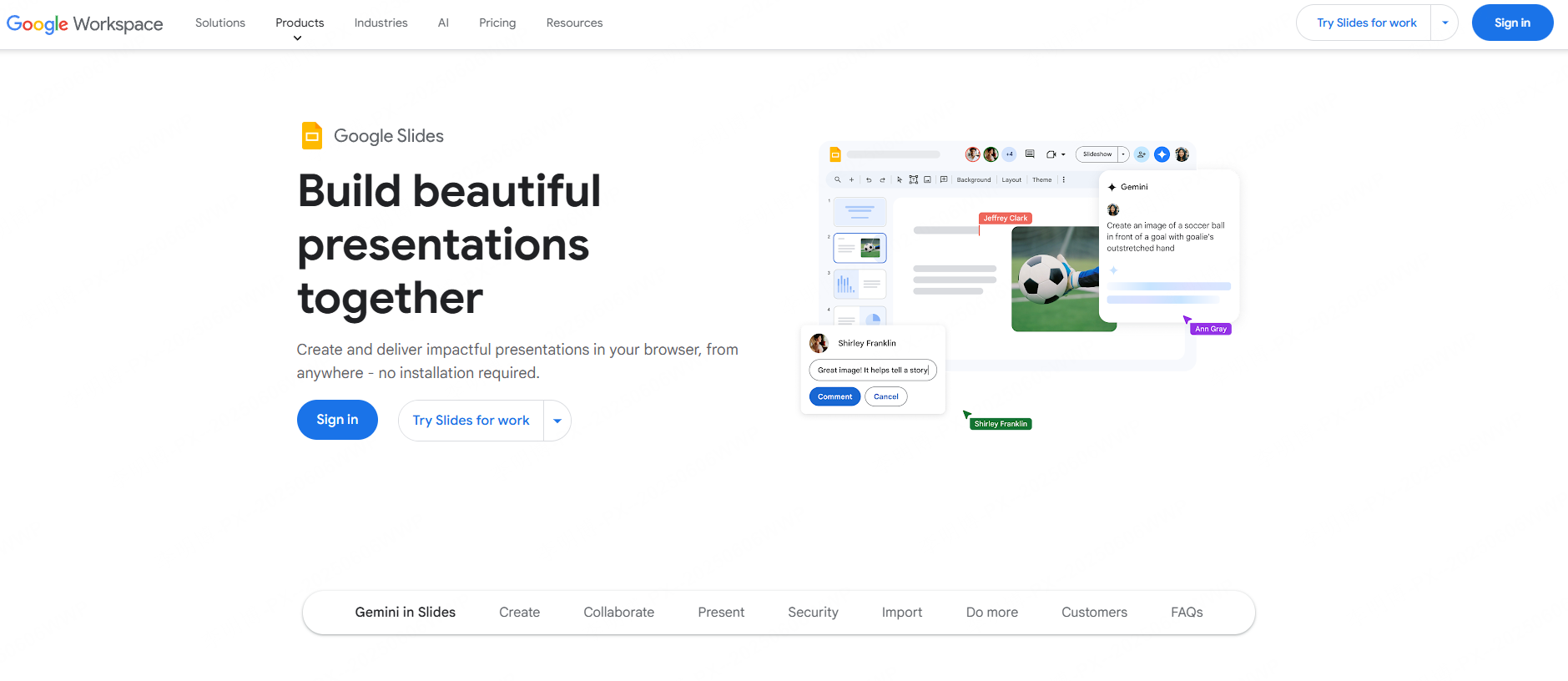
Google Slides is a collaborative editor for building a deck from selected Word content. You can transfer the document’s main points manually and let colleagues edit or comment on the presentation.
AI-assisted option
Google documents presentation generation with Gemini for eligible accounts. Its availability depends on the account and supported environment; confirm access before planning the workflow around it. You can also build the deck manually from selected Word text.
When to use it
Use Slides when the team already reviews work in Google Workspace. Keep detailed supporting text in the source document and use comments to resolve changes to the slide narrative.
PowerPoint handoff
After downloading a PowerPoint copy, inspect the file in the presentation app your audience or colleagues use.
8. Visme

Visme’s presentation editor combines slide design with charts, diagrams, and other visual content. Start with the key findings from your Word document, then build a brief or outline for the presentation.
When to use it
It is an option for reports where charts and explanatory visuals carry much of the argument. Choose the chart type from the question you want to answer rather than treating every table as a slide.
What to review
Enter and verify chart data explicitly. If you use interactive content, distinguish the online presentation from a downloaded file; the same interaction may not survive export.
Plan details
Compare the plans by the editing, chart, sharing, and download features required for your project.
9. SlidesAI
SlidesAI creates presentations from text, prompts, and supported documents. It offers Google Slides and PowerPoint workflows as well as a browser app, so you can choose where to continue editing.
How to prepare the document
Divide long material into clear sections and remove repeated text. Give the draft a specific audience and goal, then review whether each slide advances the argument.
What to review
Check the input-length allowance before submitting a long report. After generation, edit slide breaks, names, figures, and any wording that no longer matches the source.
Plan details
The SlidesAI plan comparison lists presentation counts, input limits and AI credits separately. Document upload is listed on paid plans; an unlimited presentation count does not mean unlimited AI credits.
10. Decktopus

The Decktopus creation guide describes adding a supporting file, such as a PDF, before reviewing an outline. If your source is in Word, a PDF copy provides one route; keep the editable original for checking details.
When to use it
This provides a route for a document that is already ready to share as a PDF. Keep the editable Word original so you can check or reuse details that need different treatment on a slide.
What to review
Inspect table headings, footnotes, and page breaks after extraction. Add a concise brief explaining what the presentation should cover; the PDF’s page order is not necessarily the best slide sequence.
Plan details
Decktopus plans distinguish trial or generation access from download features. Consider generation credits and export access separately, and inspect the downloaded result before handing it over.
Try the same source brief before choosing a workflow. Imagine a two-page project report with three findings, a cost table and one recommendation. The figures in this exercise are not customer results. Decide whether the audience needs the full table or just the recommendation and the two numbers that support it.
| Workflow | What you prepare | What remains your responsibility |
|---|---|---|
| Outline import | Three slide titles and their supporting points, styled as Word headings | Recreate the cost table or chart and add visuals |
| AI document drafting | The report plus audience, slide purpose and facts that must remain | Check which details were omitted or rewritten |
| Template or manual editor | A selected finding for each slide and the source data | Build each slide and decide how to express the comparison |
For example, “Pilot spending was $12,000 against a $15,000 approved budget” can support a slide about spending against budget. It does not establish return on investment. Choose a workflow that lets you preserve that distinction, not merely one that fills a template quickly.
Choose the Route That Fits Your Document
For a first draft from the source file, compare document-import workflows such as Presenti and Boardmix. For close control over the original text, use PowerPoint’s outline import or arrange it manually in a template. For a collaborative review, choose the editor your team already uses.
A Word report does not need to become a slide-for-page copy. Keep the presentation focused on the decision, explanation, or lesson the audience needs, and leave supporting detail in the document or speaker notes.