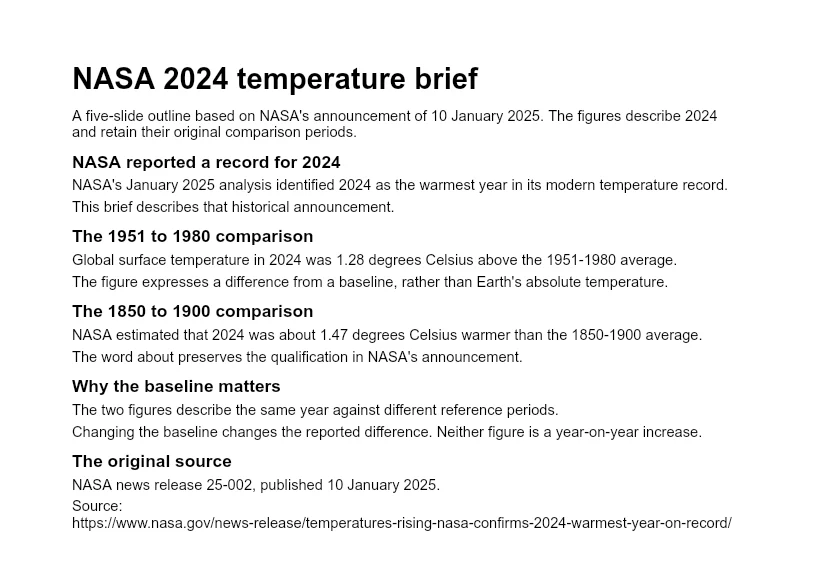
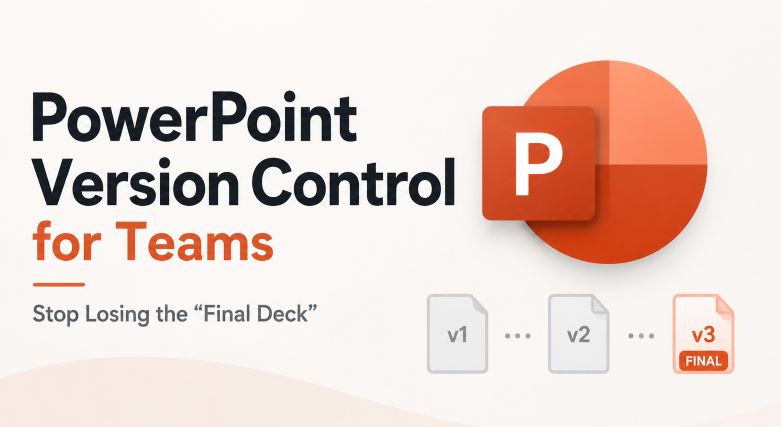
You know the folder. Deck_v1.pptx, Deck_v2_edits.pptx, Deck_final.pptx, Deck_final_REAL.pptx, Deck_final_v3_FINAL.pptx — and nobody on the team is fully sure which one has the numbers the CFO actually approved. This isn’t a discipline problem. It can happen when a team shares copies without agreeing on a working file and an approval process.
Here’s how PowerPoint’s version control actually works, where it quietly breaks down for teams, and a practical framework — plus a cloud-native alternative — for making sure “final” only ever means one file. If colleagues need to edit the result, the editable PowerPoint handoff guide explains what to check in the delivered file.
Why “Final_V3_FINAL.pptx” Keeps Happening
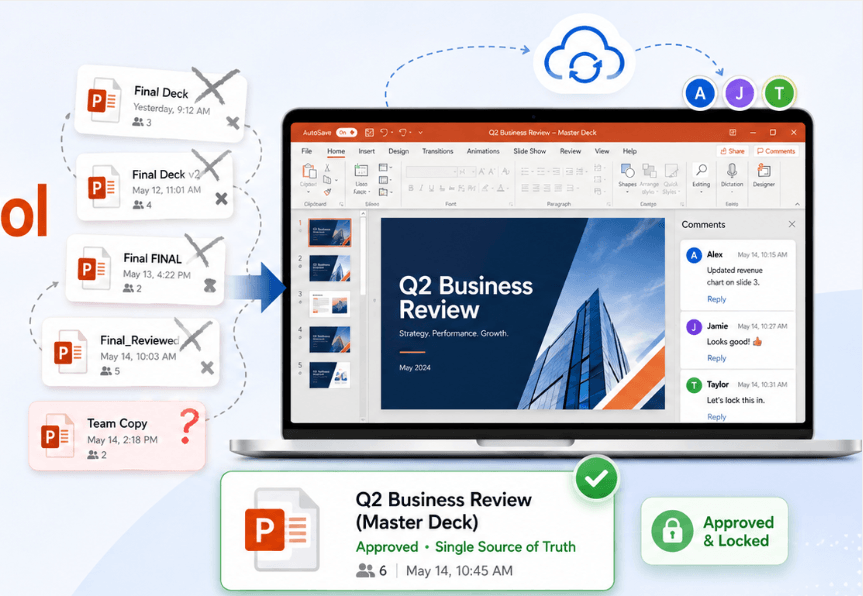
One common cause is straightforward: someone worried that editing the shared file directly meant losing the previous version if something went wrong. So they made a copy, just in case. A colleague did the same thing from a different starting point. A few rounds of that, and you’ve got five files with overlapping but not identical content, no record of which edits happened in which order, and a Slack thread trying to reconstruct which one is actually current.
The irony is that PowerPoint already has a real answer to “what if I need to undo this.” Teams need to know when it is available and how to restore an earlier version.
How PowerPoint’s Native Version History Works
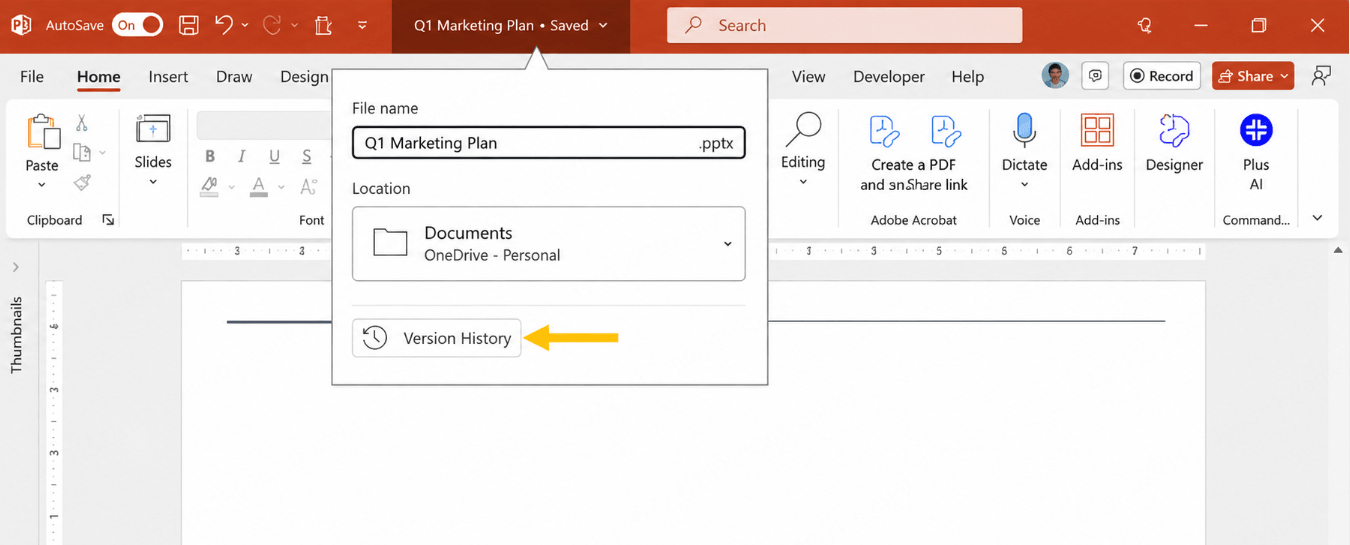
If your file lives in OneDrive or SharePoint — not saved locally to a desktop or a shared network drive — Microsoft 365 can retain earlier file versions. AutoSave saves changes while collaborators work, but version history should not be treated as a separate snapshot of every keystroke or save.
To view or restore an earlier version:
- Open the file from OneDrive or SharePoint in PowerPoint.
- Go to File → Info → Version History (or right-click the file in OneDrive/SharePoint and select Version History).
- The panel lists available versions, with timestamps and contributor information where shown.
- Select any version to preview it without touching your current file.
- Select Restore if it’s the one you need.
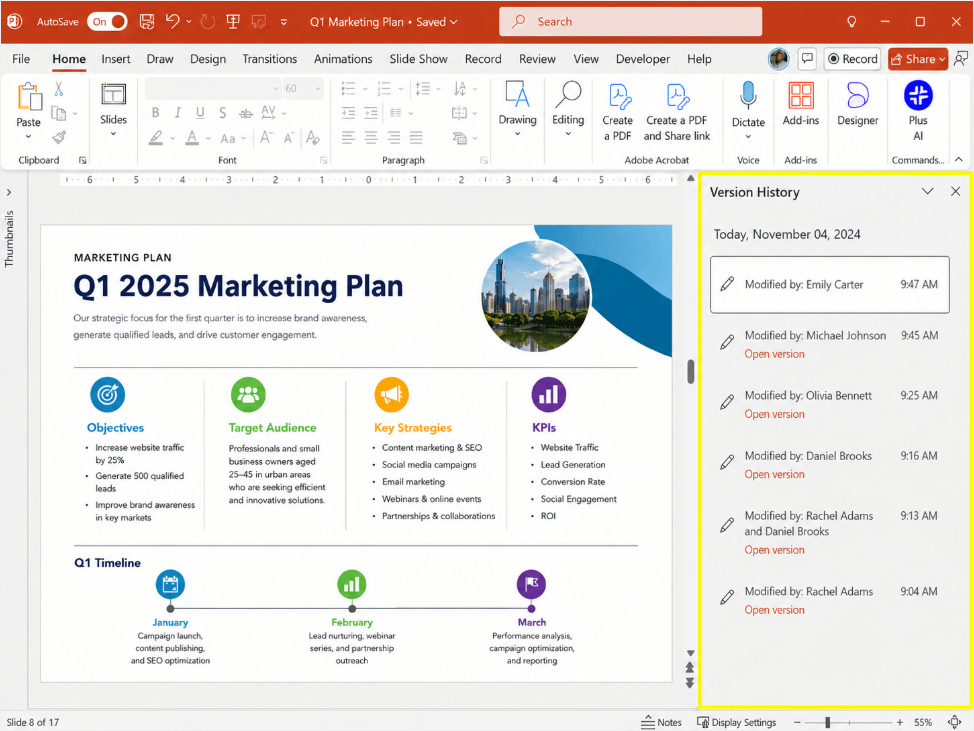
Available history depends on the service, account, library settings, and retention policies. Check those settings or ask your administrator before relying on a particular count or time window. A standalone local copy does not carry the cloud file's version history with it.
The 3 Gaps Native Version History Leaves for Teams
For one person occasionally undoing a mistake, this system works well. For a team actively collaborating on a shared deck, three real gaps show up:
- A timestamp does not explain approval status. An active deck can have many similar versions. Record which version was approved or sent to a client, using a shared milestone log or your organization's document-approval features.
- It protects against loss, not against confusion. Version history is genuinely good at recovering content that got deleted or overwritten by accident. The team still needs to agree on which file everyone should edit.
- It only works inside the Microsoft ecosystem. An emailed or separately downloaded copy does not include the original cloud history. The cloud original retains its history, and editing a synchronized file offline is different from creating an unrelated local copy.
A 4-Rule Framework for Team Version Control
Even with native version history running in the background, a few team-level habits solve most of the actual chaos:
- One file, one location, no exceptions. Store the working deck in a single shared OneDrive or SharePoint location and treat that as the only source of truth. Anyone who “just wants a personal copy to try something” should duplicate it explicitly as a labeled draft, not silently fork the working file.
- Assign a single owner per deck. Not because only one person can edit it, but because someone needs to decide when a version is genuinely final, resolve conflicting edits, and know the deck’s current status when someone asks.
- Use named checkpoints for anything that matters. A timestamp alone may not communicate a milestone. For a real milestone — sent to the client, approved by leadership, presented live — note it explicitly somewhere the team will see it, like a pinned comment, rather than trusting an unlabeled timestamp to mean something later.
- Fix the root cause, not just the naming habit. A strong instinct to duplicate files defensively usually means the team doesn’t trust that version history will actually save them. Showing the team how to restore a version once tends to do more than a naming policy ever will.
3 Rules for Co-Authoring Without Version Conflicts
Real-time co-authoring — multiple people editing simultaneously with AutoSave on — is what makes shared version history worth using in the first place. It has its own failure mode if the team hasn’t agreed on how to use it, though:
- Use AutoSave where supported and appropriate. Confirm that changes have synchronized before leaving the file, and learn how your organization's version settings work.
- Avoid two people editing the same slide at once. PowerPoint handles simultaneous editing well at the deck level, but two people reworking the same layout may make conflicting changes. Assign slide ownership or coordinate major revisions.
- Use comments instead of direct edits for feedback-only reviewers. Someone reviewing a deck they don’t own should generally leave comments rather than edit directly — it keeps the edit history attributable to the people actually doing the work.
Presenti AI: Version Control Built Into the Editor
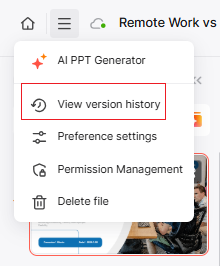
If your team is already generating and iterating on decks with an AI tool rather than building them slide-by-slide in desktop PowerPoint, version control doesn’t have to mean falling back on OneDrive’s generic file history. Presenti AI builds version tracking directly into the editor itself, and the published editor screenshots show these controls:
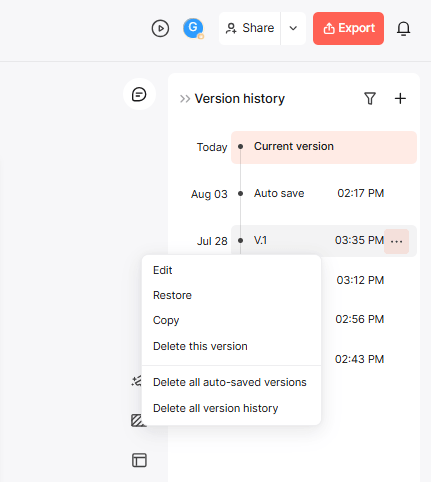
- A timeline, not a flat list. Versions are laid out chronologically by date, so you can scan through changes over days or weeks instead of parsing a long, undifferentiated list of timestamps.
- Auto-save and manual save, kept separate. A filter lets you switch between all history, manually saved history, and automatically saved history — so routine autosaves don’t bury the checkpoints you actually labeled on purpose.
- The current version is always marked. The top of the timeline clearly shows which version is live, so there’s no guessing which one you’re actively editing.
- Version actions. The screenshot shows a menu with options to Restore a version, Edit its label, Copy it, or Delete it. Before restoring, preserve any later changes you may need; before deleting history, follow the team's retention rules.
- Bulk cleanup when you need it. You can delete all auto-saved versions at once — clearing out routine snapshots while keeping your manually saved milestones intact — or clear the entire history for a fresh start.
- Named checkpoints for milestones. At any point, save a version explicitly with a title and a short description of what changed, rather than relying on an anonymous timestamp to mean something later.
A descriptive checkpoint makes a milestone easier to recognize. Agree on who can mark a version approved and what evidence or review that label represents.
PowerPoint vs. Presenti: Which One Fits Your Team?
Stick with PowerPoint’s native version history if: - Your team already works inside PowerPoint files stored in OneDrive or SharePoint - You mainly need protection against accidental loss, not frequent named checkpoints - Your organization’s IT setup and retention policies are already built around Microsoft 365
Consider Presenti AI's version workflow if: - You’re generating and iterating on decks with an AI tool rather than building them slide-by-slide from scratch - You want to label meaningful milestones — client-approved, presented live — instead of relying on unlabeled timestamps - You want version tracking and real-time co-authoring in the same tool, within Presenti's online workspace
Frequently Asked Questions
Does PowerPoint version history work for files saved locally, not in OneDrive? No. Native version history only applies to files stored in OneDrive or SharePoint. A standalone local file does not receive this cloud version history, though separate backup or file-history systems may protect it.
How many previous versions of a PowerPoint file are kept? It depends on the account, library configuration, and retention policies. Check the available history and confirm requirements with the administrator rather than relying on a universal version count.
Can I restore just one slide from an earlier version instead of the whole deck? Native version history restores the entire file to a previous state, not a single slide. To recover just one slide, open the earlier version separately, copy the slide you need, and paste it into your current file instead of restoring the whole deck.
What’s the fastest way to stop teams from creating duplicate “final” files? In practice, it’s less about a naming policy and more about trust. Showing the team how version restore actually works removes the anxiety that drives people to make defensive copies in the first place.
The Bottom Line
Most “final_v3_FINAL.pptx” chaos isn’t a discipline failure — it’s a natural response to not trusting that a shared file’s history is actually recoverable. PowerPoint’s native version history genuinely solves that, as long as the file lives in OneDrive or SharePoint and the team knows how to use it, while the team still needs a clear way to identify approved milestones. If your workflow leans more on AI-assisted generation and fast iteration than manual slide-by-slide editing, a tool with named, restorable version checkpoints built into the same editor — like Presenti AI — can make those checkpoints easier to recognize within the drafting workflow.