Google Slides combines presentation editing with sharing and team collaboration. AI adds several ways to begin a deck: eligible users can generate with Gemini inside Slides, install an add-on, or import a presentation drafted in another tool.
AI can help turn a topic or source document into a first draft, giving you an outline and slide content to review. Choose the route that fits how you already create, edit, and share presentations in Google Slides.
This guide compares those routes and explains how to move a Presenti draft into Google Slides for collaborative editing.

What Gemini Can Do in Google Slides
Google documents complete, editable presentation generation for eligible Google Workspace or Google AI plans and Workspace Experiments participants. The documented workflow is currently available on desktop in English; having a Google account alone does not establish access.
Generate a Deck with Supporting Files
In a new blank presentation, open Ask Gemini and describe the audience, purpose, and desired content. Use Add sources > Add from Drive to reference supporting files. Gemini proposes a plan; review it before selecting Approve to generate the presentation.
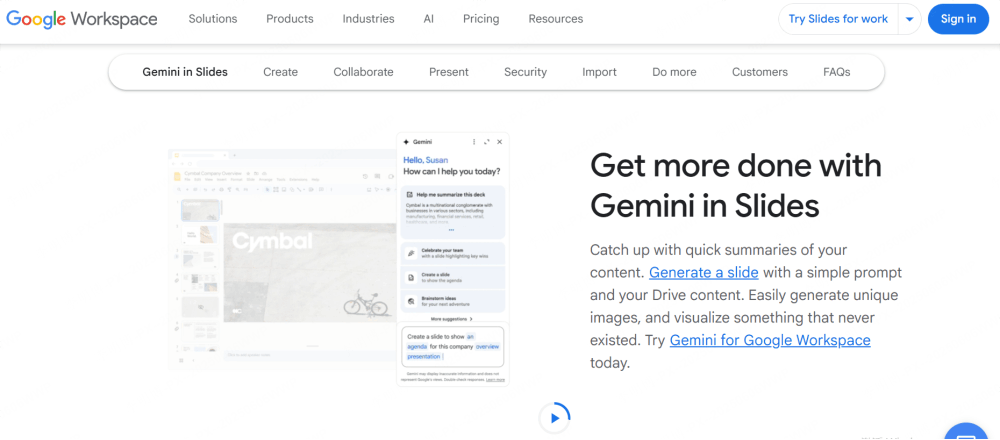
Drive sources can help ground the draft, but they do not guarantee that every detail, chart, or qualification will appear correctly. Compare the outline and completed slides with your source material.
Work with an Existing Presentation
Gemini in Slides also supports work with individual slides and existing presentations. Where available, use @ references to bring in Drive files and inspect Sources for the material used in the response.
Gemini App Canvas has a separate presentation workflow that can use uploaded files. Do not assume that its controls, eligibility, or output are identical to Gemini inside Google Slides.
When to Consider an Add-On or External Generator
Native Gemini is one route, not the only route. Compare other tools when you need a particular document format, template style, or editing workflow. The useful question is whether the full process fits your project.
- Source handling: Check which file types your account accepts and whether the outline preserves your argument.
- Layout editing: Try a dense slide, a chart, and an image-led slide to see how much revision each needs.
- Delivery: Confirm whether your team needs an editable Slides file, a PPTX, a PDF, or a browser link.
- Total effort: Include preparation, fact-checking, revisions, and export review. This guide does not establish a speed or design-quality winner.
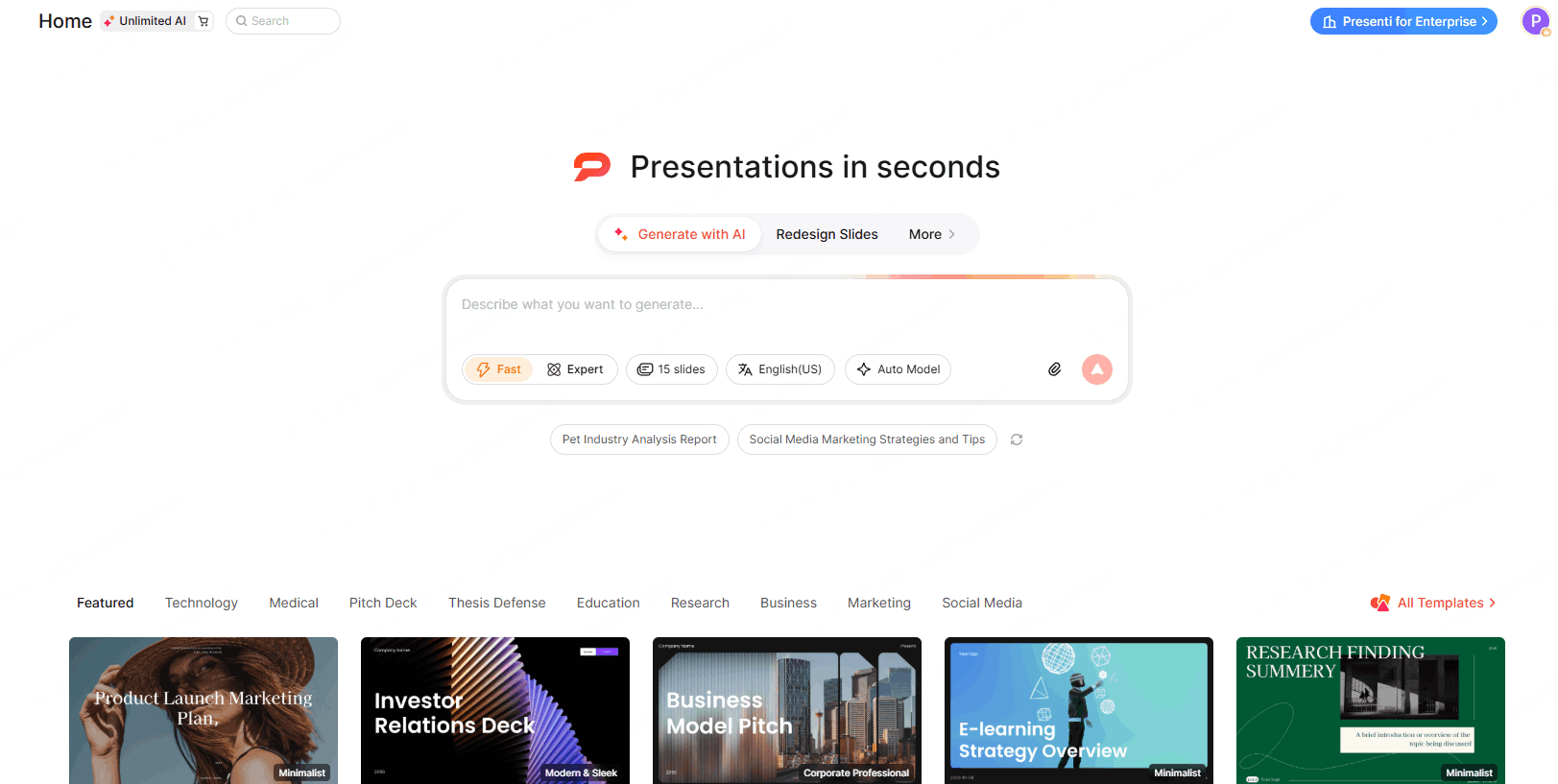
Presenti is one external drafting option. Its paid plans list Word, PDF, and TXT input plus editable PPTX/PDF export; free access has limited AI credits and Markdown/XMind input.
Presenti and Google Slides: A File Handoff
You can draft in Presenti and continue in Google Slides by exporting and importing a PPTX. This is a file handoff, so later edits do not automatically synchronize between the two copies. See the Google Slides and Presenti comparison for related workflow considerations.
- Create in Presenti. Supply a topic, outline, or document supported by your plan. Review the outline, select a theme, and revise the generated slides.
- Export as PPTX. Use a plan that includes editable PowerPoint export.
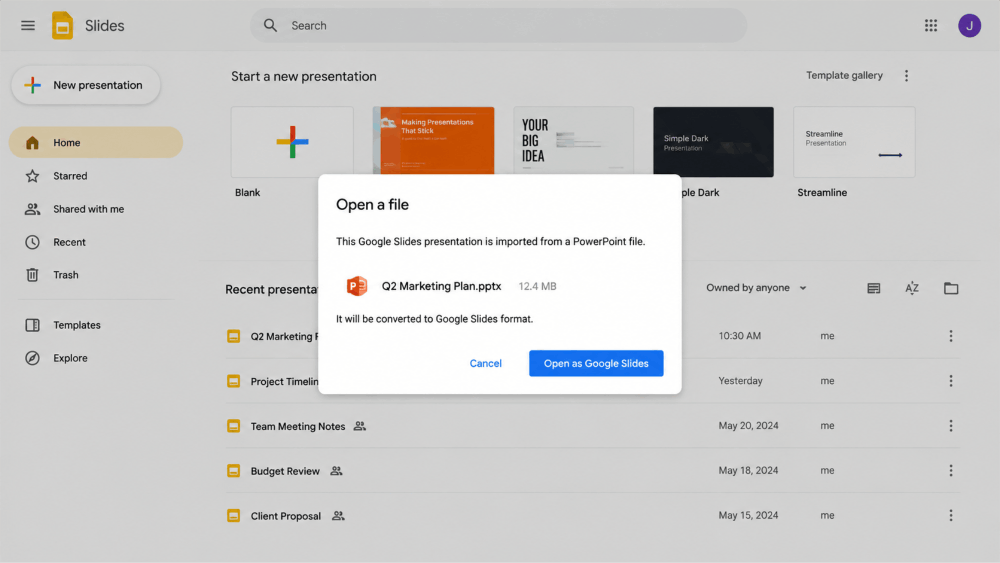
- Open in Google Slides. Upload the PPTX to Google Drive and open it with Google Slides. Convert it to a Google Slides file if that is how your team wants to work.
- Review before sharing. Inspect slide dimensions, text fit, fonts, charts, images, and speaker notes.
- Collaborate. Share the chosen working copy through Google Drive and use its editing, commenting, and presentation controls.
Check the Imported Deck
PPTX compatibility does not guarantee identical rendering or editability for every object. Use fonts available in the destination editor, then inspect line breaks and spacing. Check charts and grouped objects individually if teammates need to change the underlying data or components.
Test a representative export early, especially when the deck contains complex diagrams or tightly fitted text.
Compare the Available Routes
| Approach | Workflow | Decision to make |
|---|---|---|
| Google Slides with Gemini | Generate and edit inside Slides; eligible workflows can reference Drive sources | Verify account access and whether the source-based draft meets your needs |
| Google Slides with a SlidesAI add-on | Use an installed add-on in the host editor | Check installation permissions, input limits, and the current quota period |
| Presenti followed by Google Slides | Draft in Presenti, export PPTX on a paid plan, then import | Evaluate the extra handoff and the imported layout |
| Presenti standalone | Create, edit, and deliver from Presenti | Confirm that its sharing or export route fits your audience |
Use the same brief to compare the routes you can access. A relevant source document and a few representative slides are more informative than a general claim about which AI is better.
Choose a Setup for Your Team
Use native Gemini when your account is eligible and you want to work with Drive sources in the same editor your team uses. Test both the complete-deck and existing-slide workflows available to you.
Consider an add-on when its drafting controls fit your needs and your administrator allows installation. Compare the subscription and generation allowance with native options.
Try Presenti with a PPTX handoff when you prefer its source-to-outline and design workflow but need the final collaborative copy in Google Slides. Budget for paid export and review the imported deck.
Use Presenti throughout when your audience can use its delivery options and your team does not require a Google Slides working file. Explore the AI PowerPoint generator with a representative brief.
Frequently Asked Questions
Does Google Slides have built-in AI deck generation?
Yes. Google documents complete editable presentation generation for eligible plans or experiments, currently on desktop in English. Check whether the feature is available to your account.
Can Gemini use my documents?
The documented Slides workflow can add sources from Drive. Existing-slide workflows also support Drive references. This does not mean every file type or every account has the same access.
Can my team edit a Presenti draft in Google Slides?
Export PPTX with an eligible Presenti paid plan and open it in Google Slides. Check the imported objects and layout before making it the shared working copy.
Is the entire workflow free?
Not necessarily. Presenti offers limited free AI access, while editable PPTX export is paid. Gemini and add-on eligibility depend on their respective plans.
How long does the process take?
It depends on deck length, source complexity, generation time, and revisions. Time the complete process with your own material; this guide does not report a measured benchmark.
How can I reduce font problems?
Choose fonts available in the destination editor and inspect the imported deck for substitutions, changed line breaks, and overflow. Compatible font choices help but do not guarantee an identical layout.
Keep the Workflow That Fits Your Team
Google Slides can remain the shared editing environment whether the first draft comes from Gemini, an add-on, or an external generator. Choose based on the source material, account access, editing controls, and final file your team needs.
To evaluate Presenti, start with a short brief, inspect the outline, and test an export if your plan includes it. Start at presenti.ai.