A question in the middle of a presentation can reveal whether the audience understands the point you have just explained. Quiz slides are useful when they give participants a reason to think and give the presenter a chance to respond to their answers.
AI can help draft questions, plausible answer choices, and explanations from source material. Delivering a live quiz is a separate task: it needs a response method such as discussion, a show of hands, or a dedicated polling tool. This guide explains both parts without assuming that slide generation includes live voting.

Where AI Can Help with Quiz Preparation
Interactive questions give the presenter a chance to check what the audience understands and respond before moving on.
A useful quiz asks participants to recall, apply, or explain something that matters to the lesson. Creating one involves choosing the question, checking the correct answer, writing plausible alternatives, and planning the feedback. AI can help with a first draft of that content.
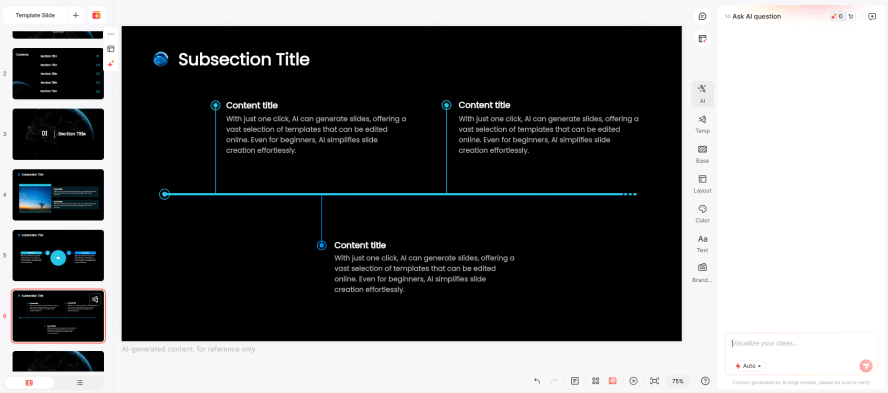
Give the tool a short passage or outline and a specific learning objective. Ask for a question that tests that objective, not a fact unrelated to the session. Compare the suggested answer and explanation with the source before using them.
For geography, ask students to interpret a map. For a physics lecture, ask which assumption changes a result. In workplace training, use a realistic scenario and ask participants to choose an action. These prompts connect participation to the content rather than adding a quiz only for entertainment.
Step-by-Step Guide: How to Create Interactive Quizzes
Use the following workflow to prepare quiz content and decide how participants will answer. Presenti can help draft and edit the slides; use a response method whose features you have checked.
Step 1: Content Input and Source Analysis
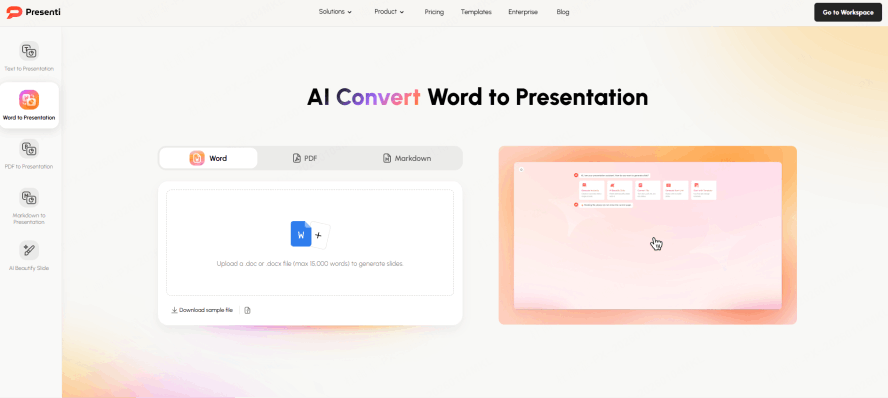
Start with the lesson objective and a reliable source. Decide which concept or skill the question should test.
Use a topic brief, pasted text, or a supported file or link in the presentation tool. Check import access and the extracted content. Remove private information that is not needed for the question.
Step 2: Generating the Narrative and Quiz Structure
Write a prompt such as: “Using the passage below, draft three multiple-choice questions about the causes of erosion. Give one correct answer, three plausible alternatives, and a brief explanation for each.” For a poll, ask about an opinion or prediction and make clear that there is no single correct answer. Review the questions before placing them in the deck.
Step 3: Customizing the Interactive Experience
Edit each question for clarity and make sure it has the intended answer. Avoid clues such as one answer being much longer than the others. Add an explanation that addresses the likely misconception. If your chosen response tool supports timers or leaderboards, decide whether they help this audience; they are not required for a useful quiz.
Step 4: Design and Brand Alignment
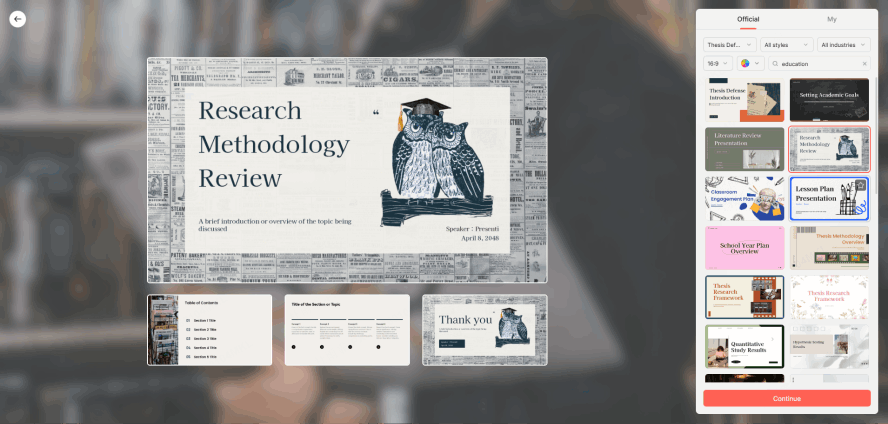
Use the same fonts, colors, and spacing as the rest of the presentation. Keep the question and answer choices readable from the back of the room. A separate explanation slide can prevent the question slide from becoming crowded.
Step 5: Deployment and Real-time Participation
Choose the delivery method in advance. For a discussion or show of hands, the question slide may be all you need. For live digital responses, create the question in a suitable polling or quiz tool, follow its sharing instructions, and test the participant link or QR code. Check device, account, and connection requirements and prepare a way to participate without a phone.
Plan the Complete Quiz Workflow with Presenti
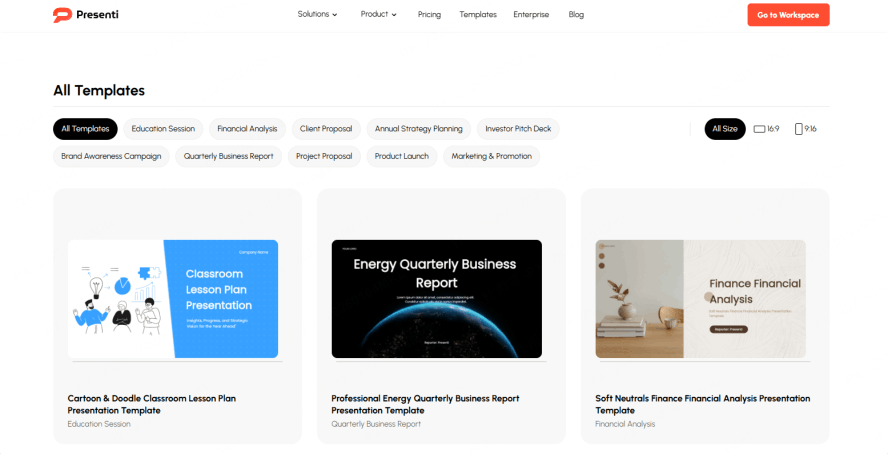
Presenti can support the slide-drafting part of this workflow. Keep the lesson content and visual design in the deck, and use a separate response tool when you need live voting, scoring, or analytics. Rehearse the transition between them before presenting.
Evaluate the complete experience from the presenter’s and participant’s point of view. The following four checks help identify problems before the session.
- Workflow: Test the route from the question slide to the response activity and back. Keep the required windows or links ready, and make the instructions visible to participants.
- Question quality: Ask for a particular thinking task, such as applying a rule or interpreting evidence. Check that the question actually requires that task and that the answer explanation is sound.
- Responses: Decide what you will do with the answers. If many participants miss an important point, pause to explain it another way. Use analytics only where the selected response tool provides them and your setting permits the data collection.
- Access and privacy: Check contrast, keyboard access, readable labels, and participation alternatives in the tools you choose. Follow the organization’s approved-tool and data policies. Do not infer WCAG, GDPR, or FERPA compliance from the presence of an AI or quiz feature.
Best Practices for Quiz Slides
Place Questions at Useful Learning Points
Place questions after a meaningful concept, example, or decision point. Choose the interval based on the session and audience rather than treating ten minutes as a universal attention limit.
Provide Meaningful Feedback
Don't just reveal the correct answer—explain why it is correct. Use the AI to generate brief explanations that explain why an answer is wrong and clarify the underlying concept.
Adopt a "Mobile-First" Mindset
Since many students participate via smartphone, keep your questions punchy and your visuals high-contrast. Ensure your layout is optimized for small screens to maintain readability.
Review the Layout and Response Method
Use a presentation editor to simplify the question layout and make the choices easy to scan. Test the response mechanism separately; a well-arranged slide does not establish that a live quiz will work.
Review the Answers Before Teaching
A useful quiz slide begins with a clear learning objective and a checked question. AI can help draft the material, while you decide how to explain the answer and respond to the audience.
When you draft quiz slides in Presenti, rehearse the question, response method, and explanation together. Keep a fallback that works without the live tool, and use participants’ answers to guide what you explain next.