AI in PowerPoint can help you draft slides, revise text, and summarize a presentation. Microsoft Copilot works inside PowerPoint, while tools such as Presenti provide a separate browser workflow for building and editing a slide draft. The right choice depends on your source files, account access, and editing needs.
This guide compares the main workflows and the account or file requirements you should check before starting.
What Is AI in PowerPoint?
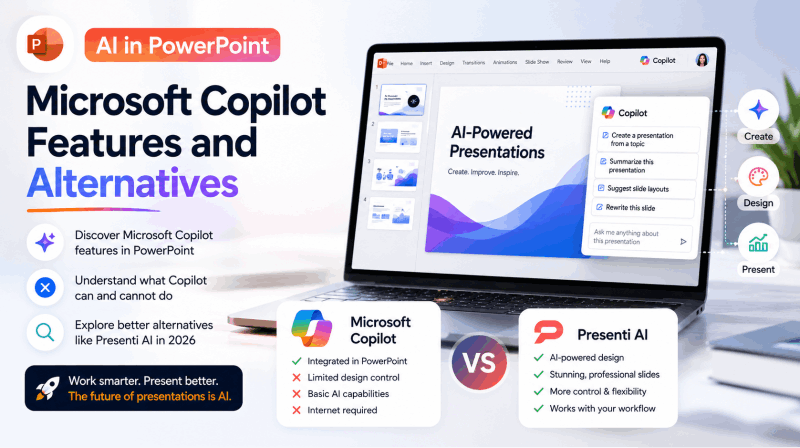
AI in PowerPoint refers primarily to Microsoft Copilot, the AI assistant integrated into Microsoft 365 applications including PowerPoint, Word, Excel, and Teams. In PowerPoint specifically, Copilot uses large language model technology to generate slide content from prompts, transform existing documents into presentations, suggest design improvements, and summarize long decks.
Beyond Copilot, the phrase also encompasses third-party tools that either integrate with PowerPoint via add-ins or generate native .pptx files that open directly in the application. These include dedicated AI presentation generators, ChatGPT-based tools that produce slide outlines, and purpose-built platforms that accept documents and return finished decks.
Understanding the distinction matters because the experiences are fundamentally different in capability, cost, and practical usability.
Microsoft Copilot in PowerPoint: What It Actually Does
Generating Slides from a Prompt
The most prominent Copilot feature in PowerPoint is slide generation from a text prompt. Open a blank presentation, click the Copilot button in the ribbon, and type a description of what you need. Copilot generates a multi-slide deck with content, layouts, and design applied based on your input.
A specific prompt gives the tool more useful context. A prompt like “create a presentation about project management” produces generic slides that could apply to any organization. A prompt like “create a 10-slide overview of our Q2 project delivery performance for the leadership team, covering on-time delivery rate, resource utilization, three key blockers, and recommended process changes” produces substantially more focused and useful output.
For straightforward business topics and standard presentation formats, Copilot generates competent first drafts. For specialized, technical, or domain-specific content, the output regularly requires significant rewriting.
Creating Slides from a Word Document
One of Copilot’s more practical features is its ability to generate a presentation from an existing Word document. Open PowerPoint, invoke Copilot, and reference a Word file stored in your OneDrive or SharePoint. Copilot reads the document, identifies the structure, and builds a slide deck that reflects the content.
This workflow is genuinely useful for professionals who draft content in Word before presenting it. A quarterly report, a project brief, or a research summary becomes a slide deck without manual reformatting.
File support depends on your Copilot license and entry point. Microsoft’s PowerPoint Copilot FAQ documents Word input and PDF support for eligible work subscriptions. Check the file picker, access permissions, and supported formats in your account.
Rewriting and Redesigning Existing Slides
Copilot can improve slides you have already built. Select a slide with too much text and ask Copilot to condense it. Ask for a tone adjustment to make a slide more persuasive or more formal. Request a different layout for a specific slide. Ask Copilot to add speaker notes based on the existing content.
These editing tasks can be useful when you already have a deck. Review each change to make sure it preserves the intended meaning.
Summarizing Long Presentations
Point Copilot at a lengthy slide deck and ask it to produce a summary. This is useful for reviewing presentations created by someone else, extracting key takeaways from a recorded webinar deck, or generating an executive summary slide to add to an existing presentation.
Copilot Requirements and Limits to Check
Understanding the gaps is as important as understanding the capabilities.
Account access: Copilot features depend on your Microsoft 365 subscription, app version, and organization settings. Check your account’s available features before comparing subscription costs.
Source files: PDF input is available in supported Copilot work workflows; it is not accurate to describe all Copilot use as Word-only. Microsoft lists supported files in its file-format documentation.
Design and branding: Start with the template or brand assets you intend to use, then inspect the generated slides. Microsoft documents slide editing and image generation in Copilot; the controls available to you depend on your account.
Technical content: Supply the source material and review specialized terms, numbers, and references. A fluent draft does not establish that a technical claim is correct.
Subscription scope: The general Copilot chat experience and Copilot features inside PowerPoint are not the same product entitlement. Confirm what your current plan includes.
ChatGPT as a Presentation Generator: What It Can and Cannot Do
The phrase ChatGPT presentation generator describes two related but distinct workflows.
One option is an outline-first workflow: ask ChatGPT for a slide sequence, draft text, or speaker notes, then bring that material into PowerPoint or another editor. This gives you direct control over the final layout.
The second is using tools built on OpenAI’s API that combine GPT-based content generation with automated slide creation. These tools accept your prompt, generate the content using a GPT model, and build the slide deck automatically. The output is a slide draft that still needs content and layout review.
When comparing tools that use language models, try the same short source document in each. Examine whether the outline follows your argument, the facts match the source, and the exported slides remain easy to edit.
Compare the editing workflow and the resulting slides, rather than choosing a tool solely by the model name it advertises.
AI in PowerPoint: Comparing the Workflows
| Question to compare | Copilot in PowerPoint | Presenti AI | Outline-first workflow with ChatGPT |
|---|---|---|---|
| Where do you edit? | Inside PowerPoint | In the Presenti browser editor | Draft text in chat, then arrange it in your chosen slide editor |
| Which source files can you use? | Word and, with supported work access, PDF; check Microsoft’s current file requirements | Supported text, Word, PDF, Markdown, or mind map inputs shown in the import dialog | Provide source material supported by your current account, or paste a short outline |
| What should you check before export? | Available Copilot features, template, and PowerPoint output | Plan export options, fonts, images, and editable elements | That the outline has been transferred and formatted correctly in the slide editor |
| How should you compare cost? | Check your existing Microsoft 365 and Copilot access | Check current generation and export allowances on the pricing page | Check the chat plan and the separate slide editor, if used |
If your team already works in PowerPoint with Copilot access, test that workflow first. If you want to prepare slides in a separate browser editor, compare Presenti using the same source material. Judge the outline, editing effort, and export result together.
Other Workflows for Creating AI Presentation Drafts
Presenti AI
Presenti AI provides a browser workflow for turning a topic or supported document into a slide draft. Review the outline, choose a template, and edit the content before exporting. Open the exported file in your target editor to inspect fonts, layout, and editable elements.
Generation allowances and export options are separate things to compare. See the current Presenti plans for PPTX/PDF export availability and the limits that apply to your account.
Choose a template that fits your audience and subject, such as a business review, lesson, or marketing plan. Review the finished deck in the application you will use to present; do not assume every animation, transition, or layout will transfer unchanged.
For a comprehensive look at how the leading tools compare across the broader AI presentation landscape, this overview of the best AI PPT tools in 2026 covers every major option in detail.
SlidesAI for Google Slides Users
If you prefer to stay in Google Slides, consider an add-on workflow such as SlidesAI. Check its current input formats, account requirements, and generation allowance before selecting it for your team.
Canva AI Presentations
Canva offers another route for building a presentation around templates and visual assets. Compare how easily you can revise the content and export a usable deck; this article does not provide a controlled visual-quality ranking.
How to Get the Best Results from AI in PowerPoint
Regardless of which tool you use, these practices consistently improve output quality.
Write specific prompts with audience context. Naming your audience, defining your goal, specifying your key points, and including actual data gives the tool a clearer brief than a vague topic label. The more context you provide, the more the AI can tailor the structure and content to your real situation.
Start from the source material. Use a supported document when it contains the details your audience needs. Remove confidential material you are not authorized to upload, and check that the generated outline retains the relevant findings.
Treat every AI output as a first draft. AI presentation tools generate strong structural starting points. They do not replace human judgment on accuracy, voice, and context-specific nuance. Every deck needs a review pass before it goes to any audience, with particular attention to specific data points and organizational claims.
Choose a suitable template. Check the title, chart, image, and text layouts before generating a long deck. A template that fits your content can reduce later rearrangement.
Choosing an AI Workflow in PowerPoint
AI tools can help with a first draft, but they are optional. Choose a workflow that fits your source material, editing habits, and presentation requirements.
Copilot is a useful first option to evaluate when your organization already has access and keeps its presentation work in Microsoft 365. Check source permissions and the editing features available in your account.
Before choosing a separate tool, compare it with the features already available in your account. Use a short, representative source file and inspect the actual slide and export results.
Try Presenti AI with your own text to create and edit a slide draft. Check the current plan before exporting.
Microsoft documentation checked on October 2, 2026: Copilot in PowerPoint FAQ and supported file formats.