If you’re a Mac user searching for an AI keynote generator, you’ve probably already hit the same wall everyone else does: you find a promising tool, get excited, and then discover it can’t actually export a .key file. The confusion is understandable. Although the term AI Keynote generator may imply direct compatibility with Apple’s software, the reality of the current market is more nuanced than that.
This guide cuts through the noise. We’ll explain exactly how AI presentation tools interact with Apple Keynote, which tools work best for Mac users, and how to build a practical workflow that gets you from a raw idea to a polished Keynote deck efficiently.
What Is Apple Keynote and Why Do Mac Users Love It?
Apple Keynote is Apple’s native presentation software, bundled free with every Mac, iPhone, and iPad. It’s part of the iWork suite and has been the gold standard for design-forward presentations since the days Steve Jobs used it for product launches.
What makes Keynote genuinely special:
- Magic Move transitions: automatically animates identical objects between slides for cinematic motion effects
- Canvas-first interface: a clean, distraction-free workspace tailored to Apple’s design philosophy
- iCloud sync: start a deck on your MacBook, tweak it on your iPad with an Apple Pencil, present from your iPhone
- High-DPI rendering: every slide looks razor-sharp on Retina displays
- Flexible export: Keynote saves natively as
.key, but can export to PPTX, PDF, and QuickTime video
That last point matters enormously for our topic. Keynote can open .pptx files from any source, including AI-generated ones, which is exactly how the AI-to-Keynote workflow functions in practice.
Using PPTX to Move an AI Draft into Keynote
For tools that export PowerPoint files, PPTX provides a practical route into Keynote. Check the documented formats of the tool you choose rather than assuming that an AI presentation generator creates native .key files.
The PPTX Bridge Workflow
- Generate and review the draft in your chosen tool, then export it as PPTX.
- Open the PPTX in Keynote and inspect fonts, text wrapping, image crops, charts, and animations.
- Make any necessary repairs, then save a Keynote copy and rehearse it on the presentation device.
You can also export an existing Keynote deck to PPTX and use Presenti’s slide-polishing workflow to redesign it. Keep the original and compare both conversions; a roundtrip may change layout or object behavior.
Keynote’s Own AI Features: Apple Creator Studio
The base Keynote app remains free. Apple Creator Studio adds premium features, and Apple describes outline-to-slides generation, presenter notes, and layout cleanup as Keynote beta capabilities.
Check Apple’s current availability requirements for your device, operating system, region, and account. Creator Studio and Apple One are different subscriptions; do not assume one provides the other’s features.
Compare the native Keynote workflow with a third-party tool using the same source material. Judge the result by the edits it needs and the features you actually use.
Top AI Presentation Tools for Keynote Users
Each tool below exports to .pptx, which Keynote imports natively. The key differentiators are content quality, design depth, and how cleanly the exported file translates when opened in Keynote.
1. Presenti: Best for Document-Heavy Presentations
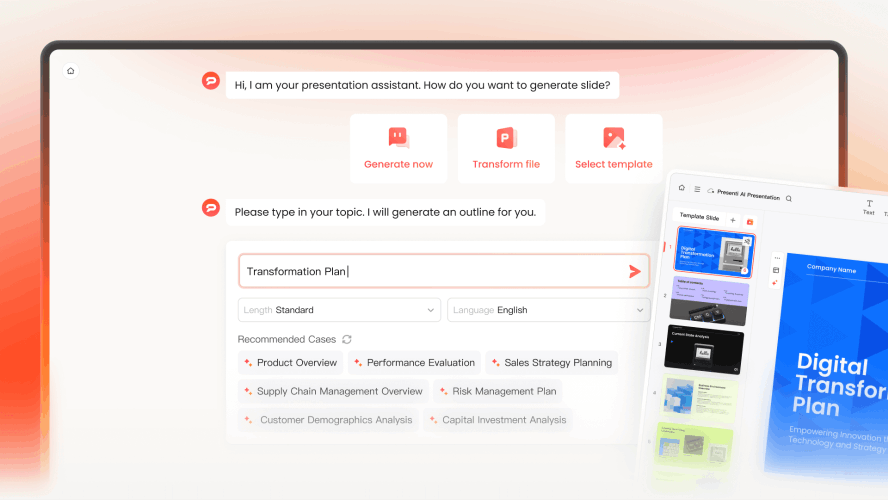
Presenti is an AI-powered presentation maker built for professionals who work with real source material. Rather than asking you to type a prompt and hope for the best, Presenti lets you feed it actual documents: Word files, PDFs, Markdown notes, XMind mind maps, plain text, and transforms them into structured, professionally designed slide decks.
Why it works well for Keynote users:
- Offers editable PPTX export; review the layout and objects after opening the file in Keynote
- Offers a large template library organized by use case — pitch decks, business reports, academic presentations, marketing decks
- Built-in AI Agent lets you modify charts, tables, and content through a conversational interface inside the editor
- Supports PPTX import: if you have an existing Keynote file, export it as PPTX, bring it into Presenti for AI-enhanced editing, then take it back to Keynote
- Free access includes limited AI credits; paid plans list document inputs and editable PPTX/PDF exports
For Mac users who want to build a full deck from scratch using AI and then finalize it in Keynote, Presenti’s document workflow is an option to evaluate. The AI presentation maker handles structure, design, and content — Keynote handles the finishing touches.
2. Gamma: Best for Web-First Presentations

Gamma uses cards that can combine text, images, and other content. Its creation workflow can start from a prompt or source material, then move through a plan and a generated draft for review.
Key strengths for Keynote users:
- Very fast generation from text or URLs
- Attractive, modern design aesthetic
- Exports to PPTX for Keynote import
For a Keynote handoff, export a representative Gamma deck as PPTX and open it in Keynote. Check card content against the slide boundaries and inspect editable text, charts, and media before choosing that route.
3. Pitch: Best for Brand-Consistent Team Decks

Pitch combines collaborative editing with AI slide generation and a library of genuinely polished templates. It has a dedicated macOS app, which feels native in a way that browser-only tools don’t.
Key strengths for Keynote users:
- High-quality template library with strong brand control
- macOS desktop app with good performance on Apple Silicon
- PPTX export for Keynote compatibility
Pitch can serve as the team's presentation workspace. If Keynote is the final destination, check the required export access and inspect a sample PPTX in Keynote rather than assuming the file will transfer without changes.
4. Beautiful.ai: Best for Auto-Layout Precision
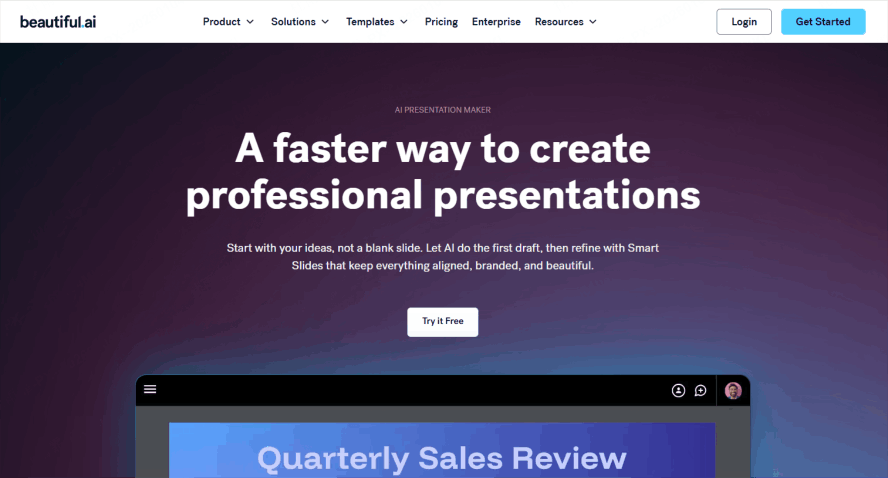
Beautiful.ai’s core concept is “smart slides” — layouts that automatically resize and reposition elements as you add content, helping establish a consistent starting layout.
Key strengths for Keynote users:
- Automated layouts provide a starting structure; review the slide with your actual content
- Editable PowerPoint export; check the result in Keynote
- Useful if your team lacks design experience
The limitation: The same constraint that makes it “safe” limits creative control. Heavy Keynote users who want specific spatial arrangements may find Beautiful.ai’s auto-layout fights back.
5. Canva: Best for Visual Asset Integration
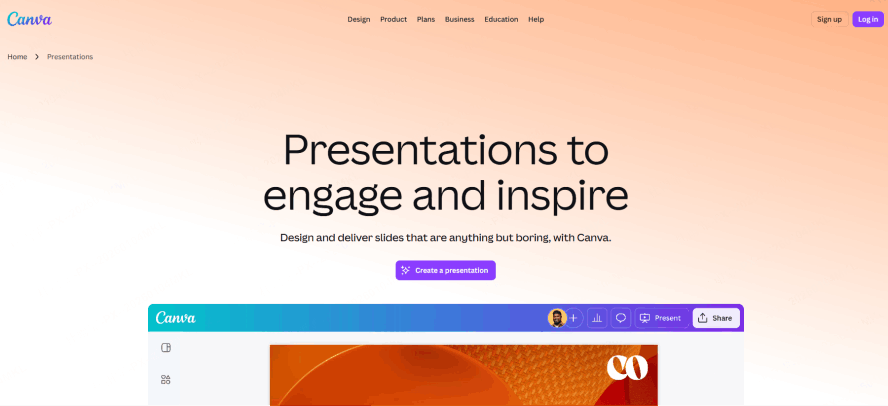
Canva is more of a general graphic design platform than a pure presentation tool, but its AI features for presentations have matured significantly. The sheer library of images, icons, and brand assets makes it useful for visually rich decks.
Key strengths for Keynote users:
- Vast media library with AI-assisted image generation
- Magic Design feature generates slides from prompts
- Exports to PPTX
For a Canva-to-Keynote handoff, test a sample containing your actual text, charts, and images. Compare the imported slide with the original design; this guide does not establish that Canva exports transfer better or worse than another tool's files.
What to Compare Before a Keynote Handoff
| Tool | Relevant workflow | What to verify |
|---|---|---|
| Presenti | Document drafting and PPTX slide polishing; paid PPTX/PDF exports; browser and macOS access | Input entitlement, object editability, and layout after Keynote import |
| Gamma | PDF/PPTX import and PPTX export are listed on the free plan | Card dimensions, media, branding, and exported slide fit |
| Pitch | Collaborative presentation editing | Current export access, brand settings, and delivery workflow |
| Beautiful.ai | AI generation, PowerPoint import, and editable PowerPoint export; card-required 14-day trial | Smart-layout behavior and editable objects after import; trial renewal terms |
| Canva | Visual design and presentation templates | Asset licenses, PPTX output, fonts, and object editability |
This table summarizes workflows, not measured import-quality scores. Test a representative slide containing the objects that matter to your project.
How to Choose the Right Tool
The decision comes down to how you work and what you need from Keynote at the end.
Consider Presenti if you work with documents such as reports, research notes, or meeting summaries and want a presentation draft. Export an available PPTX and inspect it in Keynote. If you start with a Keynote deck and send it through PPTX redesign, keep the original and compare each conversion for fonts, layout, media, and editable objects.
Choose Gamma if you often share decks via link rather than presenting them on a projector, and the final destination is a screen rather than Keynote specifically.
Choose Pitch if you’re on a team with established brand guidelines and need everyone working from the same template foundation, with a native Mac app.
Consider Beautiful.ai if you want structured slide layouts, then check the exported deck against the changes you need to make in Keynote.
Choose Canva if visual richness — photography, illustration, brand graphics — is the primary driver of your slides.
If you plan to keep editing in Keynote, test the same representative deck in each candidate tool. Compare the repairs needed for your fonts, charts, media, and layout rather than assuming one product always imports best.
Practical Tips for the AI-to-Keynote Workflow
Getting the best results requires a few deliberate habits:
- Use standard slide dimensions. Set your AI tool to 16:9 before generating. Keynote defaults to 16:9, so mismatched aspect ratios cause immediate layout issues on import.
- Prefer fonts available on macOS. If your AI tool uses a proprietary font, Keynote will substitute it on import. Stick to fonts like Inter, Helvetica, or SF Pro-adjacent typefaces.
- Don’t over-animate in the AI tool. Animations rarely survive PPTX conversion cleanly. Do your Magic Move and Keynote-specific animations after import.
- Test the import before your deadline. Open the PPTX in Keynote at least once before your presentation date. A quick review catches layout shifts before they become a problem.
- Use Keynote’s import cleanup tools. Once the file is in Keynote, use the Format menu to standardize fonts and check for any broken elements from the conversion.
Conclusion: The Best AI Keynote Generator Workflow in 2026
Keynote now has its own AI-assisted features, and third-party drafting tools offer another route through supported file formats. What does exist is a practical, efficient two-step workflow: generate your presentation using an AI tool, export as PPTX, and open it in Keynote for final polish.
Among the available tools, Presenti is one option for starting from source documents or redesigning a PPTX before finishing it in Keynote. The right choice depends on the source, required objects, export access, and the editing work revealed by your own import check.
The "blank slide syndrome" is a relic of the past. For Mac enthusiasts, the challenge has shifted from how to make a slide to which tool creates a deck that doesn't look like a generic corporate template. In 2026, the ai keynote generator market has matured, offering sophisticated apple keynote automation tools that understand the nuances of Apple’s design language—minimalism, precision, and fluid motion.
Whether you're a startup founder or a creative director, choosing an AI presentation workflow for Mac is about more than just speed; it’s about maintaining the professional "Keynote" aesthetic while letting AI handle the logistical grunt work.