For a finished deck, export directly from PowerPoint to make a PDF reading copy. Choose whether the recipient needs slides only, speaker notes, or several slides per printed page. Then open the exported file and inspect it before sending.
An AI redesign is a separate task: use it when you want to change the presentation's layout or content before exporting. The native Windows, Mac, and web routes below do not require an AI tool.
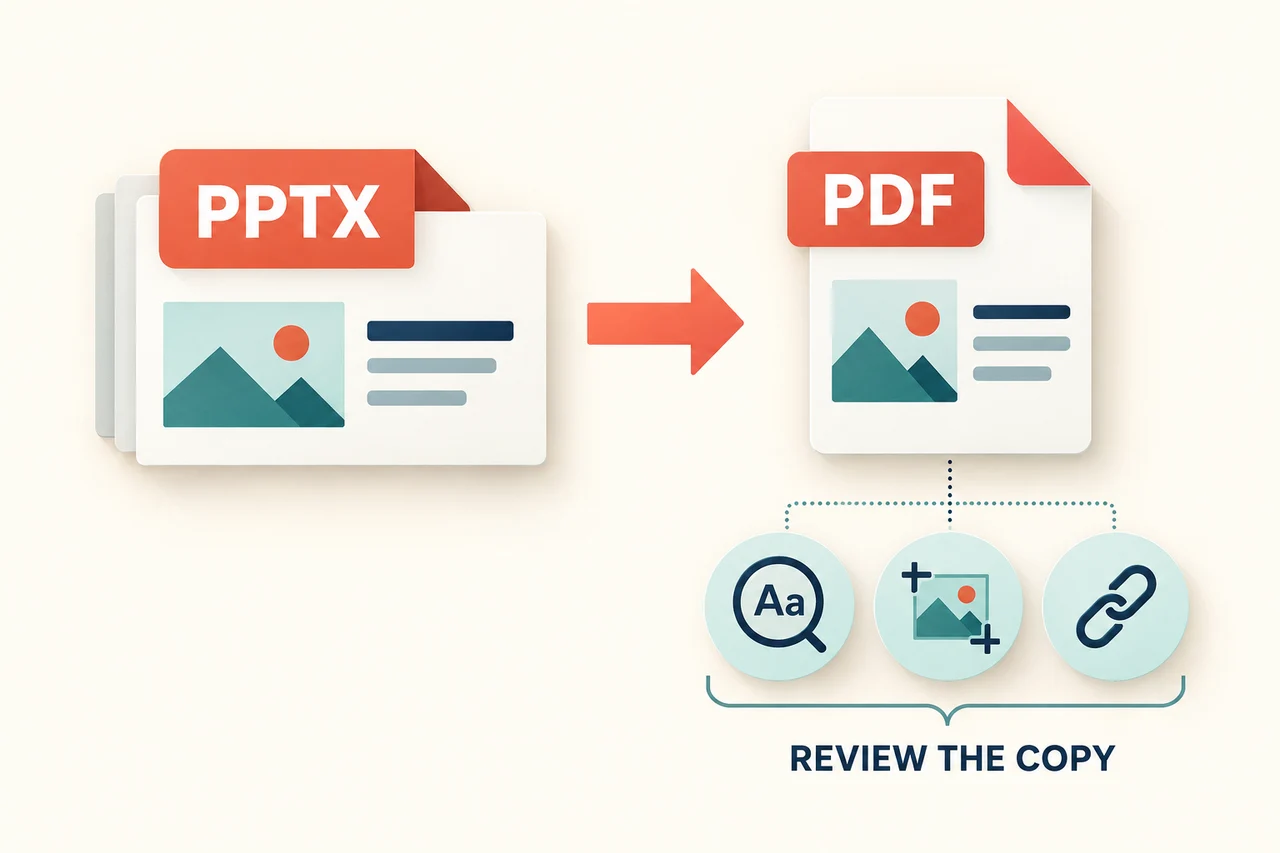
Export PowerPoint as PDF on Windows, Mac, or the Web
Windows desktop
- Choose File > Export > Create PDF/XPS Document > Create PDF/XPS.
- Choose a filename and location. Select Standard for higher-quality output or Minimum size when file size matters.
- Open Options to choose the slide range and output type. Review whether hidden slides should be included.
- Select Publish.
Mac desktop
Choose File > Save As or File > Export, select PDF as the format, and save. Mac PDF export has fewer output options than Windows; use the print workflow for notes or handouts.
Microsoft documents that PowerPoint for Mac does not preserve hyperlinks in exported PDFs. Its alternative is to save the deck to OneDrive and download a PDF through PowerPoint for the web.
PowerPoint for the web
Open the presentation and choose File > Export > Download as PDF. See Microsoft's PDF-export instructions for platform-specific options. Open the downloaded copy to check its links and layout.
Choose Slides, Notes, or Handouts
A PDF is a fixed-page document, but its pages do not have to be one full-size slide each. Choose the output for the person receiving it.
| Recipient and purpose | Useful output | What to inspect |
|---|---|---|
| A client reading the finished presentation | Slides only, one per page | Slide order, text size, links and image crops. Exclude internal backup slides if they are not intended for the client. |
| A presenter rehearsing with cues | Notes pages | Each slide paired with its relevant notes. Check long notes for clipping or unexpected page breaks. |
| Workshop participants writing during a session | Several slides per handout page | Printed text must remain readable, with sufficient space for participants to write. |
| A colleague who must revise the deck | An editable PPTX, optionally accompanied by a PDF reference | The PDF communicates the intended appearance; it does not substitute for the editable source. |
In File > Print, Windows offers a layout selector for slides, Notes Pages, or handouts. On Mac, use the Layout choices under PowerPoint for Slides, Notes, or a handout arrangement. See Microsoft's printing guide. If the print dialog offers a PDF destination, that produces the selected print layout; it is a different route from exporting slide pages.
For example, a twelve-slide training deck might become a twelve-page audience PDF and a separate notes copy for the trainer. Name them by purpose, such as training-audience.pdf and training-presenter-notes.pdf, so the wrong version is less likely to be shared.
Optional: Redesign Slides Before Export with Presenti AI
If the source deck needs a new layout, Presenti's slide-polishing workflow can produce a redesign draft. Keep the original PPTX and compare the revised content with it. If the deck is already ready to send, use the native export route above.
Open the workspace and the slide-polishing workflow
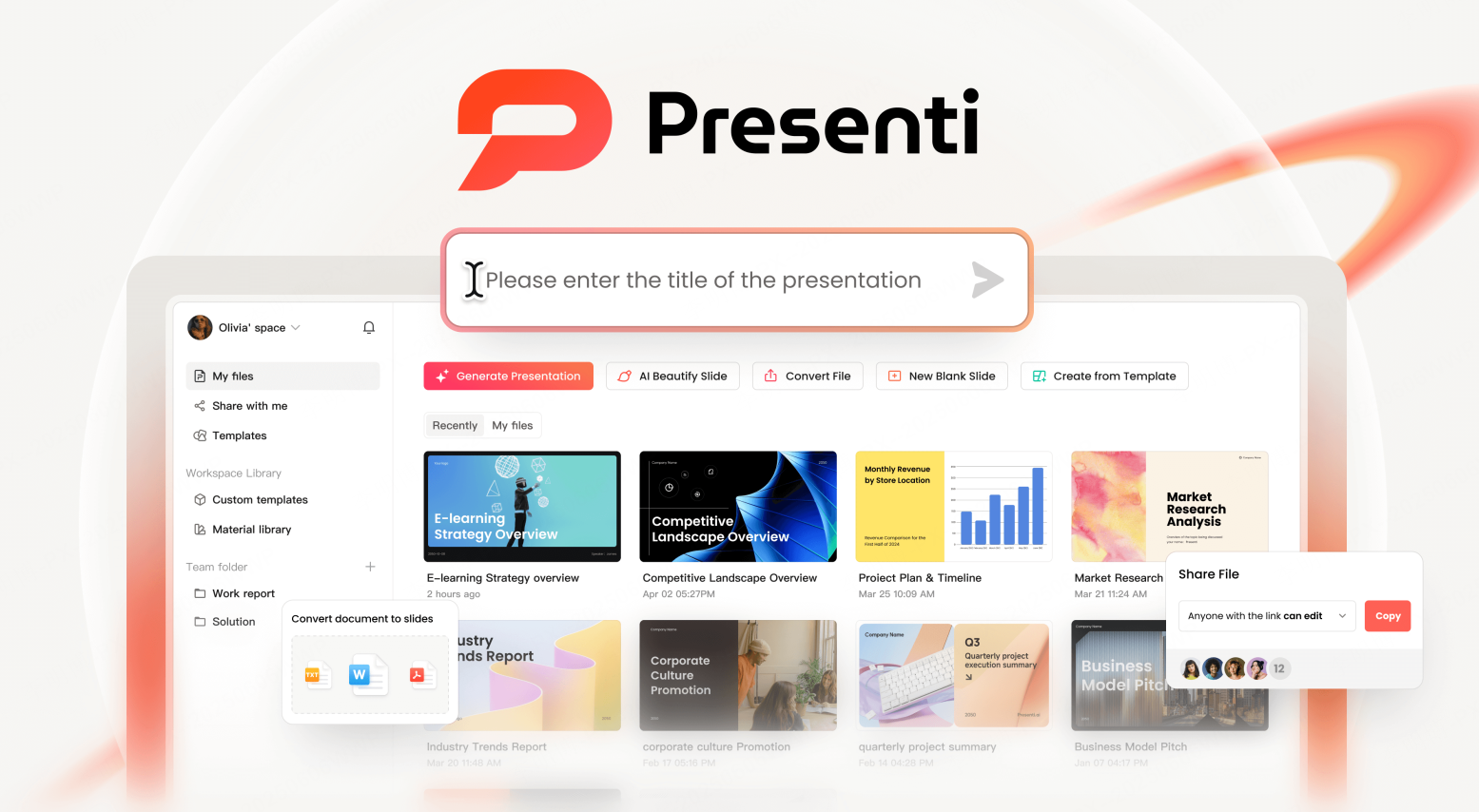
Sign in, then open the workflow for improving an existing presentation. This is a redesign step, not a lossless file-format conversion.
Upload and review the source
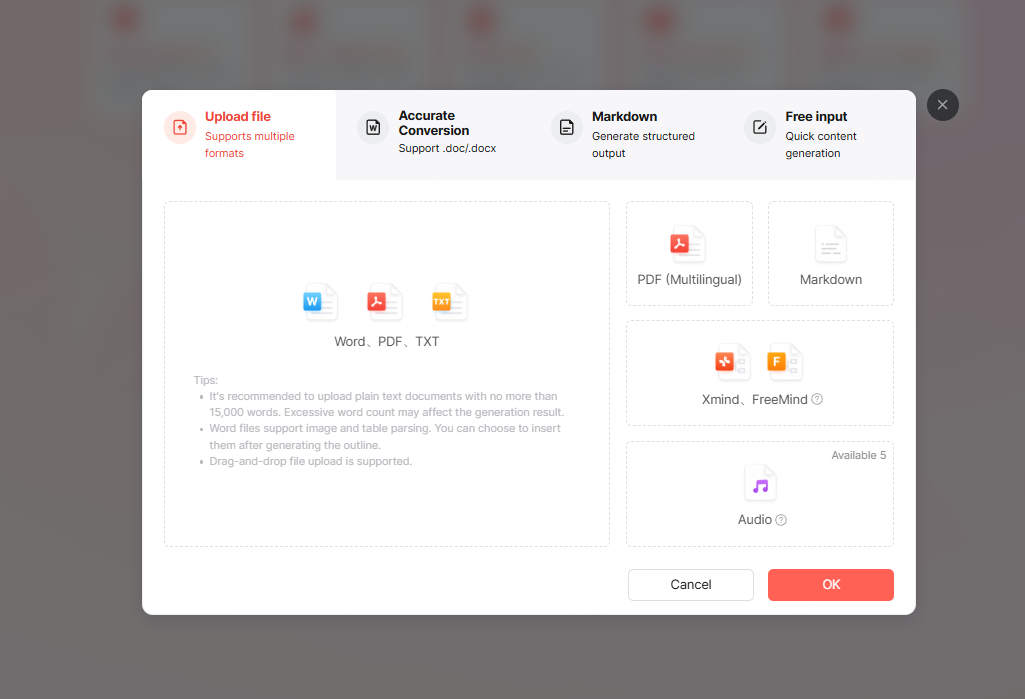
The documented upload format is PPTX, up to 100 MB. Review the imported slides before choosing a theme. Confirm that headings, numbers, source notes and important images remain present, especially on dense slides.
For a substantive redesign, write down which content must stay and which layout choices may change. The Slide Polisher content-preservation example shows how to do that without treating every original object as interchangeable.
Export the revised version
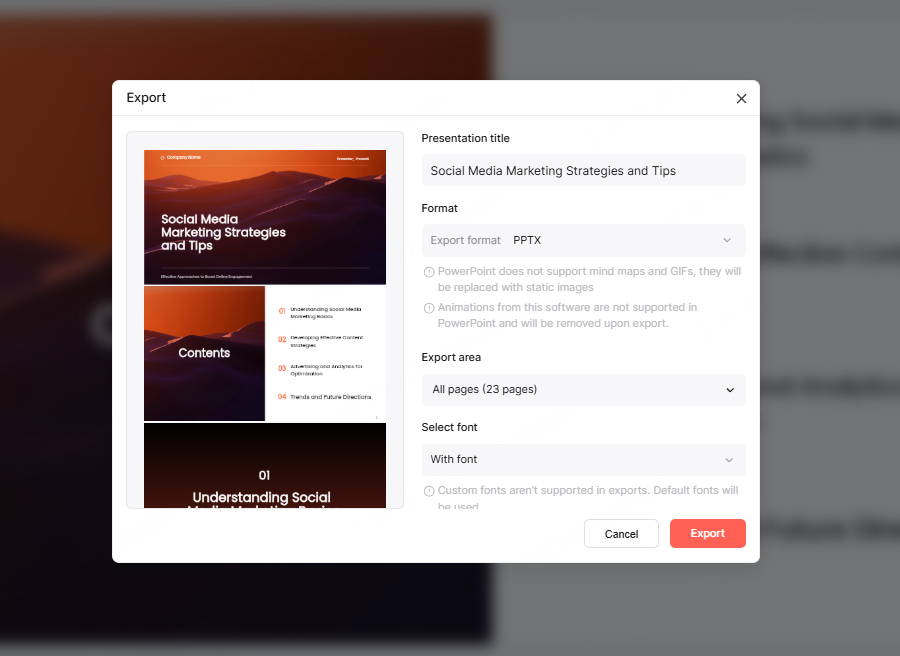
Choose PDF in the export options available to your account; current plan details describe export access. Open the resulting file and compare it with the reviewed redesign, as well as the original source where content must remain unchanged.
Tell the Recipient What the PDF Contains
A short handoff note removes uncertainty about missing notes, hidden slides, or an intentionally selected range. This authored example shows the level of detail; replace its statements with what you actually exported and checked.
Download the PDF handoff-note template.
PDF HANDOFF NOTE — authored example
File: training-introduction-audience.pdf
Purpose: reading copy of the introductory training slides, not an editable deck.
Included: source slides 1–12, one slide per PDF page.
Excluded: speaker notes, hidden backup slides, animations, and video playback.
Links: the two resource links on slides 4 and 11 were opened in the exported PDF before sending.
Source version: training-introduction-v3.pptx, retained by the presenter.
If you need the exercises or an editable source, contact the presentation owner.

Replace the example file names, range, and verification statement with your actual result. Do not claim that links were checked until you have opened them.
Do not put sensitive presenter instructions in an audience handout. If notes are meant to travel with the PDF, revise them into explanations for a reader who did not attend the presentation.
Review the Exported Pages Where Errors Matter
Look first at the slides most likely to change meaning if a detail is lost: a chart with a footnote, a table with a final total, a screenshot with a cropped label, and a slide with a clickable source.
- Fonts and symbols: look for substituted characters, missing mathematical symbols and lines that wrap differently.
- Charts and tables: read small labels and bottom rows at a practical viewing size. Zooming in should not be the only way to understand the main takeaway.
- Images: inspect the actual crop and resolution. A low-resolution source image does not gain detail merely because the output is PDF.
- Links: open the links in the PDF rather than relying on their blue or underlined appearance.
- Page range and order: compare the first, last, and any intentionally omitted slides with the intended handoff.
PDF does not reproduce the presentation's animation sequence or embedded media as a normal slideshow. If a build reveals an answer in stages, create a readable static explanation or provide a separate demonstration link. For printing, preview the paper size, scaling and contrast; PDF export does not make every printer setting correct.
A smaller PDF is not automatically the better deliverable. Compare file size with image and label readability, particularly after choosing a minimum-size setting.
Keep an Editable Source for Future Changes
Retain the original deck and identify the version used to make the PDF. Presenti can help with a new draft or redesign, but the reader's PDF and your editable working file serve different purposes. If a Mac recipient needs to edit the slides in Keynote, compare the AI-to-Keynote PPTX handoff separately from the PDF reading copy.
If you only have a PDF and need to rebuild slides, that is the reverse task. See the PDF-to-PowerPoint guide; the result still needs comparison with the source.
Send the Version the Reader Needs
Choose the output layout, export the intended range, and open the actual file you will send. A clearly named audience PDF plus a short handoff note is often enough. Keep presenter notes and editable source files separate unless the recipient needs them.