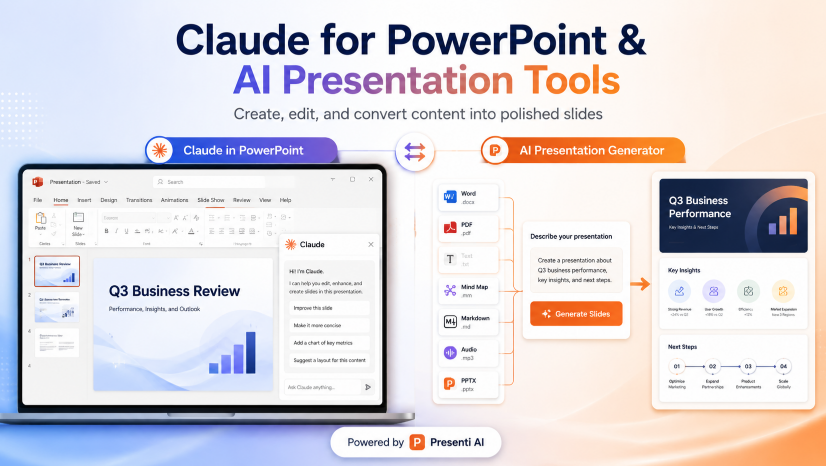
AI powered PPT design tools are quickly becoming essential for professionals, marketers, educators, and content creators who want to produce clean, modern, and visually polished presentations, without spending hours manually adjusting layouts. Unlike traditional slide making, where users struggle with alignment, spacing, and visual hierarchy, AI tools automatically analyze content structure and generate layouts that look intentionally designed and highly professional.
This article shares practical techniques for using AI PPT layout tools effectively, with examples and actionable guidance to help you create slides that are both aesthetically pleasing and strategically structured. If you already have a draft, AI slide design tools can help with the layout stage; the content still needs your review.
1. Best AI Tools for Automatic PPT Layout
Presenti AI
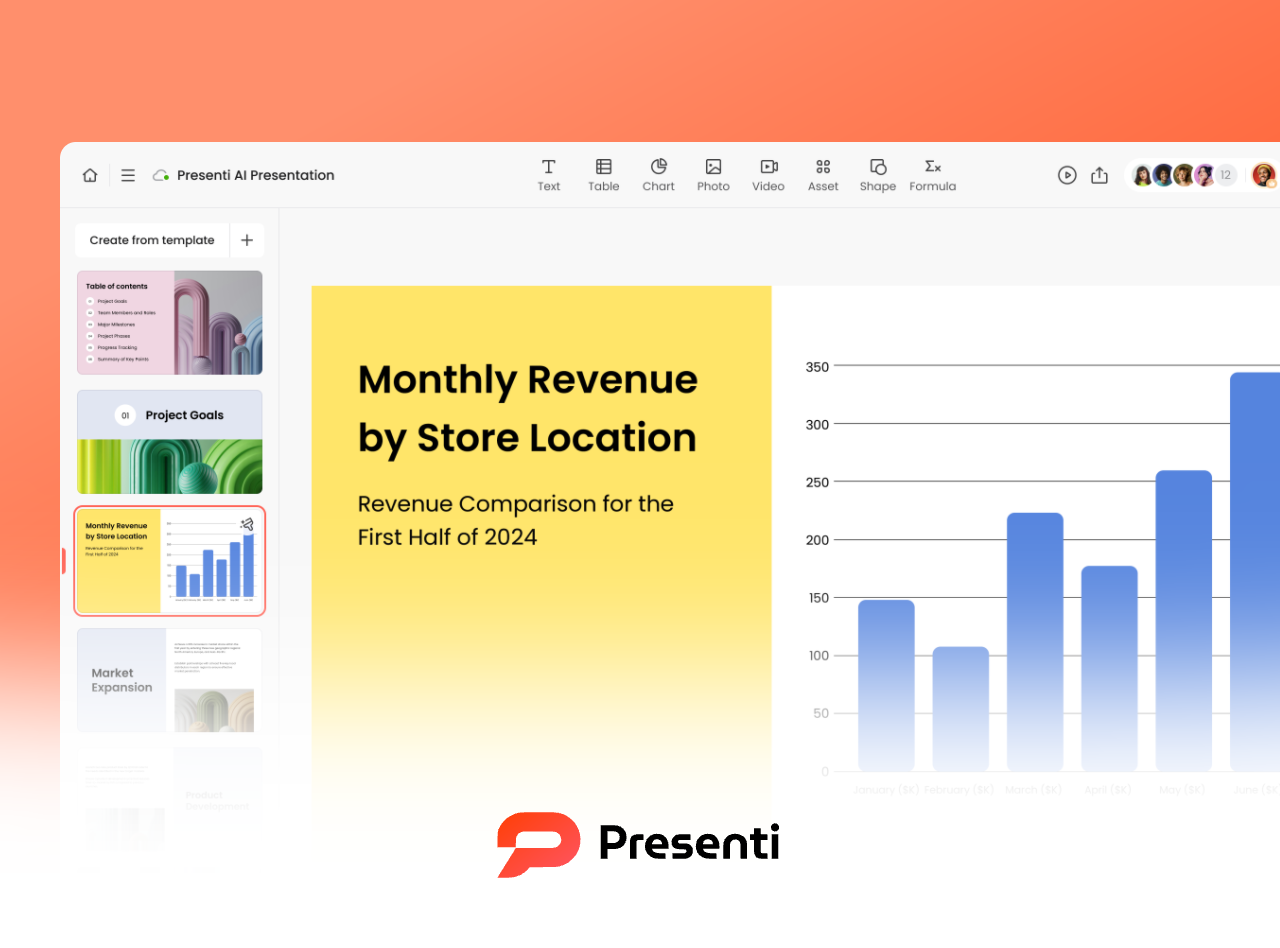
Presenti AI has become a favorite for users who want fast, polished results with minimal effort.
- Excellent support for Chinese and English
- One click automatic formatting from text input
- Supports Word to PPT, outline to PPT, and AI powered content expansion
- Built in theme colors, font pairing, and smart layout automation
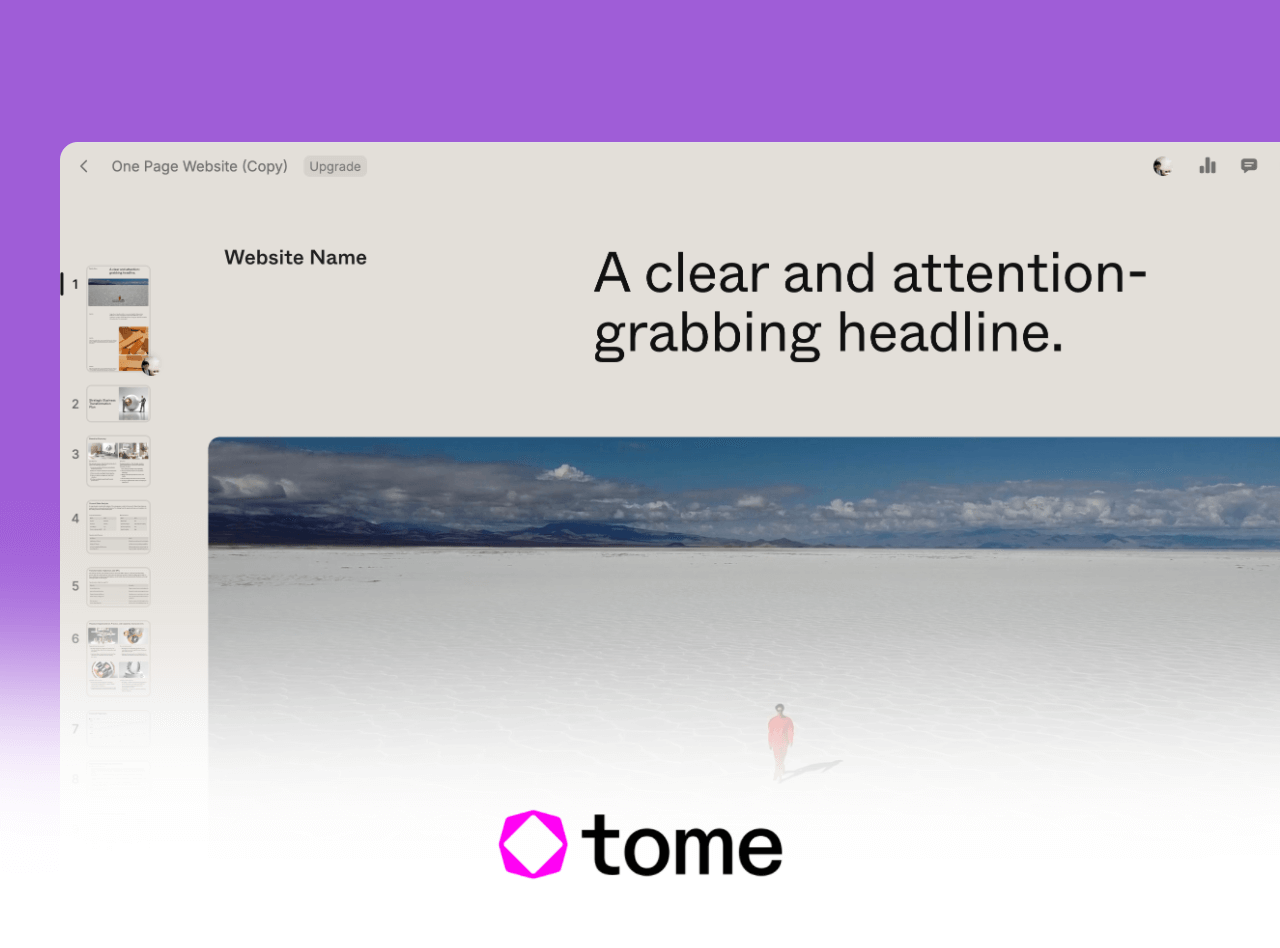
Tome Slides: discontinued presentation service
Tome Slides was discontinued on April 30, 2025 and is no longer available for new presentations. If you have saved PDFs, text, or images, use those materials to build a new deck in an available tool. This does not restore an inaccessible Tome project.
Beautiful.ai

Known for its strict alignment rules and modular design system.
- Automated layout correction
- Professionally styled templates
- Ideal for business decks and dashboards
2. Core Principles Behind AI PPT Layout
Whether a layout comes from AI or a template, assess it using familiar design principles: spacing, hierarchy, consistency, and the relationship between text and visuals. Different slide types need different arrangements.
- Cover Slide: Sets the tone with bold centered title + graphical background
- Table of Contents: Shows the chapter structure using vertical or horizontal grouping
- Section Divider: Breaks up content and improves pacing using big typography and simple visuals
- Content Slide: Text image combinations that highlight key messages
- Charts & Data Slides: Choose a chart or diagram that suits the relationship you need to explain
- Summary Slide: Recaps insights with flat icons and ample white space
- Ending Slide: Contact info, QR codes, or calls to action with clean branding elements
Using these slide types consistently can make the deck easier to navigate.
3. How to Produce Better Slides with AI Layout Tools
Let’s take Presenti AI as an example and explore how to get the best results.
1) Provide Clear and Structured Input
High quality content input is the foundation of good AI generated layouts.
To help AI correctly identify sections, use short sentences, clear headings, and bullet lists.
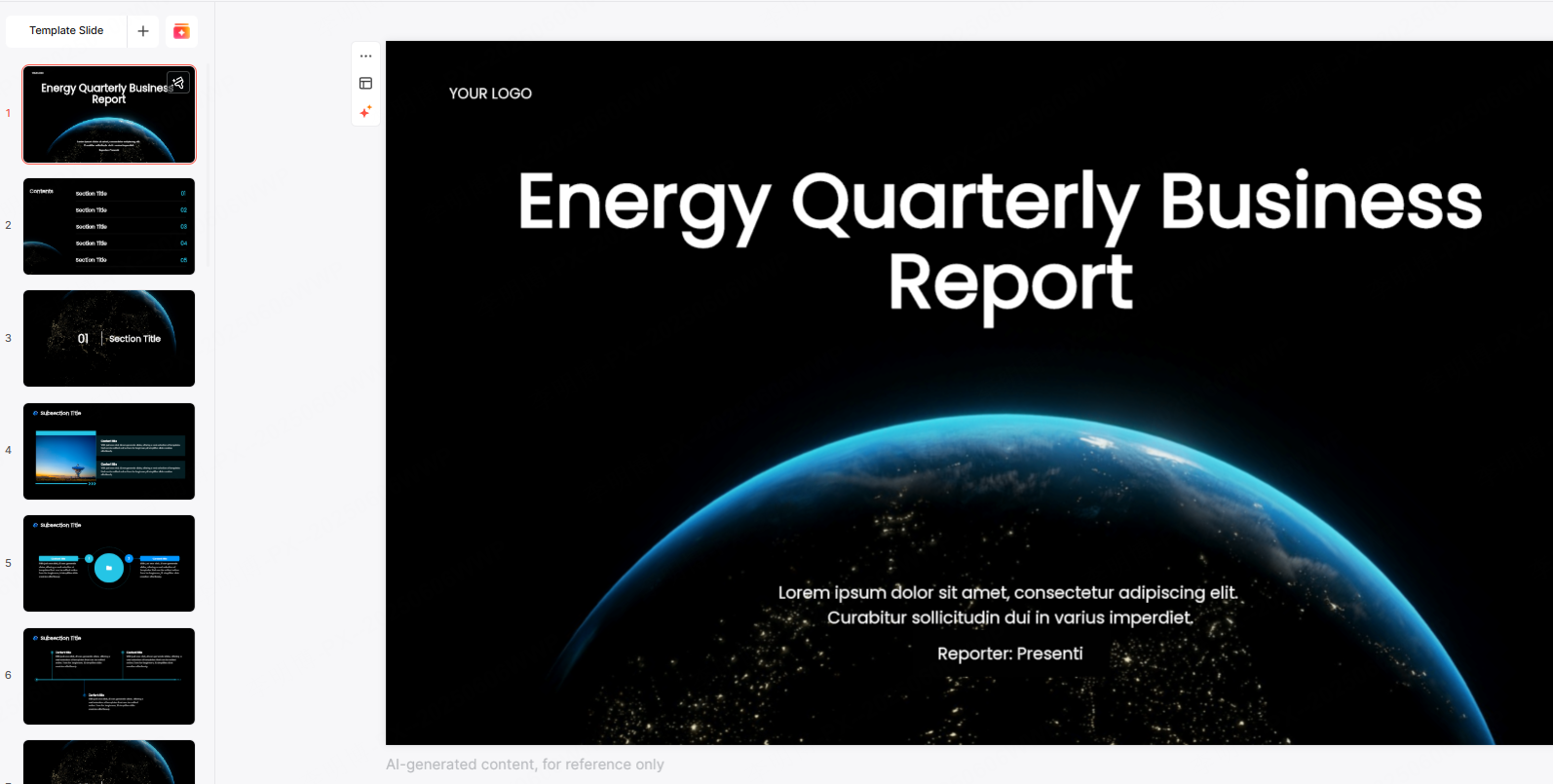
Recommended format example:
- Background
- Current industry status
- Key opportunities
- Solution Overview
- Product highlights
- Unique advantages
2) Choose the Right Template Style
Selecting an appropriate visual style immediately shapes the tone.
- Business Reports: Minimal blue and gray themes, focus on clarity
- Academic Defense: Educational blue, high readability
- Internal Training: Balanced mixed layouts for diagrams + text
- Marketing or Promotion: Bold colors, creative visuals, stronger impact
Matching the template with the scenario improves perceived professionalism.
3) Customize Page Layouts Without Guesswork
Presenti AI auto generates coherent layouts, but you can further fine tune them with one click switches.
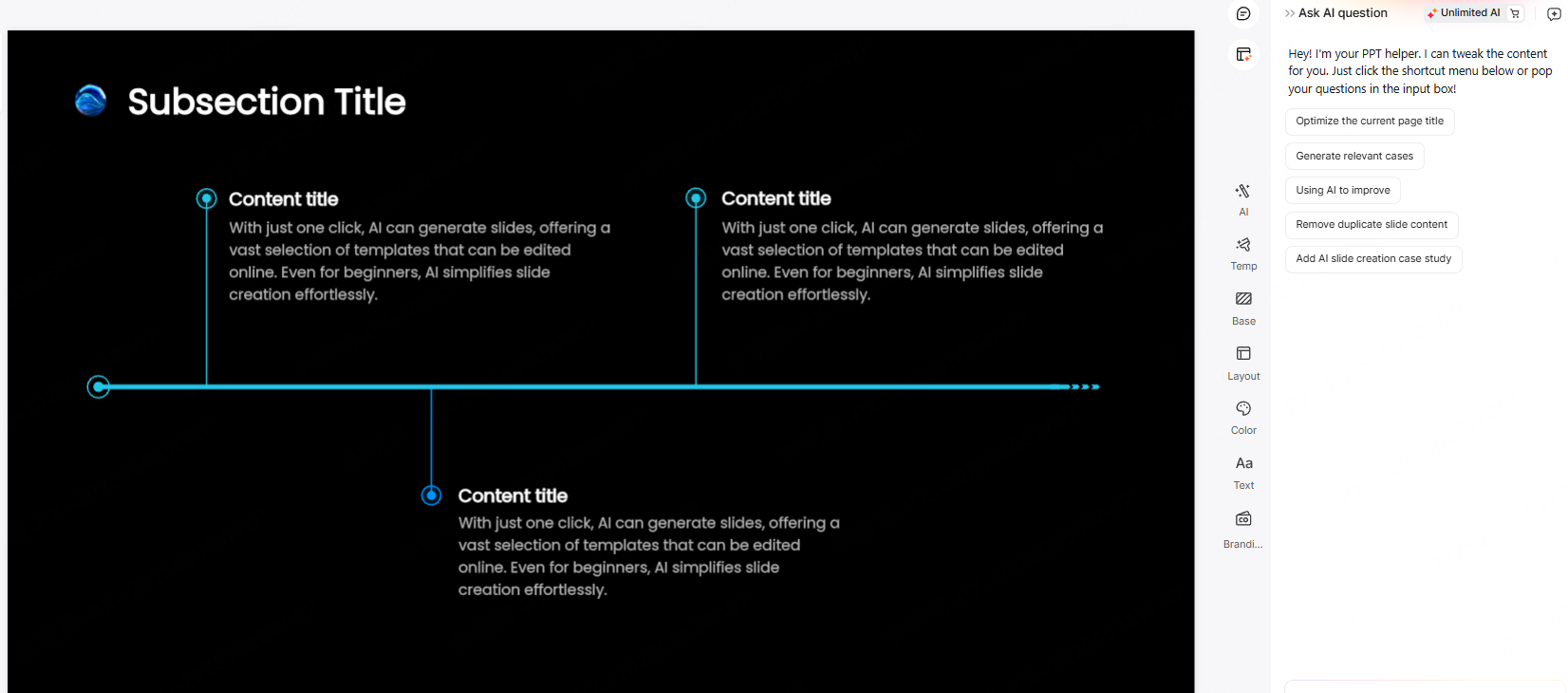
Most useful layout types include:
- Left Right Image & Text: Ideal for features, product highlights, or case studies
- Top Bottom Layout: Perfect for timelines, processes, and roadmaps
- Multi Column Layout: For comparisons, team intros, or categorized points
- Full Image + Centered Text: For openers, transitions, or summaries
- Chart Focused Layout: For analytics, research reports, and market insights
Switch layouts to find the perfect rhythm and information density.
4) Use Built in AI Enhancements for More Professional Slides
When refining the draft, focus on these design tasks:
- Image Selection: Choose relevant visuals and verify what they depict
- Convert to Chart: Use a chart when it makes the comparison clearer, and check its values and labels
- Layout Swap: Quickly declutters crowded slides
- Color & Theme Enhancement: Generates cohesive palettes with one click
Use these options where they help explain the content, then inspect each slide for text fit, contrast, and missing information.
5) Control Information Density & Make Manual Refinements
After generating a draft, but small manual tweaks can improve readability:
- Main Titles: 30 to 36pt for high visibility
- Subtitles: 20 to 28pt for clear hierarchy
- Body Text: Use a size readable from the back of the room; test it on the presentation screen rather than treating one size as universally suitable
- Maintain margins and white space, overfilled slides look unprofessional
With these principles, you can elevate the final output significantly.
Conclusion
AI layout tools can give you a starting design. The useful next step is to simplify crowded slides, verify the data, and check readability on the screen you will present from.
Try these techniques and let AI help you create presentations that are not only beautiful but also effective, structured, and memorable.