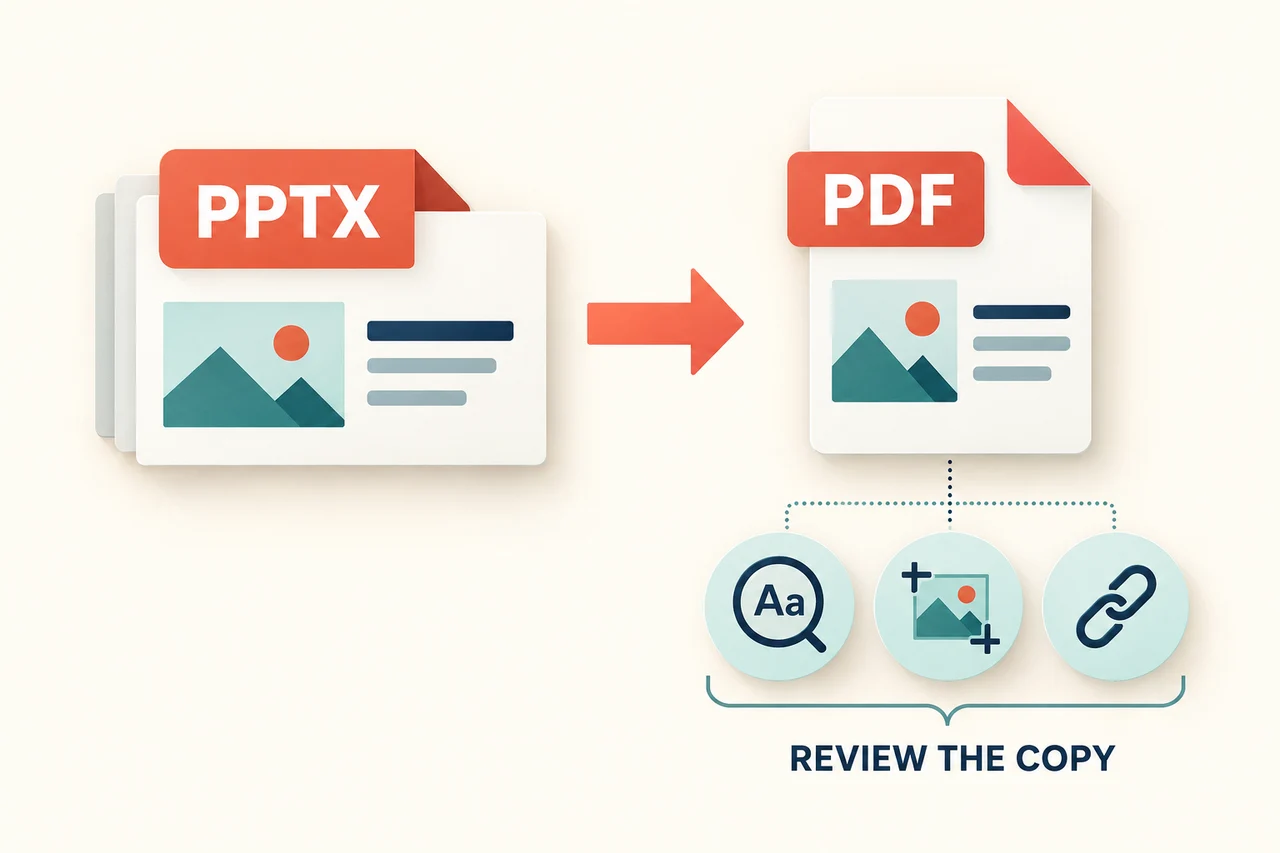
Creating professional presentations requires more than simply adding text to slides. Professionals need to organize information, structure a compelling story, design visual layouts, and ensure every slide matches brand guidelines.
With the rise of AI presentation tools, creating and editing slides has become much easier. One of the latest solutions is Claude for PowerPoint, which brings Claude's AI capabilities directly into Microsoft PowerPoint. If colleagues need to edit the result, the editable PowerPoint handoff guide explains what to check in the delivered file.
This integration allows users to generate slides, improve existing presentations, create charts and diagrams, and refine content without leaving PowerPoint.
However, AI presentation creation is developing in different directions. Claude offers a PowerPoint add-in and separate file-creation capabilities. A presentation generator such as Presenti AI offers another route through its own online workspace.
In this article, we will explore how Claude works directly in PowerPoint, how to use Claude for PowerPoint, and how AI presentation generators provide another approach to creating professional slides.

What Is Claude for PowerPoint?
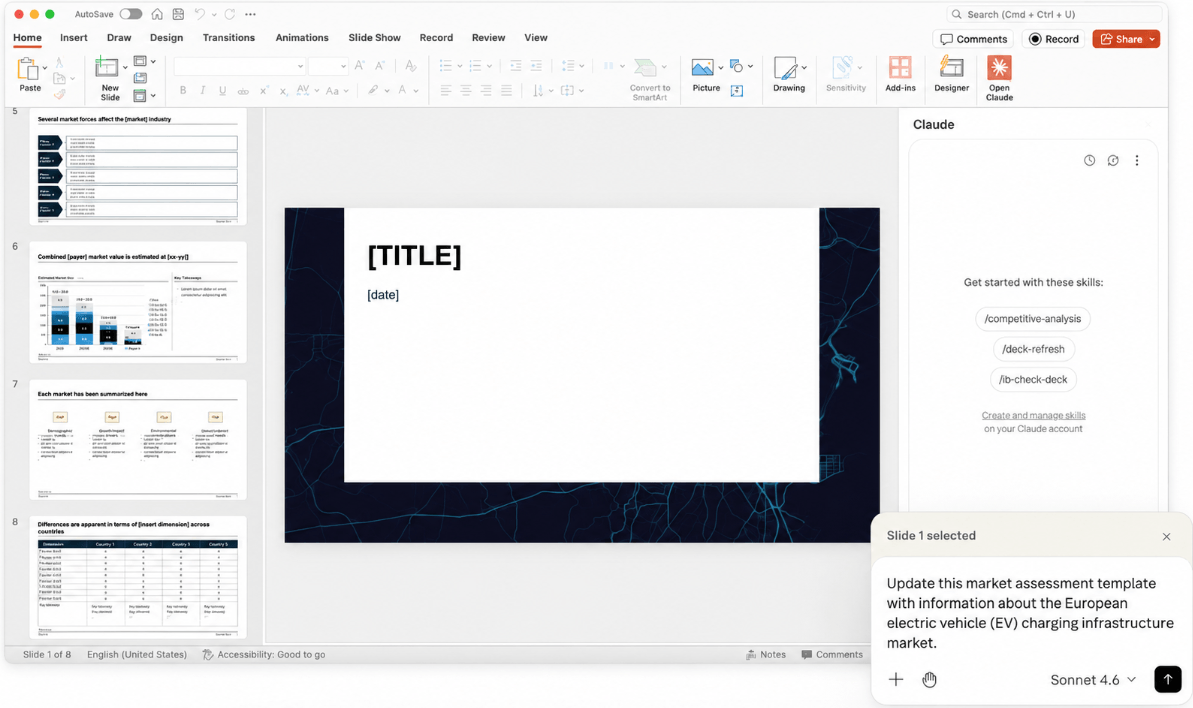
Claude for PowerPoint is an AI-powered Microsoft 365 add-in that integrates Claude into the PowerPoint workflow.
It is designed for professionals who already create presentations in PowerPoint and want AI assistance for editing, improving, and expanding their slide decks.
Unlike standalone AI presentation platforms, Claude works directly inside PowerPoint. Users can continue working with their existing presentation files while using AI to make targeted improvements.
According to Anthropic, Claude for PowerPoint helps users:
- Create new slides using existing corporate or client templates
- Edit specific slides without regenerating the entire deck
- Generate presentation structures from natural language instructions
- Convert bullet points into diagrams and native PowerPoint charts
- Bring additional context from connected tools into presentations
- Improve presentations while maintaining formatting consistency
Claude for PowerPoint is available for Claude Pro, Max, Team, and Enterprise plans.
How Claude Works Directly in PowerPoint
Claude for PowerPoint lets users work within PowerPoint through a sidebar.
After installing the add-in, users can open a PowerPoint file and communicate with Claude through the sidebar.
Claude can understand the current presentation context, including:
- Slide content
- Text elements
- Shapes
- Layouts
- Slide master information
This gives Claude presentation context to use in its suggestions. Review the proposed changes against the brief and template.
For example, users can ask Claude:
- "Simplify the content on this slide"
- "Create a visual comparison chart"
- "Add an executive summary section"
- "Improve the storyline between these slides"
How to Use Claude for PowerPoint
Using Claude for PowerPoint requires installing the Microsoft 365 add-in and connecting it with a Claude account.

Step 1: Install Claude for PowerPoint
Individual users can follow these steps:
- Open the Claude for Microsoft 365 listing in Microsoft Marketplace.
- Select "Get it now" to install the add-in.
- Open PowerPoint and sign in with a Claude account.
Claude for PowerPoint supports:
- PowerPoint on the web
- PowerPoint on Windows with Microsoft 365 subscription
- PowerPoint on Mac version 16.46 or later
Step 2: Start Creating and Editing Slides with Claude
After installation, users can activate Claude from the PowerPoint add-in menu.
Windows users can access the add-in through:
Home → Add-ins
Mac users can access it through:
Tools → Add-ins
Once activated, Claude can assist with creating, editing, and improving presentations directly inside PowerPoint.
Key Features of Claude for PowerPoint
1. Create Slides Based on Existing Templates
One important feature of Claude for PowerPoint is template awareness.
Claude can read existing slide masters, layouts, fonts, and color schemes, then generate new slides that follow the same visual style.
For example, users can ask:
Create a market sizing section with three slides covering TAM, SAM, and SOM with supporting visuals.
This is especially useful for companies that already have established presentation templates.
2. Edit Individual Slides Without Rebuilding the Entire Deck
Instead of creating a completely new presentation, Claude allows users to make targeted changes.
Examples include:
- Rewrite dense paragraphs into concise bullet points
- Add charts to explain data trends
- Improve slide storytelling
- Adjust content structure
This makes Claude suitable for professionals who already have presentation materials and need faster refinement.
3. Generate Complete Presentation Structures
Claude can also create presentation outlines from natural language instructions.
For example:
Create a 10-slide presentation explaining our market entry strategy.
Claude can generate a structured presentation draft with logical sections that users can continue editing in PowerPoint.
4. Turn Text into Charts and Diagrams
Claude can transform simple text information into visual presentation elements.
Examples:
- Convert bullet points into process diagrams
- Create editable PowerPoint charts
- Generate visual frameworks
These elements remain editable inside PowerPoint rather than becoming static images.
What Should You Check Before Using Claude for PowerPoint?
Claude can help create new material as well as revise existing slides. The practical limits depend on the task, the add-in, the account, and the organization's Microsoft 365 settings.
- Confirm the supported PowerPoint version and permission to install the add-in.
- Check whether the required source files and connected tools are available in the workflow.
- Review generated text, charts, and citations against the source.
- Inspect the result against your template rather than assuming automatic brand compliance.
Claude's ability to create a downloadable PPTX in its file-creation workflow is separate from working inside the PowerPoint add-in. Do not assume every input, connector, or editing feature is identical in both.
Creating a Presentation from Scratch
Both Claude and a dedicated presentation generator can help draft a new deck. Start with the audience, objective, source material, and desired output.
For example, a marketer may need a campaign pitch, a researcher a report summary, and a team an executive update from meeting notes. Give either tool the evidence and constraints needed for that task. Decide whether you want to work inside PowerPoint, obtain a generated file from Claude, or use a separate online presentation editor.
A draft still needs review for omissions, invented details, visual clarity, and source attribution.
Claude for PowerPoint vs Presenti AI
| Decision | Claude for PowerPoint | Presenti AI |
|---|---|---|
| Working environment | AI assistance within PowerPoint through an add-in | Separate online presentation workspace |
| New deck or revision | Can create new slides and revise existing material; Claude also has a separate PPTX file-creation workflow | Drafts decks from prompts or supported sources; existing PPTX redesign uses Slide Polisher |
| Source material | Confirm files and connected context supported by the chosen Claude workflow | Limited free Markdown/XMind input; Word/PDF/TXT import listed on paid plans |
| Design | Can use an existing PowerPoint template and native slide elements | Proposes layouts and styles for review in its editor |
| Access and output | Eligible Claude account, supported PowerPoint application, and installation permission | Limited free AI credits; editable PPTX/PDF export on paid plans |
How Presenti AI Helps Create Presentations Faster
Presenti AI provides an online workspace for drafting and editing presentations from a topic or supported source material.
Presenti AI is an AI-powered presentation generator that helps users transform ideas, documents, and various types of content into professionally designed online presentations.
Create Presentations from Simple Prompts

With Presenti AI, users do not need to prepare a PowerPoint file before starting.
Simply describe the presentation topic, audience, and requirements, and AI can generate a structured presentation with:
- Slide outlines
- Content organization
- Visual layouts
- Professional design styles
For example, users can enter:
Create a 10-slide business presentation about our new product launch strategy.
Presenti AI can transform the idea into a complete presentation structure that can be further edited online.
Convert Word, PDF, TXT, and Other Files into Presentations
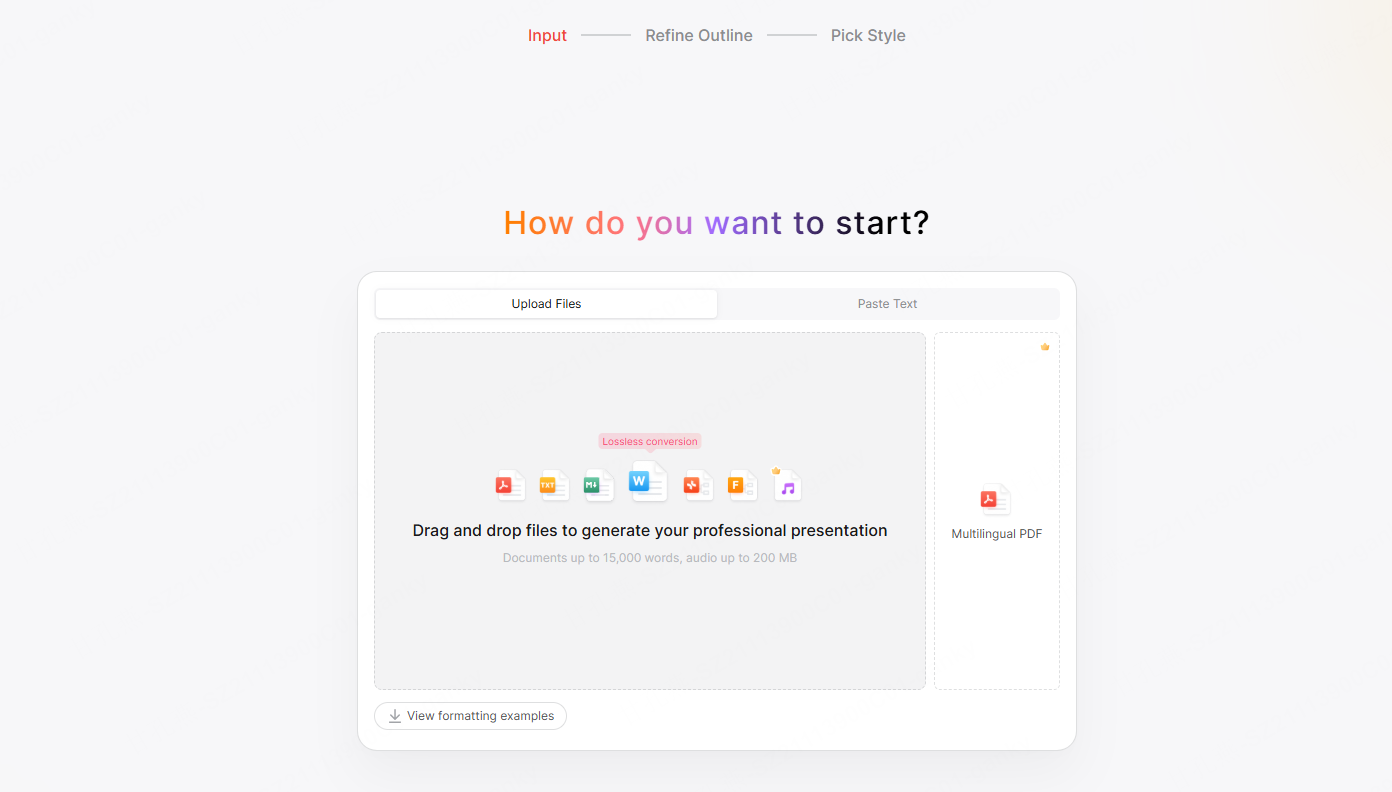
Many valuable ideas already exist in documents rather than slides.
Instead of manually copying information into PowerPoint, Presenti AI allows users to convert different content formats into presentations.
Supported content sources include:
- Word documents
- PDF files
- TXT files
- Markdown files
- Mind maps
- Other input options shown in the current workspace
- Existing PPTX redesign through the separate Slide Polisher workflow
These options can provide a starting point for reports, notes, and other source material. Word/PDF/TXT imports and editable PPTX/PDF exports are listed on paid plans; free AI usage is limited.
AI-Powered Presentation Design and Layout Optimization
Creating a great presentation requires more than generating text.
Presenti AI helps users improve the visual quality of presentations by automatically adjusting:
- Slide layouts
- Content hierarchy
- Visual balance
- Image placement
- Overall presentation style
This allows users to focus on the message while AI handles repetitive design work.
Create Online Presentations and Continue Editing
Presenti AI provides an online presentation creation experience where users can review, modify, and refine generated slides.
Instead of starting with a blank PowerPoint canvas, users can begin with an AI-generated draft and customize it based on their needs.
Which Workflow Should You Choose?
Consider Claude for PowerPoint when your team already works in PowerPoint and wants to draft or revise slides within that application. Check the add-in's handling of your templates, native elements, and required sources.
Consider Presenti when you want a separate online workspace for turning an outline or supported document into a deck. Check the input and export features included in your plan.
For a useful comparison, give each tool the same representative brief and inspect factual accuracy, missing information, editing effort, and the final PowerPoint file. Neither workflow removes the need to review the content.
Final Thoughts
Claude and Presenti can both help start a presentation. The more useful distinction is where you work and how the tool handles your sources, templates, edits, and output requirements.
Choose a workflow that fits your team, then reserve time to verify the draft and rehearse the message.