Preparing several lessons involves repeated work: organizing objectives, finding examples, choosing visuals, and formatting slides. Planning those tasks together can make the week easier to manage.
This guide uses “batching” to mean planning and preparing several lessons in one work session. It does not assume that Presenti has a bulk-generation command. You can use AI to draft each lesson from a shared plan, then review the decks together.
Why Batching is the Secret to Teaching Longevity
Batching means grouping similar preparation tasks into a dedicated work period. For example, outline the week’s learning sequence before drafting slides for Monday.
Prepare the objectives, source material, and design choices for several lessons together. This can reduce repeated setup, but keep room to adjust later lessons after seeing what students understand.
Use Presenti within a Weekly Planning Workflow
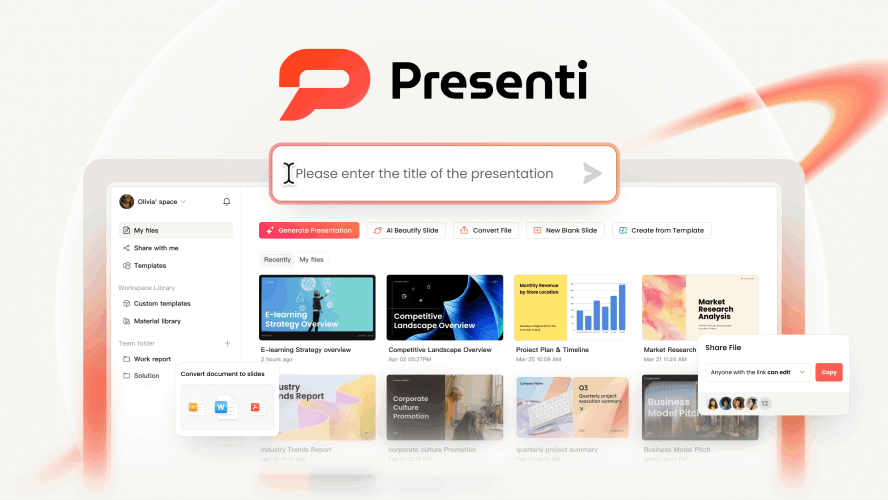
Use Presenti to draft and edit individual lesson decks within a weekly plan. A shared outline and reusable design can keep the material consistent without assuming automatic coordination between files.
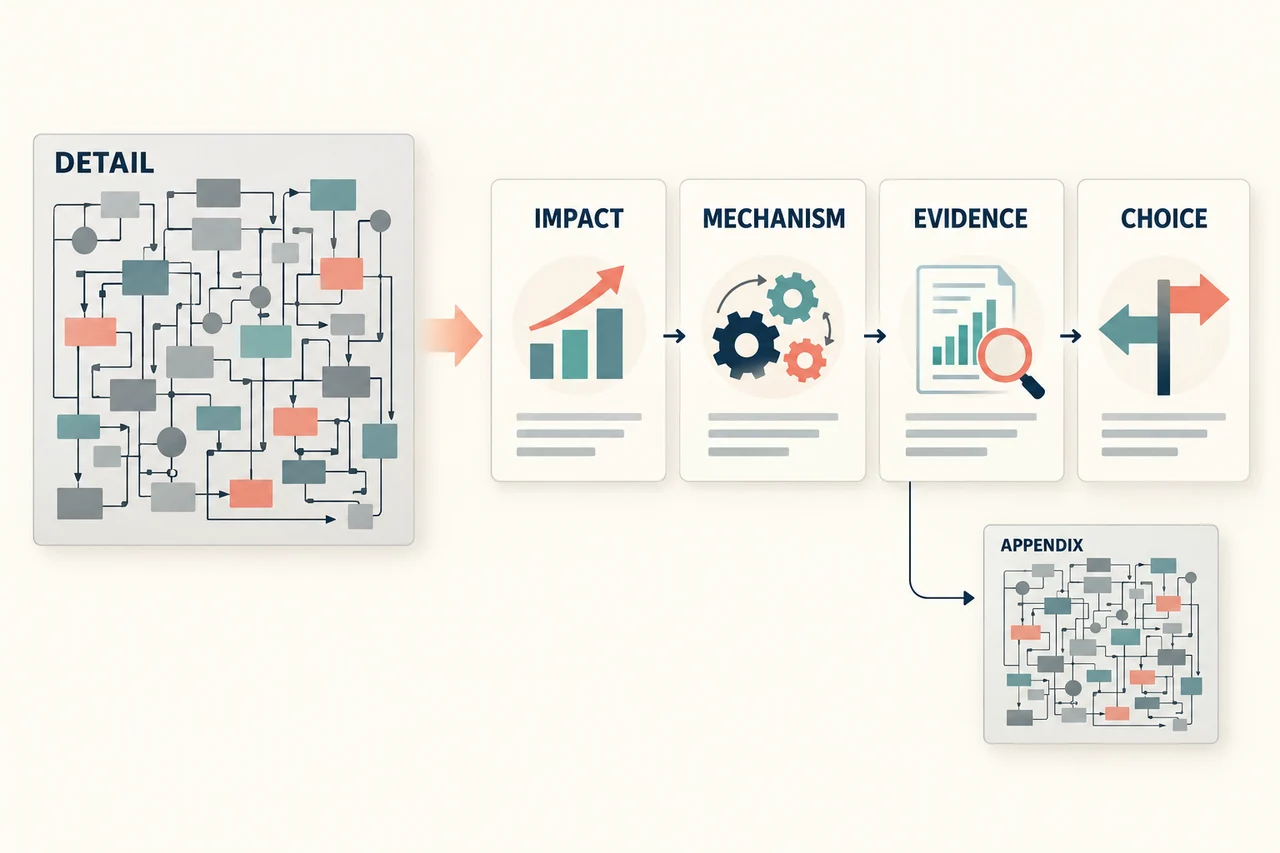
Map the Unit Before Drafting Individual Lessons
Start by mapping the unit yourself: what students should know at the beginning, what each lesson adds, and how the final activity uses those ideas. Give the tool the relevant context for each lesson.
Planning prompt: Ask for a proposed lesson sequence from your unit outline, then review the scope and order.
The result to aim for: A set of lessons with a deliberate sequence. Compare the review questions in a later deck with the earlier lesson’s summary and adjust them yourself.
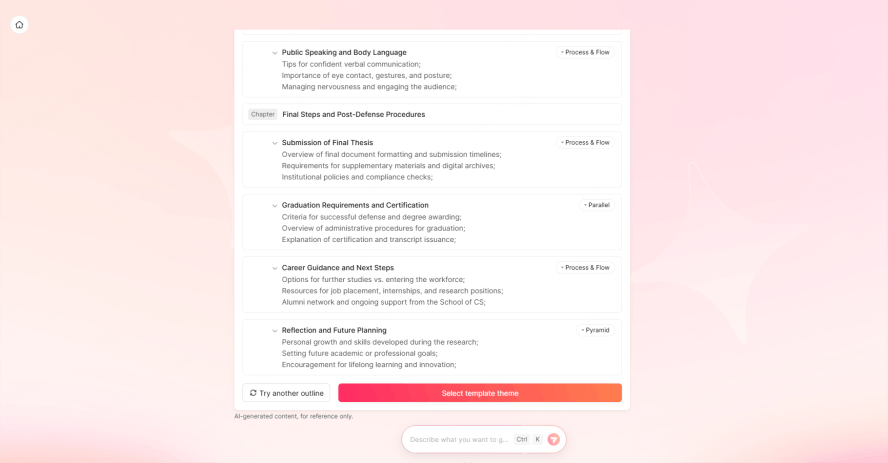
Plan Several Lessons from a Source Chapter
A textbook chapter can be a source for several lessons, but you still need to read the relevant material and decide what to include. Check any AI summary against the source and the learning objectives.
How it works: Upload a 50-page PDF and use the command: "Propose outlines for five lessons from this chapter, showing the objective and key source sections for each."
Review: Check the proposed lesson boundaries, key terms, and examples before generating slides. Keep important qualifications and references with the material they support.
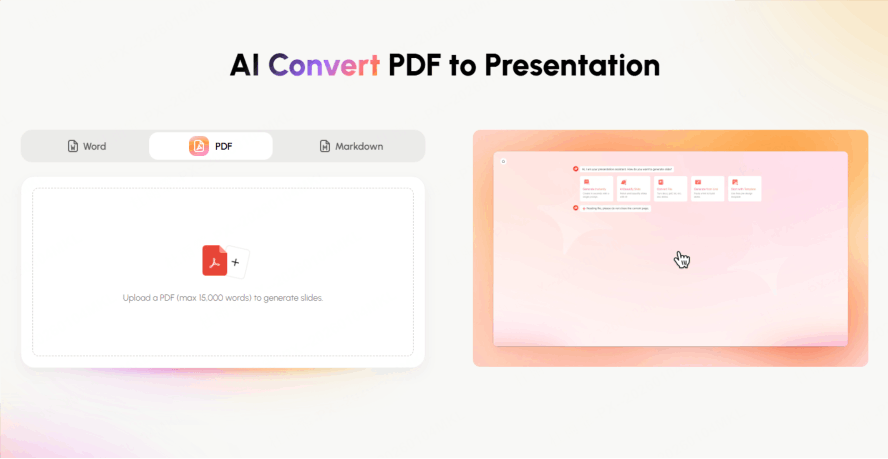
Choose and Check Visuals
Choose the visual style for the unit before working on individual decks. Reuse a consistent set of diagrams, icons, and layouts where they support the explanation.
Visual brief: Ask for a diagram, example, or question where it supports the lesson objective. Treat that as an instruction in your brief, not a special product mode.
Image review: Check that suggested images depict the right subject and that their usage terms fit the lesson. Use a verified diagram when accuracy matters.
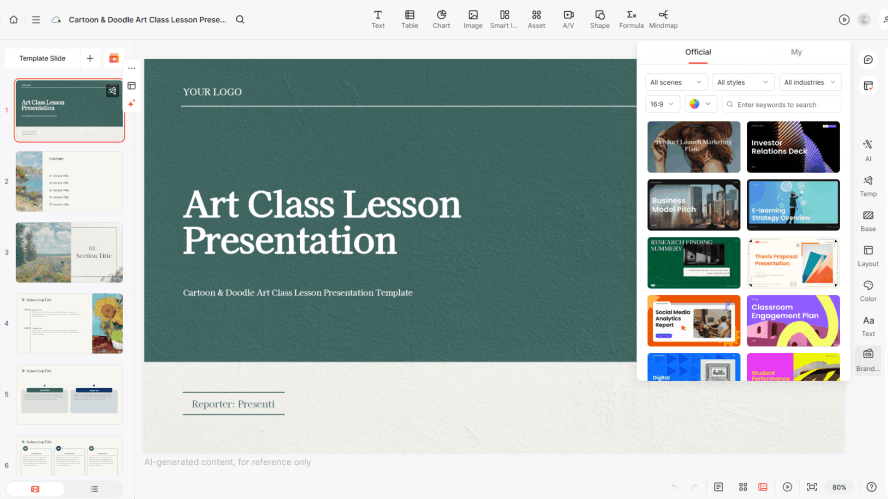
Reuse an Approved Design
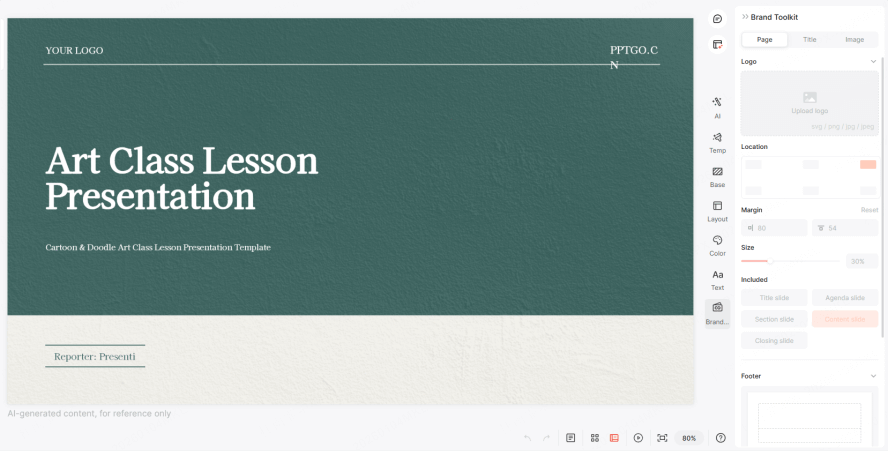
Does your school require a specific logo in the corner or a certain font? Don’t waste time formatting every single slide.
Reusable design: Keep an approved deck or template with the school’s colors, fonts, and logo. Use it as a reference and check the styling in each new presentation.
How to Use Presenti for Weekly Lesson Slides Automation
Use this workflow to prepare the week’s lessons with a common plan and a repeatable review process.
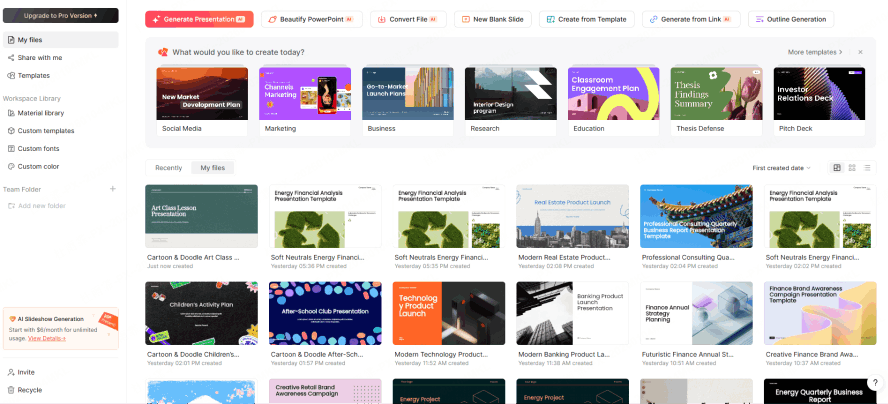
Step 1: Sign In & Set Your Style
Sign in to Presenti and choose a design that is readable on your classroom screen. Check the account’s input and export access before preparing a full unit.
Prepare a reference deck: Set up a title, learning-objectives slide, content layout, and summary. Reuse those choices and inspect each generated deck for consistency.
Step 2: Feed the Engine (Input Your Syllabus)
This is where you tell the AI what to do for the whole week. You don’t need to write a book; a simple outline or a PDF will do.
The Input: You can either upload your weekly curriculum PDF or simply paste a list like this:
- Monday: Intro to Photosynthesis
- Tuesday: The Role of Chlorophyll
- Wednesday: Light vs. Dark Reactions
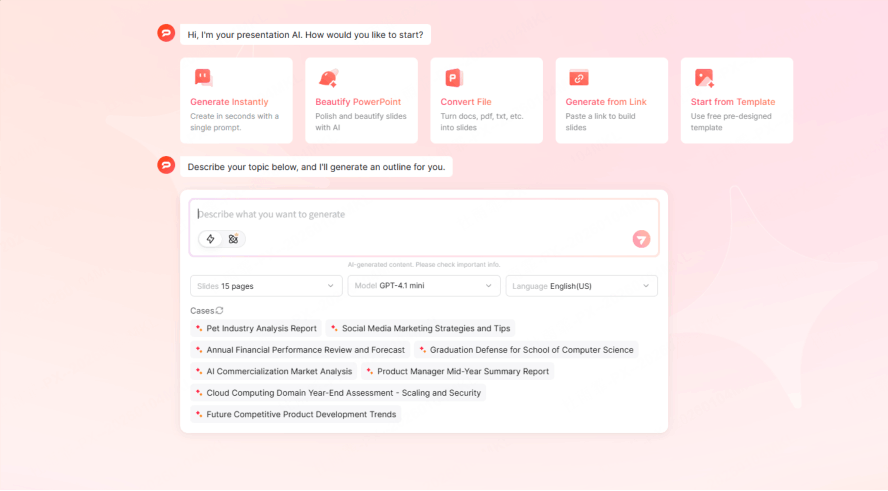
Step 3: Draft Each Lesson from the Shared Plan
Use the weekly outline to write a brief for the first lesson. Generate and review that deck, then repeat for the remaining lessons. Include the previous lesson’s key points in the next brief where continuity matters.
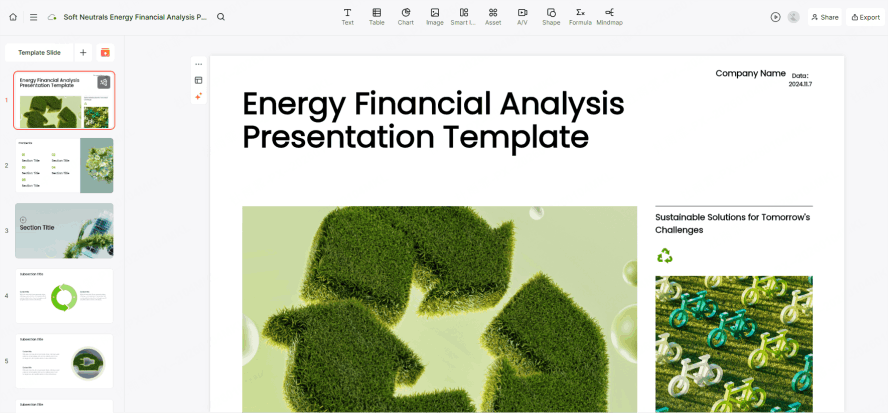
Step 4: Polish, Refine, and Export
Now that the "heavy lifting" is done, it’s time for the finishing touches. You are the expert, so use this stage to add your personal flair.
Review the sequence: Preview every deck. Shorten crowded slides, check transitions between lessons, and make sure the examples and questions match the objectives.
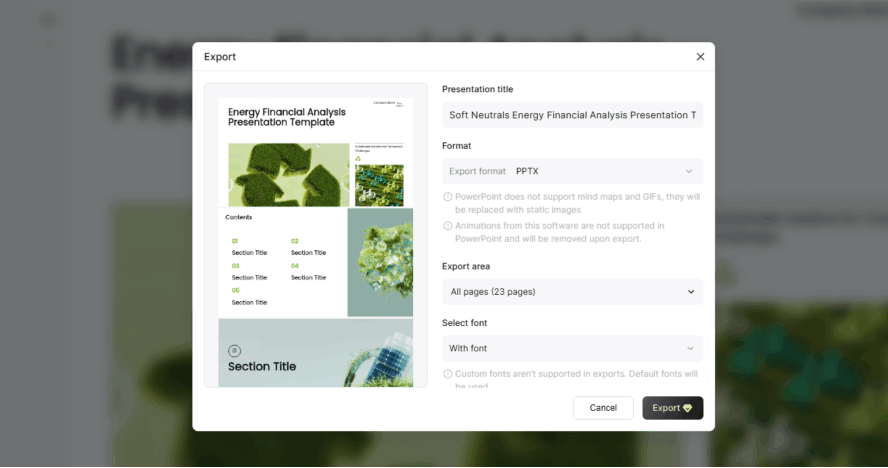
Export and test: On an eligible paid plan, export each deck as PPTX or PDF. If your school uses Google Slides, import the PPTX there and inspect the result; direct synchronization is not assumed.
6 Expert Prompts for Batching Your Lessons
Use these six prompts to plan a series. Review the proposed outlines, then generate the individual decks through the tool’s supported workflow:
- "Using the attached curriculum, batch create teaching materials for a 5-day unit on Shakespeare. Each deck must include one slide for historical context, three for text analysis, and one exit-ticket question."
- "Act as a STEM coordinator. Draft outlines for 3 lessons on Python programming basics, with short code examples to verify before teaching."
- "Batch create slides from this 50-page research paper. Divide the content into a 4-part lecture series for graduate students, focusing on methodology and data results."
- "Draft outlines for a 'History of Art' series. Focus on high-quality image placement and minimalist text for a gallery-walk classroom style."
- "Help me batch create teaching materials for a substitute teacher. Generate 3 days of 'Emergency Lesson' slides that are self-explanatory and include student discussion prompts."
- "I have 10 vocabulary lists. Draft outlines for 10 mini-decks (5 slides each) that use the 'See, Think, Wonder' thinking routine for each word."
Elevating Your Content: Beyond the First Draft
A weekly outline is only the starting point. Use these checks to improve the individual lessons and the connections between them:
- Adapt the draft for your class: Use the generated structure as a starting point, then add relevant examples, suitable language, and questions that match the lesson objective.
- Interactive Elements: When you batch create slides, ask Presenti to include "Pause for Thought" slides. These are vital for keeping students engaged during long lectures.
- Visual Consistency: When you batch create teaching materials, stick to one icon style (e.g., Line Art or 3D). Use the same approved icon set where it suits the lesson, and check each deck.
Avoiding Pitfalls: The Dos and Don'ts of AI Batching
Review both the slide content and the sequence across the week.
Do:
- Audit for Tone: AI can sometimes be too formal. When you batch create slides, remind Presenti to use a "conversational and encouraging tone."
- Check Slide Density: Ensure the weekly lesson slides automation hasn't packed too much info onto one screen. If it has, divide the material across additional slides.
- Batch Create Teaching Materials Together: Don't just do the slides. Ask the AI to generate the accompanying worksheets at the same time for total alignment.
Don't:
- Ignore the Preview: Always click through the batch once. AI might interpret a "Cell" as a "Prison Cell" instead of a "Biological Cell" if the context isn't clear.
- Skip the Sources: If you use the bulk presentation generator for history or science, double-check the dates and formulas.
- Over-Automate: Technology is a tool, but you are the teacher. Ensure your voice remains the loudest in the room.
FAQ
1. How does a bulk presentation generator differ from ChatGPT?
A writing assistant can help plan objectives, questions, and outlines. A presentation editor adds slide layouts and file editing. Check the actual capabilities of the tools you use rather than assuming either one provides a particular bulk workflow.
2. Can I really batch create slides for a whole month at once?
You can plan a month’s sequence together, then draft and review each lesson. This guide does not establish a Presenti feature that creates multiple separate files in one command.
3. What if I need to change a logo across all batched slides?
Keep a reusable reference template. If the logo or theme changes, update and inspect each affected deck using the editing controls available; do not assume one command updates every file.
4. Is weekly lesson slides automation suitable for all subjects?
The planning approach can be adapted to different subjects, but the review needs differ. Check mathematical notation, scientific diagrams, historical sources, and any other details central to the subject.
Conclusion
A shared weekly plan can make lesson preparation more consistent. Use AI where it helps with drafting, then spend the necessary time checking the subject matter and adapting it to students.
Start with a small set of lessons in Presenti, keep the sources and reusable design together, and revise the sequence as the class progresses. The goal is a manageable preparation process and clear teaching material.