ChatGPT can help you plan the structure and draft the text for PPT presentations. Whether you are preparing a seminar, business report, lesson or client proposal, begin with a clear brief and review the resulting content before turning it into slides.
This guide shows how to use ChatGPT to make a PPT: start with an outline, develop individual slides, and choose a presentation editor. It also includes role-specific ChatGPT PPT prompts you can adapt to your own sources and audience.
Part 1. How to Use ChatGPT to Make a PPT — Step by Step
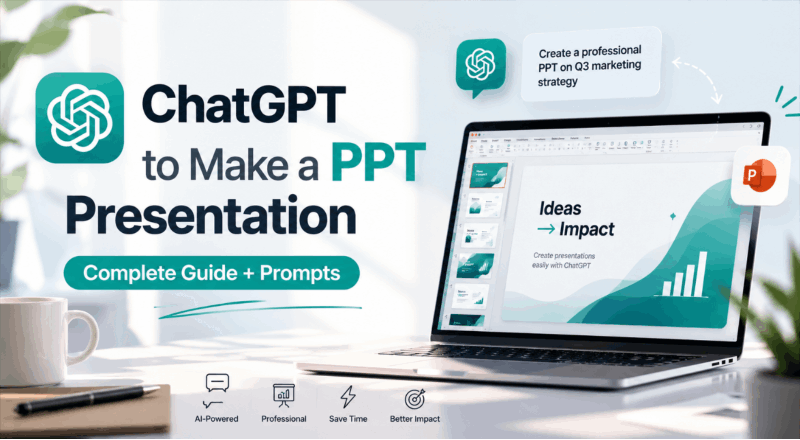
ChatGPT can draft outlines, slide text, speaker notes and design suggestions. In environments with file-generation tools, it can also help create a .pptx draft; availability depends on your account and enabled tools. If that option is unavailable, move the structured text into PowerPoint, Google Slides or a presentation tool such as Presenti. The five steps below work for either route.
Step 1: Define Your Purpose and Audience
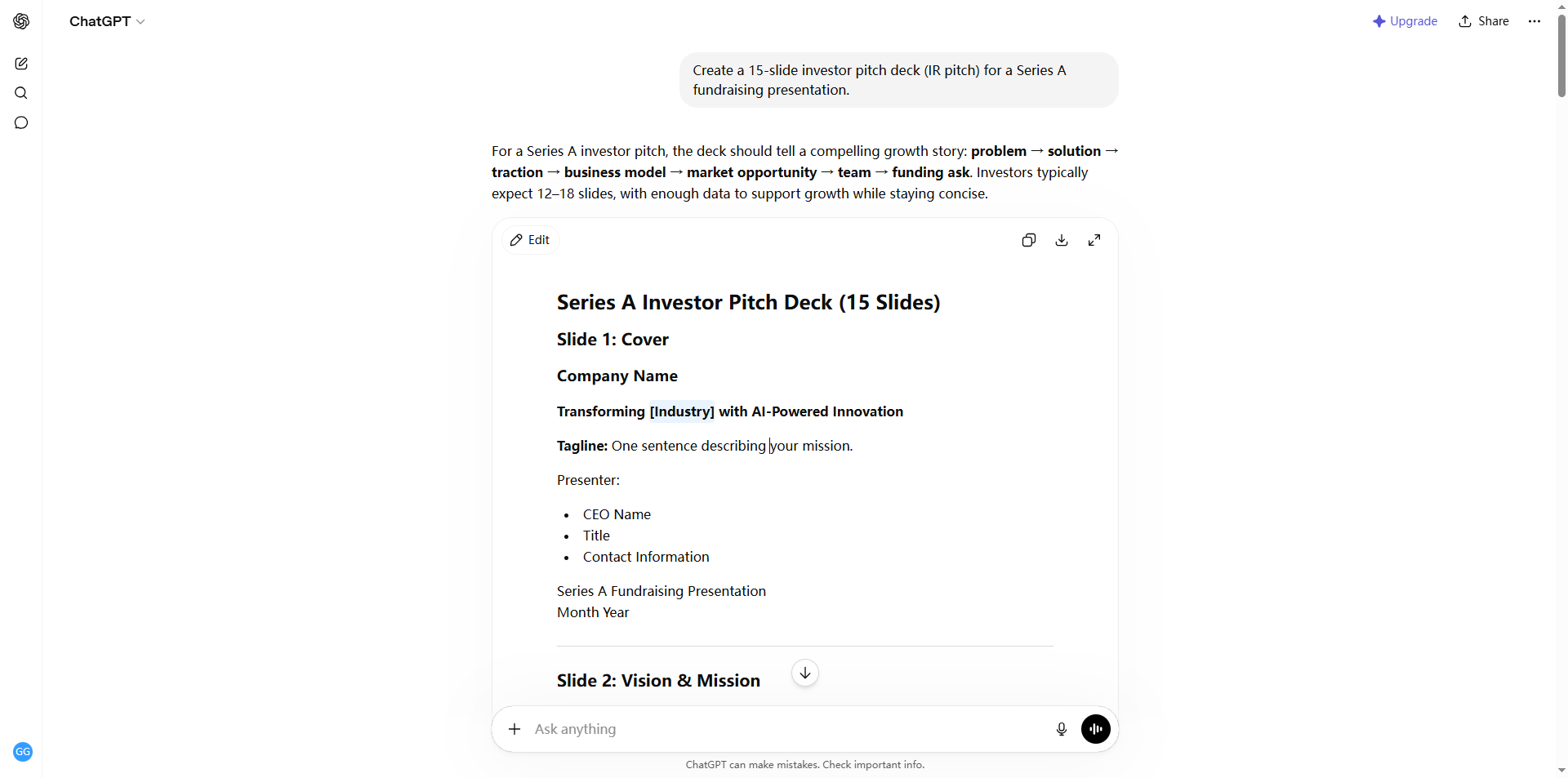
Before sending your first ChatGPT PPT prompt, lock in four things: the goal of your presentation, who the audience is, how many slides you need, and the topic. The more specific you are upfront, the better the output.
Example:
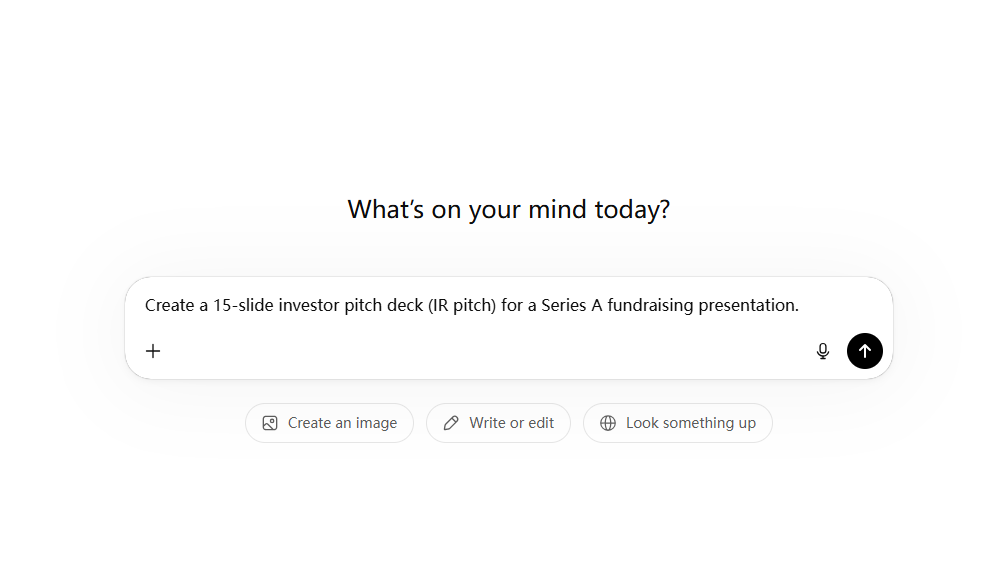
"Create a 15-slide investor pitch deck for a Series A fundraising presentation."
Clarity here sets the tone for everything that follows.
Step 2: Request a Slide Outline First
Don't ask ChatGPT to write all the content at once. Start by requesting a full outline — just the slide numbers and titles. Prompt it with:
"Give me a slide outline in numbered list format with a title for each slide."
ChatGPT will propose a logical narrative flow. Review it, cut anything unnecessary, reorder slides that feel off, and ask for adjustments freely before moving forward. Getting the structure right first saves a lot of rework later.
Step 3: Generate Slide-by-Slide Content
Once the outline is locked, ask ChatGPT to fill in each slide. You can do this all at once or slide by slide for more control. Specifying a consistent output format makes editing far easier:
"Write each slide with: Slide Title / 3 key bullet points / Speaker notes."
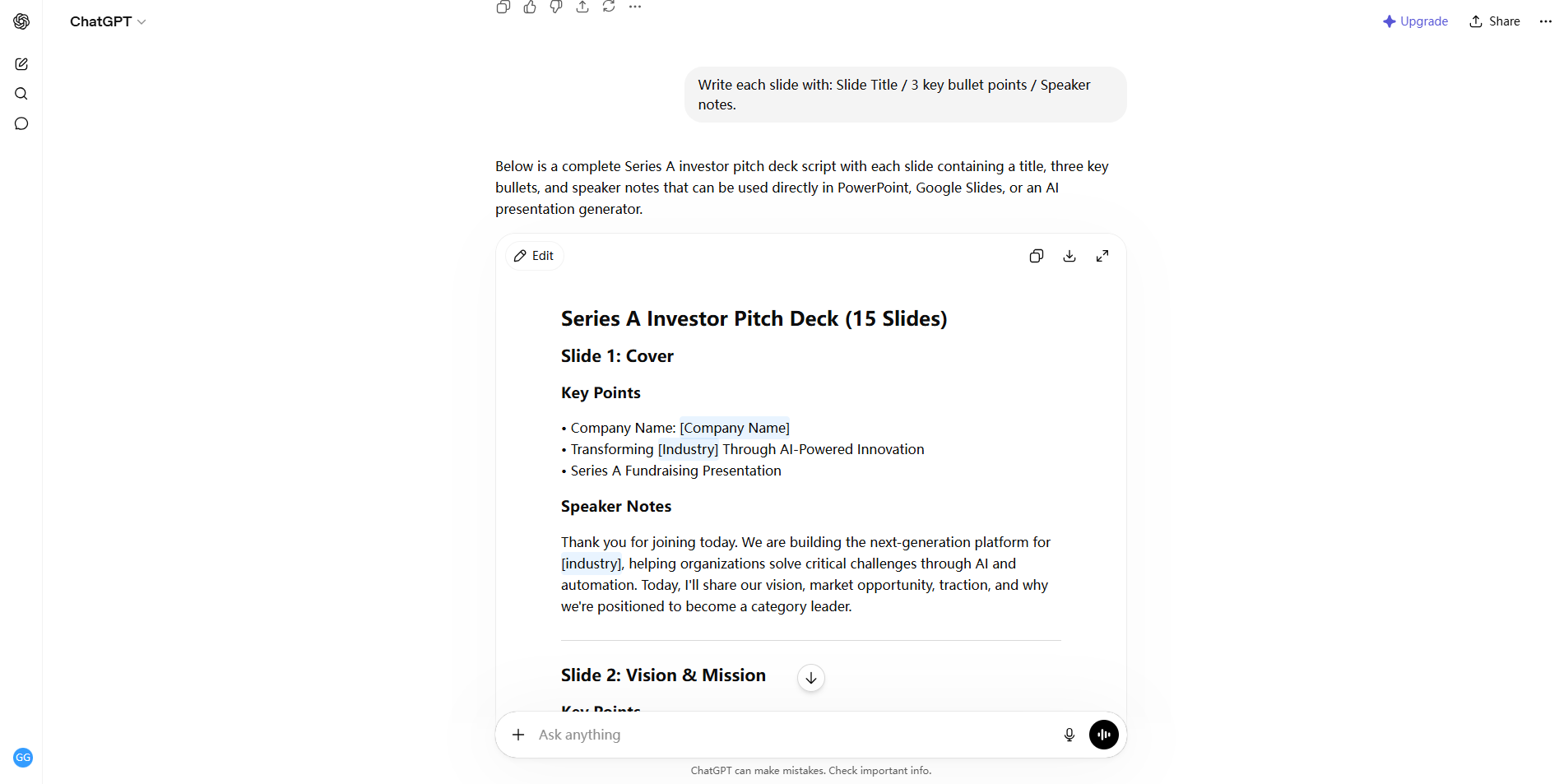
A consistent format makes the text easier to transfer into PowerPoint or a presentation tool such as Presenti. After importing, adjust line breaks, slide length and layout to suit the template.
Step 4: Get Design Direction and Visual Suggestions
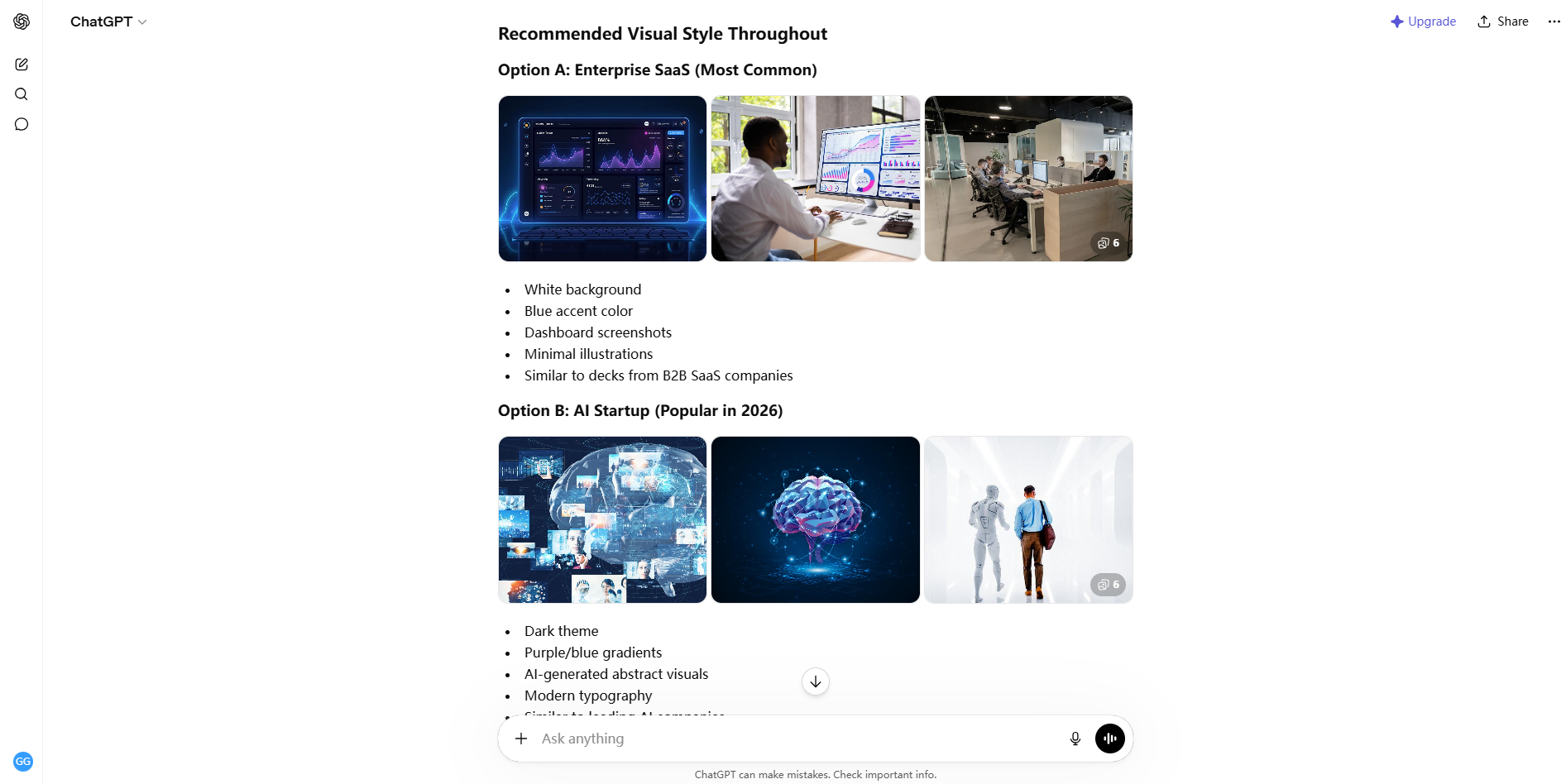
Ask ChatGPT for color themes, font pairings, layout ideas and image-search terms. Use these as design suggestions, then select images from an appropriate source and confirm their usage rights. Any generated or selected image still needs a relevance and accuracy check.
"For each slide, suggest a layout style and 2–3 image search keywords that would work visually."
This step bridges the gap between raw text and a visually coherent deck.
Step 5: Move Your Content into PowerPoint or an AI PPT Tool
Take the ChatGPT-generated content and bring it into your tool of choice:
- Microsoft PowerPoint or Google Slides — paste manually and apply a template
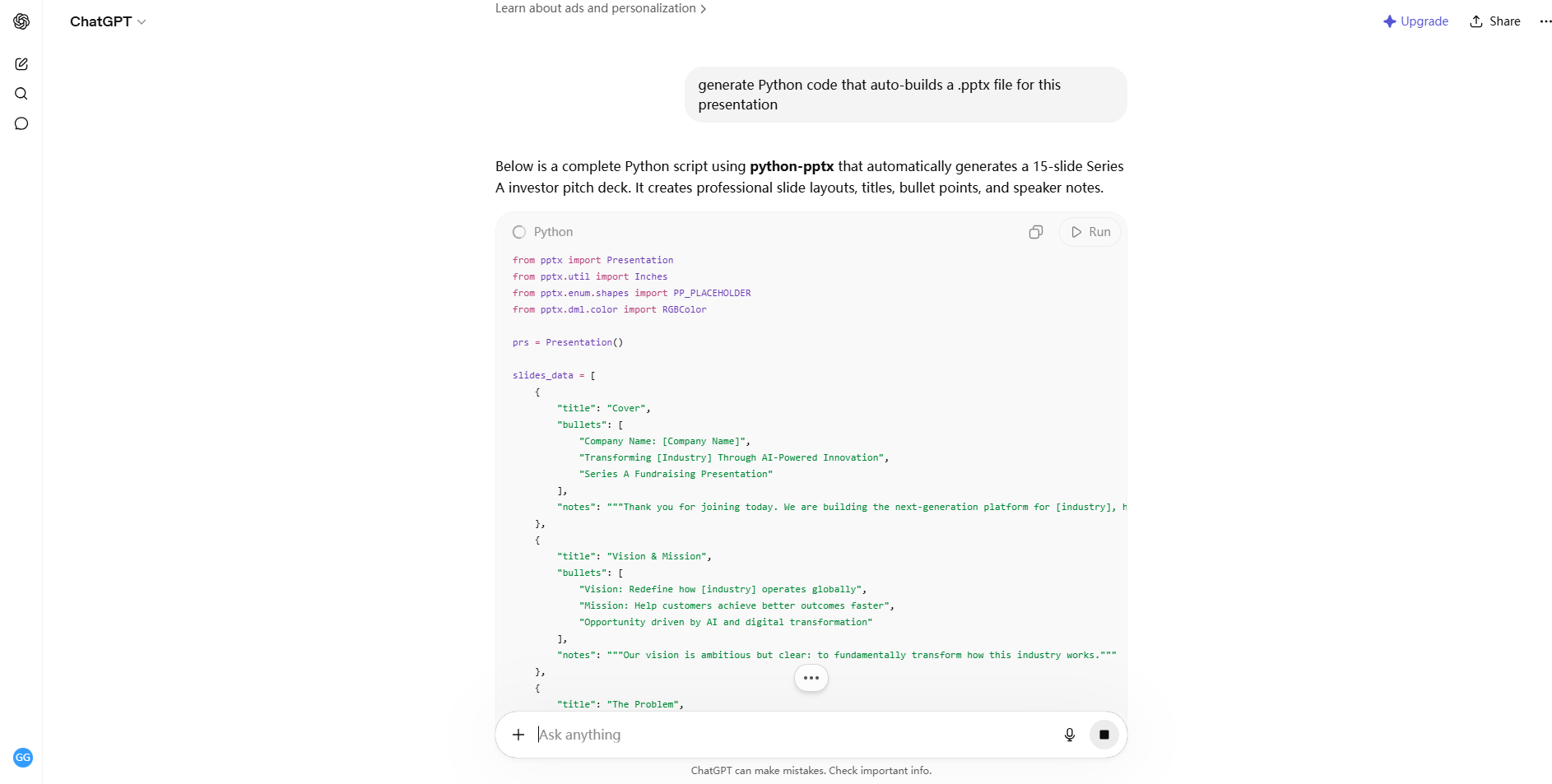
- Python-pptx — ask ChatGPT to generate Python code that auto-builds a
.pptxfile - AI presentation tools, such as Presenti or Gamma — use the structured text as a starting point for a slide draft, then review the layout and content.
A presentation tool can reduce some of the layout work after you have refined the content. The best route depends on your template, source material and editing needs; the Presenti section below describes one option.
Part 2. ChatGPT PPT Prompt Examples by Role
These examples specify an audience, purpose, slide count and output format. Replace the sample topic, date and figures with your own information; the prompts are illustrative, not verified research or forecasts.
🎓 Students — Seminars, Class Assignments, Thesis Presentations
[Student Prompt 1] — Environmental Science Seminar
Role: You are an expert presenter for university environmental science seminars.
Topic: "The Current State of Climate Change and Response Strategies in 2025"
Slides: 12
Audience: 30 environmental science students, 10-minute presentation
Request: For each slide include: Slide Title / 3 key points / Visual keyword suggestion.
Make the final slide a Q&A slide.
[Student Prompt 2] — Job Search Skills for the AI Era
Role: Career consultant and presentation expert
Topic: "Top 5 Skills Every Job Seeker Needs in the Age of AI"
Slides: 10
Audience: College students preparing to enter the workforce
Format: 1 title slide, 1 overview, 5 skill slides, 1 action plan, 1 conclusion and 1 references slide
Suggest one relevant visual for each skill slide. Mark any claims that need a source.
💼 Professionals — Business Reports, Proposals, Team Updates
[Professional Prompt 1] — Monthly Performance Report
Role: Senior manager on a corporate strategy team
Topic: "Marketing Team KPI Achievement Report — May 2025"
Slides: 8
Audience: Executive leadership
Include: Key performance summary, goal vs. actual achievement table, issues and improvement plan, next month's action items
Tone: Professional and concise business language
[Professional Prompt 2] — New Service Proposal
Role: Product manager at a startup
Topic: "Proposal for Implementing an AI-Powered Customer Support Chatbot"
Slides: 15
Audience: Investors and decision-makers
Structure: Problem definition → Market opportunity → Solution → Expected ROI → Roadmap → CTA
For each slide, include one key message sentence and a data visualization suggestion.
📚 Teachers — Lesson Materials, Parent Meetings, School Presentations
[Teacher Prompt 1] — Elementary School Environment Lesson
Role: 5th grade elementary school teacher
Topic: "How We Can Protect the Earth — Recycling and Environmental Care"
Slides: 10
Audience: 5th grade students
Include 2 quiz slides to keep students engaged.
For each slide, also suggest cute illustration keywords that would fit the content.
[Teacher Prompt 2] — Parent Information Session
Role: 9th grade homeroom teacher
Topic: "Second Semester Classroom Plan and Career Guidance — 2025 School Year"
Slides: 12
Audience: Parents
Tone: Professional and trustworthy, but written in clear, accessible language
Include an academic calendar timeline slide.
🖥️ Freelancers — Client Proposals, Portfolios, Workshop Materials
[Freelancer Prompt 1] — Design Client Proposal
Role: Freelance UX/UI designer
Topic: "E-Commerce App Redesign Project Proposal"
Slides: 12
Audience: Owner of a small-to-mid-size e-commerce company
Include: A slide for portfolio links, a projected timeline slide, and a pricing breakdown slide
Write with a persuasive strategic storyline that guides the client toward a yes.
[Freelancer Prompt 2] — Online Workshop / Seminar Deck
Role: Freelance digital marketing instructor
Topic: "2025 Social Media Marketing Strategy — Integrated Instagram, TikTok & YouTube"
Slides: 20
Audience: Small business owners and solo entrepreneurs
Use examples and statistics from the sources I provide. Mark missing evidence as a placeholder rather than inventing it.
Create a comparison table slide that breaks down the strategy for each platform side by side.
✨ Bonus: Use Presenti AI to Build Your ChatGPT PPT Faster
Presenti AI can turn the content you developed in ChatGPT into a presentation draft. Paste your outline or use a supported document input, choose a template, and refine the generated slides in the editor.
The available generation modes, input formats and slide limits depend on your Presenti plan. The pricing page lists the current limits for each tier, including editable downloads and PPTX/PDF export on paid plans.
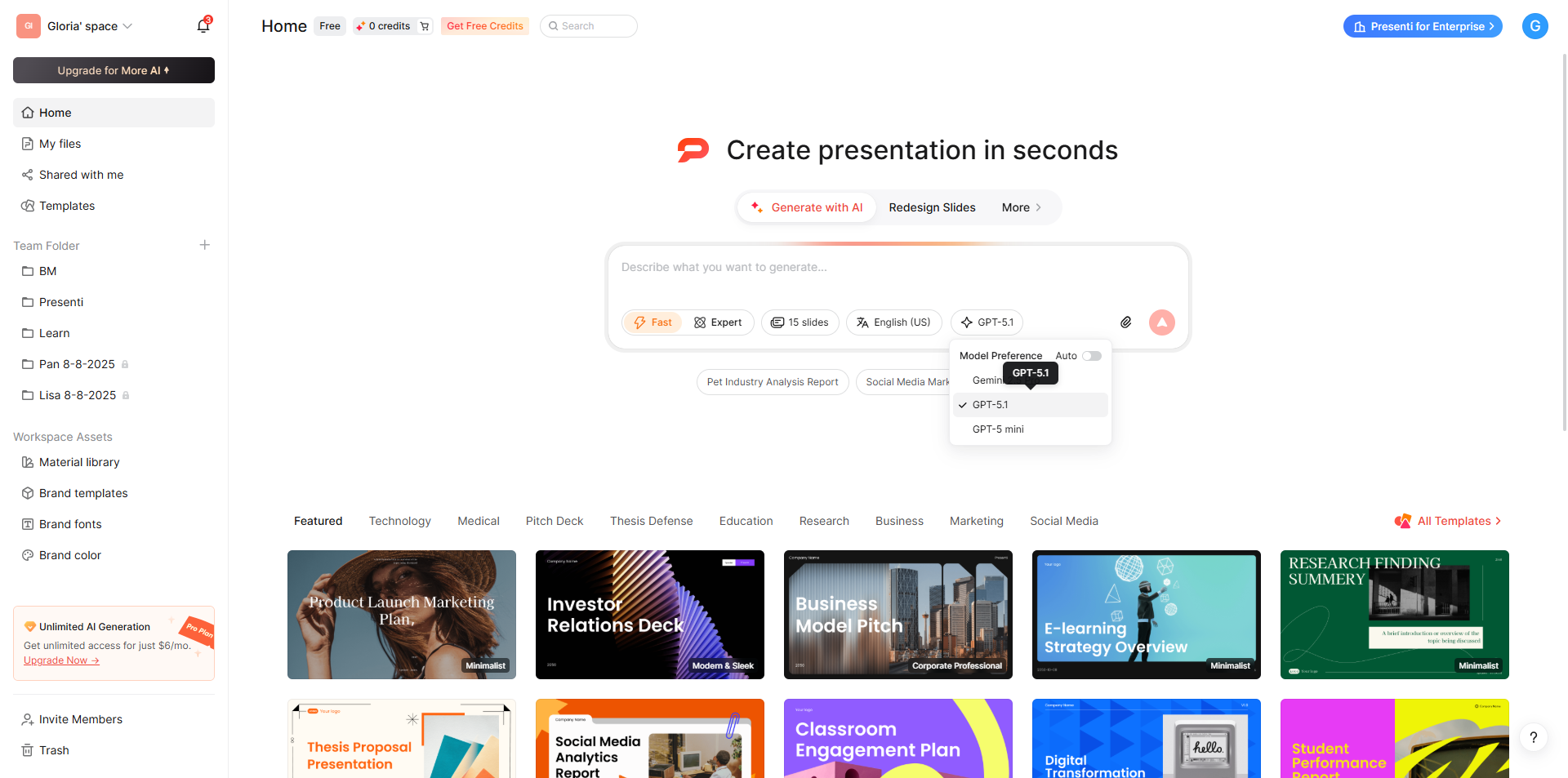
Key Features
- ⚡ Quick Mode
- 🎯 Expert Mode
- 🎤 Voice-to-Slides
- 🎨 Diverse Design Templates
A practical workflow is to use ChatGPT to organize your argument, then use Presenti to develop the visual draft. Keep your source material nearby so you can verify facts, adjust emphasis and review the exported file.
Part 3. ChatGPT PPT — Frequently Asked Questions
Q1. Can ChatGPT create an actual PowerPoint (.pptx) file directly?
ChatGPT can help create a .pptx draft when suitable file-generation tools are enabled, including code-based workflows such as python-pptx. Availability depends on your account and tools. You can also transfer the outline to a presentation editor such as Presenti. In either case, review the file before presenting.
Q2. What makes a ChatGPT PPT prompt actually work well?
Four elements make the biggest difference: ① Role assignment (e.g., "You are a business presentation expert"), ② a specific topic, ③ audience and slide count, and ④ a defined output format (title / key bullet points / speaker notes). Vague prompts like "make me a PPT" produce generic results. The more precisely you define the topic, audience, and desired structure, the higher the quality of what you get back.
Q3. Are there free tools for creating AI-powered PPTs?
Presenti offers a free plan with basic AI access and limited presentation credits. Its pricing page lists editable downloads, PPTX/PDF export and additional import options under paid plans. Other tools also distinguish free access, trials and paid features, so choose a plan based on the input and export workflow you need.
Conclusion
A useful ChatGPT PPT workflow starts with a clear brief and a reviewed outline. Develop the slide content, choose visuals that support the message, and use a presentation editor or an available file-generation tool to create the draft.
The role-specific prompts above are starting points. Add your actual sources, audience and time limit, then revise the output so each slide has a clear purpose.
If you want to develop that outline in Presenti AI, choose the generation and import options included in your plan. Refine the text and layout in the editor, and use the export options available to your account.
Start with a clear message. Build a draft, review it, and rehearse before you present.