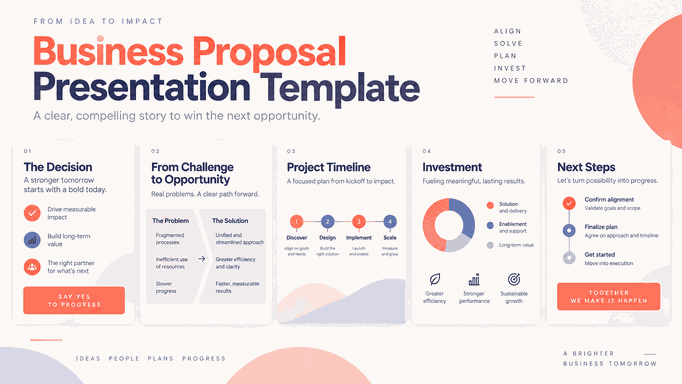
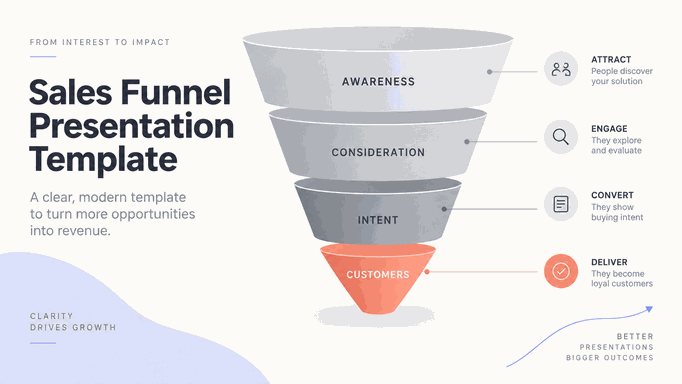
A Figma presentation template can start in Figma Design or Figma Slides, and the export route depends on which file you have. This guide explains how to create reusable slide layouts, export an editable PowerPoint file from Figma Slides, and handle Design frames when a client needs PPTX.

What Is a Figma Presentation Template?
In Figma Design, a presentation template usually uses frames sized for slides, such as 1920 × 1080 pixels for 16:9. Figma Slides is the dedicated presentation product, with a slide-deck structure and its own export options. Check the file type before following a conversion tutorial. For the starting layout, browse the presentation template library and choose a structure that fits your content.
Figma Design is useful when slides share components, typography, and visual assets with a product design system. PowerPoint and Google Slides also support themes and collaboration, so choose based on the team’s existing assets and the editing format recipients need.
Common use cases include:
- Pitch decks for startups and agencies that need to reflect a polished brand identity
- Product presentations where UI screenshots and design specs need to live alongside narrative content
- Client-facing reports where visual consistency with the broader brand system is non-negotiable
- Internal team updates designed and maintained by a dedicated design team
Why Designers Use Figma for Presentation Design
Figma gives design teams detailed control over spacing, components, and visual assets. That is helpful when the deck needs to match an existing design system; it does not mean other presentation editors lack precise layout tools.
For teams already working in Figma, reusable components and shared styles can reduce repeated design work. Check which styles belong to the file and which depend on a shared library before handing it to another team.
There’s also the collaboration angle. Multiple stakeholders can comment directly on slides, suggest changes, and view the latest version without anyone emailing files back and forth. For agencies managing client feedback cycles, that alone justifies the workflow.
At delivery, confirm whether recipients will view the deck in Figma Slides or edit a PowerPoint file. Figma Slides supports native PPTX export. A presentation built as Design frames may need a plugin or a different handoff.
How to Convert Figma to PowerPoint?
Start by identifying the file type. For a Figma Slides deck, use native PowerPoint export: open the main menu, choose File → Export slides to, select PPTX, and choose the editable-object structure. Export the required slides and inspect the file in PowerPoint. Missing fonts and unsupported objects can change the result. The following alternatives apply when you are working with Design frames or need a static visual export.
Option 1: Export Figma Design Frames as Images
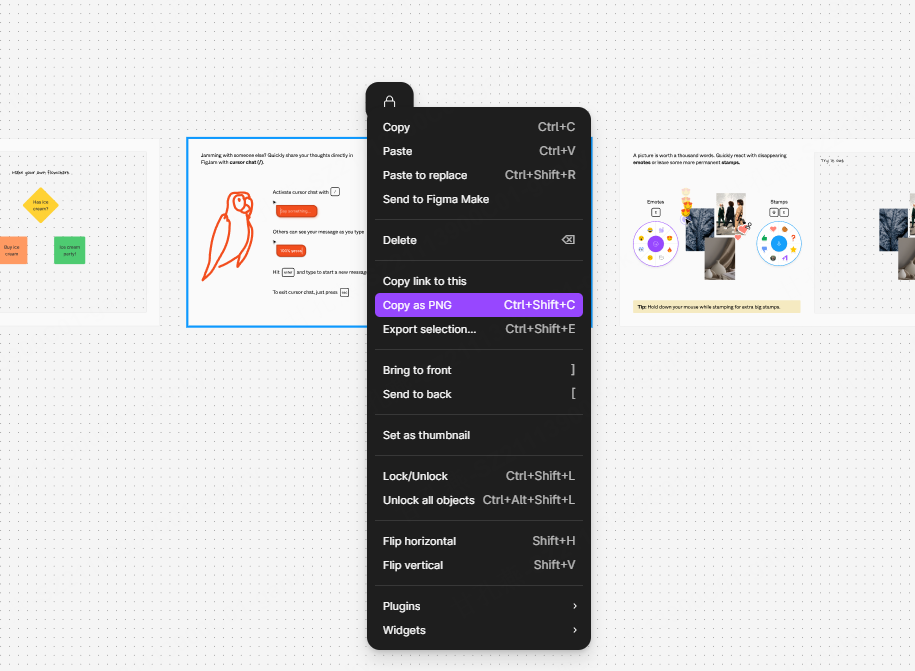
The quickest way to get Figma content into PowerPoint is to export your frames as PNG or JPG files, then insert them as slide backgrounds in PowerPoint. Select your frames, choose your export format, and drop the images into a new deck.
It works — but with a significant trade-off. With this image-export method, the output is static: text and elements are no longer editable in PowerPoint, and anyone who needs to change the deck later must update it in Figma and re-export. For a one-time presentation with no planned edits, this is fine. For anything that will be handed off to a client, colleague, or stakeholder who works in PowerPoint, it creates a dead end.
Use this method when you need a quick visual export and editing is not a requirement.
Option 2: Use a Figma-to-PPT Plugin
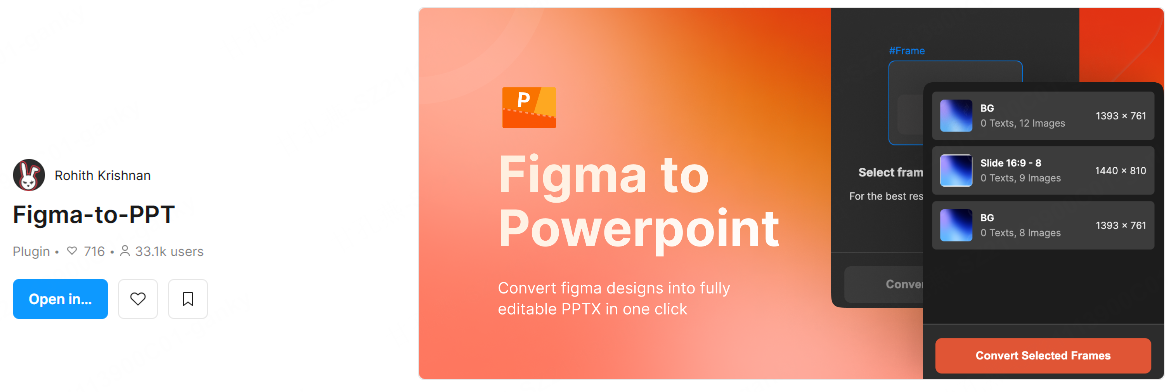
For a presentation built from Figma Design frames, a conversion plugin may provide editable PPTX output. This is different from Figma Slides’ built-in export. Check the plugin’s current documentation, permissions, and supported object types before installing it.
Key features:
- Check where the chosen plugin processes files and what network permissions it requests.
- Check the plugin’s current price and any export limits.
- Confirm whether the plugin requires an account or other service access.
How to use it:
- Choose a maintained conversion plugin from Figma Community and review its documentation.
- Select the frames you want to convert in your Figma file
- Follow the plugin’s instructions for converting the selected frames.
- Save the exported
.pptxfile to your computer - Open the file in PowerPoint to review and edit your content
Try a small sample first: one text slide, one image, and one complex layout. Check which objects remain editable before converting the full deck.
What to check in a plugin export
Plugin behavior depends on the implementation and the objects in your file. Use these checks on your own sample:
- Text editability. Select text in PowerPoint and confirm that it is editable, including text inside auto-layouts or groups.
- File validity. Open the exported file in the PowerPoint version your recipient uses and check for repair prompts.
- Slide order. Compare the full export with the selected frame sequence.
- Layout compatibility. Inspect fonts, masks, images, shapes, and charts on the most complex slides.
For sensitive material, review the plugin publisher and requested permissions before granting access. A claim of local processing should be supported by the plugin’s own documentation.
Keep a copy of the original file so you can compare the exported design and correct any missing or flattened elements.
Presenti AI: A Simpler Way to Get from Content to Slides
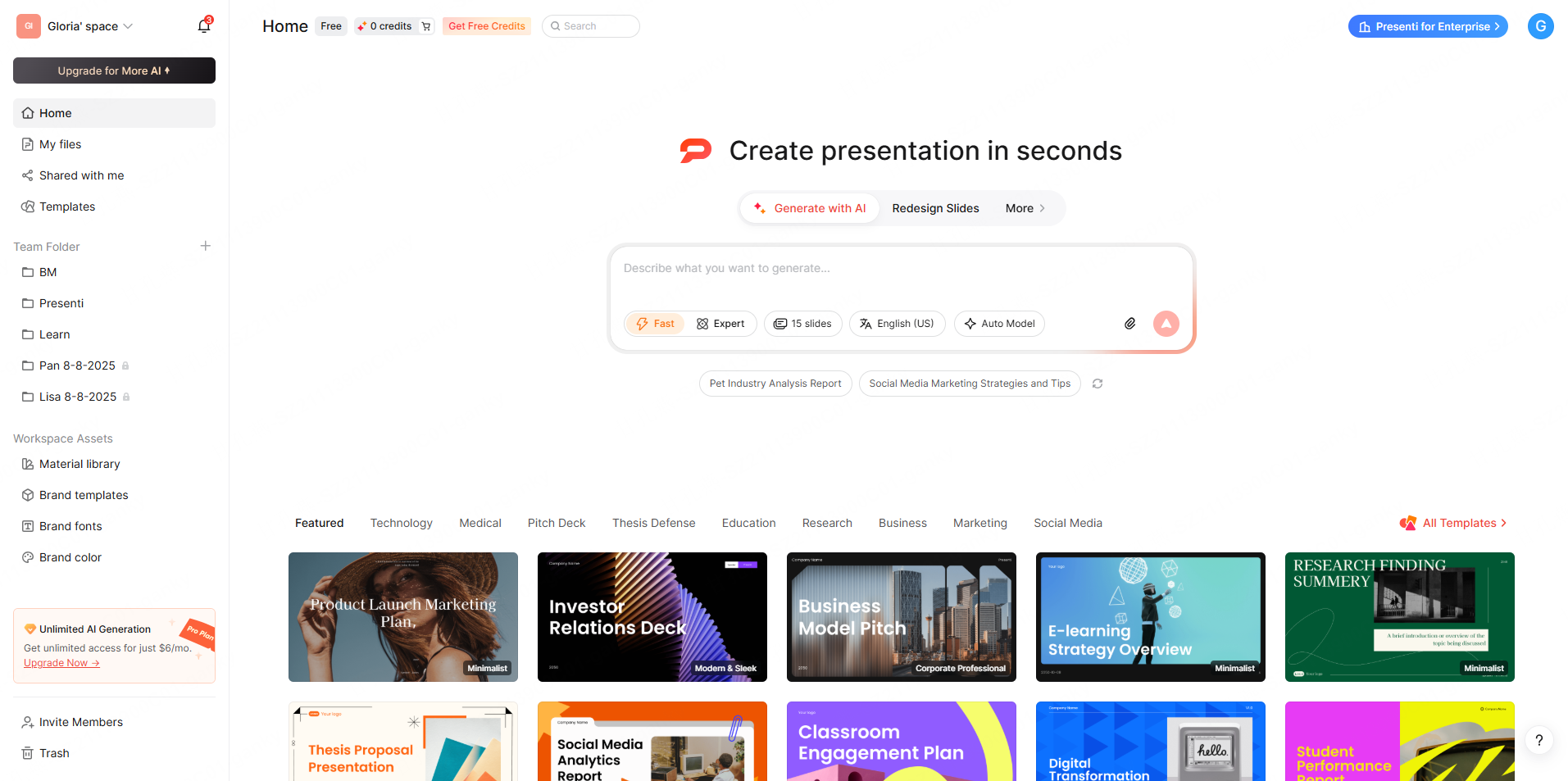
If you want to create a new presentation design from the same written material, Presenti is another option. It is a rebuilding workflow, not a way to preserve every Figma frame or component.
Use native Figma Slides export when keeping the existing deck is the goal. Consider rebuilding only when the content matters more than the exact original layout.
Here is what working in Presenti actually looks like:
- Start from the written brief. Use supported text or document input to generate a new slide draft, then compare its structure with the source.
- Review an existing deck separately. If you use a PPTX redesign feature, test a copy first. Flattened text, missing objects, or a broken export may still need manual correction.
- Choose a supported input. Check the import options and file limits in the editor rather than assuming every source format is accepted.
- Generate from a brief. Name the audience, purpose, and required messages, then revise the proposed outline before styling.
- Choose a visual theme. Review colors, fonts, and layouts against your brand assets. A theme change does not automatically reproduce a Figma design system.
- Check the PowerPoint export. Confirm the export options available in your account and inspect the text, charts, and other elements you need to edit.
Choose the handoff by what the next person needs: an editable copy of the existing slides, static visuals, or a new deck built from the same content. These are different deliverables.
Best Practices for Figma Presentation Design Workflows
Whether you’re staying in Figma or converting to another format, these habits make the process cleaner:
Standardize your frame dimensions early. Decide on 16:9 (1920×1080px) before you build the first slide. Changing aspect ratios mid-project breaks layouts and creates rework.
Use components for repeating elements. Headers, footers, slide numbers, and section dividers should all be Figma components. When a brand element changes, you update it once — not across 40 individual frames.
Keep text layers clean and named. If you’re planning to export Figma slides to any other format, well-named text layers make the conversion significantly less painful. Avoid outlining text unless you’re doing final, static exports.
Separate design from content. Build your visual system first — color, type, spacing, grid — then populate it with content. This makes it dramatically easier to repurpose the template for future presentations or hand it off to a non-designer to fill in.
Test your export format before the deadline. Whether you’re using a plugin, an image export, or rebuilding in another tool, run a test export on a draft version well before the final file is due. Conversion surprises have a way of surfacing at the worst possible moment.
Conclusion
For a Figma presentation template, the key decision is where the finished slides will be edited. Figma Slides provides native PPTX export; Design frames may need a plugin or static image handoff. Test the most complex slide before committing to a route.
Presenti can help create a new design from a written brief. Use it when rebuilding is useful, and keep native export as the starting point when you need to preserve an existing Figma Slides deck.