Need a free AI PowerPoint generator? The right choice depends on where your presentation starts and where the finished file needs to go. A short topic prompt is enough for some tools; a report, Word file, PDF, or existing slide deck calls for a workflow that can preserve source structure and leave you with an editable result.
Quick answer: choose a prompt-first tool for a fast outline, a design platform when brand styling matters most, a template library when you want a familiar PowerPoint look, and a document-to-slide workflow when you already have source material. Whichever tool you use, review the outline, facts, citations, and exported file before you present.
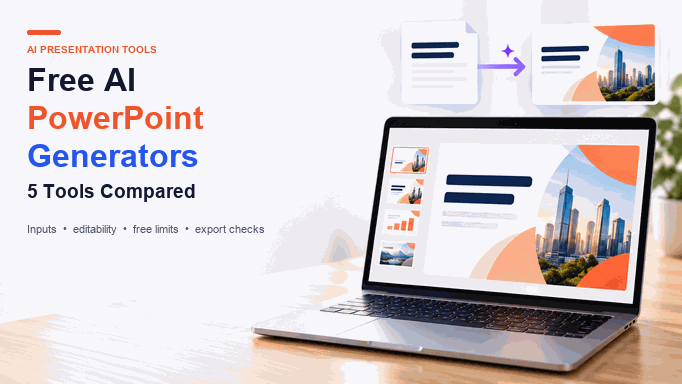
The 5 Free AI PowerPoint Generators: Which Should You Choose?
| Starting point | Best fit | Check before you export |
|---|---|---|
| A topic or short prompt | A prompt-first deck builder such as Gamma or Canva Magic Design | Slide count, branding, and export format on the free plan |
| A Word file, PDF, notes, or Markdown | A source-to-presentation workflow such as Presenti | How much structure is preserved and which downloads your plan includes |
| A visual brand or campaign idea | Canva Magic Design | Whether the assets, Brand Kit, and AI usage you need are available on your plan |
| A ready-made PowerPoint style | Slidesgo | Template licensing, monthly generation allowance, and editable download options |
| A Google Slides workflow | SlidesAI.io | Input length, annual presentation allowance, and add-on compatibility |
“Free” can mean a free trial, a limited number of generations, a credit balance, or a free export with restrictions. Treat the plan boundary as part of the tool choice, not as a footnote.
How we compared these free AI PowerPoint tools
This guide compares the five tools on the same reader-facing questions: what you can use as input, how much structure the first draft provides, whether the working slides remain editable, where you can export or continue editing, and which free-plan boundary is most likely to matter. The comparison is a practical buying guide rather than a claim that one tool is best for every presentation.
Before choosing, run the same small test through your shortlist: use one source with a clear audience, goal, three key points, and a requested slide count. Then inspect the outline before judging the visual design. That separates prompt quality from layout quality and makes the result easier to compare.
The 5 free AI PowerPoint generators compared
1. Presenti
Presenti fits a document-first workflow. Its current product and pricing pages describe inputs such as plain text, Word, PDF, Markdown, XMind, pasted text, and links, then turn that source into an editable presentation draft. If you already have research or meeting notes, start with the text-to-presentation workflow; for a file, use the matching Word-to-presentation or PDF-to-presentation route.
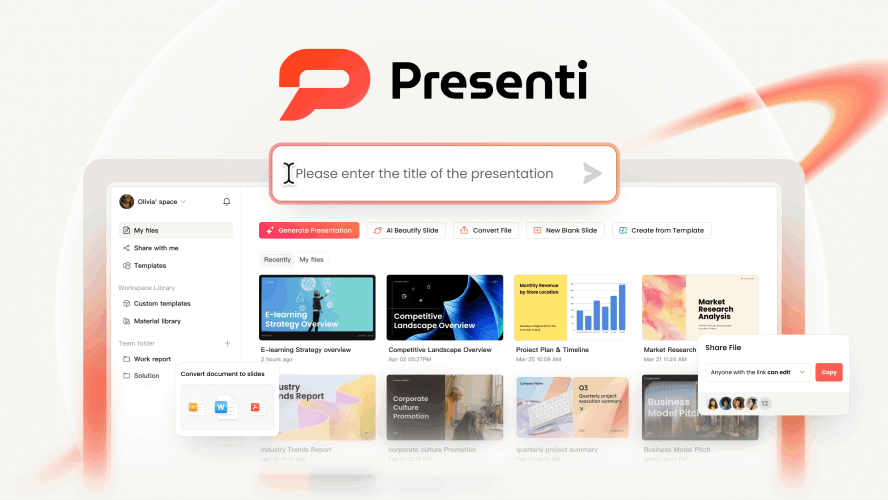
Best for: people who want to bring existing source material into a structured deck and refine the result before delivery.
- Input: current Presenti pages list text, Word, PDF, Markdown, XMind, pasted text, and links among the available starting points.
- Working result: the AI PPT Maker presents a generated structure as an editable draft so you can correct wording, hierarchy, and slide density.
- Plan boundary: the free version includes a limited amount of AI credits; editable downloads and PPTX/PDF export depend on the plan. Check the current Presenti pricing details before promising a file type to a client.
Presenti is a sensible first stop when the hard part is organizing source material. It is less useful to treat any AI draft as final: verify names, numbers, citations, visuals, and the story order yourself.
2. Gamma
Gamma is built around a web-style deck, document, or page that starts from a prompt and can also import existing material. Its current plan page lists PDF and PPTX import and export to PDF, PPTX, PNG, and Google Slides on the Free plan, with up to 10 slides per prompt. A Free export may carry Gamma branding, so check the current plan before sending the file externally.

Best for: users who want a quick, browser-based draft and are comfortable reviewing the deck in Gamma before moving it to PowerPoint or Google Slides.
- Start with a prompt or imported file, then review the generated outline before styling.
- Cards can suit information-heavy drafts, but the layout may need cleanup when you move to a fixed-slide format.
- Check the current credit, slide, branding, and export rules before treating the Free plan as a production workflow.
3. Canva Magic Design
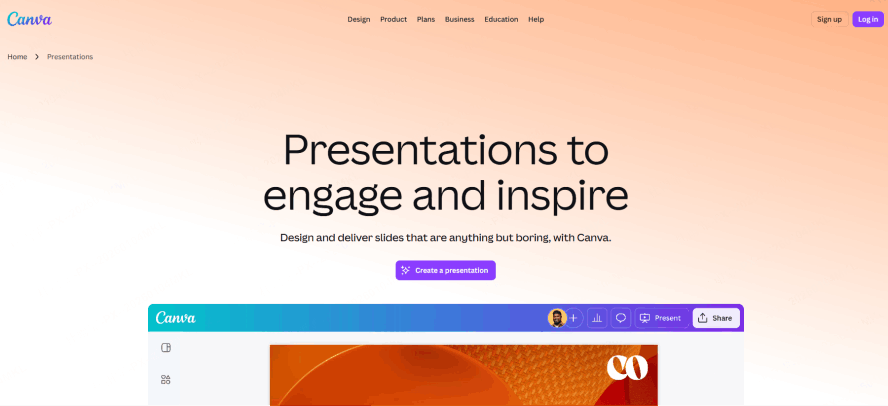
Canva Magic Design for Presentations is a strong fit when visual assets, templates, collaboration, and a drag-and-drop editor matter as much as the first draft. Canva says Magic Design can generate an outline and slide content from a short idea, then lets you continue editing inside the visual editor. Its FAQ currently states that Magic Design is available up to 10 times for free across its versions; AI usage, premium assets, and Brand Kit access can vary by plan. Canva also warns that a PPTX download may render differently in PowerPoint, so check the current export guidance before delivery.
Best for: teams and creators who want to generate a visual starting point and then tune layouts, imagery, typography, and brand details manually.
- Use a short prompt that names the audience, goal, tone, and visual direction.
- Review stock-media licensing and premium-element limits before exporting.
- Keep the content audit separate from the design pass; attractive slides can still contain weak evidence or vague claims.
4. Slidesgo
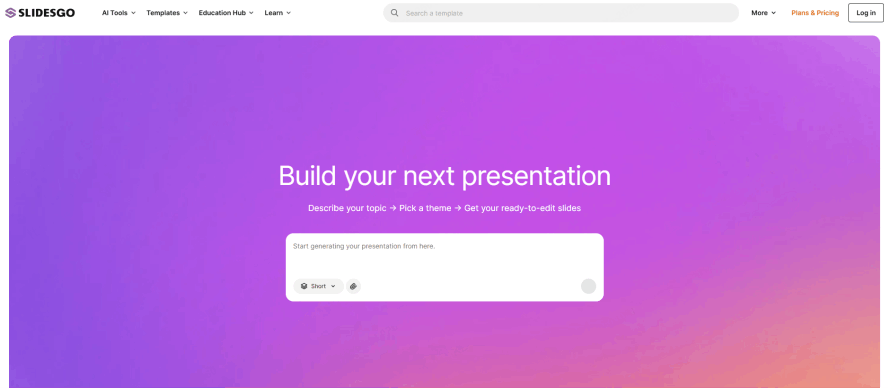
Slidesgo combines an AI text-to-presentation flow with a large template library. Its current AI Presentation Maker page describes a topic-to-deck workflow, editable customization, and PPTX download that can continue in PowerPoint, Google Slides, or Figma. The page currently lists up to three free presentations per month and requires an account to generate and download.
Best for: students, educators, and business users who want a familiar template direction before editing the content.
- Choose the visual system before you spend time polishing individual slides.
- Inspect the outline, speaker notes, and source attributions after generation.
- Check the current monthly allowance and the license attached to the selected template.
5. SlidesAI.io
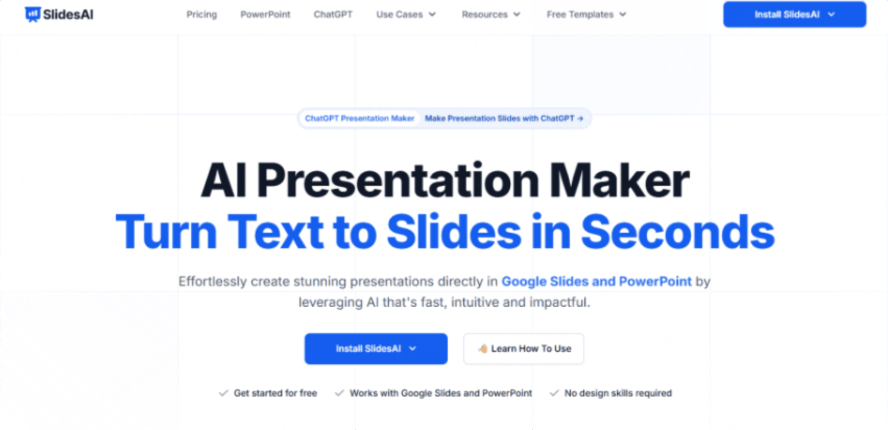
SlidesAI.io is designed for users who work inside Google Slides or PowerPoint through its add-ons. The workflow starts with text, then distributes the material across slides for editing in the host application. The product’s current plan information separates the free allowance from paid document upload and higher input limits, so review the live plan before choosing it for a long report.
Best for: Google Workspace or Microsoft 365 users who want to keep editing in the presentation tool they already use.
- Break long source material into clear sections before submitting it.
- Check character limits, annual presentation allowance, and document-upload availability.
- Open the generated deck in the host editor and correct facts, spacing, and slide breaks before sharing.
Comparison at a glance
The table below keeps the comparison focused on the decision that affects your workflow: where you begin, where you edit, and what you need to verify before the free allowance runs out.
| Tool | Best starting point | Where you refine the draft | What the free user should verify |
|---|---|---|---|
| Presenti | Text, Word, PDF, Markdown, XMind, pasted text, or a link | Presenti's editable draft workflow | AI credits and plan-specific editable/PPTX/PDF downloads |
| Gamma | Prompt or imported PDF/PPTX | Gamma's web editor, then an export if needed | Credits, slide count, branding, and export rules |
| Canva | Prompt plus visual direction | Canva's design editor | AI usage, premium assets, and Brand Kit access |
| Slidesgo | Topic plus a template direction | Slidesgo, PowerPoint, or Google Slides | Monthly generations and template licensing |
| SlidesAI.io | Text inside a Slides or PowerPoint workflow | Google Slides or PowerPoint | Input length, annual allowance, and document-upload access |
How to get more reliable results from a free AI PowerPoint generator
A better input makes the first draft easier to review. Give the tool the audience, purpose, decision you want the deck to support, source facts that must stay intact, and a target slide count. If you have a longer source, use headings and short sections instead of one unstructured block.
- Set the job: name the audience, occasion, and desired action.
- Set the structure: request an outline first and assign one job to each slide.
- Protect the facts: identify dates, figures, names, citations, and must-keep wording.
- Review the draft: remove duplicated points, unsupported claims, dense paragraphs, and decorative visuals that do not help the story.
- Check the export: open the file in the destination app and inspect fonts, line breaks, charts, links, speaker notes, and accessibility.
Free AI PowerPoint generator FAQ
What is a free AI PowerPoint generator?
It is a tool that turns a prompt or source material into a slide outline and visual draft. “Free” may mean a limited trial, credits, monthly generations, or a free plan with export and branding restrictions, so check the live plan before you commit to a workflow.
Which free AI PowerPoint generator works with a PDF or Word file?
Presenti supports PDF and Word input on paid plans. Gamma lists PDF import on its Free plan. For either tool, check how much structure is preserved and review every extracted fact before presenting.
Can I edit the slides after AI generates them?
Yes, when the tool provides an editable working draft or exports a native presentation file. Confirm whether text, images, charts, and layouts remain separate objects in the destination editor rather than a single flattened image.
Does “free” include PPTX export?
There is no universal answer. Some tools include PPTX export in a free plan, while others limit export format, branding, credits, or the number of generations. Check the tool’s current pricing and export documentation immediately before delivery.
How do I stop AI-generated slides from containing mistakes?
Review the outline before styling, compare important claims with the source, verify dates and numbers, inspect citations, and open the exported file in the app where you will present it. AI can accelerate the first draft, but the final accuracy and audience fit still belong to the presenter.
Conclusion: Which Tool Should You Choose?
Choose the tool that matches the input and handoff you need. Presenti is a practical route when your starting point is a document, notes, or another structured source and you want an editable draft to review. Gamma is suited to a web-first draft, Canva to visual editing and brand work, Slidesgo to template-led PPTX creation, and SlidesAI.io to add-on workflows inside Google Slides or PowerPoint.
Start with a small, representative source and judge the outline, editability, plan boundary, and exported file together. If you choose Presenti, the AI PPT Maker explains the prompt-to-draft workflow, while the Markdown-to-presentation route and pricing page help you confirm the right input and plan before you build a larger deck.