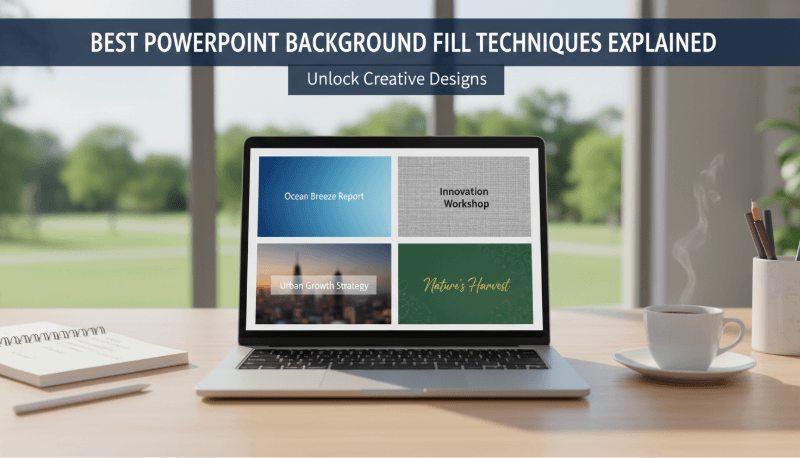
Online presentation tools are rapidly transforming how professionals and educators design slides. Instead of installing heavy desktop software, users can now open a browser and build polished, professional presentations in minutes. This browser-based workflow reduces installation requirements, supports remote collaboration, and fits perfectly into modern distributed teams. From remote meetings and online classes to cross region project reviews, online PPT tools have become the preferred solution for teams that value speed, flexibility, and collaboration.
This guide walks you through the entire online presentation workflow from platform selection to advanced design techniques. By the end, you will be able to confidently create cloud based presentations that look professional and communicate clearly.

1. Why Choose Online Presentation Tools
The biggest advantage of online PPT tools is that they remove many of the constraints of traditional desktop software. For beginners and experienced users alike, they significantly lower the barrier to creating high quality slides.
No Installation Required
Online presentation tools run directly in your browser. There is no need to download or update software, and they work seamlessly across Windows, macOS, tablets, and mobile devices. You can start editing anytime, anywhere, after checking browser and device support.
Cloud Storage and Version Control
Cloud editors can save work online, but save behavior and version recovery differ by platform and plan. Check that your changes are saved and keep a reviewed export or backup for important presentations.
Real Time Collaboration
Multiple users can edit the same presentation simultaneously. Team members can see changes instantly, leave comments, and mention colleagues directly. This makes online PPT tools ideal for remote teams, distributed classrooms, and cross functional project groups.
Designed for Modern Workflows
Online presentations are especially well suited for digital first scenarios such as remote meetings, online training, sales demos, and virtual conferences. They integrate smoothly with video conferencing tools and eliminate the friction of file sharing across locations.
2. Recommended Online Presentation Platforms
With so many online presentation tools available, choosing the right one can feel overwhelming. Below are four widely used platforms, each suited to different needs and workflows.
2.1 Presenti AI
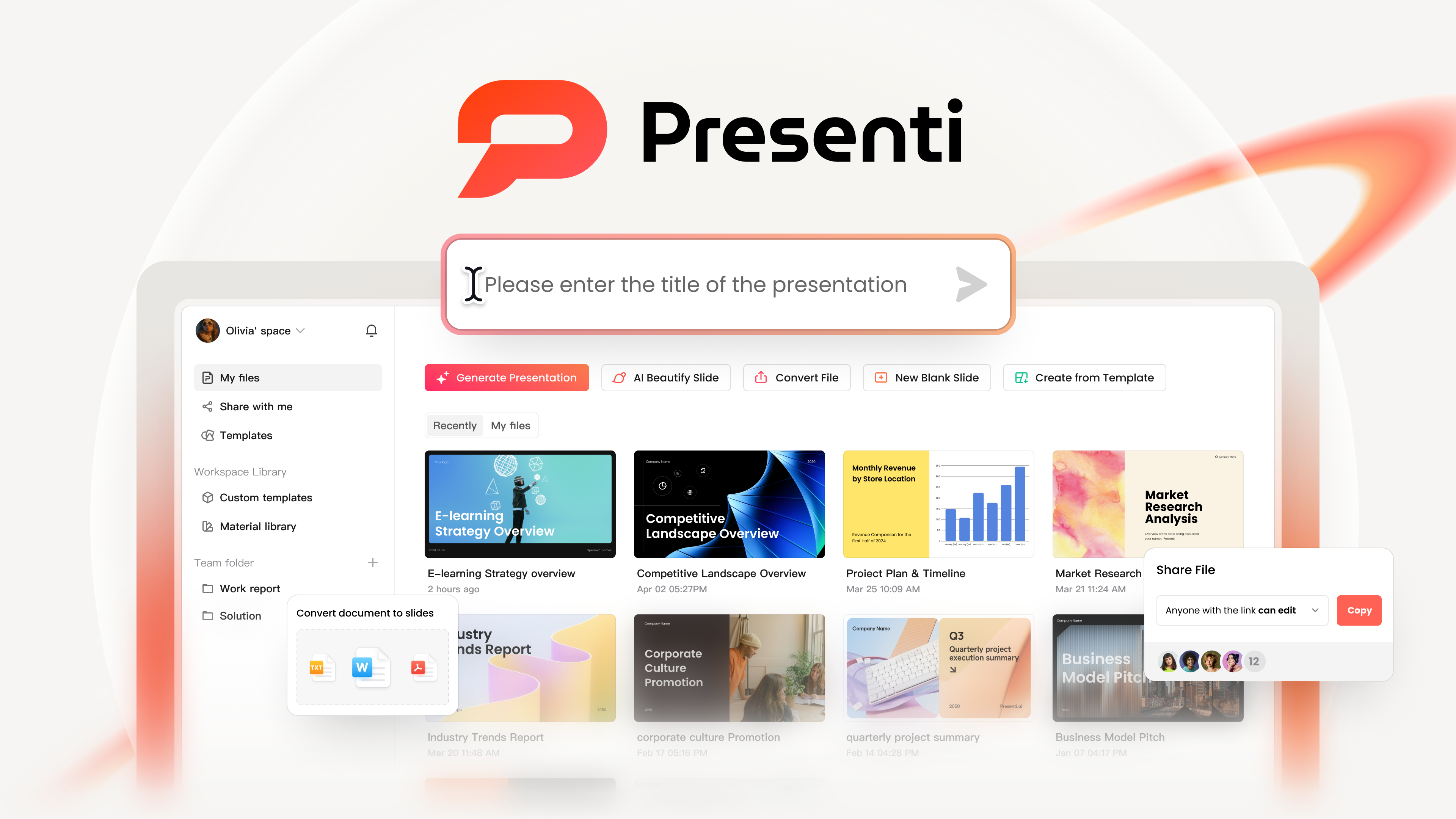
Presenti AI is an AI powered online presentation tool designed to streamline the entire slide creation process. By combining natural language processing with intelligent layout algorithms, it allows users to move from idea to finished presentation with minimal effort.
Key Features
- AI Powered Slide Generation
Users can generate presentations from scratch or convert existing documents such as Word files or PDFs into structured slides. This is especially useful for turning meeting notes, research reports, or technical documentation into presentations. The AI assistant can also refine copy, fix grammar, and generate speaker notes. - Professional Templates at Scale
Presenti AI offers a large library of industry specific templates with optimized color schemes and typography. Apply approved brand assets using the available editor controls, then review spacing, cropping, and chart placement after content changes. - Strong Compatibility
The platform supports importing PPTX, Word, and PDF files. Presentations sync across web, desktop, and mobile environments, making it easy to edit and present from any device. - Team Collaboration
Multiple users can collaborate in real time, using the available workspace controls; agree on ownership and a review process.
2.2 Canva
Canva is widely known for its extensive design resources and intuitive interface. It is popular among marketing teams, educators, and content creators.
Canva offers online collaboration and presentation export options, including PPTX. Using premium assets without the required entitlement can affect downloads or introduce watermarks; a free account does not mean every presentation is automatically watermarked.
2.3 Google Slides

As part of Google Workspace, Google Slides is a go to choice for teams that prioritize free access and seamless collaboration.
Google Slides supports shared editing, revision history, and comments. Collaboration and storage limits apply, so check your account and sharing settings for the size of the team.
2.4 Prezi
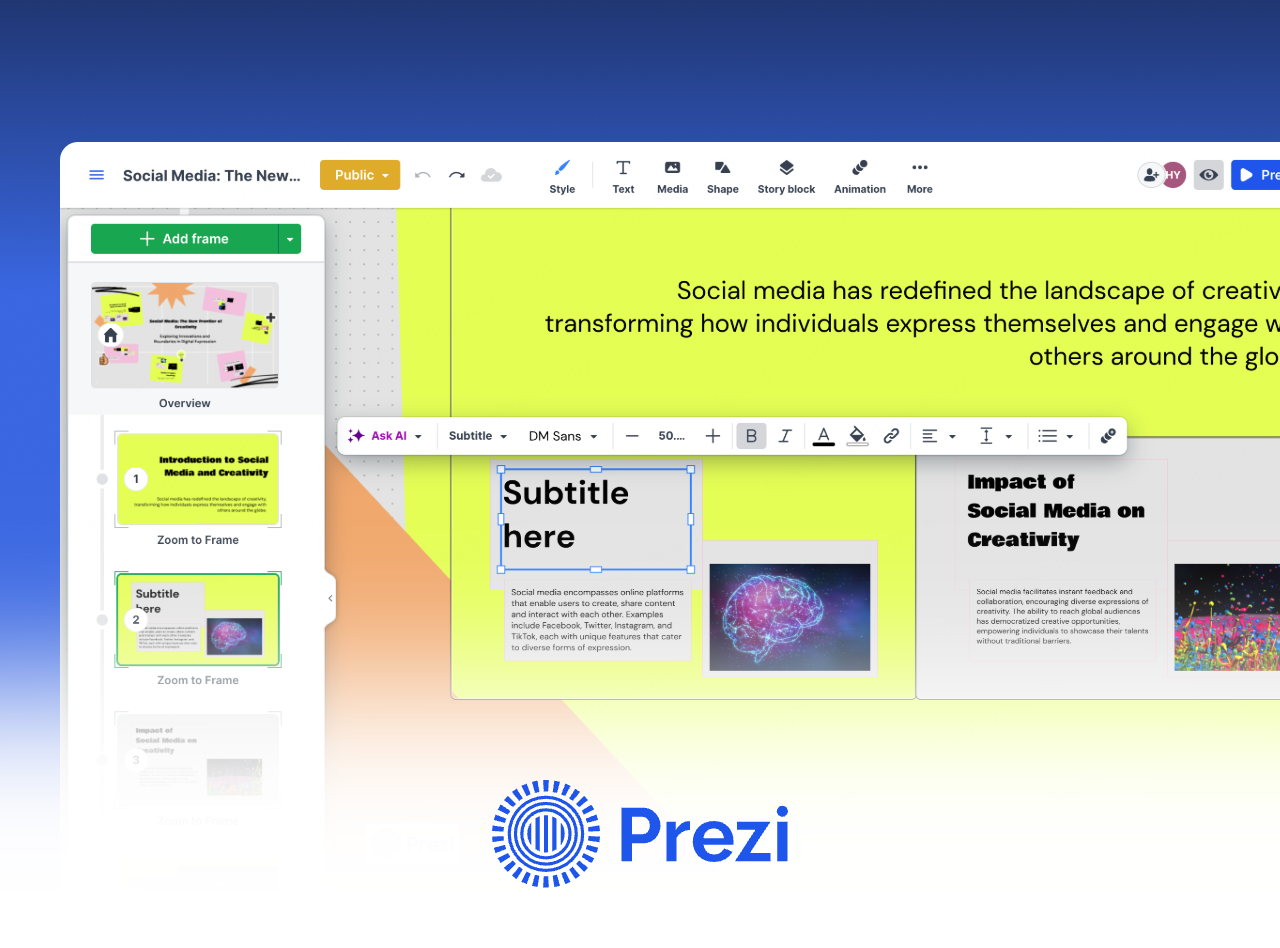
Prezi stands out with its non linear presentation style. Instead of traditional slide by slide navigation, Prezi uses zoom based storytelling to connect ideas visually.
It offers templates designed for conceptual explanations and visual narratives. While collaboration features are more basic, Prezi is ideal for creative presentations in education, product storytelling, and project pitches. Free plans include watermarks.
Platform Selection Tips
- Choose Presenti AI if you want AI assisted content creation, cross platform support, and workspace collaboration.
- Choose Canva if visual design and branding flexibility are your top priorities.
- Choose Google Slides if you need a free, reliable tool for real time collaboration.
- Choose Prezi if you want immersive storytelling and non traditional presentation flow.
3. Getting Started with Online PPT Creation
Once you understand the basics, creating your first online presentation is straightforward. Below is a step by step walkthrough using Presenti AI as an example.
3.1 Account Setup and Interface Overview
Visit the Presenti AI website and sign up using email or other supported login methods. The process takes only a few seconds.
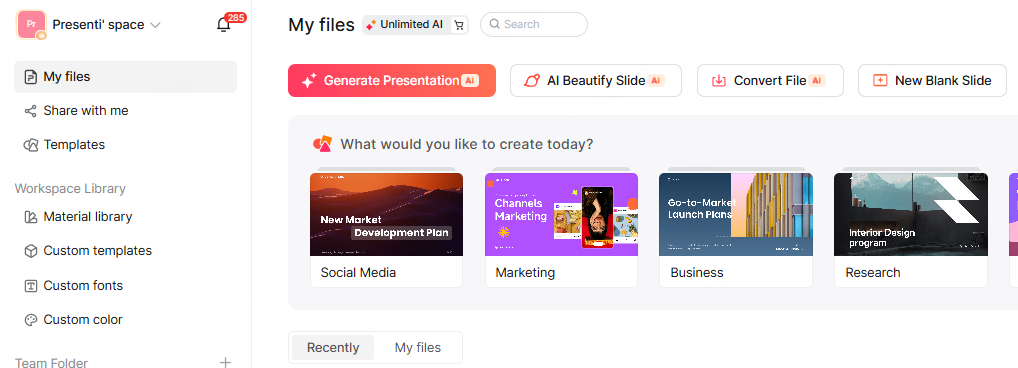
After logging in, you will see the main dashboard. The left panel organizes your presentation files, while the top toolbar provides options to import documents, generate slides with AI, or apply visual enhancements. Spend a few minutes exploring the layout to get comfortable.
3.2 Choosing a Template
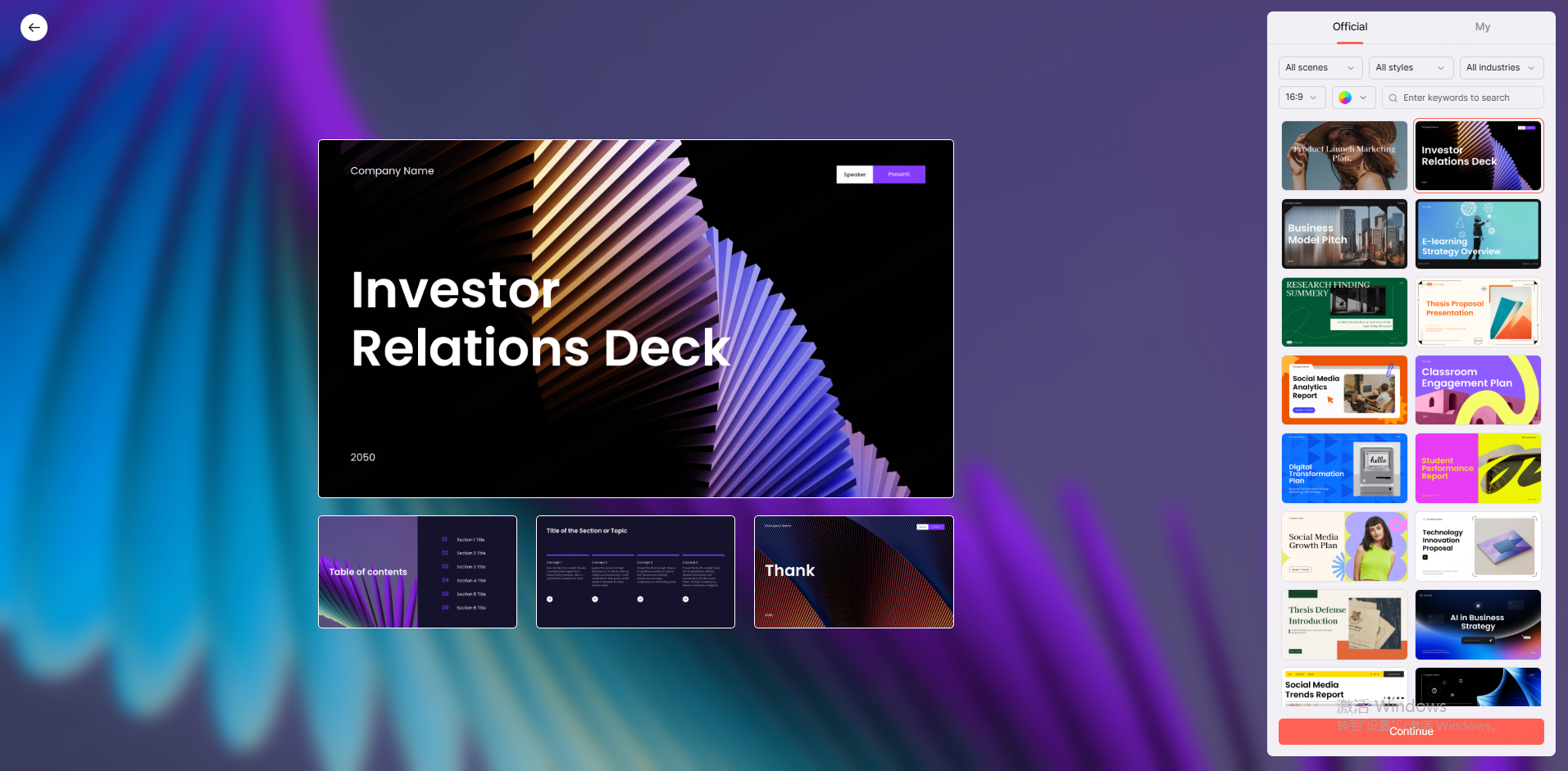
Beginners can start by selecting a template tailored to their scenario, such as business reports, training sessions, or technical briefings. Templates come with predefined layouts, color palettes, fonts, and spacing, allowing you to build a solid foundation in minutes.
For more control, you can also start with a blank presentation and manually choose aspect ratios such as 16:9 or 4:3.
Presenti AI also allows you to generate slides directly by entering text prompts or uploading documents in formats like DOC, PDF, TXT, Markdown, or mind maps.
3.3 Editing Slides and Adding Content
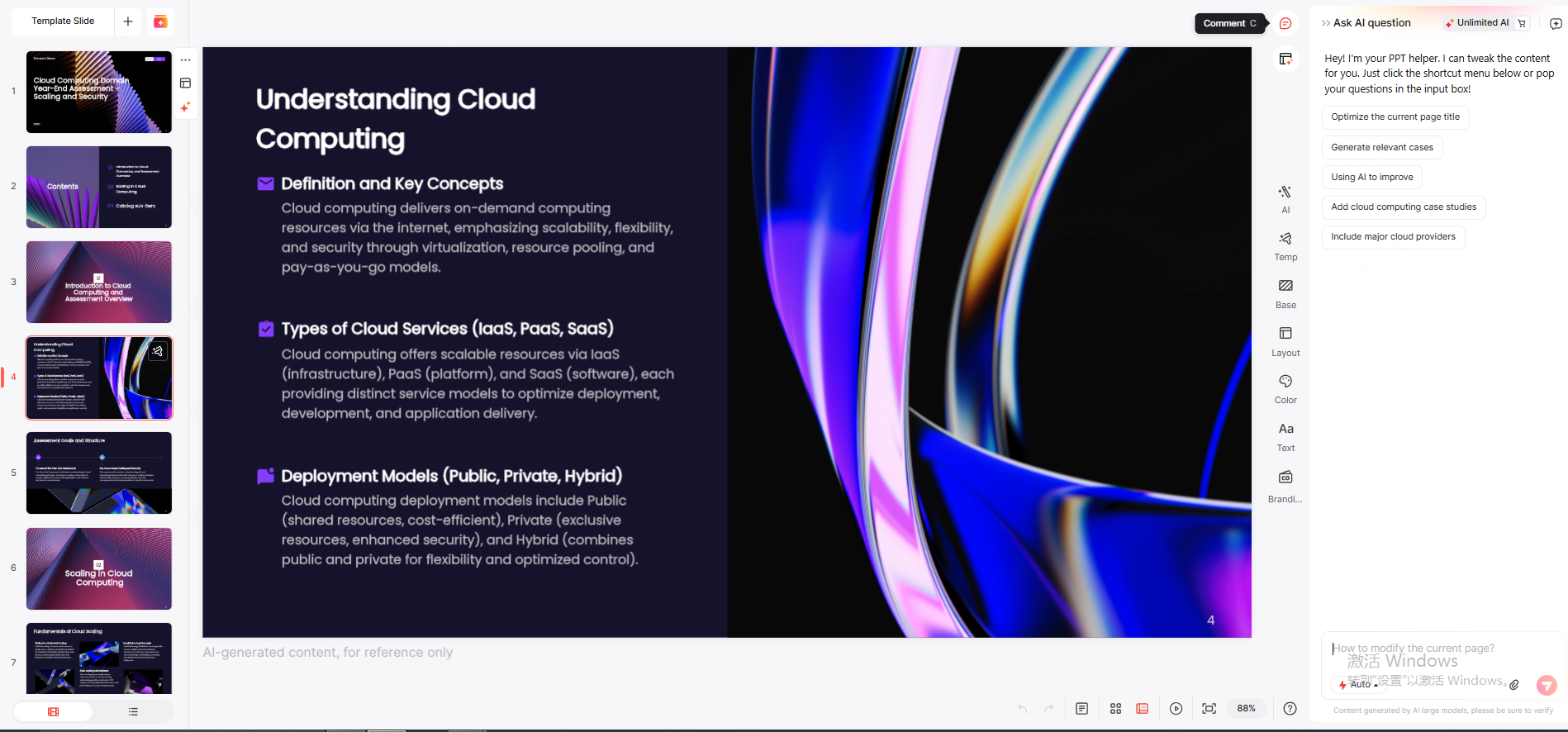
Once your presentation is generated, you can fine tune each slide using built in AI tools. Text blocks can be rewritten or shortened, and images can be replaced using the available image library.
Layout adjustments can be applied automatically with one click, or manually customized using layout controls. Charts can help explain numeric relationships; check the supported chart types and data-entry controls. Video content can be added via file upload or external links, and tables help present comparisons clearly.
3.4 Exporting and Sharing
After reviewing the presentation, export an editable PPTX or a PDF on an eligible paid Presenti plan, or use the sharing options available to your account. Open the file or link as the recipient will and check access and rendering.


4. Advanced Tips for Better Online Presentations
Smart use of design and AI tools can dramatically improve presentation quality. Here are three practical tips to level up your slides.
Keep Design Simple and Consistent
Avoid using too many colors or fonts. Stick to one primary color scheme with no more than three main colors. Use large bold headings and maintain comfortable spacing between paragraphs. White space improves readability and makes slides feel more professional.
Balance Text and Visuals
Slides overloaded with text are difficult to follow. Use icons and visuals to replace long explanations. Present complex data with charts, and reinforce key points with high quality images. Use as much text and visual detail as the explanation needs, then test whether the main point is clear at presentation size.
Let AI Handle the Heavy Lifting
AI features in tools like Presenti AI can save hours of manual work. Generate slide structures instantly, switch layouts automatically, and refine wording with AI assisted editing. This allows you to focus on message clarity rather than formatting details.
Conclusion
When online presentation tools meet intelligent automation, creating professional slides becomes accessible to everyone. With platforms like Presenti AI, you no longer need advanced design skills or long production cycles to deliver polished presentations.
By combining reusable templates, AI assisted workflows, and cloud based collaboration, teams can significantly improve productivity and communication quality. Start building your first cloud presentation today and experience how modern tools can transform the way you present ideas.