If you have ever sat through a presentation where the speaker frantically clicked through slides while losing their train of thought, you already understand why learning how to make PowerPoint slides automatically play matters. Automated and interactive presentations solve two completely different problems. Auto-play removes the mechanical burden of advancing slides manually. Interactivity transforms a passive audience into an engaged one. Both techniques are worth knowing, and both need to be configured for the way the presentation will run.
This guide covers automatic slide advancement in desktop PowerPoint, clickable navigation, and live audience activities. The menu names below primarily follow PowerPoint for Windows; availability and labels vary by version.
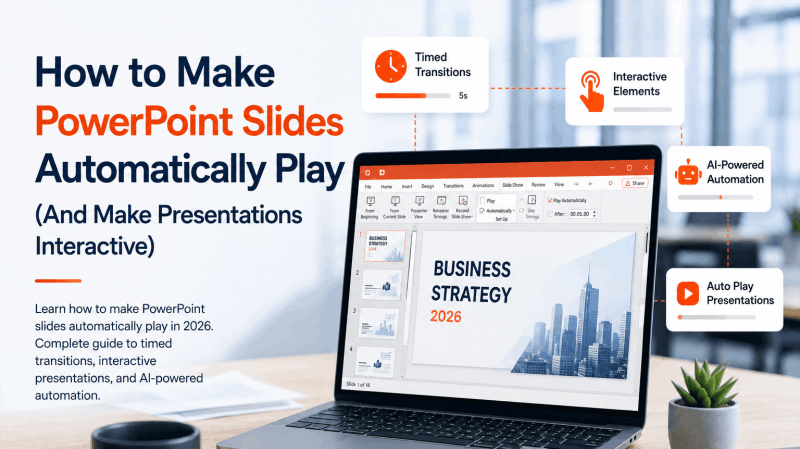
How to Make PowerPoint Slides Automatically Play
PowerPoint offers two primary approaches to automatic slide advancement: setting timed transitions on individual slides, and using the Rehearse Timings feature to record a live run-through. Both achieve the same end result. Which one you use depends on whether you want a fixed, uniform timing or a custom timing that reflects how long you actually spend on each slide.
Method 1: Set Automatic Slide Timings Manually
This method lets you specify exactly how many seconds each slide displays before advancing to the next one. It is the fastest approach when you already know your pacing.
Step 1: Open your PowerPoint presentation and click on the Transitions tab in the ribbon.
Step 2: In the Timing group on the right side of the ribbon, you will see two checkboxes under “Advance Slide.”
Step 3: Uncheck On Mouse Click if you want the presentation to advance without any manual input.
Step 4: Check After and set the desired interval, such as five seconds. Verify the displayed minutes-and-seconds value, then test the timing in Slide Show view.
Step 5: Click Apply to All to apply this timing to every slide in the deck at once. If different slides need different timing, set each slide individually by selecting it first and changing its After value without applying it to every slide.
Step 6: Press F5 to run the presentation from the beginning. Slides will now advance automatically at your specified interval without any manual clicking.
Step 7: To confirm the auto-play is working correctly, go to Slide Show in the ribbon and click Set Up Slide Show. Under “Advance slides,” make sure Using timings, if present is selected rather than “Manually.”
Method 2: Use Rehearse Timings for Natural Pacing
Rehearse Timings records how long you actually spend talking through each slide during a practice run. This produces more natural timing than a fixed interval, especially for presentations where some slides require more explanation than others.
Step 1: Click the Slide Show tab in the ribbon.
Step 2: Click Rehearse Timings in the Set Up group. The presentation will enter full-screen mode and a small recording toolbar will appear in the top-left corner showing the time elapsed on the current slide and the total presentation time.
Step 3: Deliver your presentation as you would in front of a real audience. Advance each slide when you would naturally move on. The timer records how long you spend on each slide.
Step 4: When you reach the end, PowerPoint will show you the total recorded time and ask if you want to keep the slide timings. Click Yes to save them.
Step 5: Choose View > Slide Sorter to inspect the recorded time beneath each slide. Run the show using the saved timings and check the pacing.
Tip: If a particular slide timing needs adjustment after rehearsal, select that slide in the Transitions tab and manually update the After value in the Timing group. You do not need to re-record the entire rehearsal for a single correction.
Method 3: Loop a Presentation Continuously
For kiosk displays, trade show booths, lobby screens, or any unattended auto-running presentation, you will want the deck to loop back to the beginning after the final slide.
Step 1: Go to Slide Show and click Set Up Slide Show.
Step 2: Under “Show type,” select Browsed at a kiosk (full screen). This setting automatically enables looping and disables manual mouse-click advancement.
Step 3: Confirm that Using timings, if present is selected under “Advance slides.”
Step 4: Click OK, start the slide show, and test the saved timings. Kiosk mode does not create timings for slides that lack them.
How to Make PowerPoints Interactive
Knowing how to make PowerPoints interactive requires a different mindset than setting up auto-play. Automatic presentations reduce the presenter’s workload. Interactive presentations shift control partly to the audience. The goal is engagement: giving viewers something to respond to, click on, or navigate themselves.
Add Clickable Navigation with Hyperlinks
Hyperlinks turn any text, shape, or image into a navigation button that jumps to a specific slide, opens a website, or triggers a document.
Step 1: Select the text or object you want to make clickable.
Step 2: Right-click and select Hyperlink, or press Ctrl + K (Windows) or Cmd + K (Mac).
Step 3: In the dialog box, choose Place in This Document to link to another slide within the same presentation. Select the target slide from the list.
Step 4: For external links, choose Existing File or Web Page and paste the URL.
This technique is particularly useful for building menu-style presentations where the audience can navigate to different sections non-linearly.
Use Action Buttons for Built-In Navigation Controls
PowerPoint includes a set of pre-designed action buttons that create consistent navigation controls across your deck.
Step 1: Go to Insert and click Shapes. Scroll to the bottom of the shapes panel to find the Action Buttons section.
Step 2: Draw an action button on your slide. The Action Settings dialog will open automatically.
Step 3: Assign the button to navigate to the next slide, the previous slide, the first slide, the last slide, or a specific named slide. You can also assign sounds to play when the button is clicked.
Step 4: Copy the button and paste it across all slides where you want consistent navigation controls.
Embed Polls and Live Q&A with Third-Party Tools
For truly interactive audience participation, embedded polling tools transform a static presentation into a live conversation. Several platforms integrate directly with PowerPoint.
Mentimeter allows you to embed real-time polls, word clouds, and Q&A sessions inside a PowerPoint presentation. Audience members respond on their phones and results appear live on the slide.
Slido offers a similar feature set with stronger enterprise integrations. It supports live polls, quizzes, and moderated Q&A sessions that update in real time as the audience participates.
Poll Everywhere is a long-standing option with a wide range of question formats including multiple choice, open-ended responses, and ranked voting.
Online polling usually requires participants to have a suitable device and connection. Provide an alternative response method when that is not available.
Add Triggered Animations for Visual Interactivity
Animations triggered by clicks rather than auto-playing on slide entry give presenters precise control over what the audience sees and when.
Step 1: Select the object you want to animate.
Step 2: Go to the Animations tab and choose an animation effect.
Step 3: For an ordinary click-to-advance effect, set Start to On Click. For a specific object trigger, select the effect in Animation Pane, choose Trigger > On Click of, and select the object.
Step 4: Open the Animation Pane to manage the sequence of triggered animations on each slide. You can reorder them, adjust timing, and preview the sequence.
This approach works especially well for progressive reveals: building a complex diagram one element at a time, or revealing data points one by one to control narrative pacing.
Interactive Presentation Tools Beyond PowerPoint
PowerPoint handles auto-play and interactivity competently, but several dedicated interactive presentation tools go further, particularly for audience engagement and real-time collaboration.
Mentimeter is purpose-built for interactive presentations. Every slide type is designed around audience participation: polls, quizzes, scales, open-ended responses, and word clouds. The presenter controls the flow while the audience shapes the content.
Prezi uses a spatial, non-linear canvas rather than a slide-by-slide structure. Presenters can zoom in and out of content areas, which creates a dynamic visual flow that linear slide decks cannot replicate.
Genially specializes in interactive content creation, including presentations, infographics, and escape rooms. Its interactivity layer supports hover effects, click-to-reveal content, embedded video, and branching navigation paths.
Nearpod is widely used in education, combining presentation delivery with embedded quizzes, collaborative boards, and virtual reality experiences that students access on their own devices.
For most professional contexts, the combination of PowerPoint’s native auto-play features and a polling tool like Mentimeter or Slido covers the full range of interactivity needs without requiring a platform switch.
How AI Presentation Tools Handle Auto-Play and Interactivity
AI drafting and slide playback are separate stages. Generate and review the slide content first, then configure timings and interactions in the application that will run the show.
Presenti AI can draft slides from supported input, with editable PPTX export listed on paid plans. Open that file in PowerPoint, configure the desired transitions and navigation, and test the complete show.
An AI-generated draft may reduce initial layout work, but it does not replace pacing and interaction design. Set an interval that gives viewers time to read each slide, and test links and media in the delivery environment.
For an unattended display, test at least one complete loop. Confirm that every slide advances, media behaves as intended, and the show restarts after the last slide.
Choosing the Right Approach for Your Presentation
Not every presentation benefits from the same level of automation and interactivity. A few guiding questions help clarify the right setup.
| Scenario | Recommended Approach |
|---|---|
| Keynote or conference talk | Rehearse pacing; use manual advance if delivery may vary |
| Unattended kiosk or lobby display | Fixed timing with continuous loop |
| Client pitch with live Q&A | Manual advance with embedded Slido or Mentimeter |
| Self-paced training module | Hyperlink navigation with action buttons |
| Classroom lesson | Interactive tool like Nearpod or Mentimeter |
| Product demo video | Record with narration and export as video |
| Quick business update | Set timings from the actual content and rehearsal |
The most engaging presentations in 2026 combine structural clarity with selective interactivity. Auto-play handles the mechanics. Polls, embedded questions, and clickable navigation layers give the audience a role. AI tools handle the slide creation. Each element serves a distinct purpose.
Make Your Next Presentation Run Itself
Learning how to make PowerPoint slides automatically play and how to make Powerpoints interactive gives you two tools that solve different problems. Auto-play removes the friction of manual advancement and makes unattended presentations possible. Interactivity transforms passive viewers into active participants and makes presentations more memorable.
The steps are straightforward. Set your transition timing in the Transitions tab, use Rehearse Timings for presentations that need natural pacing, enable kiosk mode for looping displays, and add hyperlinks or polling integrations where audience participation matters.
Use Presenti AI for drafting if it suits your content. Configure and test automatic playback in PowerPoint after exporting.
Start a draft in Presenti AI, then allow time to review the content and prepare the playback settings. Editable PPTX export requires the relevant plan.