A well designed timeline in PowerPoint can instantly make your presentation look more professional, structured, and engaging. Whether you’re showcasing a project plan, visualizing product development stages, or summarizing company milestones, a clear timeline helps your audience understand the flow of events at a glance.
But here’s the challenge: creating a timeline that looks clean and visually appealing can be time consuming, especially if you start from scratch. The good news? You don’t have to. In this guide, you’ll learn three easy and practical ways to create beautiful PPT timelines, from building one manually to using ready made templates and even AI tools that can generate them automatically. To choose a layout for dates and milestones, compare the PowerPoint timeline formats and template sources.

1. Build a Timeline Manually in PowerPoint
If you prefer full control over your design, creating a timeline manually gives you flexibility to customize every detail.
Before you start, list the milestones and their actual dates. For example, a fictional project might have approval on 3 March, a prototype on 10 March, and a pilot on 31 March. The gaps are one week and three weeks. If the axis represents elapsed time, the second gap should be three times the first. If you use equally spaced milestones for readability, label the diagram “Milestone sequence; spacing not to scale.”
Option 1: Create Directly in PowerPoint
This is the most traditional method and works perfectly for people who enjoy hands on design.
How to do it:
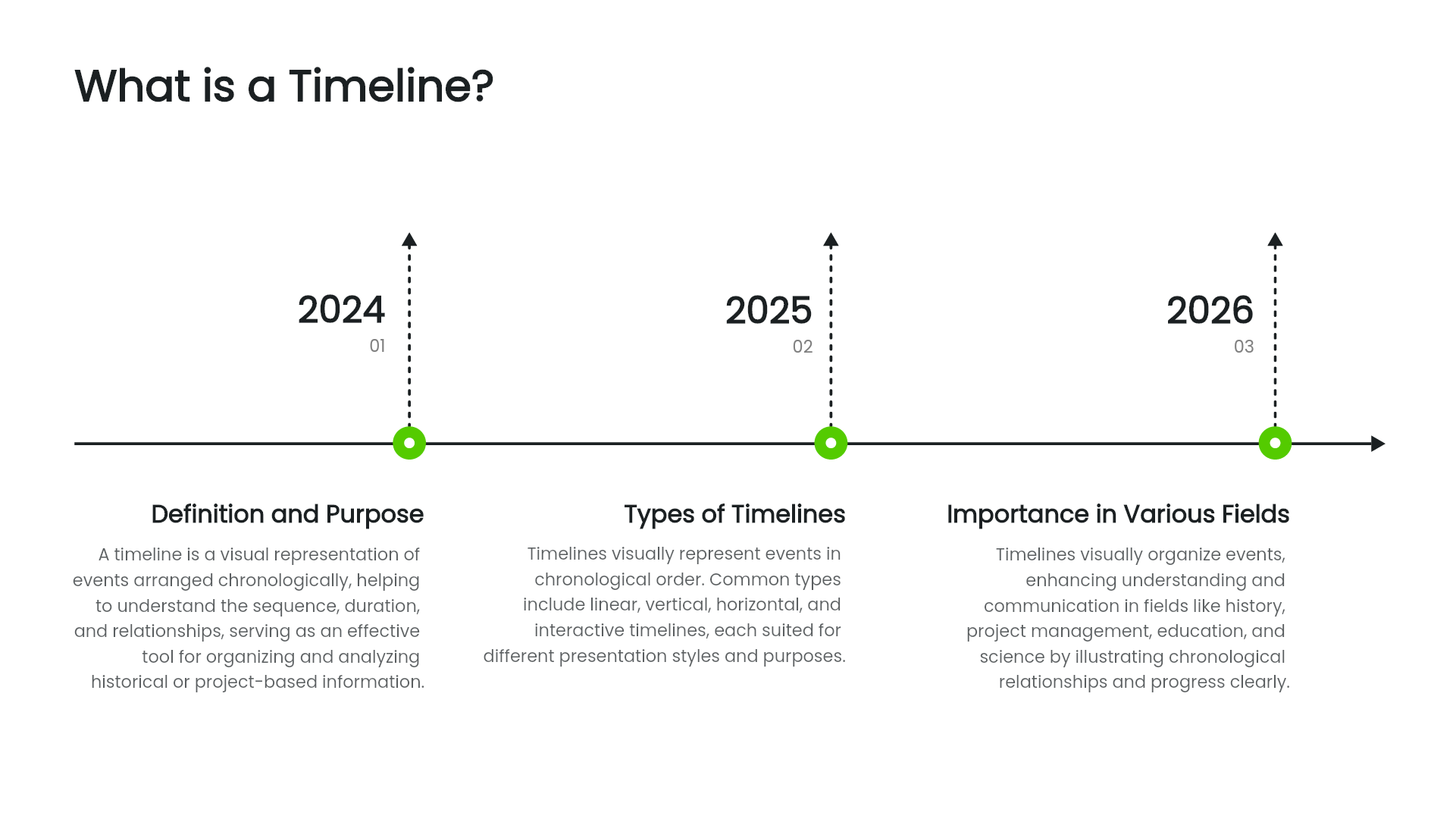
Open PowerPoint → click Insert → Shapes → choose a line or arrow for your main timeline axis.
Add circles or rectangles along the line as time markers or milestones.
Use text boxes to describe each event or date.
Adjust colors, alignment, and spacing to keep everything clean and consistent.
Pros:
Full creative freedom, add or remove nodes anytime.
Perfect for unique, branded designs.
Cons:
Can be time consuming to finetune.
Requires patience for alignment, spacing, and color matching.
Option 2: Use Drawing or Diagram Tools
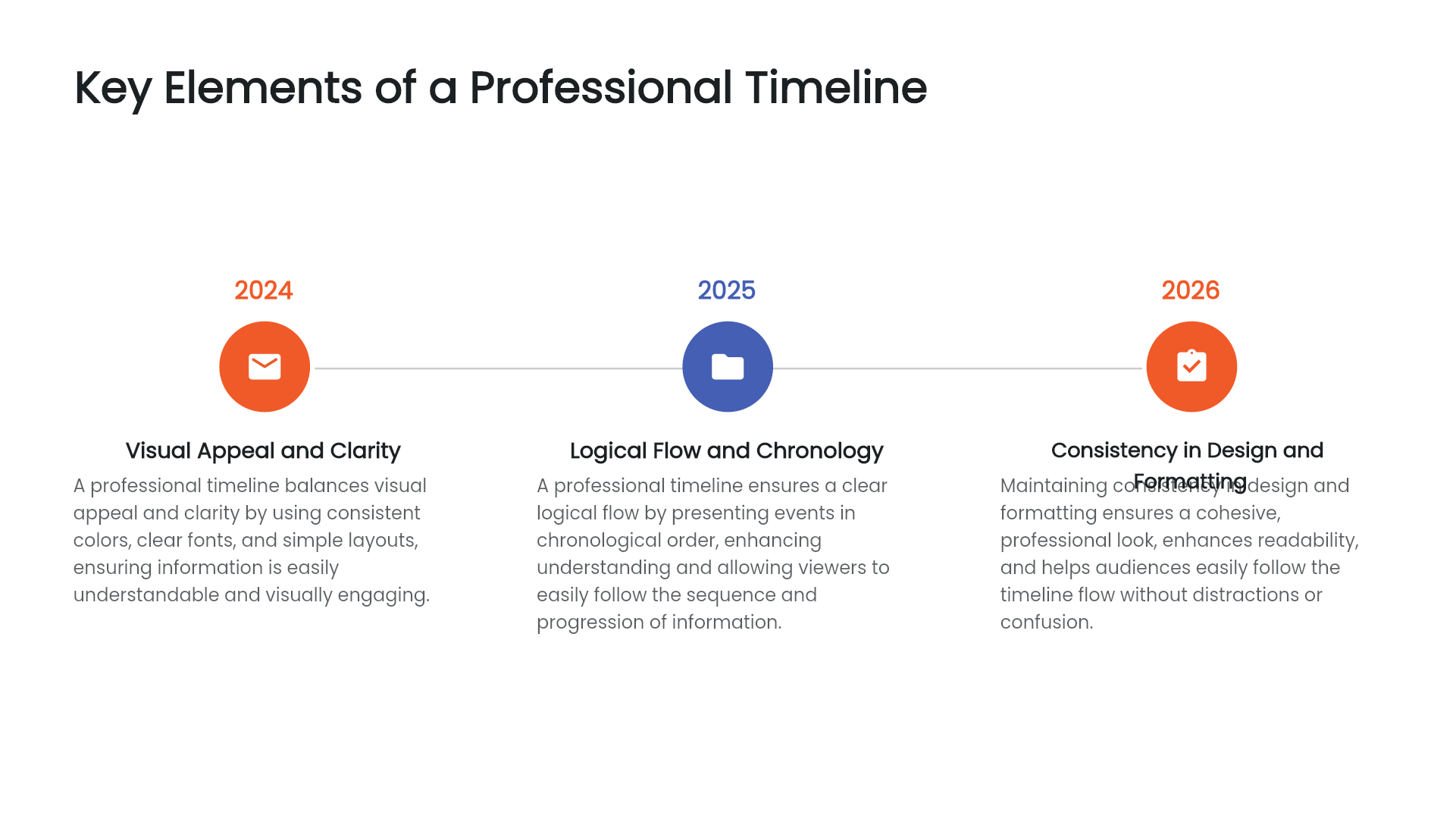
In PowerPoint, you can also start with a timeline layout under Insert → SmartArt → Process and edit its text and shapes. An external diagram tool is another option when you prefer to build the visual elsewhere.
If you export a timeline from another tool as an image, its individual shapes will not be editable in PowerPoint. Keep the source file for revisions. A timeline built with PowerPoint shapes or SmartArt remains editable in the deck.
2. Use Premade PPT Timeline Templates
When time is tight, starting with a premade template is the easiest way to go. Free and premium templates provide a starting layout; choose one that fits your number of milestones and the length of their labels.
Where to find them:
1. Microsoft Office Template Library: Open PowerPoint, go to “New,” and search “Timeline”.
2. Online Presentation Tools: Platforms such as Presenti AI provide ready to edit timeline templates that you can modify directly in your browser.
Replace the sample text, then check the date order, interval spacing, and whether each milestone is planned or completed. A template can provide the layout; it does not verify the schedule.
Why people love this option:
Incredibly fast and beginner friendly.
Great for last minute reports or team updates.
What to watch out for:
Some templates can look generic or inconsistent in style. If you want your presentation to stand out, you may still need to tweak fonts, colors, or icons to match your brand’s aesthetic.
3. Draft a Timeline with AI Tools
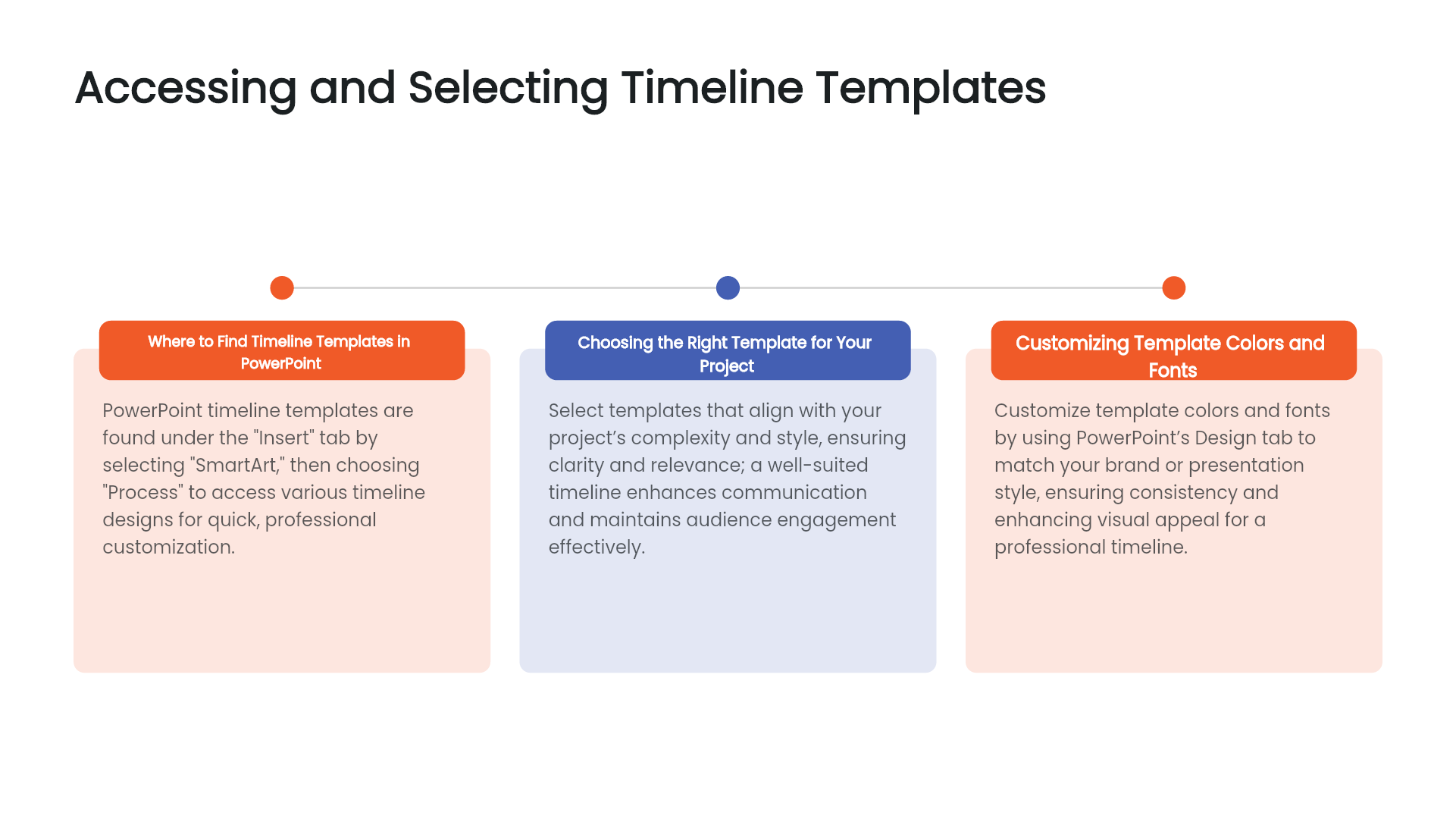
If you often create progress reports, strategy plans, or marketing roadmaps, AI presentation generators like Presenti AI can help you create an initial draft.
These tools can propose an outline and slide draft from your input. Include the actual dates and milestones so the draft has a schedule to follow.
(1) Smart Content Generation
Supply the milestones rather than asking AI to invent them. For the fictional dates above, try: “Draft a project timeline with approval on 3 March, prototype on 10 March, and pilot on 31 March. These are planned dates. Keep the dates unchanged, do not add dependencies, and label any equally spaced layout as not to scale.” Review the proposed outline and slide before using it.
(2) Multiple Timeline Layouts
Compare the layouts available in your chosen editor. Use a linear or vertical layout for dated events; reserve a circle for a process that repeats. If the generated layout does not fit the schedule, rebuild that slide with editable shapes or PowerPoint SmartArt rather than forcing the dates into a misleading design.
(3) Automatic Design and Formatting
AI can propose a layout, but you still need to check date order, label spacing, and visual consistency. If the timeline represents elapsed time, make sure the spacing does not imply a misleading interval.
(4) Fully Editable Output
Review the available text, shape, color, and layout controls after generation. If you need to continue in PowerPoint, export on an eligible plan and check which elements remain editable.
The time saved depends on the complexity of the timeline and how much the draft needs to change. Supply real milestones and dates rather than asking the tool to invent a project schedule.
Why a Good Timeline Makes a Difference
A timeline isn’t just a design element, it’s a storytelling tool. It helps your audience understand progress, milestones, and direction at a glance. Whether you’re pitching to clients, summarizing team achievements, or presenting quarterly results, a clear timeline can make your message more persuasive and memorable.
By using modern tools, especially AI powered generators, you can focus more on content and storytelling instead of spending time adjusting visuals. The result? Presentations that look polished, organized, and genuinely impressive.
Final Thoughts
Making a timeline in PowerPoint doesn’t have to be tedious. You have several good options:
1. Manual design for complete creative control.
2. Premade templates for speed and convenience.
3. AI generation for an initial structure and design to review.
Choose manual shapes for precise control, a template for a familiar layout, or an AI draft when you also need help structuring the deck. Review the timeline against the project schedule whichever method you use.
If you’re still wondering how to make a PowerPoint timeline quickly, give AI a try. It might just become your favorite time saving presentation secret.